
| User Roles |  Admin Admin |  Staff contributor Staff contributor |  External contributor External contributor | ✗ Pulse user |
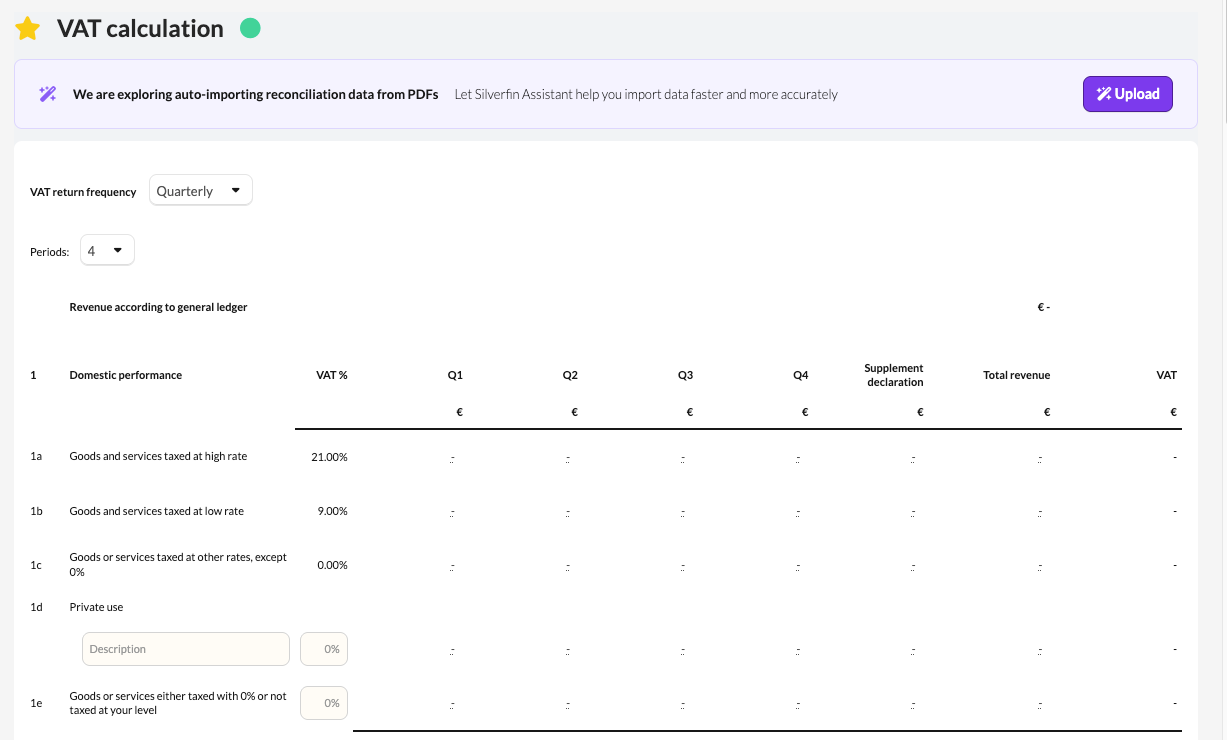
This article explains how to correctly complete the 'VAT calculation' template. This template is used to record all data related to the VAT return and to automatically calculate the tax due.
Table of contents
- What does the 'VAT calculation' template do?
- How does the calculation in this template work?
- What should you pay attention to when using this template?
What does the 'VAT calculation' template do?
- This template is used to record all information related to the VAT return (turnover tax).
- In the 'Declaration period' field, you can indicate whether it concerns an annual, quarterly, or monthly return.
- For quarterly or monthly returns, you can also specify the number of periods you wish to work with. This is particularly useful in the following situations:
- a change of return type (e.g. from quarterly to monthly), or
- new businesses that do not yet have a full declaration year available.
How does the calculation in this template work?
For each declaration period, you enter the turnover data. Silverfin automatically calculates the amount of VAT due based on this information.
In the 'Supplement declaration' column, you can add any corrections to make differences with previous returns visible.
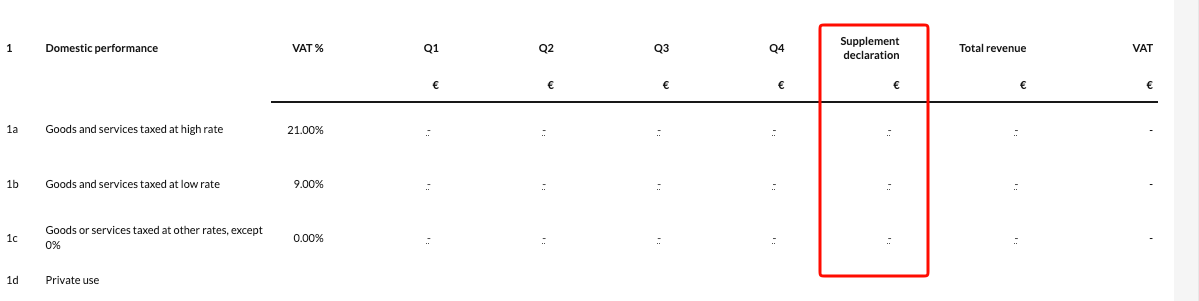
An alternative is to adjust the VAT amount directly in the last column. In that case, the system will automatically trigger a supplementary calculation.
Important:
- Combining both methods (supplementary declaration and VAT amount adjustment) on the same line is not possible.
- Once the template is fully completed and the status displays a green dot, the data will automatically be transferred to the 'Taxes' note of the financial statements.
What should you pay attention to when using this template?
- Verify that the declaration period matches the actual filing period of the company.
- Enter the turnover and VAT amounts accurately for each period.
- Use one method per correction: either via the Supplementary declaration column, or by adjusting the VAT amount.
- Check that the template displays a green status; this confirms that the calculation has been completed correctly.
By completing the template in full before preparing the financial statements, the VAT details are automatically incorporated into the notes to the financial statements.