
| User Roles |  Admin Admin |  Staff contributor Staff contributor | ✗External contributor | ✗Pulse user |
This article explains how to set up Silverfin for farming clients in the UK market. It covers installing the Farming Working Papers package, adding the Farming Chart of Accounts, configuring client templates, and allocating account templates to the relevant codes.
Table of contents
- Step 1: Add the Farming Working Papers package from the Marketplace
- Step 2: Apply the Farming Chart of Accounts
- Step 3: Set up your Farming client templates
- Step 4: Allocate account templates to the relevant codes
Step 1: Add the Farming Working Papers package from the Marketplace
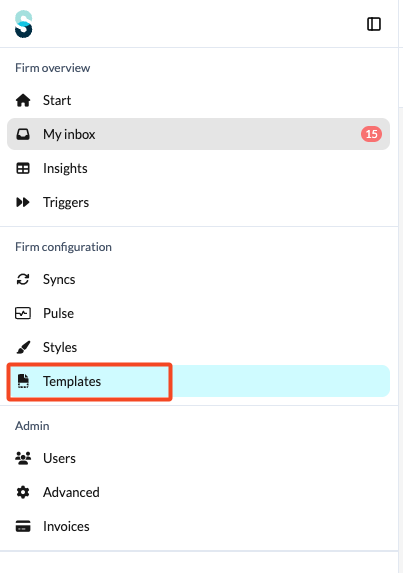
- Navigate to the Templates area at firm level.
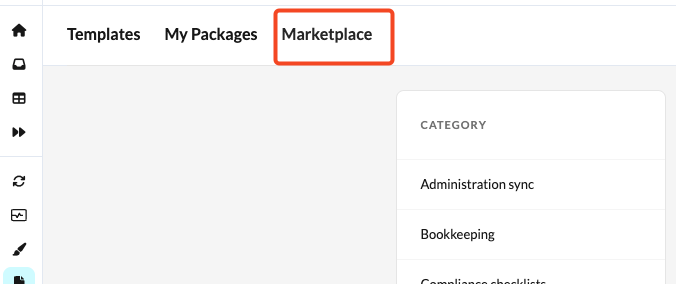
- Open the Marketplace.
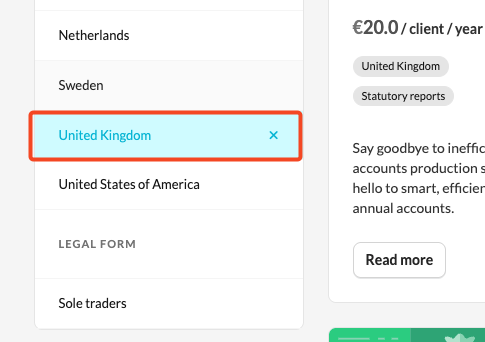
- In the left-hand column, select United Kingdom.
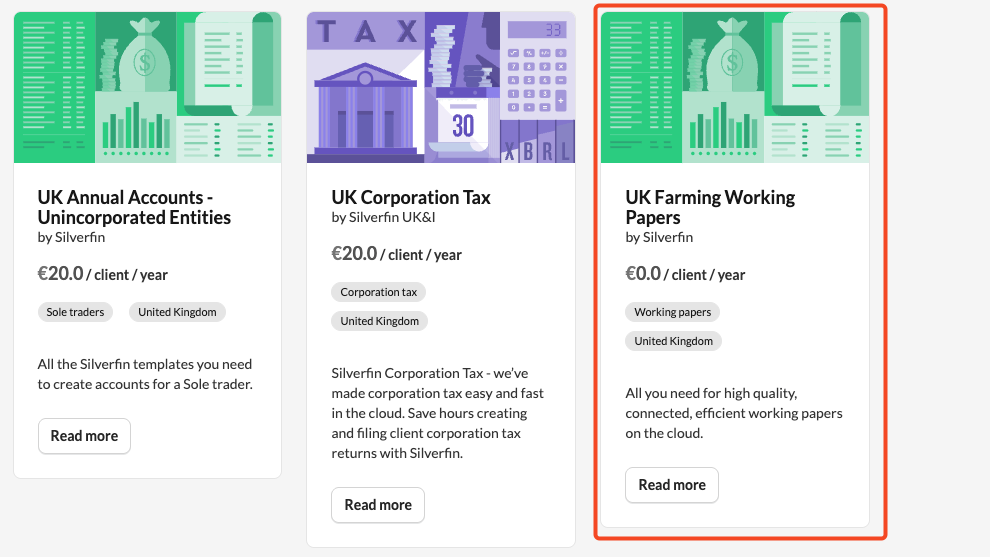
- Locate the Farming Working Papers package and click into it to view the available templates.
- Activate the package by clicking on 'Activate' button:
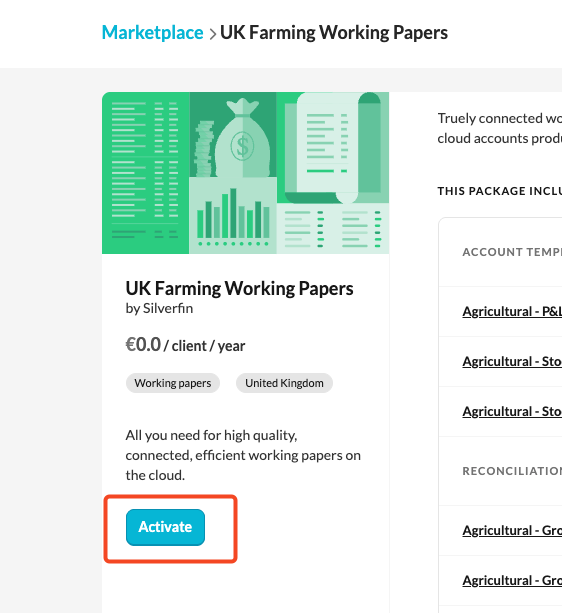
Only users with admin rights can activate and deactivate packages in Marketplace
Step 2: Apply the Farming Chart of Accounts
- We provide 2 farming mapping lists within UK Farming Working Papers package:
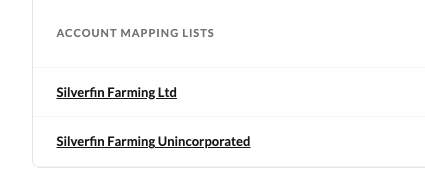
- The Farming Chart of Accounts (CoA) is based on the standard CoA but includes a range of additional codes for agricultural categories such as sheep, cattle, wheat, and barley.
Step 3: Set up your Farming client templates
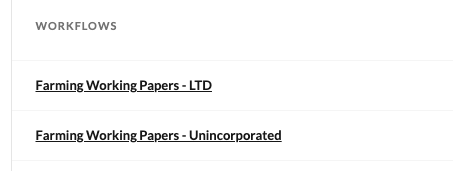
- The recommended approach is to create dedicated client templates for farming clients. Silverfin provides pre-built Workflow Working Screens, Workflows, and Reports to help you get this set up quickly.
- Farming workflows are separated into two types: Unincorporated and Limited. Make sure you select the correct one for each client.
Step 4: Allocate account templates to the relevant codes
To make the most of Silverfin's automation, you can link specific account templates to incoming account codes. For farming clients, the following two account templates are recommended for allocation:
| Account Template | Account Code Range |
| Agricultural - Stock Valuation: Livestock | 142000__142006, 142021, 142026 |
| Agricultural - Stock Valuation: Crops and Other | 142007__142020, 142022__142025 |