
| User Roles |  Admin Admin |  Staff contributor Staff contributor | ✗External contributor | ✗Pulse user |
This article lists the accounting packages that can sync document attachments, such as invoices, into Silverfin. It also shows you where to find those attachments once they have synced.
Table of contents
- How do I view synced attachments?
- Which packages sync documents?
- When do synced documents appear in Silverfin?
How do I view synced attachments?
- Open the account in the working papers workflow.
- Click on View ledger.
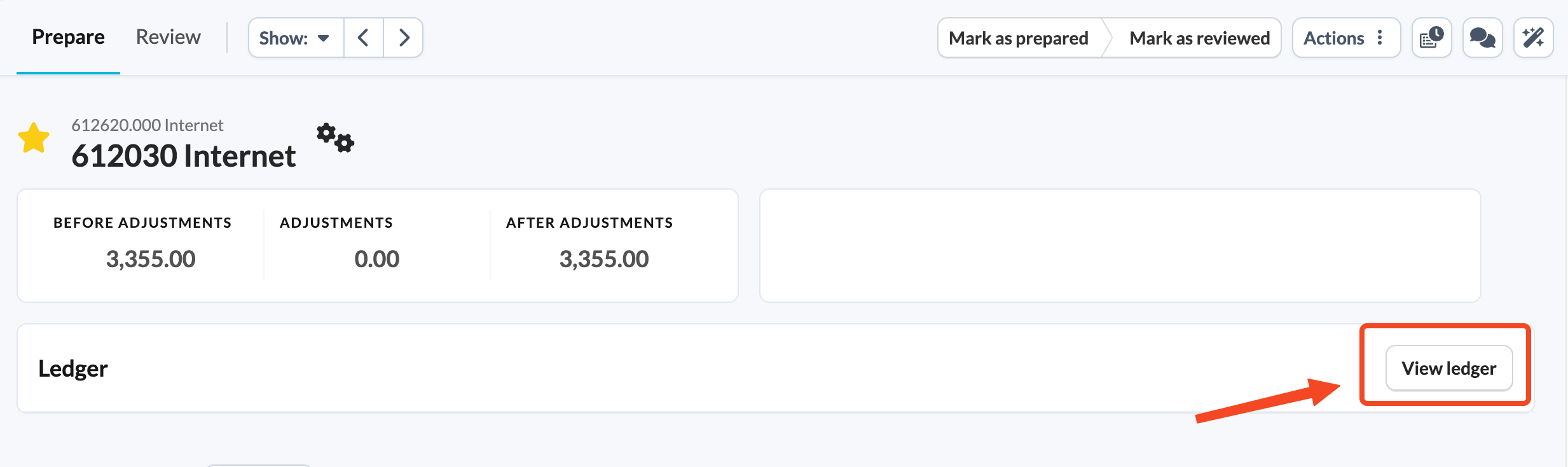
- Select the document you wish to see.
Which packages sync documents?
Yes means documents are synced. No means documents are not synced.
On premise
| Package | Documents synced |
| Adsolut | Yes |
| Briljant | No |
| Cegid | No |
| ExpertM | Yes |
| GenericCsv | Yes |
| Oras | Yes |
| Popsy | No |
| ProAcc | Yes |
| Sage50 | No |
| SageBob | Yes |
| SapB1 | Yes |
| TopAccount | Yes |
| Venice | Yes |
| VeroCount | No |
| Winbooks | Yes |
| Wings | No |
Cloud
| Package | Documents synced |
| Afas | No |
| Bocount | Yes |
| Bocount2009 | No |
| BocountOdata4 | Yes |
| Business Central | Yes |
| CegidCloud | No |
| Codat | No |
| Consolidation | No |
| Economic | Yes |
| ExactOnline | Yes |
| ExactOnlineFr | Yes |
| ExactOnlineNl | Yes |
| Horus | Yes |
| Konsolidator | No |
| Octopus | Yes |
| Odoo | Yes |
| QuickBooks | No |
| SageBusinessCloudAccounting | Yes |
| Twinfield | No |
| WinbooksOnWeb | No |
| WingsOnline | No |
| Xero | Yes |
| XeroTb | Yes |
| Yuki | Yes |
When do synced documents appear in Silverfin?
Once a document is linked to a transaction in your accounting package, it will appear in Silverfin as well. Depending on the number of documents, it may take some time for all of them to become visible in Silverfin after the sync is complete.