| User Roles |  Admin Admin |  Staff contributor Staff contributor | ✗External contributor | ✗Pulse user |
The aged debtors/creditors account template lets you reconcile an aged debtors or aged creditors listing against the value of the mapped control account in your trial balance. This article explains how the template adapts to asset and liability accounts, how to enter or import your data, and how the reconciliation works. It is relevant for anyone preparing debtor or creditor reconciliations in Silverfin.
Table of contents
- What does the aged debtors/creditors template do?
- What are the columns in the template?
- How do I enter the data manually?
- How do I import data from Excel or my bookkeeping system?
- How does the reconciliation work, and what if there is a difference?
- How do I copy the data to a new period?
What does the aged debtors/creditors template do?
This account template lets you reconcile an aged debtors or aged creditors listing to the value of the mapped control account in the trial balance.
The template adapts automatically depending on the account it is applied to:
- Applied to an asset account, the first column reads Contact (or customer).
- Applied to a liability account, the first column reads Contact (or supplier) and the values are inverted.
What are the columns in the template?
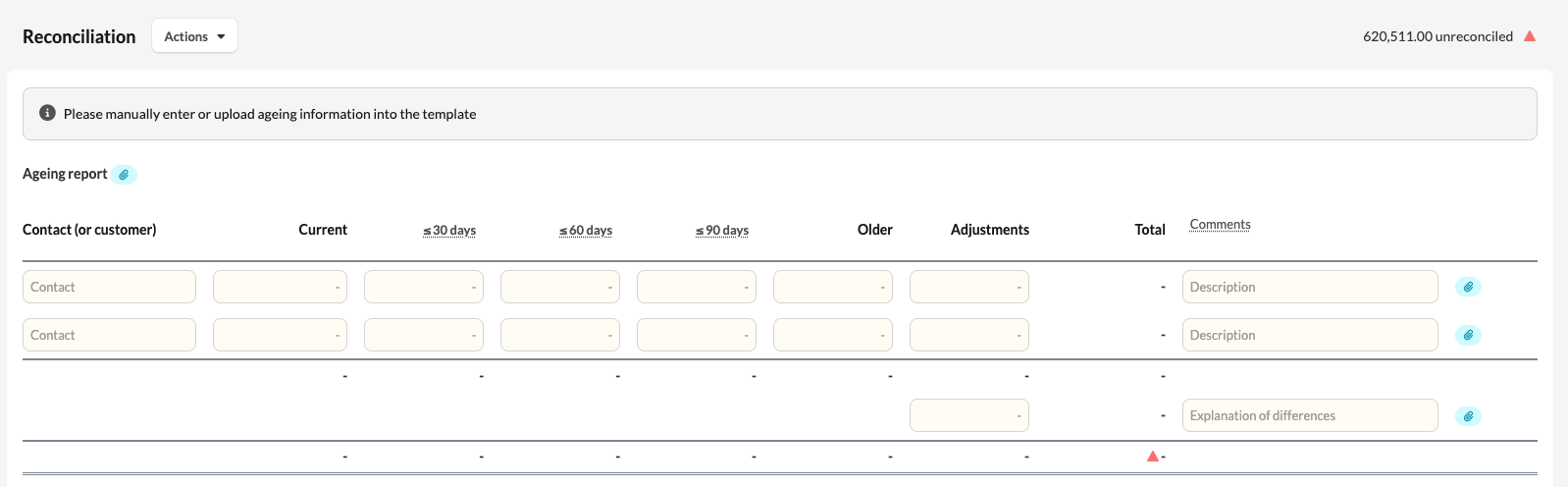
- Contact (or customer/supplier) – the debtor or creditor name.
- Current, ≤ 30 days, ≤ 60 days, ≤ 90 days, Older – the ageing buckets. You can rename the ≤ 30 / ≤ 60 / ≤ 90 headers by clicking into them.
- Adjustments – any adjustment to that line.
- Total – the automatically calculated row total.
- Comments – free-text notes.
- A paper-clip (attachment) column appears automatically once any row has a file attached.
How do I enter the data manually?
Complete one row per contact, entering the balance in the relevant ageing column(s). Row and column totals calculate automatically.
How do I import data from Excel/my bookkeeping system?
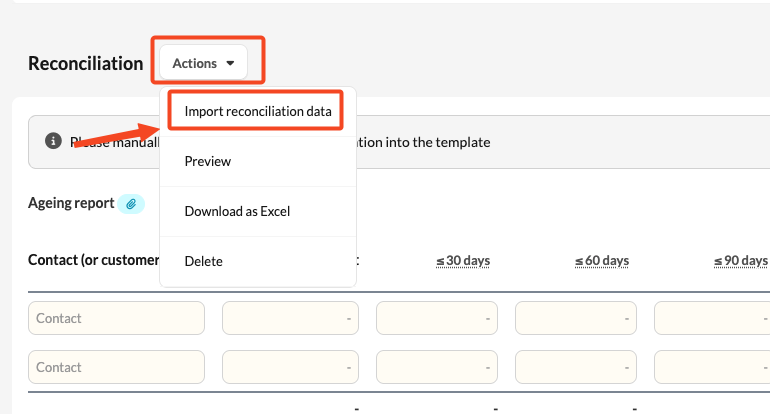
- Click Actions → Import reconciliation data.
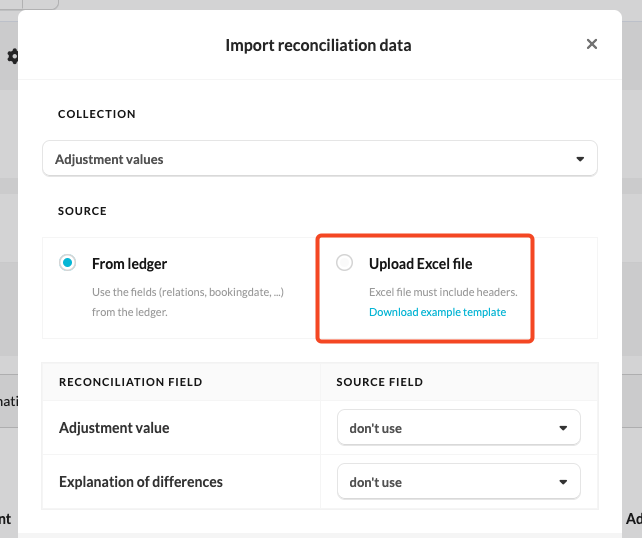
- Choose Upload Excel file and map your file's headers to the template's columns.
Tips for imports: give every column a header, and do not separate thousands with commas (use 15000.00, not 15,000.00).
How does the reconciliation work, and what if there is a difference?
The template compares its total to the account value and shows a red or green reconciliation indicator. Where there is a difference, an Adjustment values / Explanation of differences section lets you record adjustments and explanatory notes until the template reconciles.
How do I copy the data to a new period?
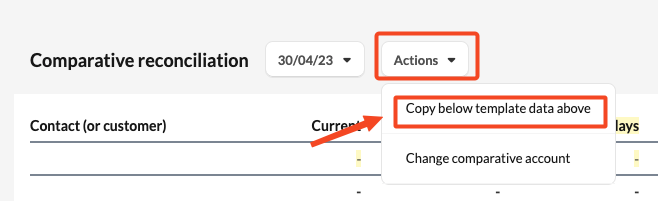
When you move into a new period, you can use Copy Data to carry the prior-period data forward.