
| User Roles |  Admin Admin |  Staff contributor Staff contributor | ✗External contributor | ✗Pulse user |
The account template reconciles the accrued income value in your trial balance to the underlying documentation, that is, the details of the invoices accrued for. Start by getting the accrued income information from the client's bookkeeping system, then either enter it manually or upload an extract.
Table of contents
- Option 1: Enter the data manually
- Option 2: Upload an extract
- Reconciling the account
- Copy Data
- Show journal summary
Option 1: Enter the data manually
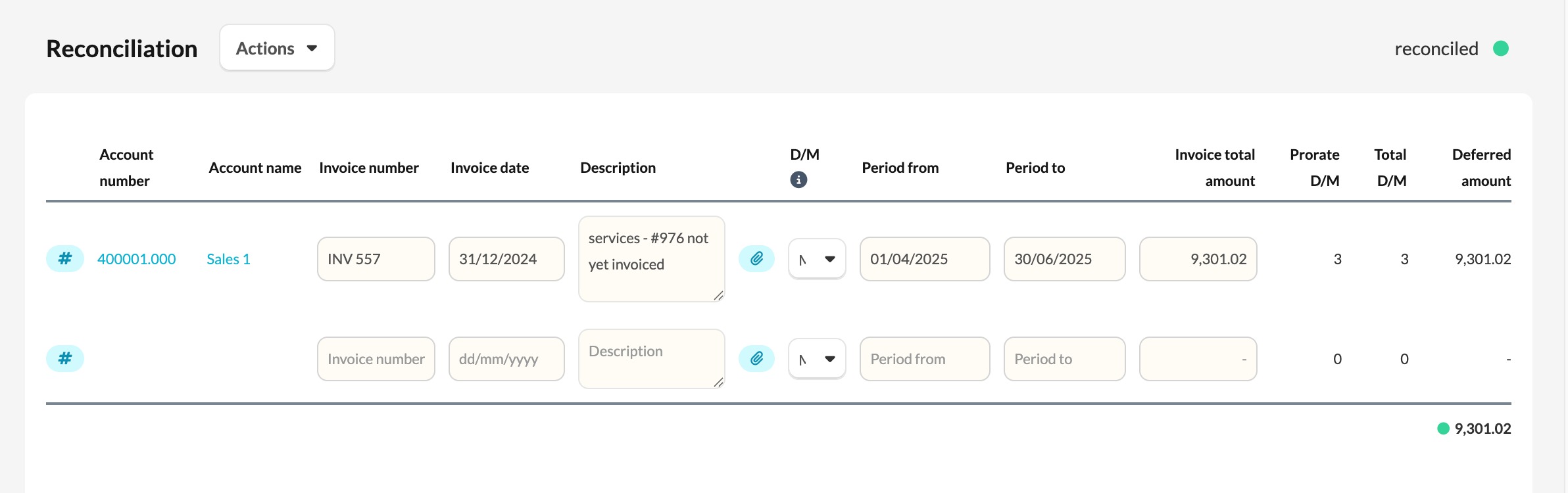
The accrued amount is calculated from the current period end date relative to the Period from and Period to dates and the invoice amount.
- Pull in the relevant nominal accounts using the # functionality.
- Set the Frequency in the D/M column:
- D — Days: spread by the fraction of days in scope up to the period end, over the total days.
- M — Months: spread by whole months, calculated as days ÷ 30.4167 and rounded. For example, 10/11/2020 to 09/11/2021 counts as 12 months.
- Where it is enabled, a Fractions option (F) also appears.
- Enter the Period from date.
- Enter the Period to date.
- Enter the Total invoice amount.
Days gives the most accurate result. Files with a period end before 31 March 2022 use the older months method.
Invoice number, Invoice date and Description are optional. You can download an example upload template from the working paper itself.
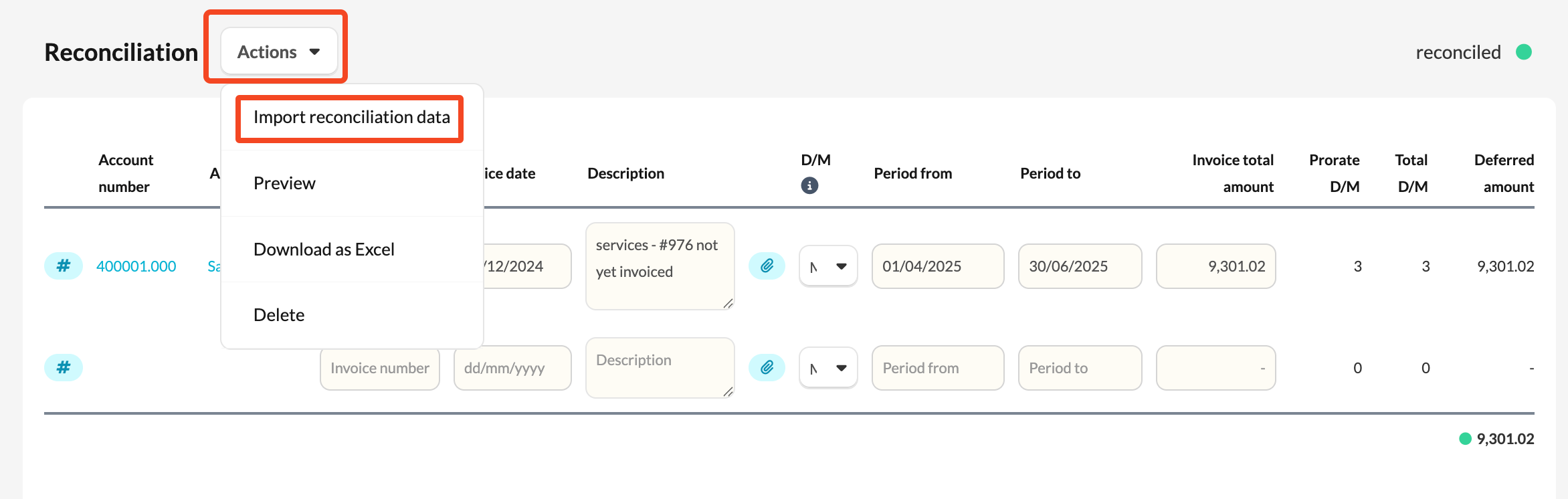
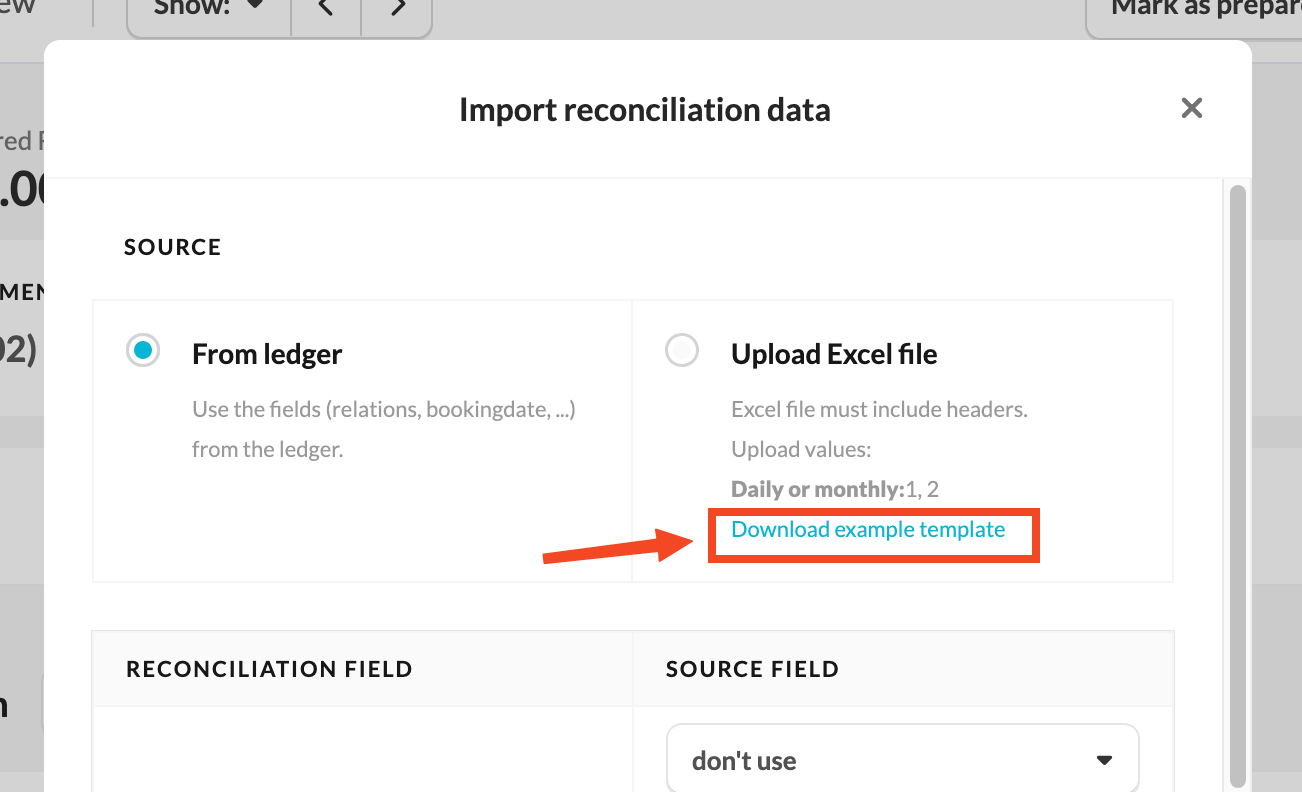
To download example upload template:
- Click Actions → Import reconciliation data.
- Select 'Download example template'.
Option 2: Upload an extract
If you already hold the accrued income data elsewhere, upload an Excel extract instead. Keep these points in mind:
- Give every column a header.
- Do not use thousands separators — enter 15000.00, not 15,000.00.
- You still need to drag in the account using the # functionality, so there is no need to map it during the upload.
- Select the frequency after the data has been imported.
To import:
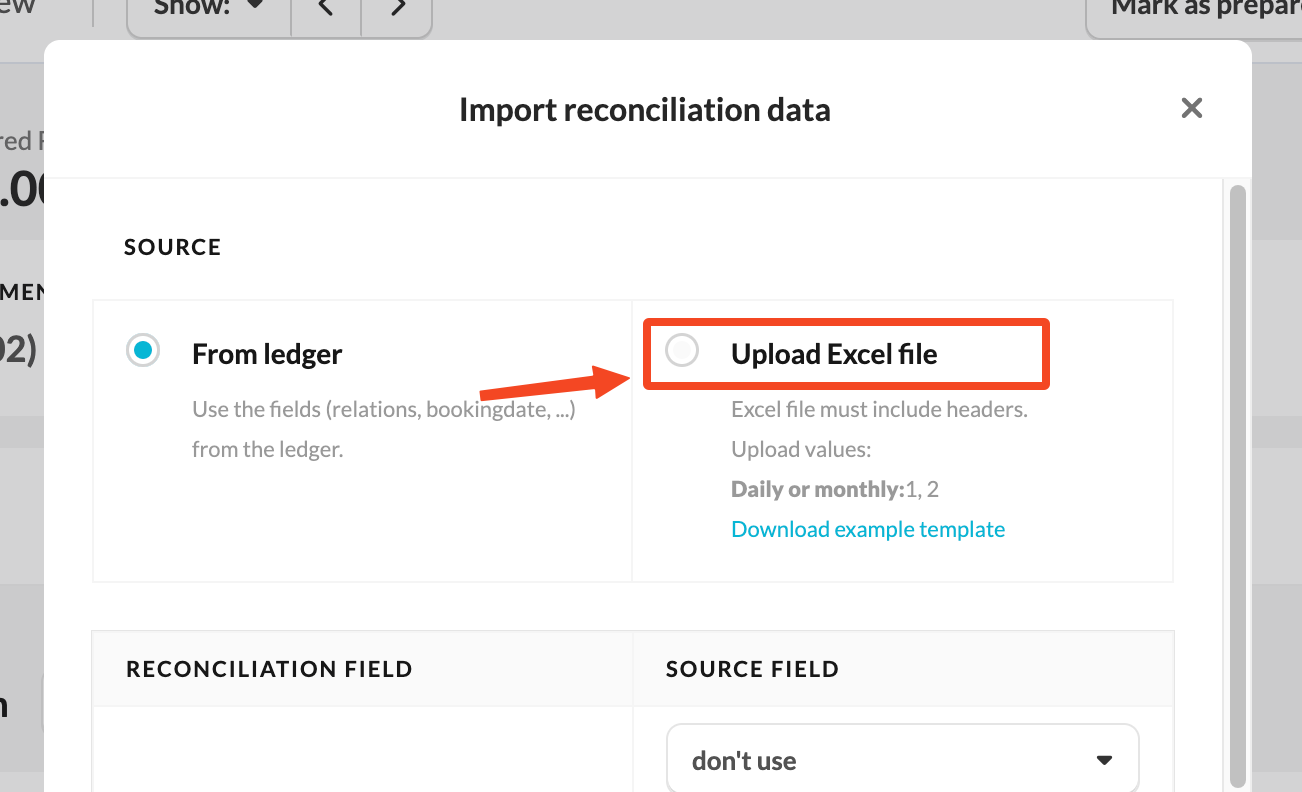
- Click Actions → Import reconciliation data.
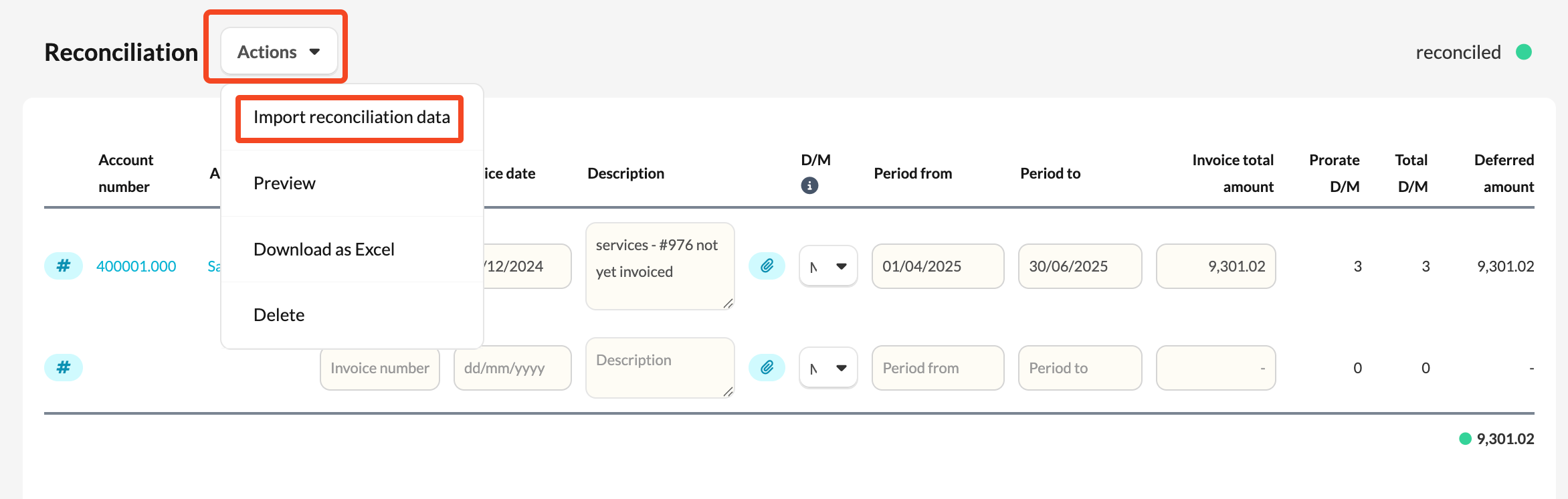
- Select Upload Excel file and map your columns to the fields available in Silverfin.
Reconciling the account
If the line items are correct, the recalculated amount reconciles to the book value and the account turns green.
Any residual goes under Explanation of differences. This value forms part of the value being reconciled, as it is added to the sum of the Accrued amount column.
Copy Data
When you move into the next period, use Copy Data to carry the prior period's detail forward. You then only need to add any new items.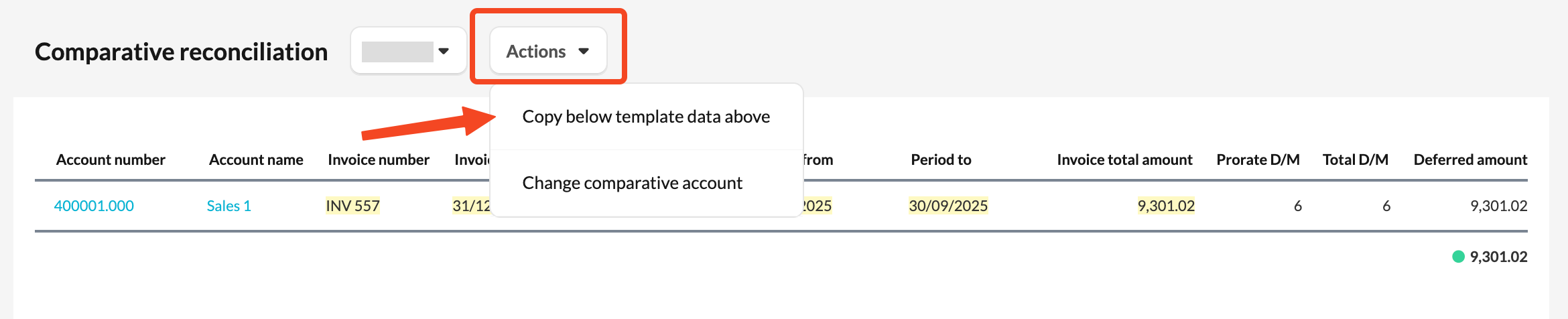
Show journal summary
Tick Show journal summary to preview the proposed journal. If the option is not showing on your reconciliation, contact support to have it enabled.