| User Roles |  Admin Admin |  Staff contributor Staff contributor | ✗ External Contributor | ✗ Pulse user |
In Silverfin we offer the option to adjust the comparative figures in the previous year's annual accounts. This can be necessary, for example, in the case of a change in accounting policy or when correcting an error. This was always possible by making a correction entry in the previous financial year. However, when this is not desired (because the previous financial year has already been closed and finalised), this can now be resolved via the template "Adjustment of comparative figures". In short, using this template you can adjust the totals of the previous year without changing the actual final totals in the previous year.
Table of contents
- How do I get started?
- Important to know.
- How do I fill in this template?
- Reconciling this template?
- Insights
- Template notes
How do I get started?
To actually adjust the comparative figures, you first need to start in the “General settings - Financial statements”. There you will find the question about adjusting the comparative figures:
Adjust comparative figures (with regard to a system change or error correction)
When you actually want to adjust the comparative figures, you need to answer the question with “Yes”:

The template “Adjustment of comparative figures” will then become visible in the "Prepare annual account" workflow:
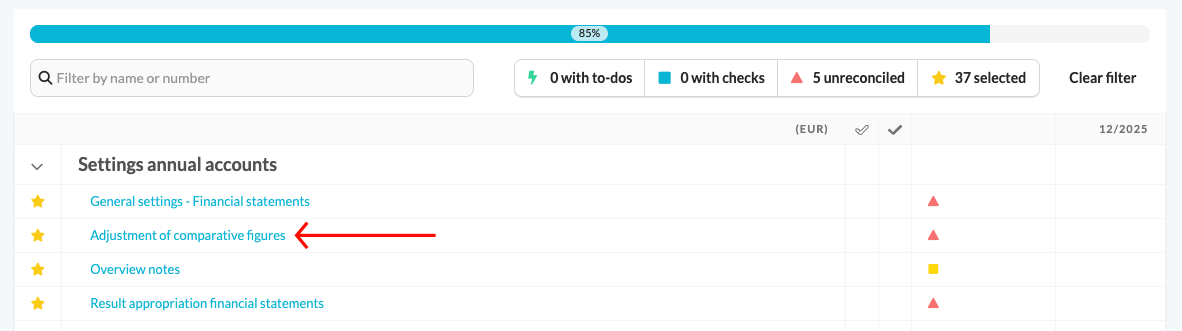
The template Adjustment of comparative figures is therefore only shown when the relevant question in General settings - Financial statements is set to Yes.Important to know
Before you start working in this template, we recommend reading through the info text:
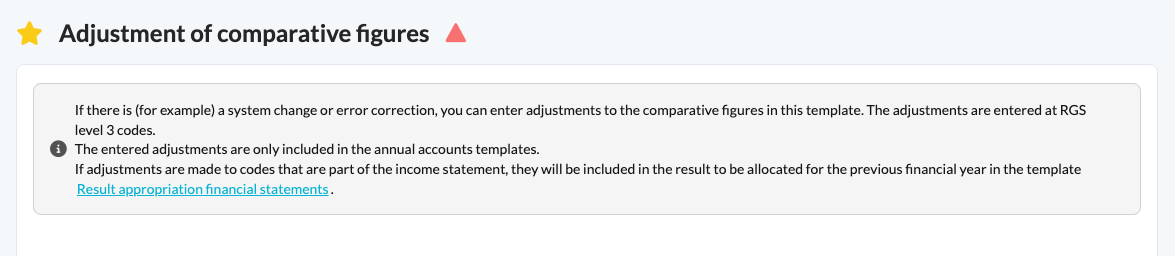
- If there is, for example, a change in accounting policy or an error correction, you can enter adjustments to the comparative figures in this template. The adjustments are entered at RGS level 3 codes.
This means the changes cannot be specified per general ledger account. However, this level of specification is not relevant for a correct presentation in the annual accounts. - The adjustments entered are only taken into account in the annual accounts templates.
This means that the reports, but also the drop-down overviews (i.e. when you click on a balance of a line), are not adjusted.
The adjustments will also not carry over to other workflows (e.g. administrative tasks or the tax position). - If adjustments are made to codes that are part of the profit and loss account, these will be included in the result to be appropriated for the previous financial year in the template Appropriation of result - annual accounts.
This means that in this specific template, in this financial year, you also need to adjust the profit appropriation of the previous year. This naturally only applies if the correction affects the result. If the figures for the previous year need to be adjusted for all workflows and/or the reports, this can only be done by making a (regular) correction entry in the relevant period.
How do I fill in this template?
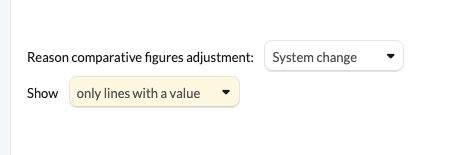
When using this template, you will first need to indicate the reason for adjusting the comparative figures. You can choose “System change”, “Error correction”, "Merger" or "Acquisition"
You can also adjust the overview or the level of detail shown in this template:
- only lines with a value
If you choose this option, you will only see the items that actually have a balance posted to them. - all lines
After choosing this option, all groups (level 3) available in the selected mapping table will be shown.
To actually adjust the comparative figures, you can enter the relevant change in the fields provided for this purpose. Keep in mind that you must enter debit amounts as positive amounts and credit amounts as negative amounts. This applies to both the balance sheet and the profit and loss account.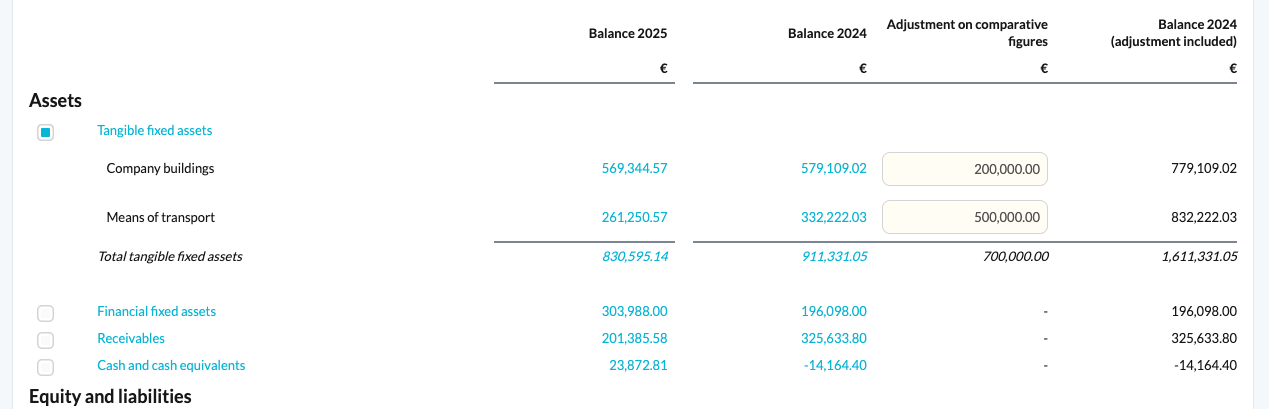
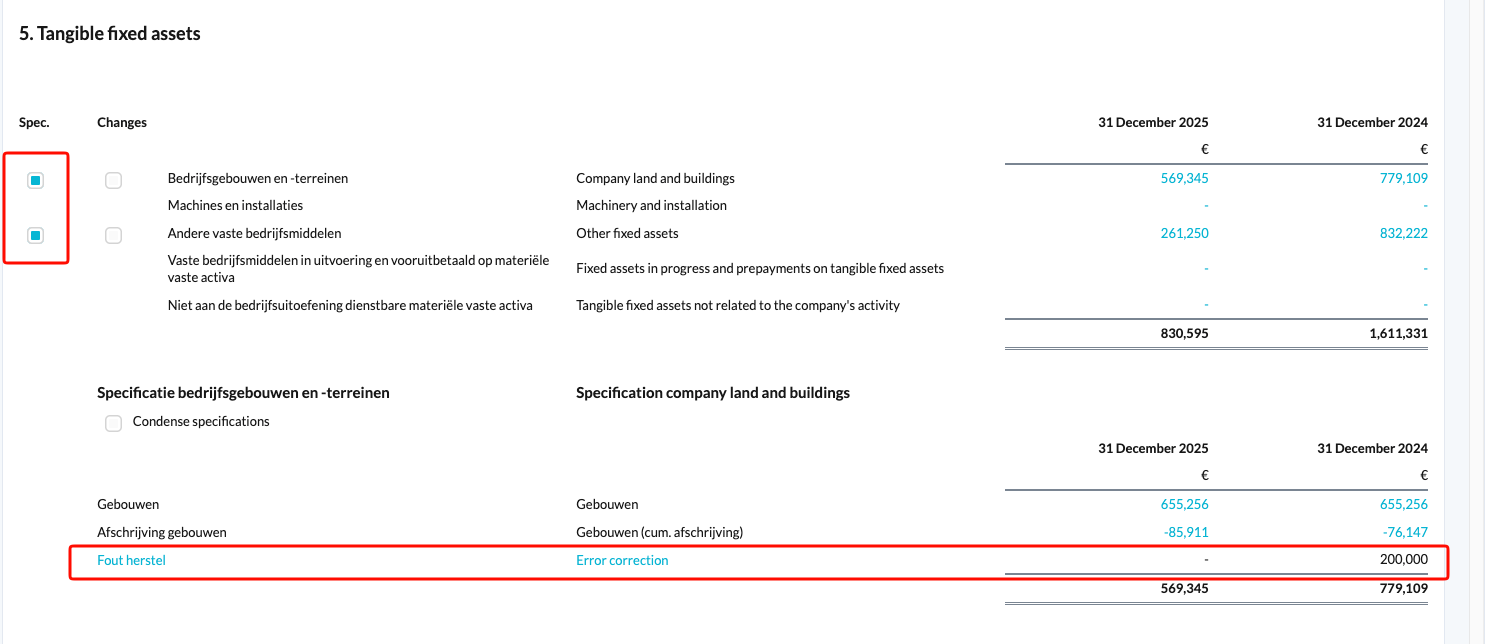
The amounts entered manually will flow through to the underlying templates of the annual accounts. In our example, we chose to make an adjustment for the item “Tangible fixed assets”. If we look at this template in the annual accounts, this adjustment will be visible under the specification. In this example you can see the adjustment to the comparative figures under the heading “Error correction”. This is because, in the template “Adjustment of comparative figures”, we also indicated that the reason for our adjustment was an error correction.
Reconciling this template?
For this template to get a green dot, the adjustments need to be balanced (debit and credit equal). If this is not the case, you will see the following warning at the bottom of the overview:
To resolve this, you need to review all manual adjustments and make sure that the balance of all adjustments ultimately equals € 0.00.
Tip: Choosing to show only the total lines, i.e. switching off all detail buttons, will make your work easierWhen the total of the adjustments is balanced, taking your manual adjustments into account, you will get a green dot:
Insights
As already described above, users can indicate in the field “Reason for adjustment of comparative figures” what the reason is for the adjustment of the comparative figures: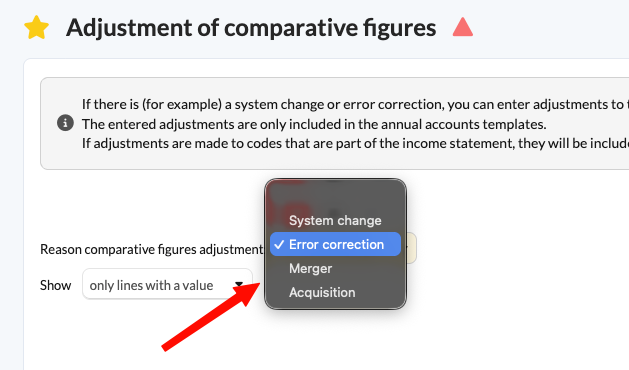
A result is also linked to these options. This means that you can get an overview for all files via Insights. This way, at office level, you can gain insight into how many files have had their comparative figures adjusted and what the type of reason has been.
Template notes
When you have chosen to display all items in the template, you will notice that for certain items, when adjusting the comparative figures, you cannot click through to the relevant item in the annual accounts: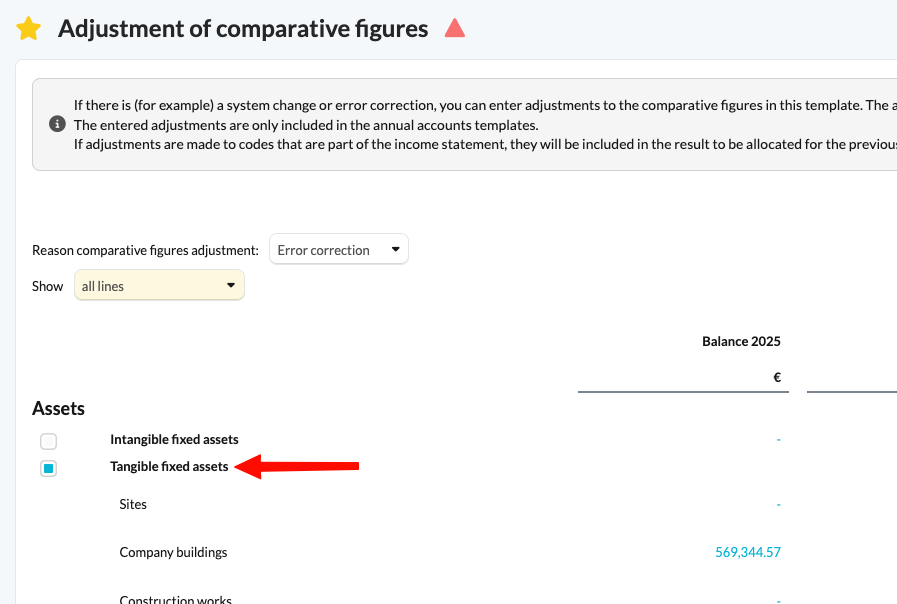
This is because you have not selected this item in the annual accounts overview. Via the template “Overview of disclosures”, you need to actually display the relevant items for which you have made an adjustment (if desired):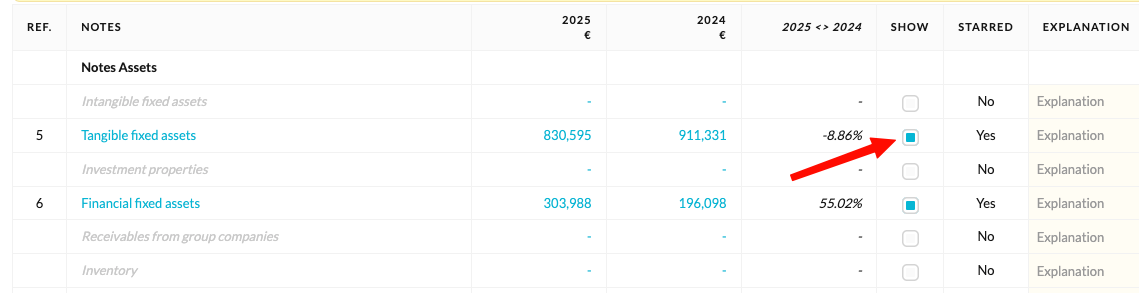
Afterwards, you will notice that the underlying item in the annual accounts will be visible, and the adjustment of the comparative figures will also flow through correctly to the annual accounts: