
| User Roles |  Admin |  Staff contributor | ✗ External contributor | ✗ Pulse user |
This article explains how to connect Silverfin with Xero in an existing client file. Once the connection is established, any changes made in Xero will automatically sync with Silverfin.
To establish a connection with Xero in an existing client file, follow the steps below:
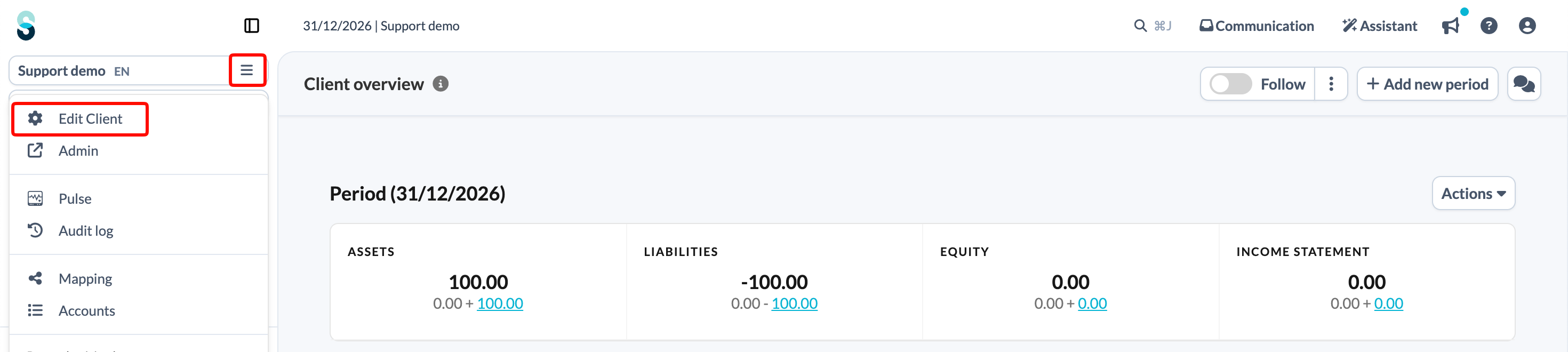
- On the client file overview page, click the client file name at the top of the left panel and choose Edit Client.
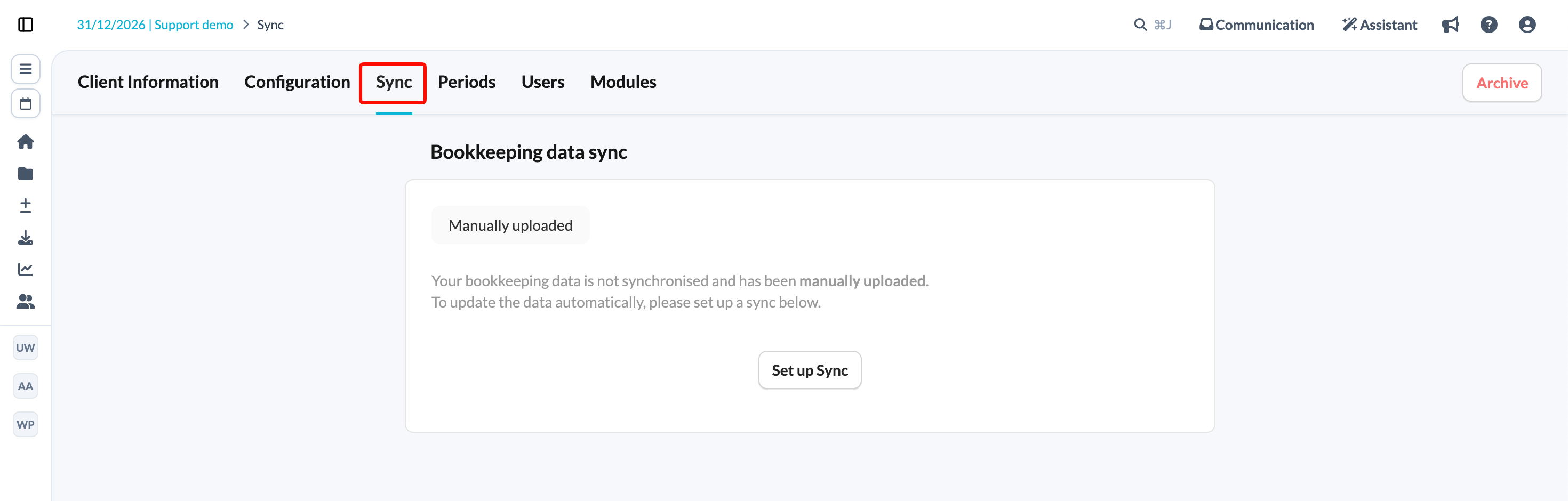
- Click the Sync tab.
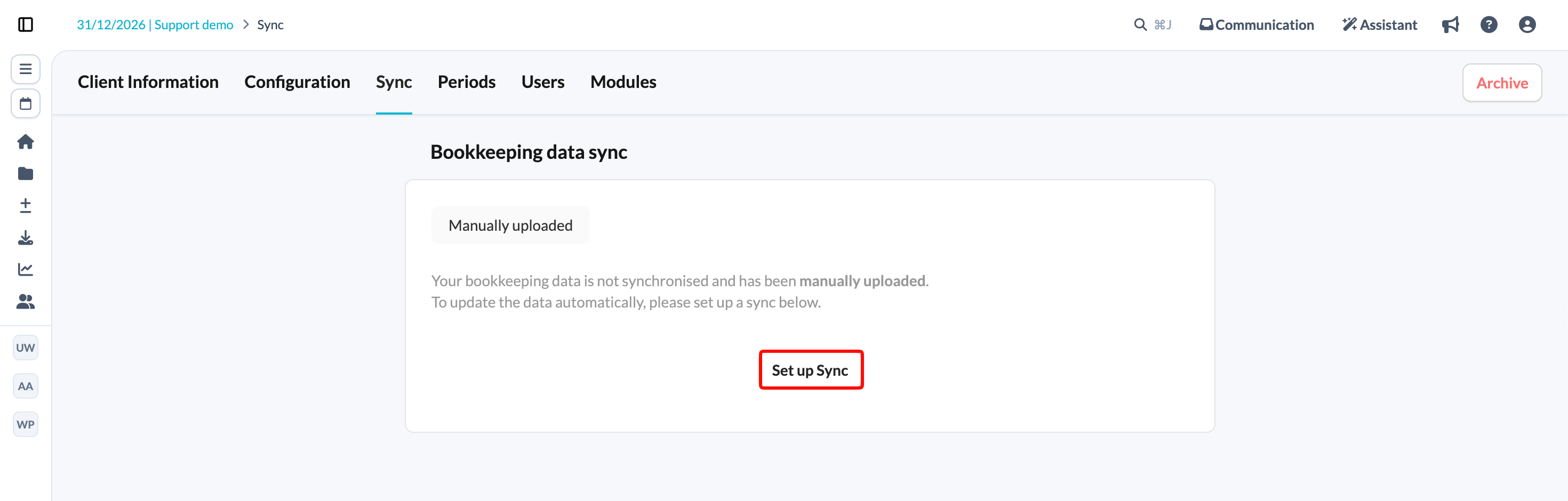
- Click Set up Sync.
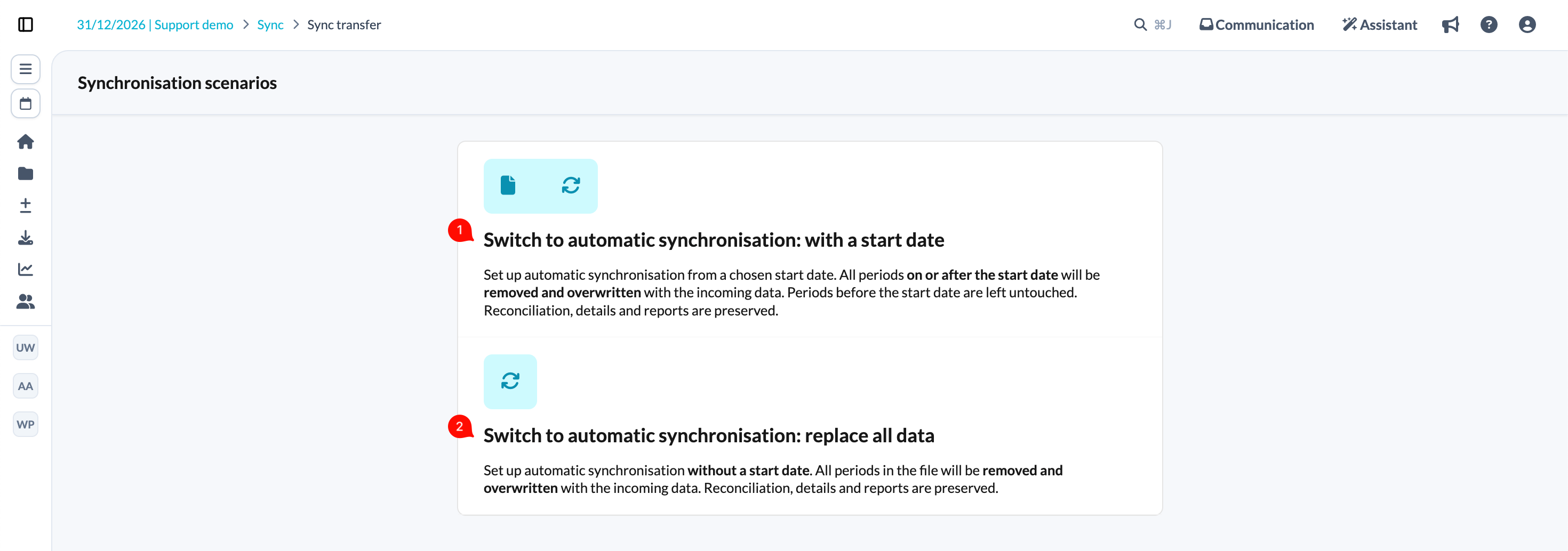
- Choose one of the provided synchronisation scenarios. If you choose the first scenario, you will be prompted to set the sync start date.
- Choose Xero or XeroTB from the list of available synchronisations.
- When you click Save changes, you will be redirected to the accounting software login page. You need to log in with the credentials of the user who has access to the file you wish to sync.

What user permissions are required in Xero to set up a sync?
- To set up a Xero sync, the user must have Standard access with write permissions. A user with read-only access will not be able to set up the sync.
- In case of questions related to user permissions in Xero, please contact Xero support.
If you are setting up a brand new client file instead, see How can I set up synchronisation with Xero when creating a new file?