
| User Roles |  Admin |  Staff contributor | ✗ External contributor | ✗ Pulse user |
This article explains the most common synchronisation errors between Silverfin and QuickBooks and how to resolve them. If your sync is stuck or returns a credentials error, follow the steps below.
Table of contents
- Why does my QuickBooks sync fail with a credentials error?
- Other common errors when syncing with QuickBooks
Why does my QuickBooks sync fail with a credentials error?
Error:
Please perform a sync switch and select QuickBooks again to re-authorise Silverfin.
or:
We were unable to access your data in QuickBooks with credentials used by this sync. Please ensure that the user who set up this sync has full access to the file in QuickBooks.
Explanation:
These messages indicate that Silverfin cannot access your QuickBooks data because of a credentials issue. This can happen if:
- The credentials are no longer valid.
- The user who set up the sync does not have full access to the file.
What you can do:
Re-authenticate the sync by logging in to QuickBooks with valid credentials. Make sure to use the login details of a user who has access to the file being synced.
How do I re-authenticate the QuickBooks sync?
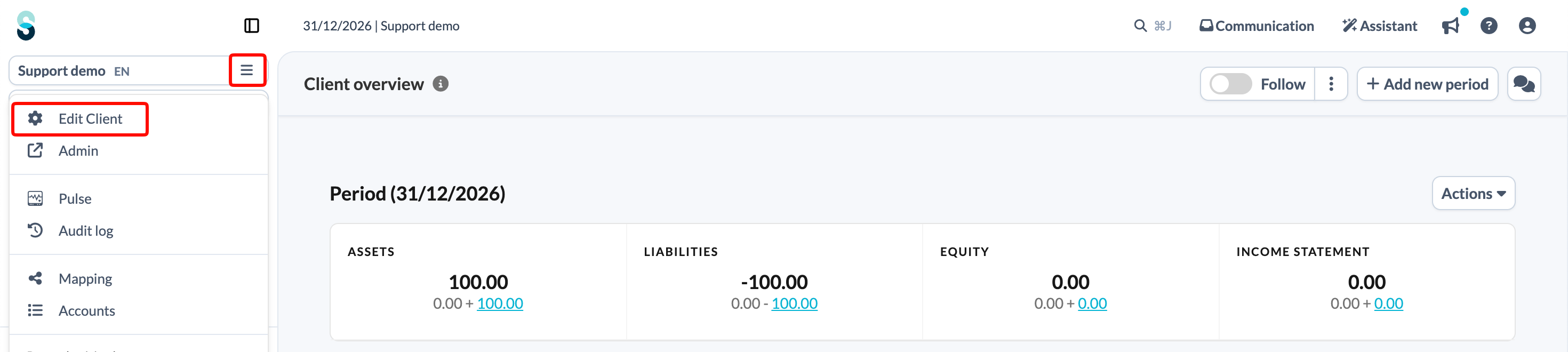
- On the client file overview page, click the client file name at the top of the left panel and choose Edit Client.
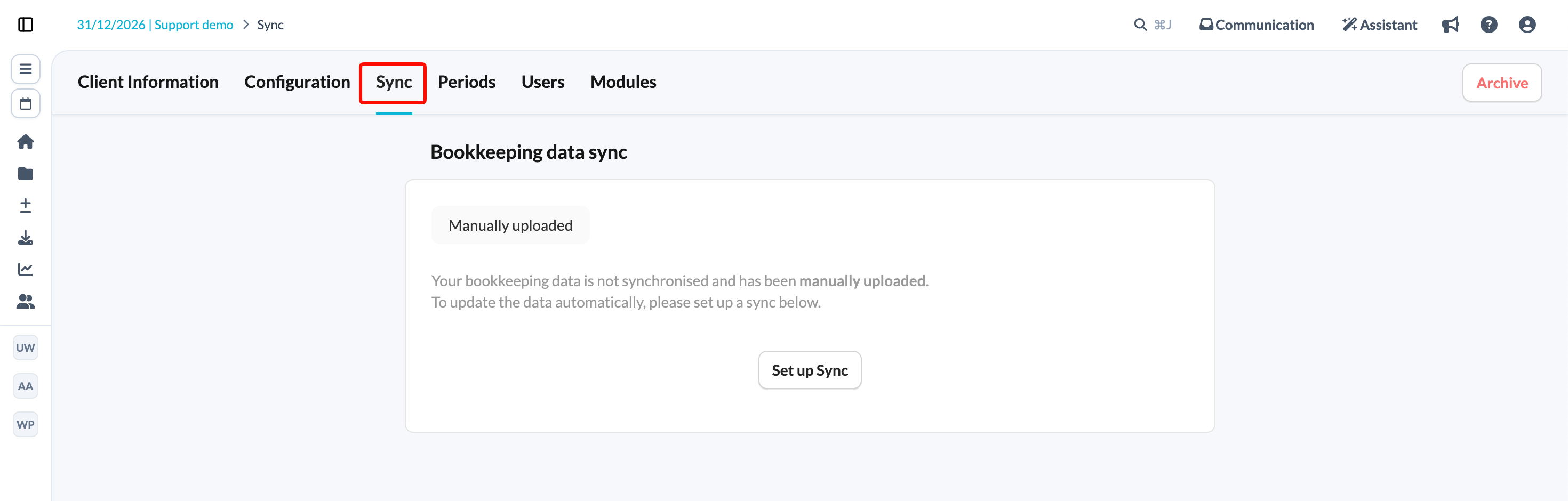
- Click the Sync tab.
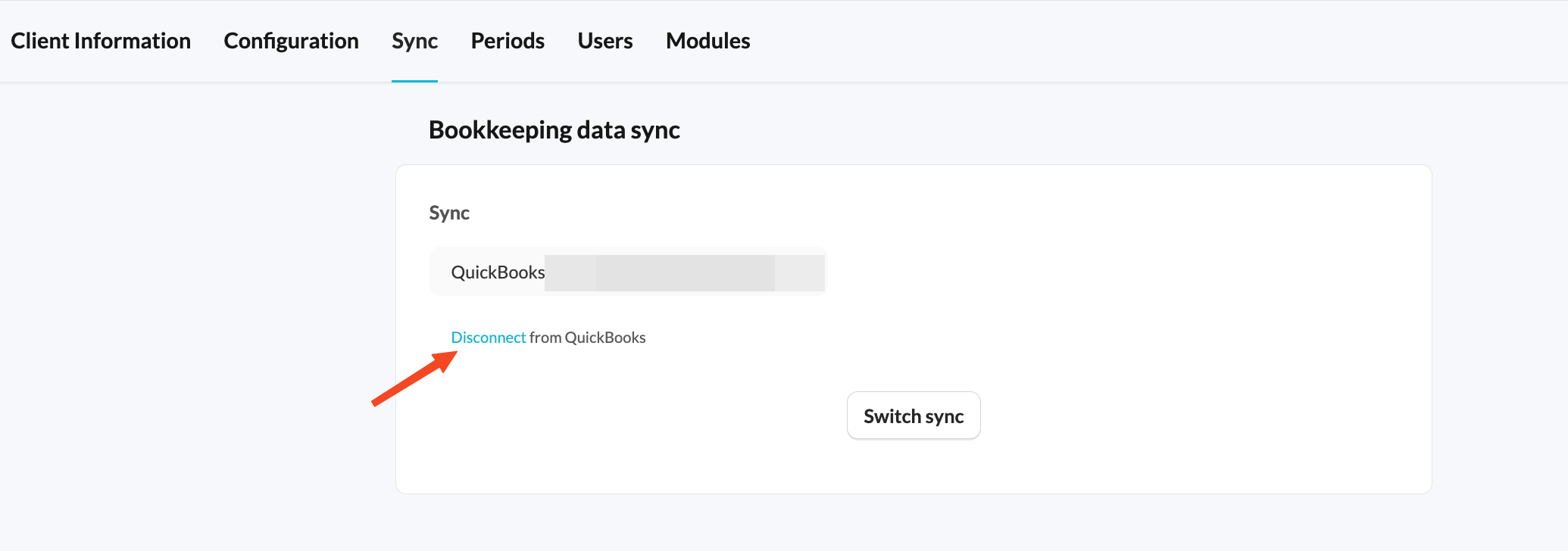
- Click the Disconnect from QuickBooks button.
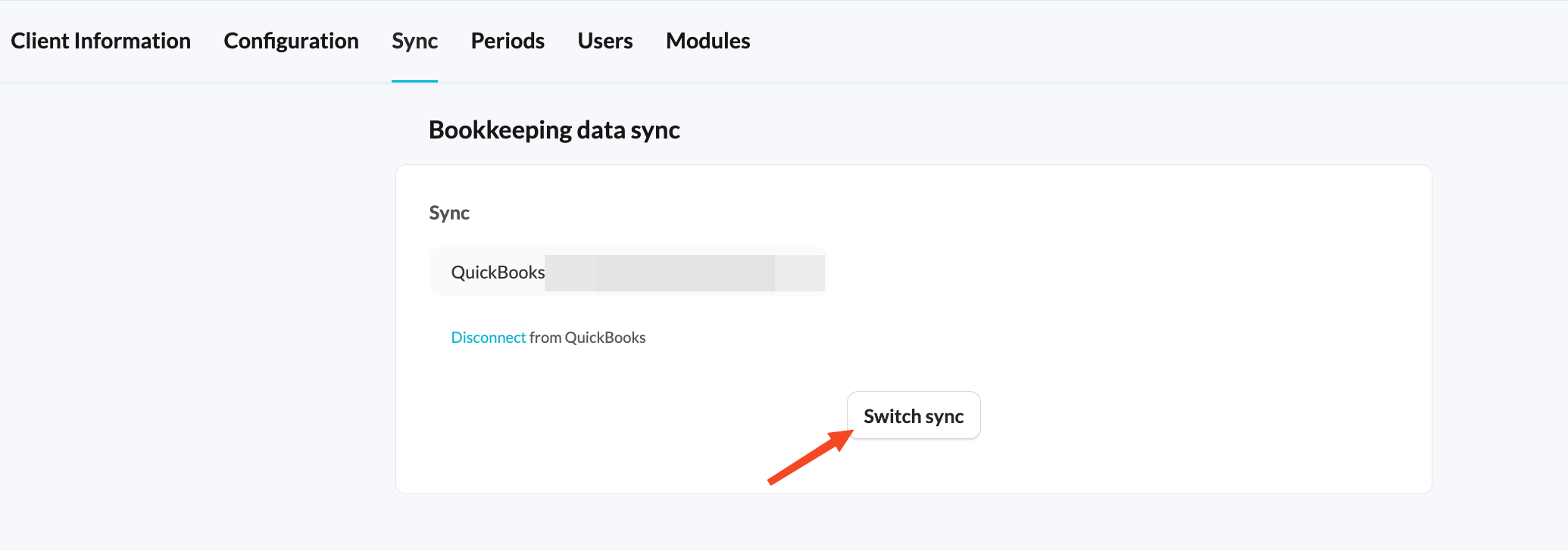
- Click the Switch Sync button.
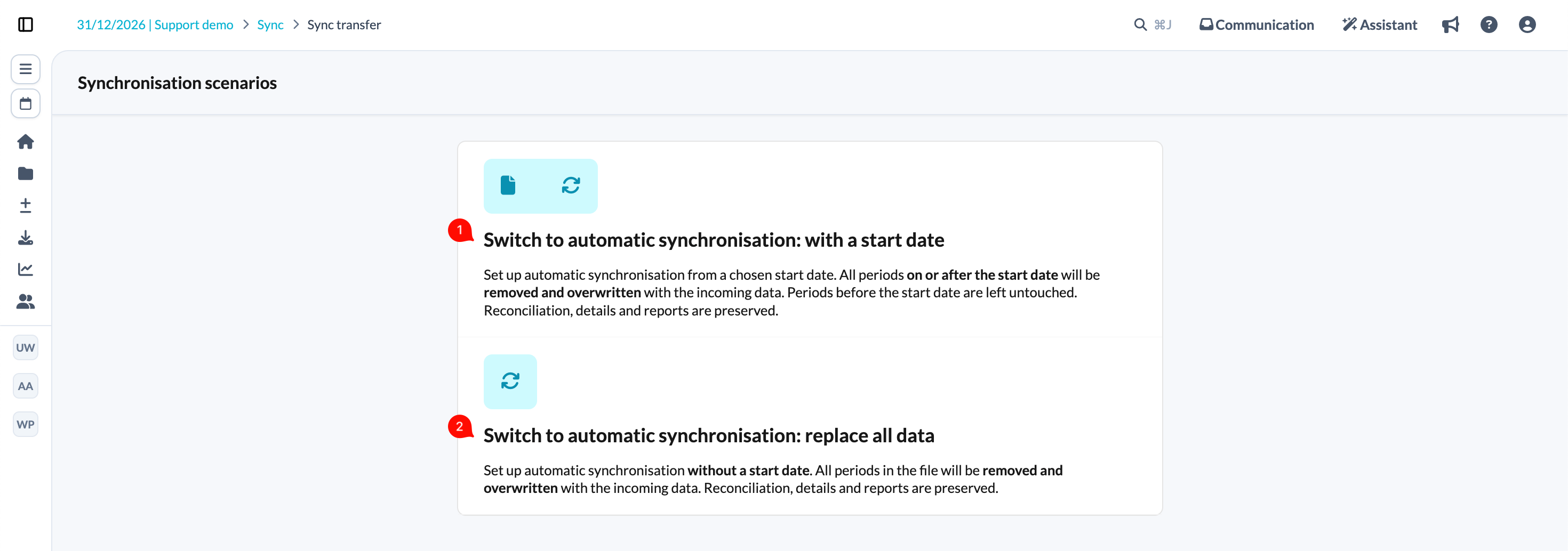
- Choose one of the provided synchronisation scenarios. If you choose the first scenario, you will be prompted to set the sync start date.
- Choose QuickBooks from the list of available synchronisations.
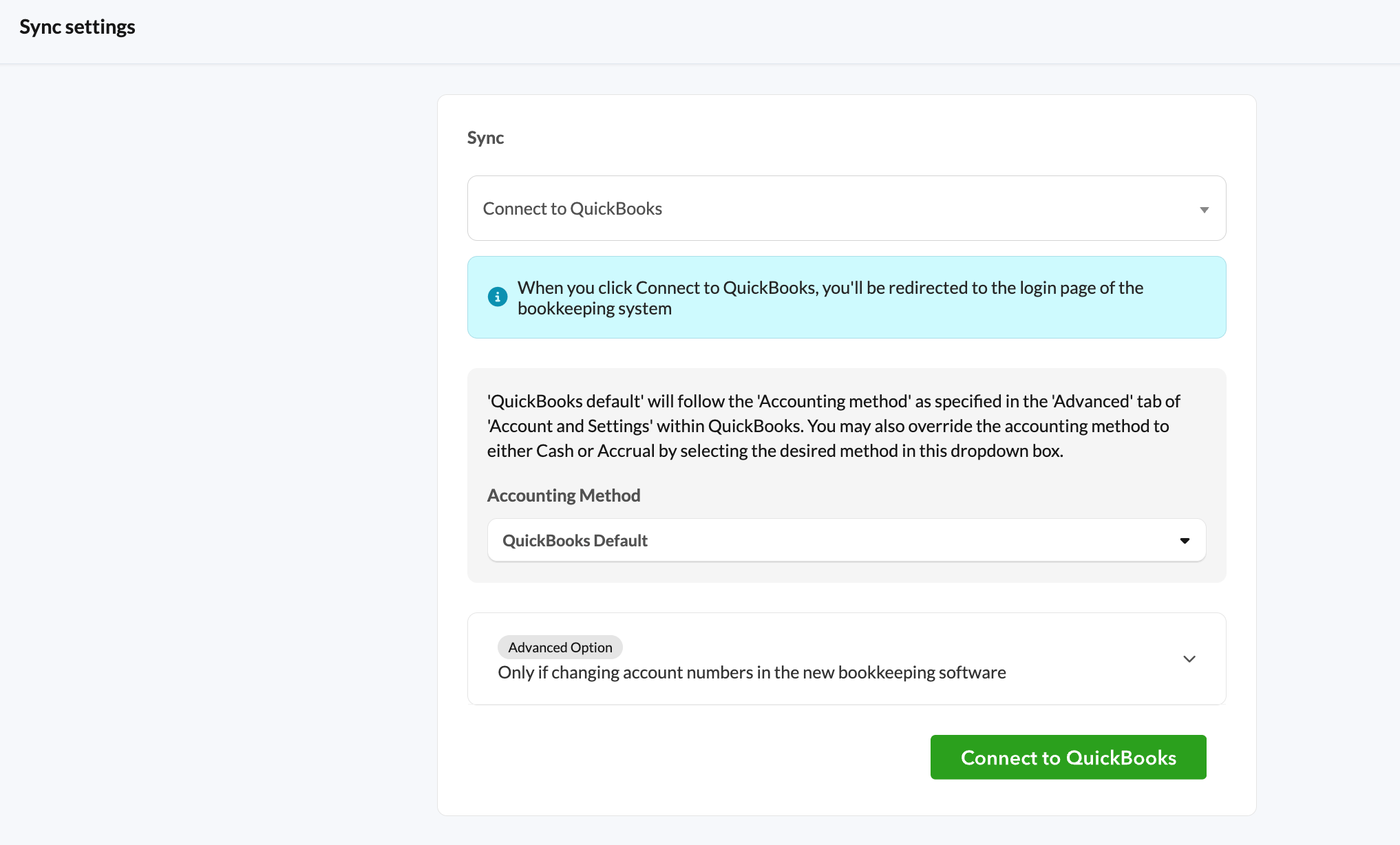
- When you click Save changes, you will be redirected to the QuickBooks login page. You need to log in with the credentials of the user who has access to the file you wish to sync.

Other common errors when syncing with QuickBooks
Error:
QuickBooks server experienced an internal error during the sync. Please try syncing again.
Explanation:
This message indicates that there is an issue on the QuickBooks side.
What you can do:
- Try syncing again.
- If the issue persists, contact QuickBooks support.
Error:
We were unable to complete the sync due to the large amount of data in your QuickBooks file. Please contact Silverfin support.
Explanation:
This message indicates that QuickBooks is sending more data than Silverfin can process in one sync.
What you can do:
- Try syncing again.
- If you are facing a tight deadline, you can cancel the sync and manually upload the necessary data.