
| User Roles |  Admin Admin |  Staff contributor Staff contributor |  External contributor External contributor | ✗ Pulse user |
This article explains how to use the 'Checking used account template per account' template to verify whether the correct account template has been linked to each general ledger account. This check is important because the linked template determines which information and calculations are displayed at account level.
Table of contents
- What is an account template?
- Examples of accounts with a linked account template are:
- How does the automatic linking of templates work?
- What should you pay attention to when completing the 'Checking used account template per account' template?
What is an account template?
Within Silverfin, we distinguish between account templates and reconciliation templates:
- An account template is linked to a specific general ledger account and contains additional information or calculations relevant to that account.
- A reconciliation template is used to review, analyse or reconcile multiple accounts together.
Examples of accounts with a linked account template are:
- Accounts receivable and accounts payable
- Investment accounts (securities)
- Participation accounts
- And other specific balance sheet or income statement accounts
How does the automatic linking of templates work?
- Silverfin automatically links an appropriate account template to each general ledger account based on the category or account number.
- However, this linking occurs at firm level, which means that in some cases an incorrect template may be assigned to an account.
- Because this can affect the functioning of reconciliation templates, the template 'Checking used account template per account' has been developed.
- It helps you to quickly identify and correct any potential errors or discrepancies.
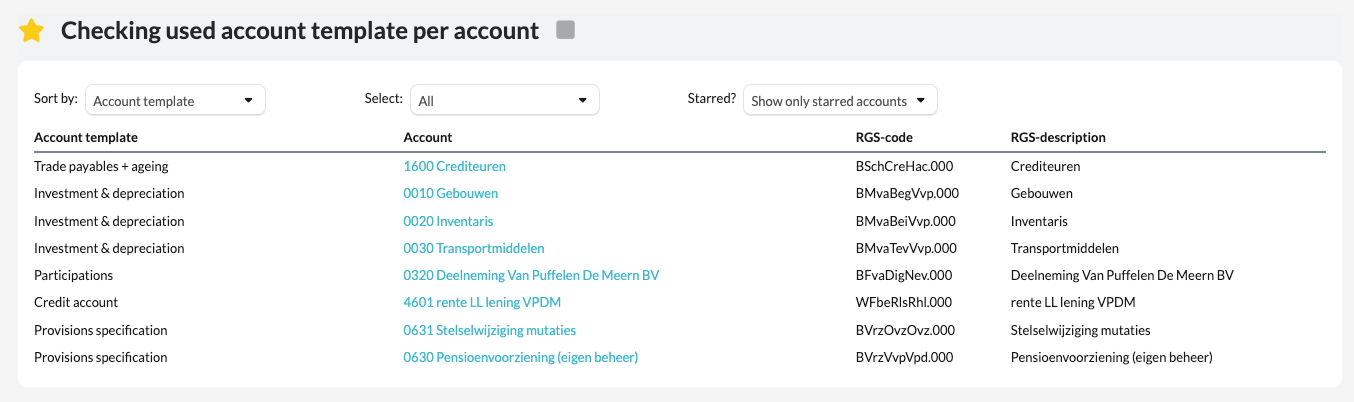
What should you pay attention to when completing the 'Checking used account template per account' template?
- Verify that each account has the correct account template linked.
- If any errors are displayed, click the link next to the relevant account to open it directly.
- Use the 'Edit' option to select the correct account template.
- After making the change, verify that the error message disappears.
By performing this check regularly, you can prevent incorrect links from affecting your accounts and reconciliations.