
| User Roles |  Admin Admin | ✗Staff contributor | ✗External contributor | ✗Pulse user |
This article explains how firm admin users can disconnect all client files from a sync in one action, using a safe and controlled bulk process.
Table of contents
- What happens when you disconnect client files in bulk?
- How do I disconnect client files in bulk?
- What should I know before I disconnect client files?
What happens when you disconnect client files in bulk?
When you disconnect client files in bulk:
- Silverfin disconnects all client files connected to the selected sync at once.
- A confirmation step lets you review the impact before you proceed.
- Silverfin creates an audit log entry for each disconnected client file, so the action is fully traceable.
How do I disconnect client files in bulk?
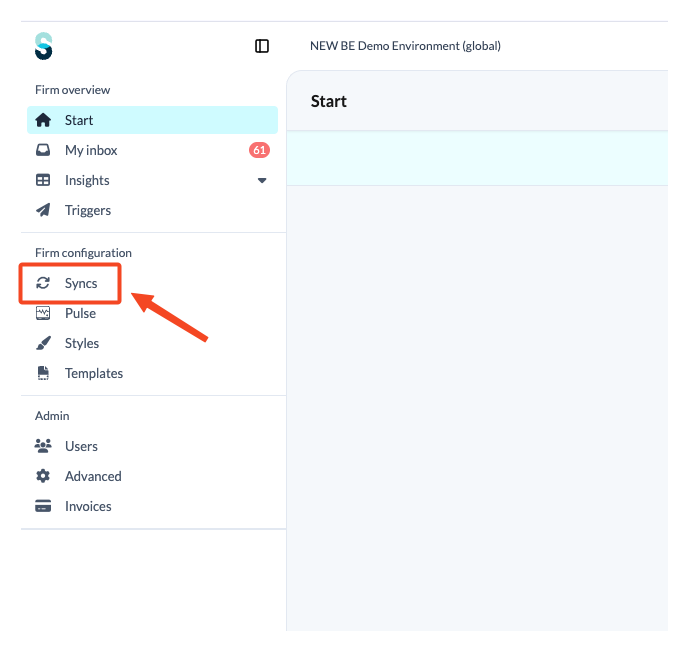
- On the firm overview screen, click the 'Syncs' tab.
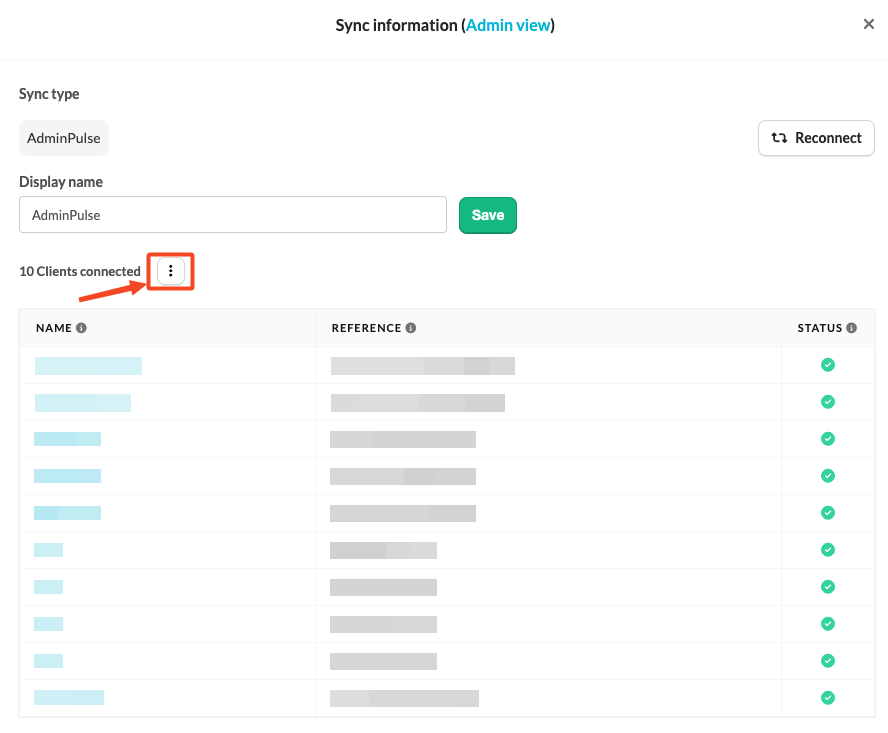
- Locate the sync you want to manage.
- On the sync card, click the three-dot menu next to the connected client count.
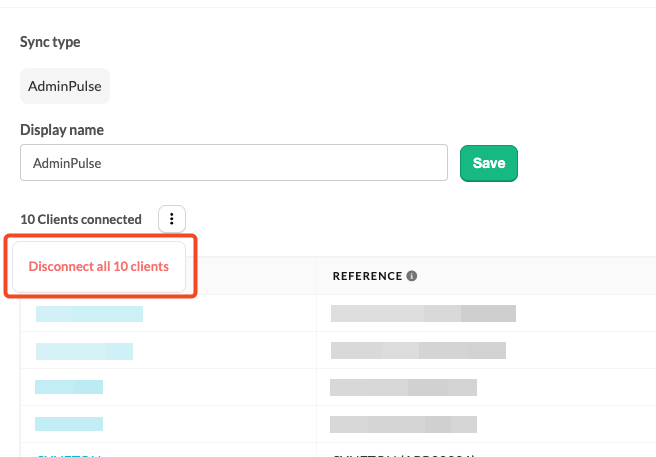
- Select 'Disconnect x clients'.
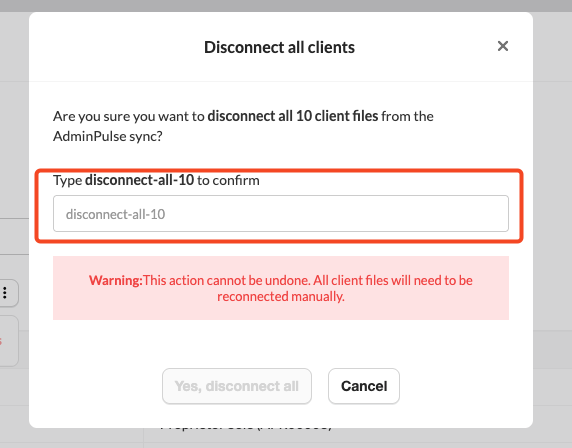
- Review the confirmation window. It shows how many client files will be disconnected.
- Type the required confirmation text and confirm the action.
What should I know before I disconnect client files?
- This action cannot be undone. If client files are disconnected by mistake, they must be reconnected manually.
- The action is available for both Administration syncs and Bookkeeping syncs.