
| User Roles |  Admin Admin |  Staff contributor Staff contributor | ✗External contributor | ✗Pulse user |
This guide explains how to set up the DocuSign e-signing integration with Silverfin. It covers obtaining API keys from DocuSign, configuring the integration in Silverfin, and finalising the set-up in DocuSign. Once the integration is active, you can send documents for signature from a reconciliation text or from an export.
Table of contents
- What will you need
- How to Get API Keys from DocuSign
- How to set up Silverfin side of the integration
- Final steps in DocuSign to finish the set-up
- How do I sign a reconciliation text with DocuSign?
- How do I sign an export with DocuSign?
What will you need
- Silverfin Admin user account.
- DocuSign Account with API access.
How to Get API Keys from DocuSign
Log in to DocuSign and navigate to the Apps and Keys page in the integrations section.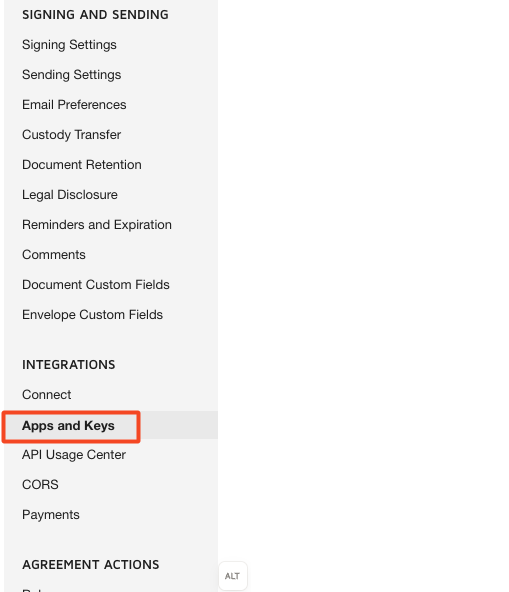
- Click Add App and Integration key.
- Add a name for the integration.
- Copy the integration key.
- In the integration section ensure that the question “Is your application able to securely store a client secret?” is set to Yes.
- Click Add Secret Key.
- Copy the Secret key
How to set up Silverfin side of the integration
- Navigate to integrations.getsilverfin.com, login and authorise your firm.
- Select the DocuSign integration.
- Input the Integration Key and Secret Key.
- Set the DocuSign environment to live.
- Click Create DocuSign integration.
- Copy the URL that is created. It will look similar to (https://integrations.getsilverfin.com/docusign_integrations/99999999-9999-9999-9999-999999999999/oauth_callback).

Final steps in DocuSign to finish the set-up
- Navigate back to the New integration in DocuSign (Apps and Keys).
- In the additional settings section click Add URI.

- Input the URL from Silverfin.
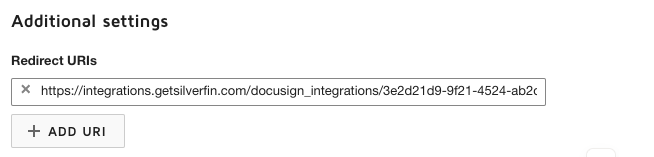
- Set-up is now complete!
How do I sign a reconciliation text with DocuSign?
- After completing the steps above, the integration becomes active. This adds a Sign with DocuSign option to the Actions menu in the Reconciliation texts.

- Select Sign with DocuSign to start the signing process. Silverfin securely connects with DocuSign, prepares the PDF, and sends it to DocuSign.
- DocuSign then guides each signer through the signing process and places the signatures in the correct locations within the document.
How do I sign an export with DocuSign?
You can also send a complete export for signature. This is useful when you want a full bundle signed in one go, rather than signing each reconciliation text separately.
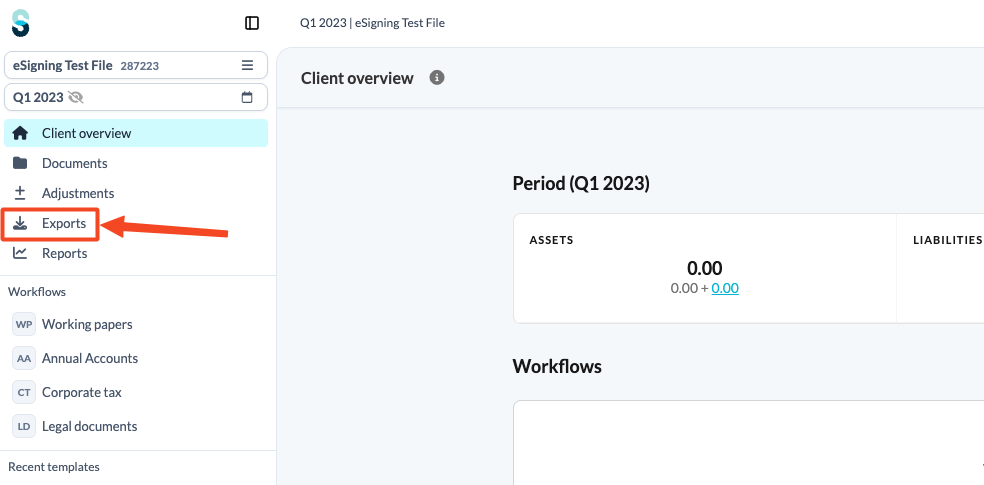
- Go to the Exports section of a client file and generate an export.
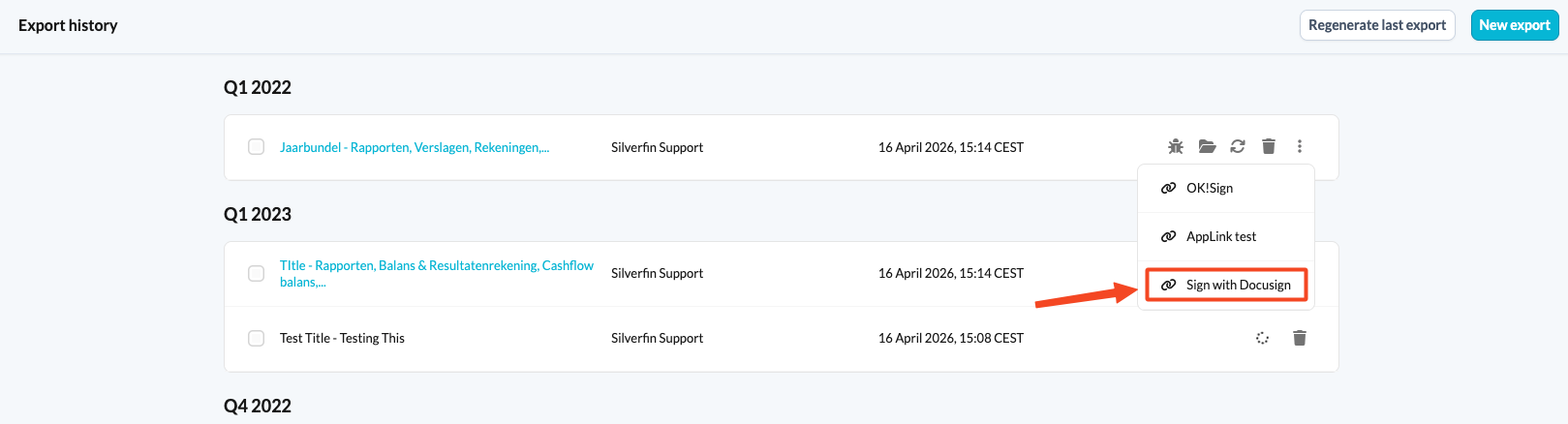
- Select the three dots menu next to the export you want to have signed.
- Select Sign with DocuSign. DocuSign opens in a new browser tab, where you can complete the signing process.
If you have any questions or need assistance with the set-up process please contact your Customer success manager or e-mail support@silverfin.com.
Not sure which route to use? Sign from a reconciliation text when you need a single document signed, and sign from an export when you want a full bundle signed in one go.