
| User Roles |  Admin Admin | ✗Staff contributor | ✗External contributor | ✗Pulse user |
This article explains how to connect Silverfin with Bocount2009 to synchronise bookkeeping data. It covers the connection at firm level, which is the first step before you can link the sync to a client file. Once the connection is established and the sync is set up in a file, any changes made in Bocount2009 will sync with Silverfin.
How do I set up synchronisation with Bocount2009 at firm level?
Only users with admin rights can set up synchronisation at firm level.
To establish the connection, please follow these steps:
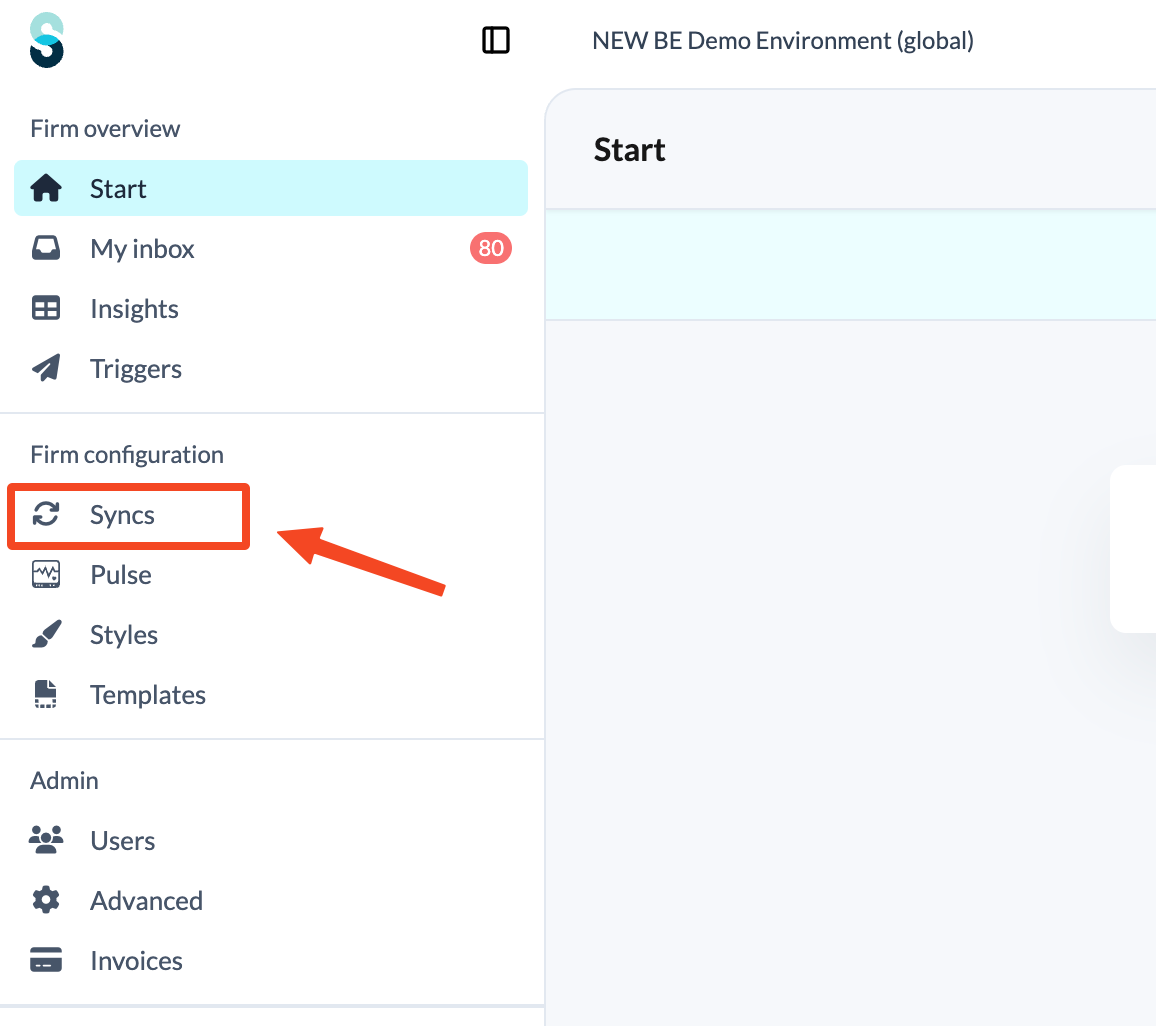
- Click Syncs in the left panel, under Firm configuration.
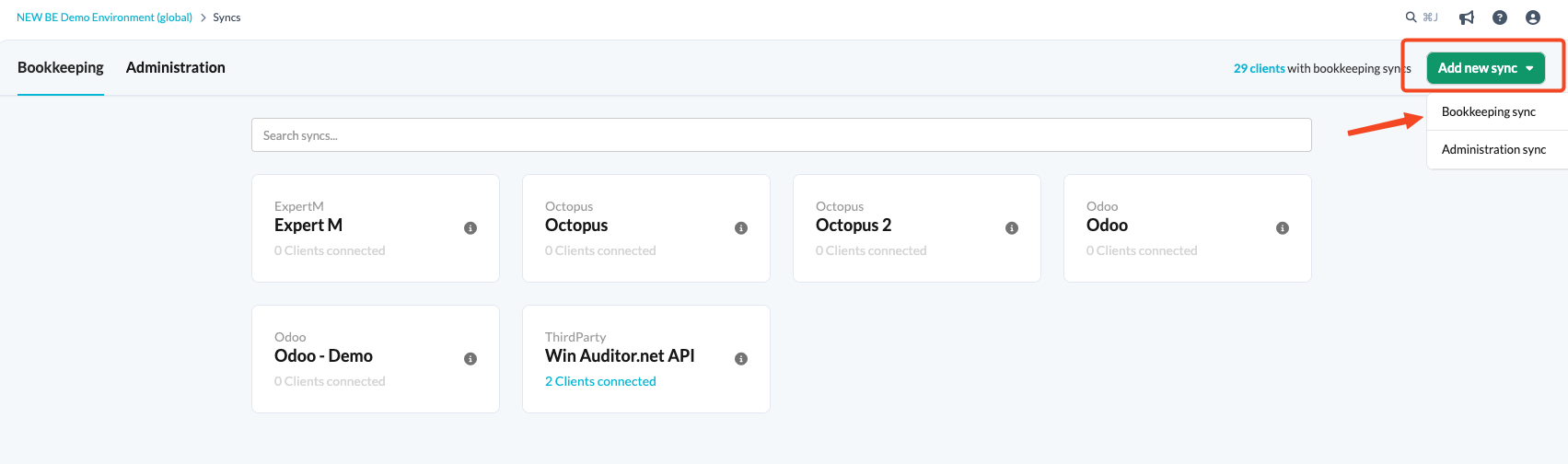
- Click the Add new sync button and choose Bookkeeping sync.
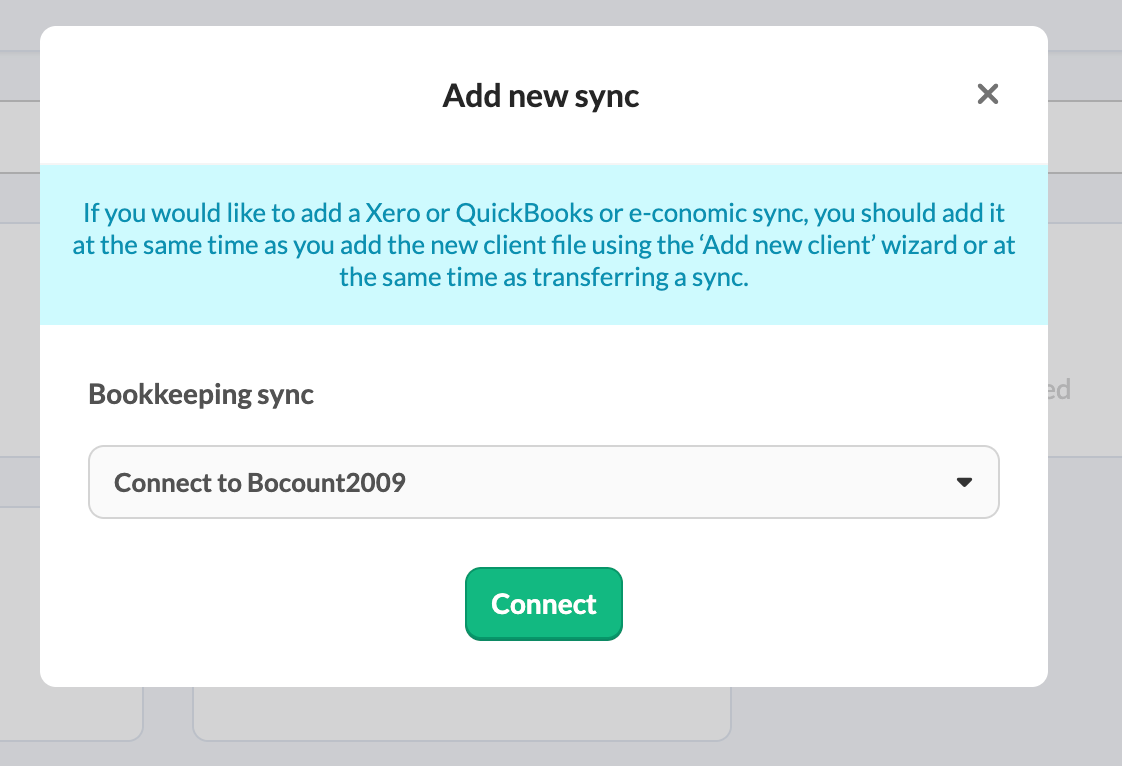
- From the drop-down menu, choose Bocount2009 sync and click Connect.
- Fill in the relevant fields and click Set up synchronisation with Bocount2009.
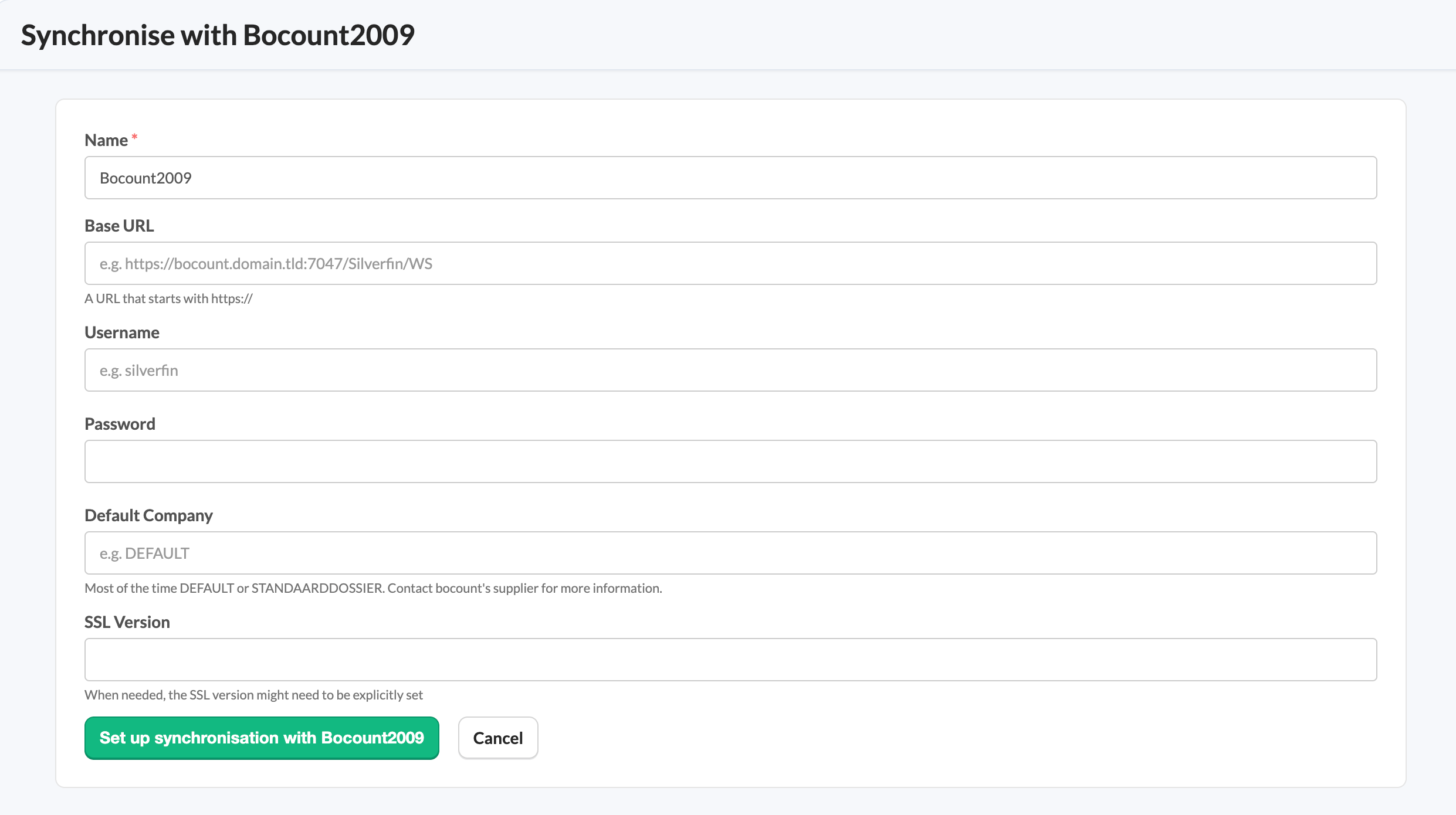
- Name: the name you give to the sync entity.
- Base URL: a URL that starts with https://
- Username: for instance Silverfin.
- Password: your password.
- Default Company: usually DEFAULT or STANDAARDDOSSIER. When in doubt, please contact your Bocount2009 supplier.
- SSL Version: it may be necessary to set the SSL version explicitly. When in doubt, contact your Bocount2009 supplier.
Once the connection exists at firm level, you can link it to a client file. See How to set up synchronisation with Bocount2009 in a file?