
| User Roles |  Admin Admin | ✗Staff contributor | ✗External Contributor | ✗Pulse user |
This article explains how the NitroSign eSigning integration works in Silverfin and how to activate it. It is relevant for firm Admins who want to send documents for electronic signature directly from a client file.
Table of contents
- About the NitroSign integration
- How to activate the integration
- How to use it in a client file
- Video walkthrough
About the NitroSign integration
NitroSign is an eSigning integration that lets you send documents for electronic signature directly from a client file in Silverfin.
Good to know: this integration may also be referred to as Connective. The action inside Silverfin is labelled Connective eSignature.
How to activate the integration
- Contact NitroSign to request activation of the integration.
- Provide your firm_id so that NitroSign can complete the setup on their end.
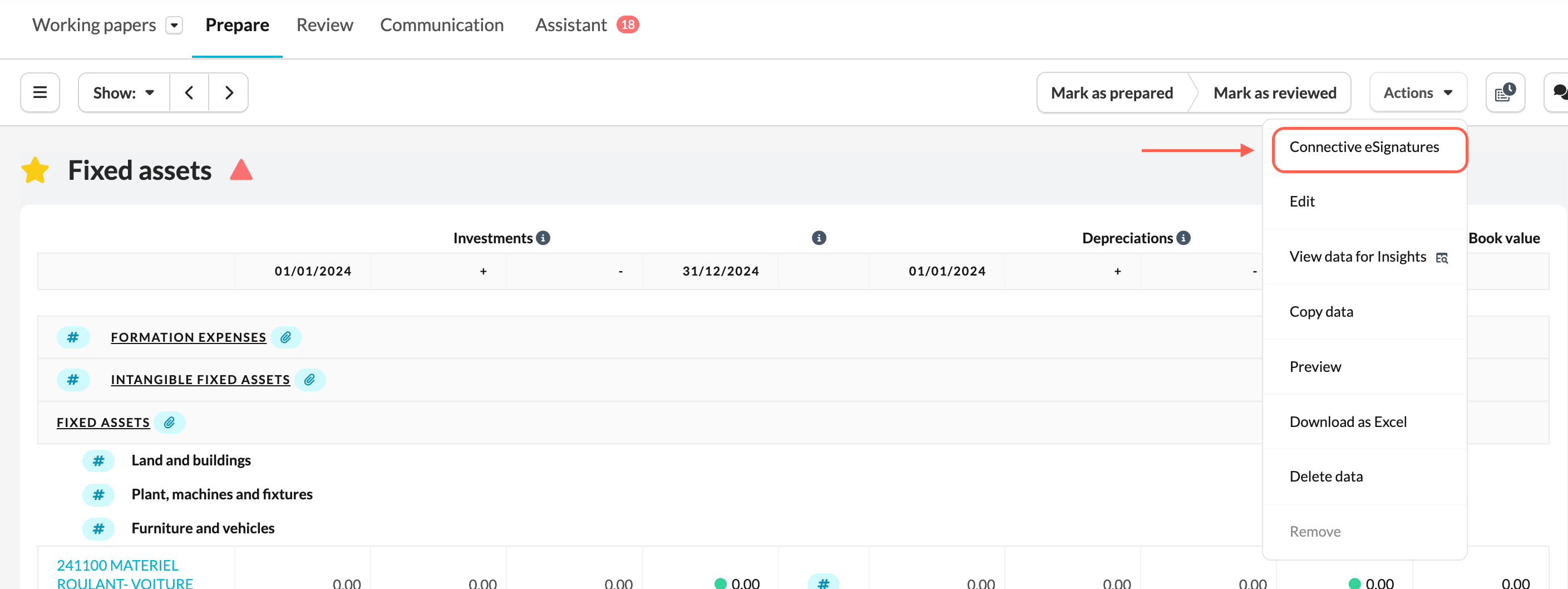
- After activation, the Connective eSignature action appears in the Actions menu in the following sections in Silverfin. Example:
Example:
- Documents — a folder needs to be created first before the action can be used.
- Reconciliations
If you successfully set up the integration but the action button does not show in some of expected locations, please reach out to NitroSign.
How to use it in a client file
- Open the relevant document or reconciliation in the client file.
- Open the Actions menu.
- Click the Connective eSignature button to start the signing process.
Video walkthrough
A full video walkthrough is available here. The video still shows Connective branding, which now reflects the rebranded Nitro Sign offering.
If you have any questions or need assistance with the set-up process, please contact your Customer Success Manager or e-mail support@silverfin.com.