
| User Roles |  Staff contributor Staff contributor |  External contributor External contributor |  Pulse user Pulse user |
This flow applies to password users who already had 2FA enabled before their firm was migrated to Visma Connect. On this first sign-in, you verify with your existing authenticator app — there is no need to set up 2FA again.
Table of contents
Sign-in flow
Step 1 — Enter your email address
On the new Silverfin / Visma Connect sign-in screen, enter your email address and click Next.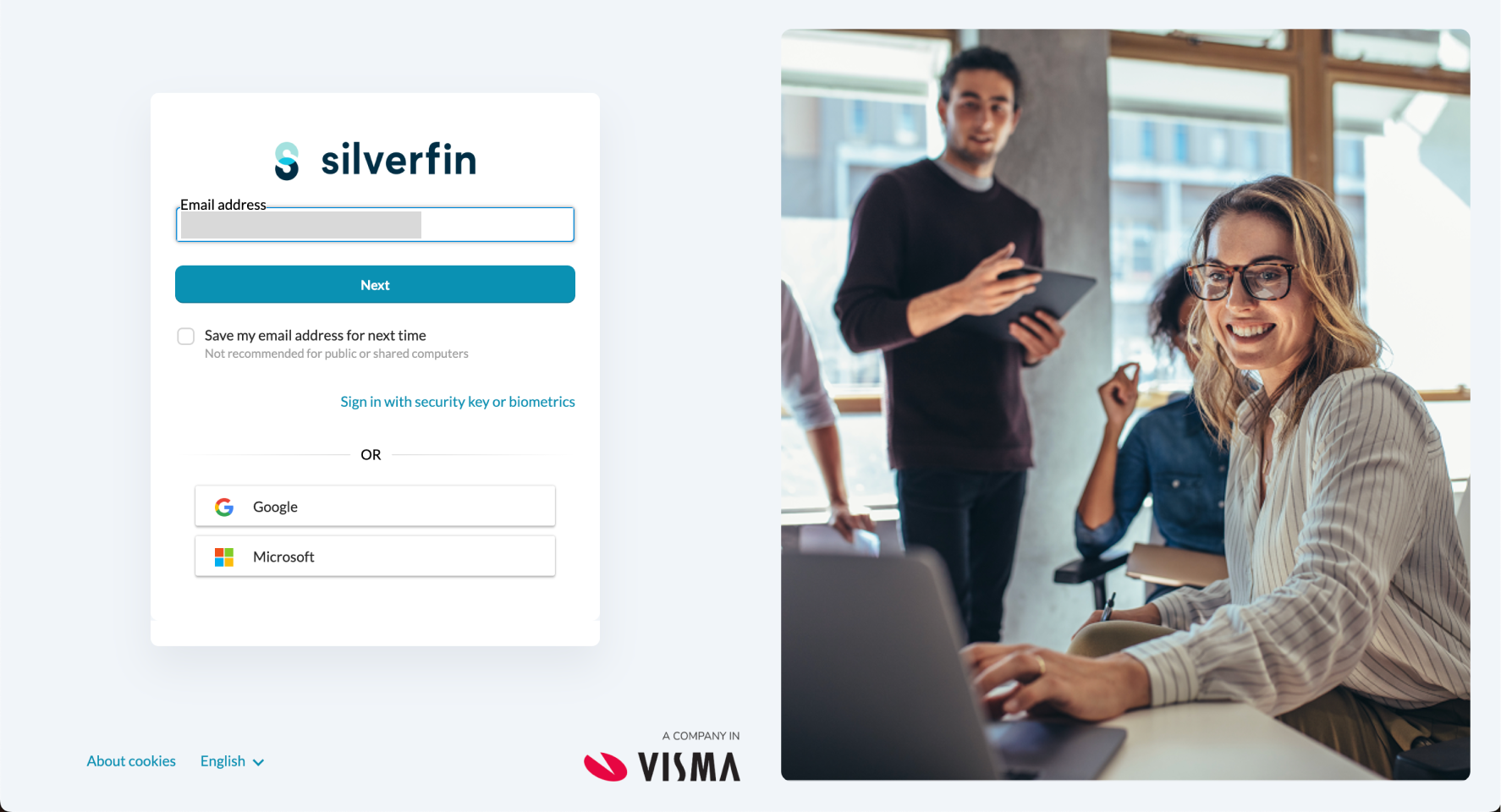
Step 2 — Enter your password
Enter the password you used previously in Silverfin and click Sign in. Your existing password works thanks to pass-through authentication — you don't need to reset it.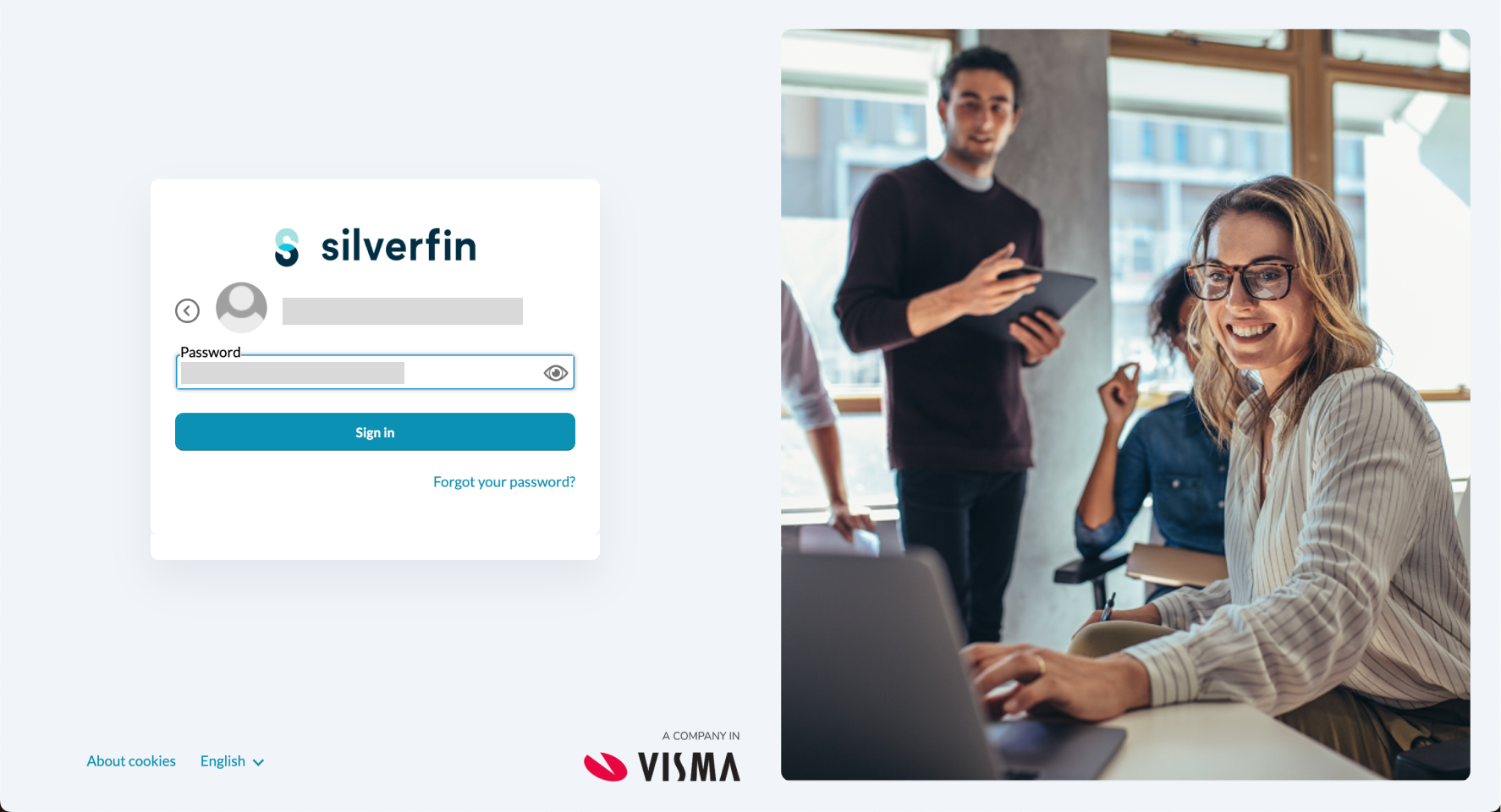
ℹ️ If your current password doesn't meet the new Visma Connect password policy, you'll be asked to change it before continuing.
Visma password policy:
Your password must:
- be at least 15 characters long,
- not appear in a known data breach (this is checked automatically), and
- meet no complexity rules — uppercase letters, lowercase letters, numbers and symbols are not required.
Step 3 — Enter the security code from your authenticator app
Since 2FA was already enabled before migration, you're asked to verify with a security code rather than going through 2FA setup again. Open your existing authenticator app, copy the current code and enter it to continue.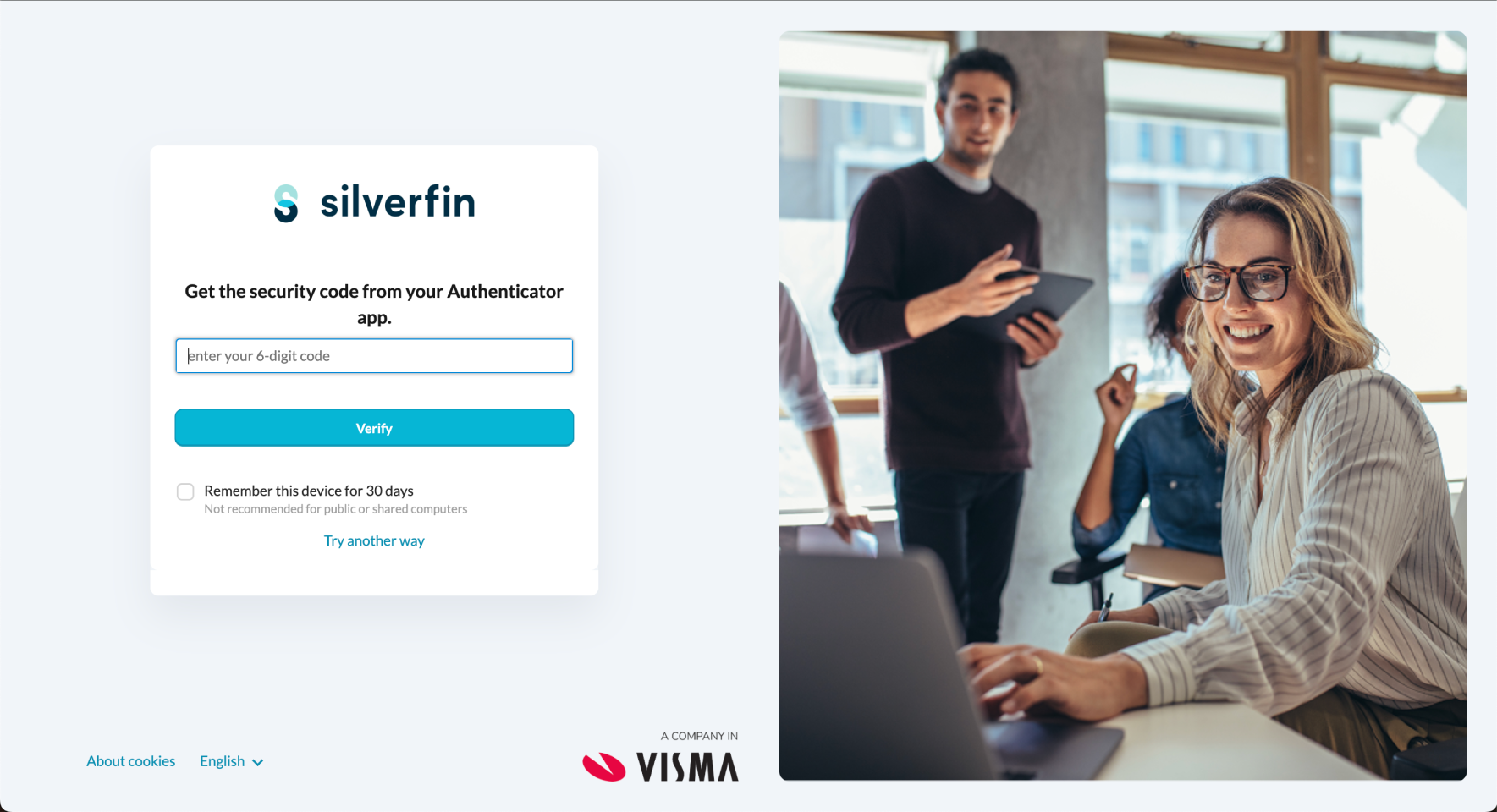
Step 4 — Save your one-time emergency code
As part of the migration, you're shown a new one-time emergency code (e.g. F6XU-O0KI-N9IJ-1IDE-792D). Tick I have safely copied and stored this code before clicking Done.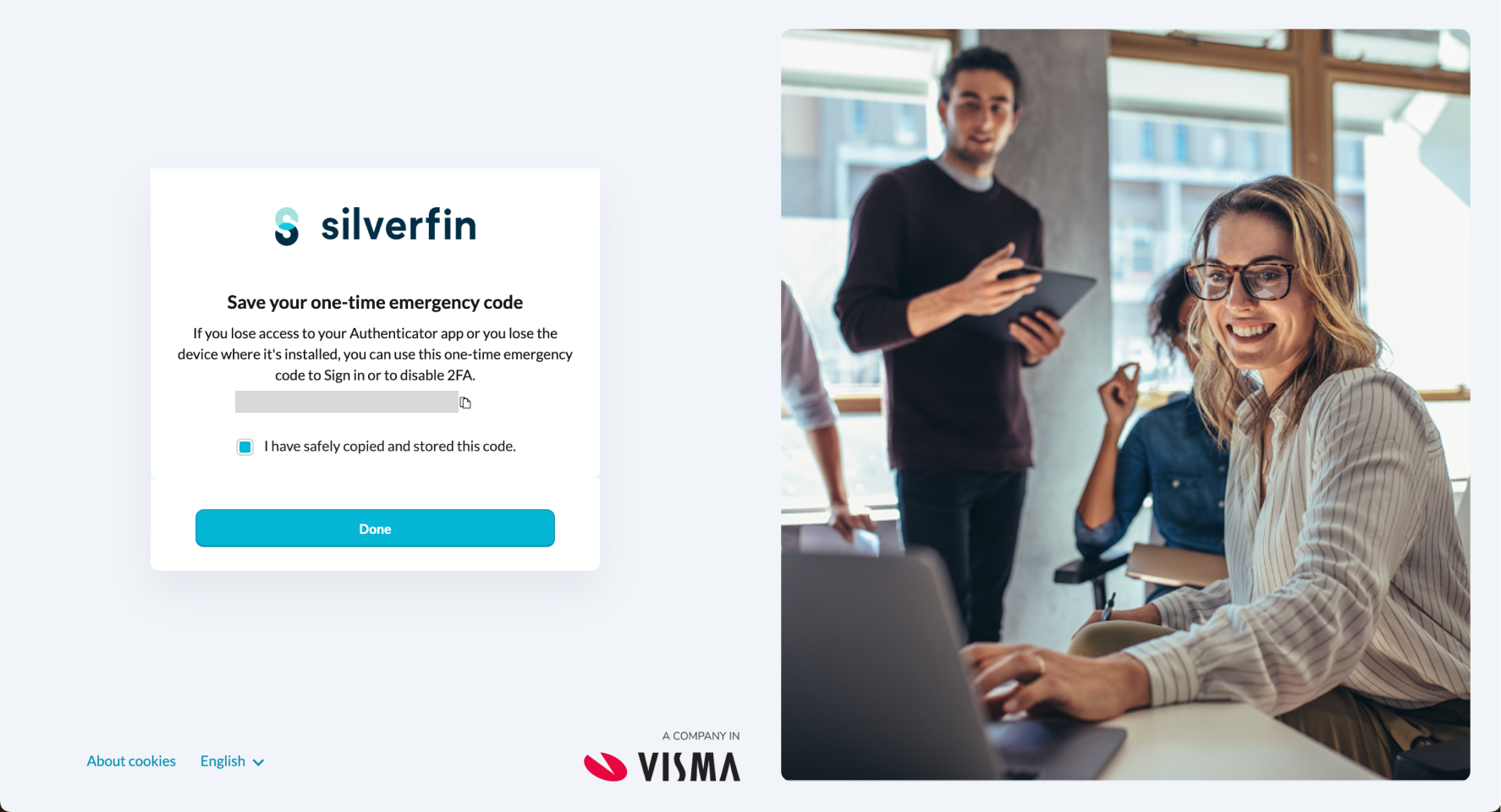
⚠️ Save this code somewhere safe — a password manager, a printed copy in a secure place, etc. It's the only way back in if you ever lose access to your authenticator app.
Need help?
If you get stuck, contact Silverfin Support. Have your email address and your firm's name ready so we can help you faster.
FAQ
Do I need to set up 2FA again?
No. If you already had 2FA enabled before migration, you verify with your existing authenticator app — there's no new setup to complete.
Do I need to reset my password?
No, unless your current password doesn't meet the new Visma Connect policy. If it doesn't, you'll be asked to update it during sign-in.
What if my authenticator app doesn't work, or I've lost my device?
Contact Silverfin Support. They'll help verify your identity and get you back into your account.
What is the one-time emergency code for?
It's a backup that lets you sign in if you ever lose access to your authenticator app. Save it somewhere safe — you won't be able to view it again after this step.