
| User Roles |  Tenant administrator Tenant administrator | ✗Staff contributor | ✗External contributor | ✗Pulse user |
When your firm moves to a new email domain, for example after a switch to Microsoft 365 or a company rebrand, the addresses your colleagues use to sign in to Silverfin have to change in Visma Connect. Your firm's own tenant administrator makes those changes in Visma Connect Authentication Settings, one user at a time or for many users at once. This article is relevant for tenant administrators at firms that are already using Visma Connect.
Table of contents
- Who can change a user's email address?
- What do I need to check before I start?
- How do I change one user's email address?
- How do I change many email addresses with a CSV file?
- How do I change only the domain part of the addresses?
- What happens in Silverfin after the change?
- What does ERROR_EMAIL_EXIST mean in the report?
- What if a user's address is not on a verified domain?
- Where can I find Visma's own documentation?
Who can change a user's email address?
- A tenant administrator can change any user's email address in Visma Connect Authentication Settings. The change applies immediately and the user does not have to confirm it. For larger groups, the same screen offers a CSV import, and a one-click option when only the domain changes.
- Tenant administrators are your firm's own IT contacts on the Visma Connect tenant. This is not the same thing as being a Silverfin firm administrator, so the two roles can be held by different people. Silverfin Support cannot change the addresses on your behalf.
- The change only works for users whose current address is on a domain your firm has verified on its tenant. Everyone else changes their own address in their Visma Connect account settings, see What if a user's address is not on a verified domain? below.
What do I need to check before I start?
- Does your firm have a tenant in Authentication Settings? If not, contact Silverfin Support so a tenant can be created and your IT contact can be made a tenant administrator.
- Is your email domain verified on that tenant? Check the Domains tab.
If the new addresses are on a new domain, you have to add and verify that domain first. See Visma's guide to domains.
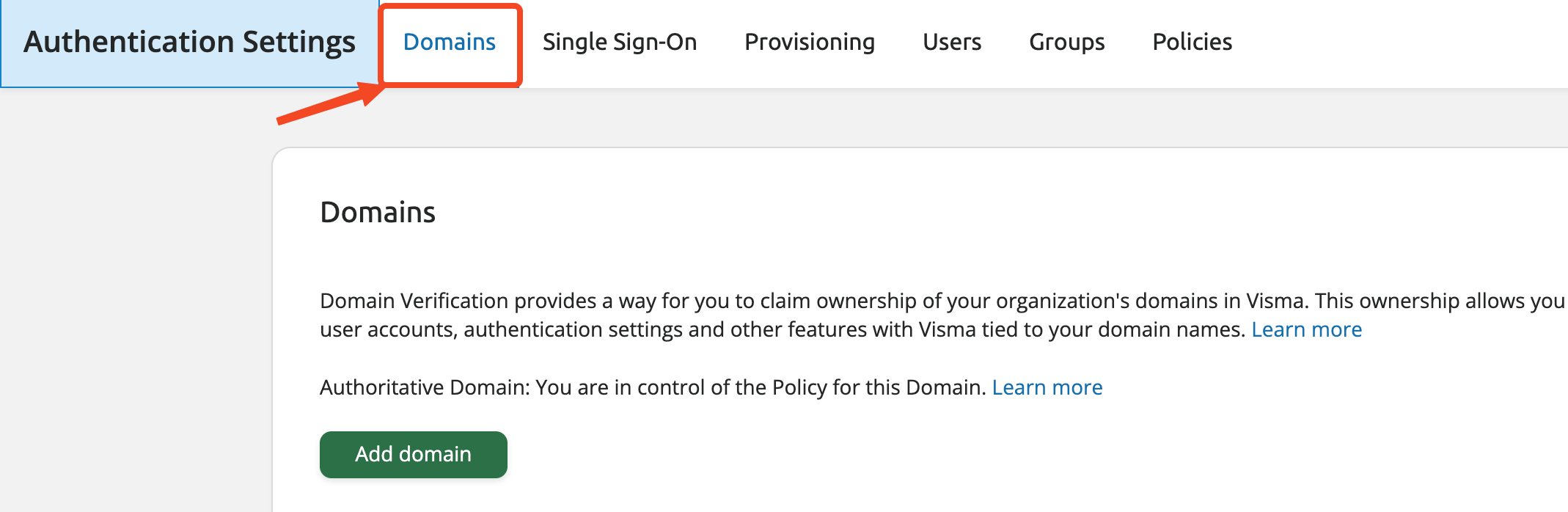
- Will the address change in both places? The address has to change in Visma Connect and in your identity provider. Change the email in Authentication Settings first, then change it in your identity provider.
- Who will make the change? It has to be a tenant administrator.
How do I change one user's email address?
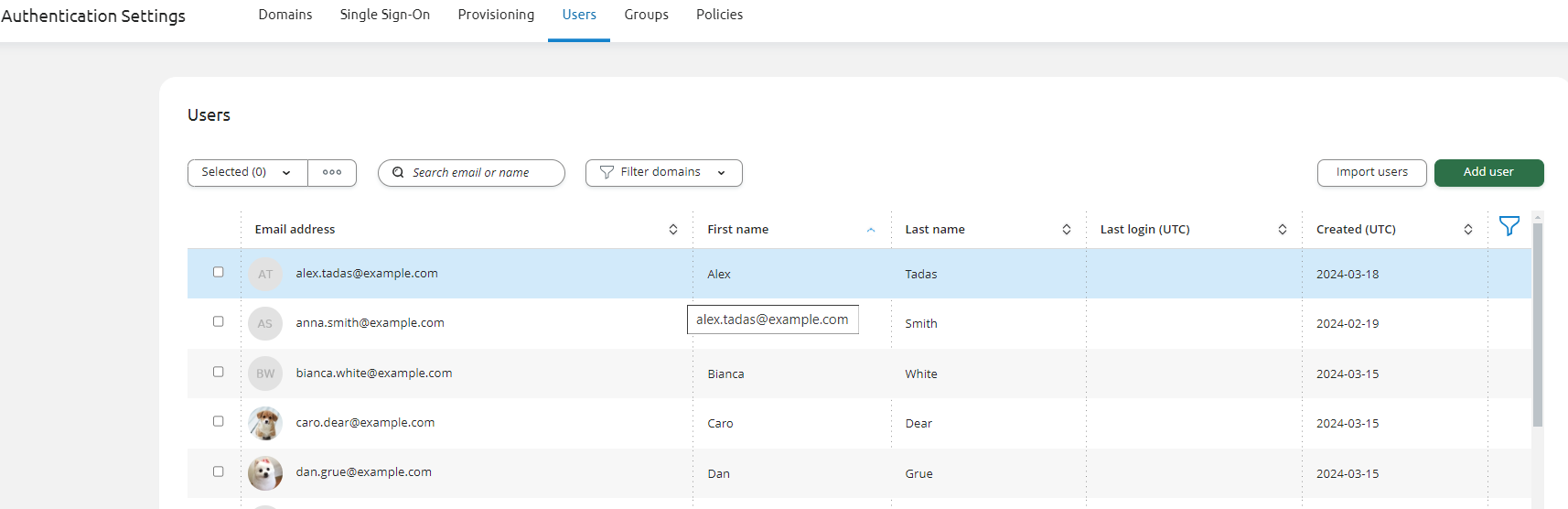
- Open Users in Authentication Settings.

- Search for the user and open the user detail view by clicking on their name.
- Click Edit profile, enter the new email address, and save.
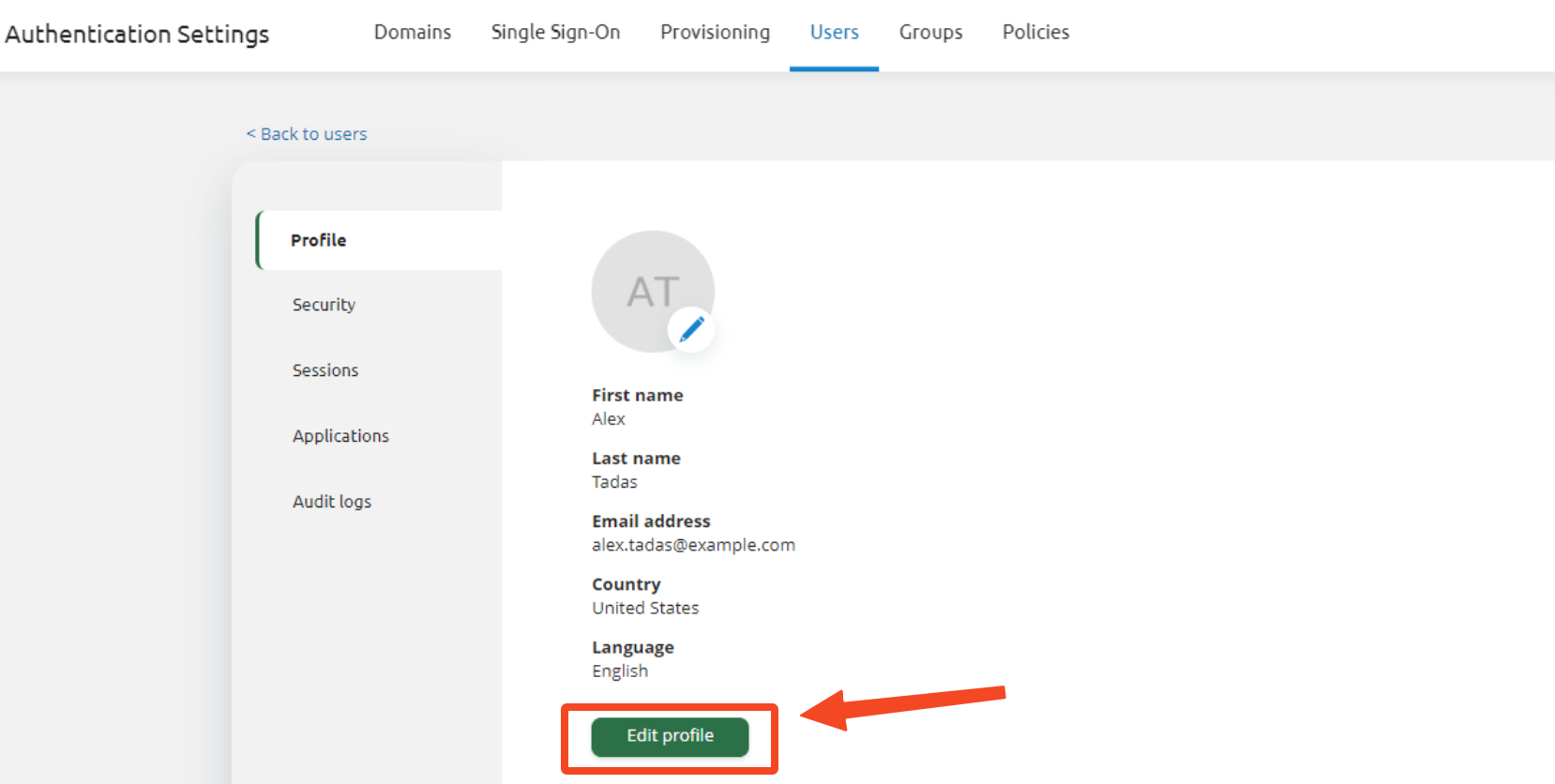
The new address is active immediately, and the user signs in with it from that point on.
How do I change many email addresses with a CSV file?
- In Users, select the users, click the action button next to Selected and choose User export. Make sure the user id column is included, then click User export.
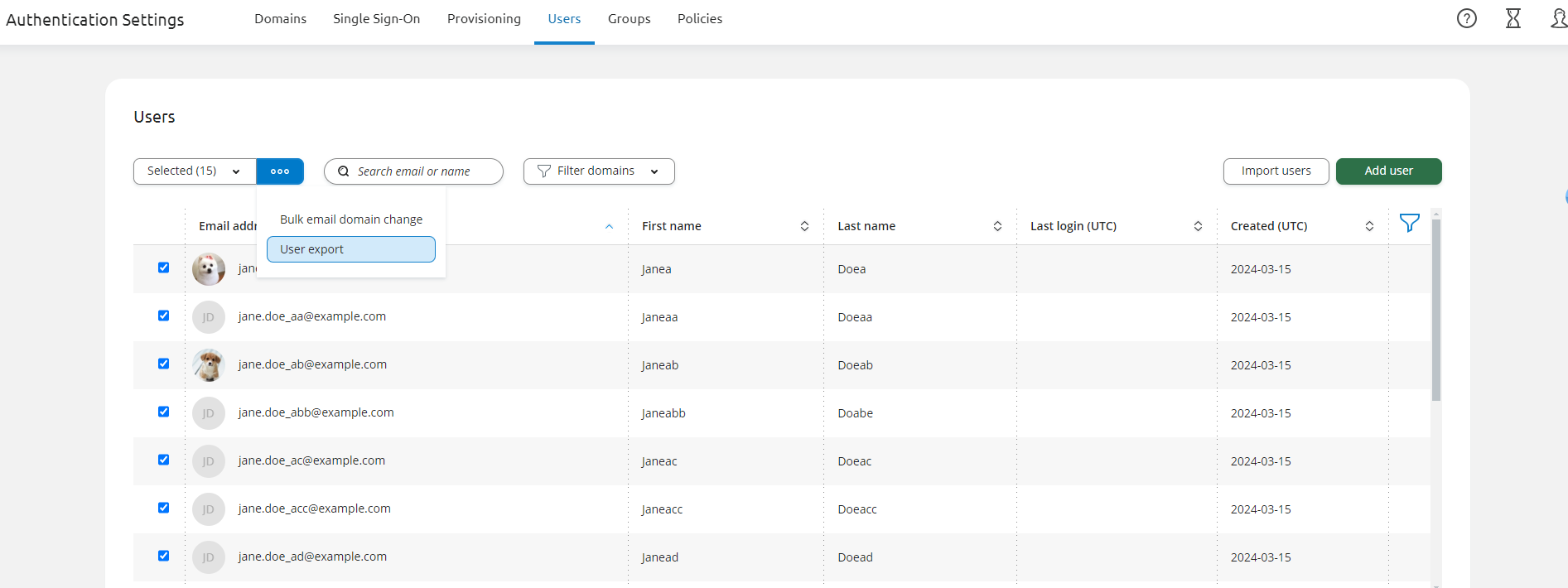
- Download the file from the Jobs popup.
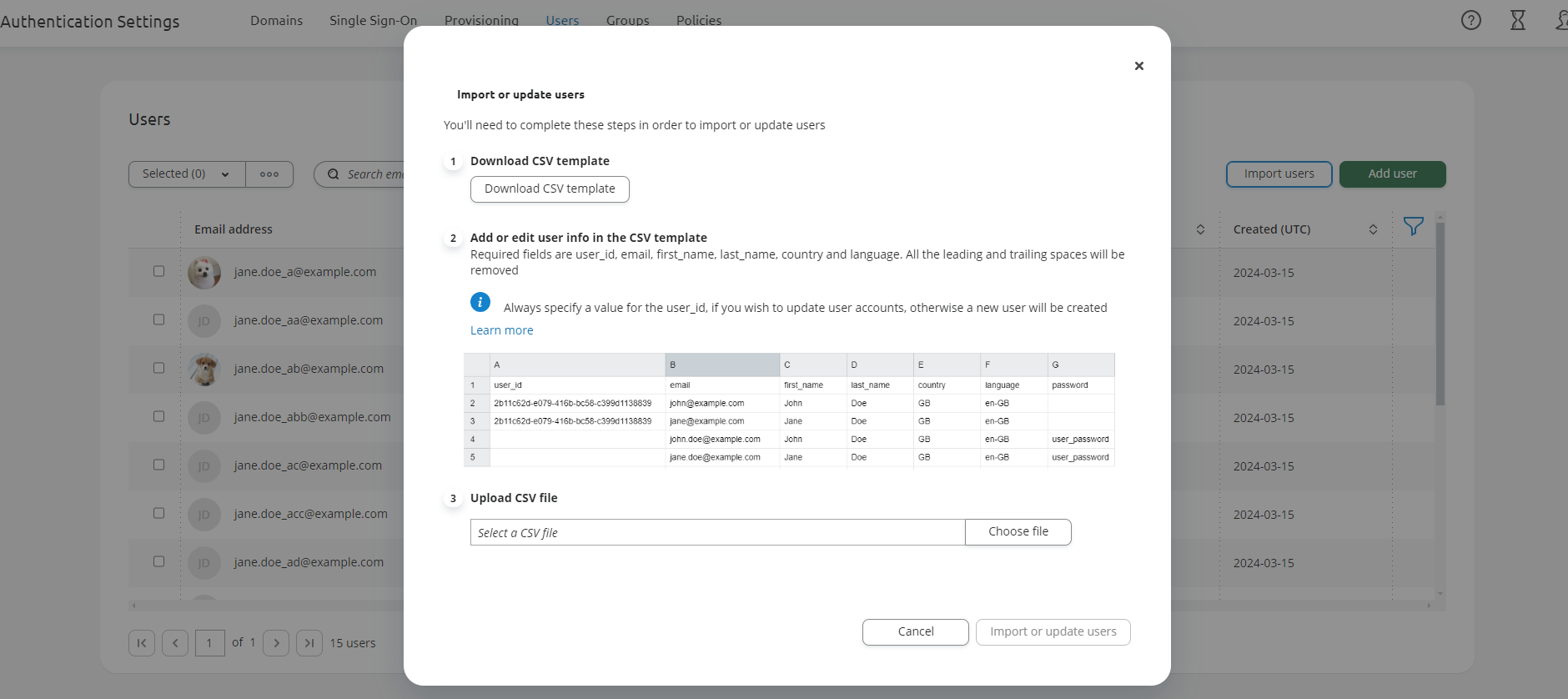
- In the exported file, replace each user's address with the new one. Keep the user_id column filled in. An empty user_id creates a new account instead of changing the existing one.
- Back in Users, click Import users, choose your file and click Import or update user. The file must stay under 10 MB.
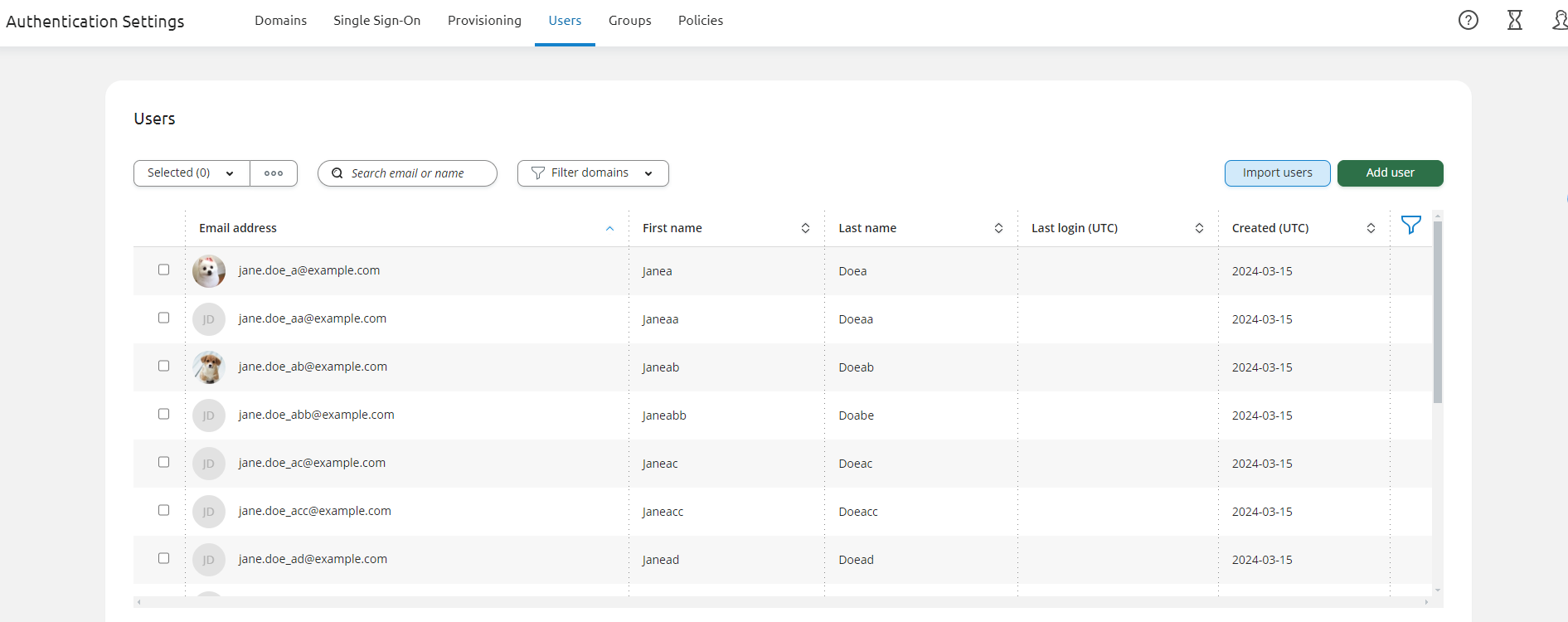
- Download the report from the Jobs popup and check that every row succeeded.
After you click Import or update user, the status of the import appears in a popup in the top-right corner. You can close the popup by clicking anywhere on the page, or by clicking the hourglass icon in the top-right navigation bar.
How do I change only the domain part of the addresses?
When the part before the @ stays the same and only the domain changes, you do not need the CSV file:
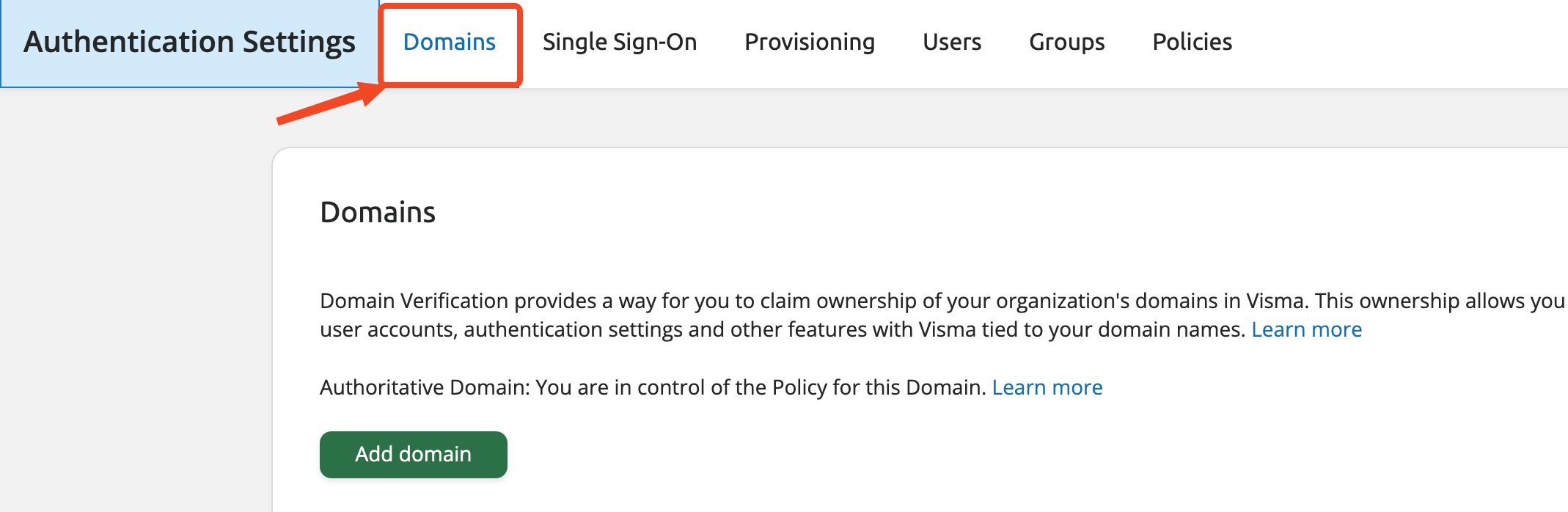
- Verify the new domain on the tenant first, on the Domains tab.
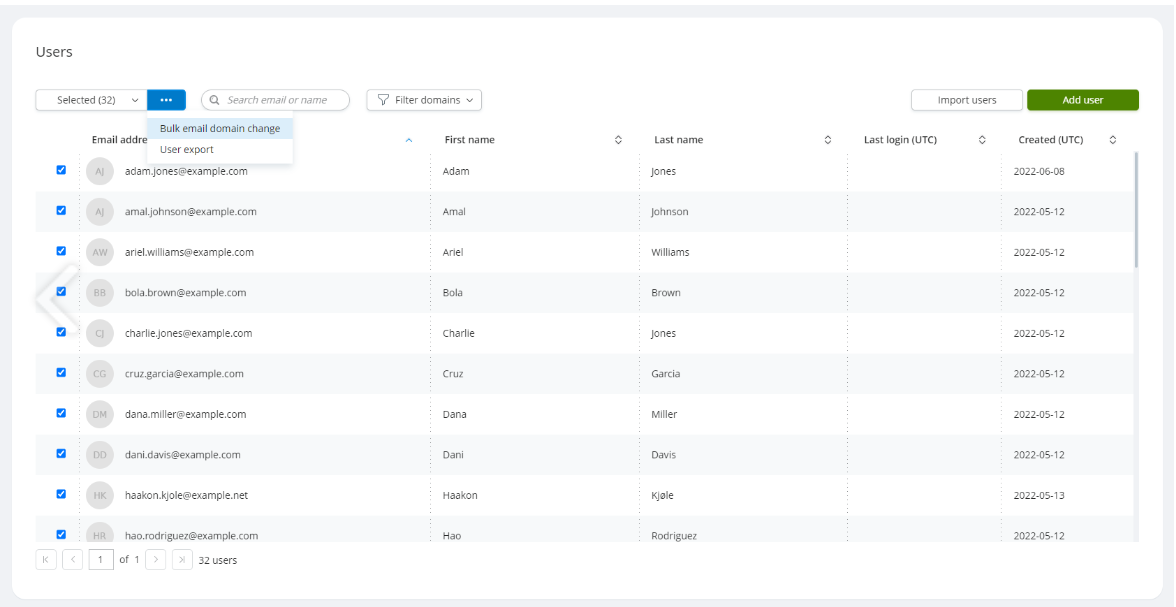
- In Users, select the users, click the action button next to Selected and choose Bulk email domain change. Leave at least one domain out of your selection, because that is the domain you will move the users to.
- Pick the target domain, confirm, and click Change domain.
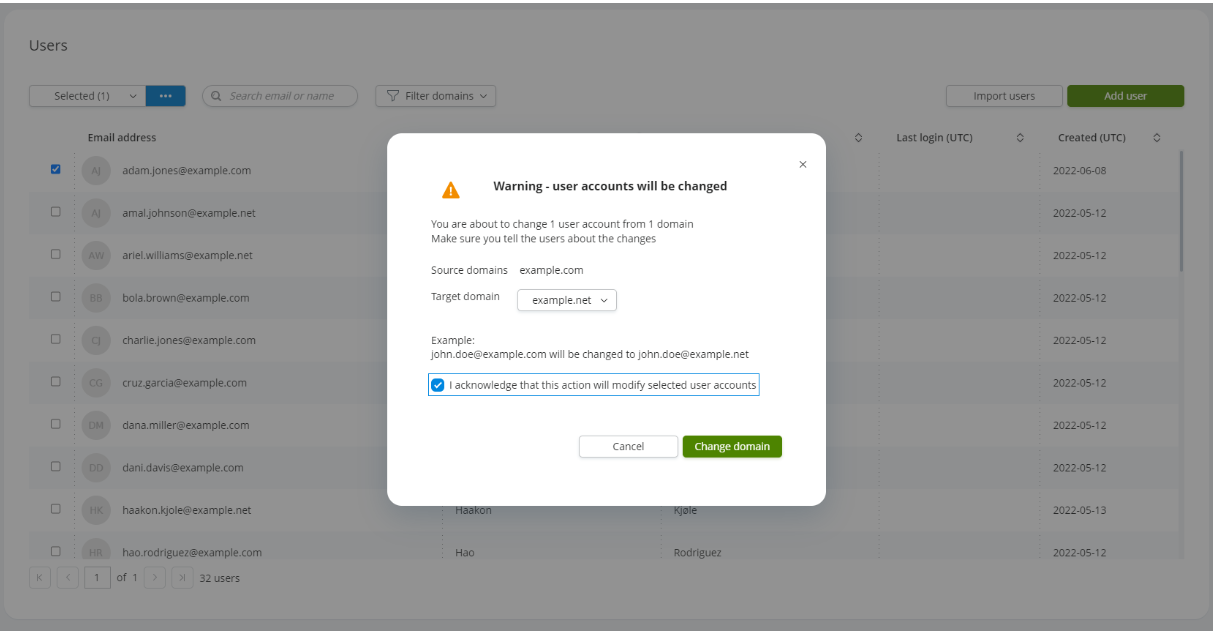
- Download the report from the Jobs popup as CSV or JSON, and check the status of each address.
After you click Change domain, the status of the bulk domain change appears in a popup in the top-right corner. You can close the popup by clicking anywhere on the page, or by clicking the hourglass icon in the top-right navigation bar.
What happens in Silverfin after the change?
Silverfin picks up the new address the next time the user signs in through Visma Connect. Until then, the Silverfin user still shows the old address. Nothing needs to be done on the Silverfin side.
There is one exception. If another Silverfin user already uses the new address, the old address stays in Silverfin. The sign-in still succeeds, so the user may not notice. Contact Silverfin Support.
What does ERROR_EMAIL_EXIST mean in the report?
This message means a Visma Connect account with the new address already exists. Both accounts then show in the Users tab, whichever Visma product created them, and the two accounts may have to be reconciled.
If this happens, contact Silverfin Support with your firm name, the user's old and new address, and the report from the Jobs popup.
What if a user's address is not on a verified domain?
A tenant administrator cannot change an address that is not on one of the tenant's verified domains. Those users change the address themselves at accountsettings.connect.visma.com: click Edit, then Change email, and click the validation link that Visma Connect sends to the new address. Silverfin picks up the new address at their next sign-in.
The full steps are described in How do I manage my account with Visma Connect (email, passkeys & password)?
Where can I find Visma's own documentation?
- Authentication Settings
- Users view
- User detail view
- User export
- Import or update users
- Bulk email domain change
Always download the job report from the Jobs popup and check that every row succeeded before you tell colleagues to start signing in with their new address. The report shows a status for each address, together with the reason for any failure.