
| User Roles |  Admin Admin | ✗Staff contributor | ✗External Contributor | ✗Pulse user |
This guide explains how to set up the OK!Sign e-signing integration with Silverfin and how to use it to send documents for digital signing. The OK!Sign integration provides Silverfin users with the possibility to have their documents digitally signed. Once the document has been signed by all appointed parties, the document will be visible in both the OK!Sign dashboard as well as within the Silverfin file.
What will you need
- An OK!Sign account. More information and registration details can be found on the OK!Sign website.
How to set up the OK!Sign integration
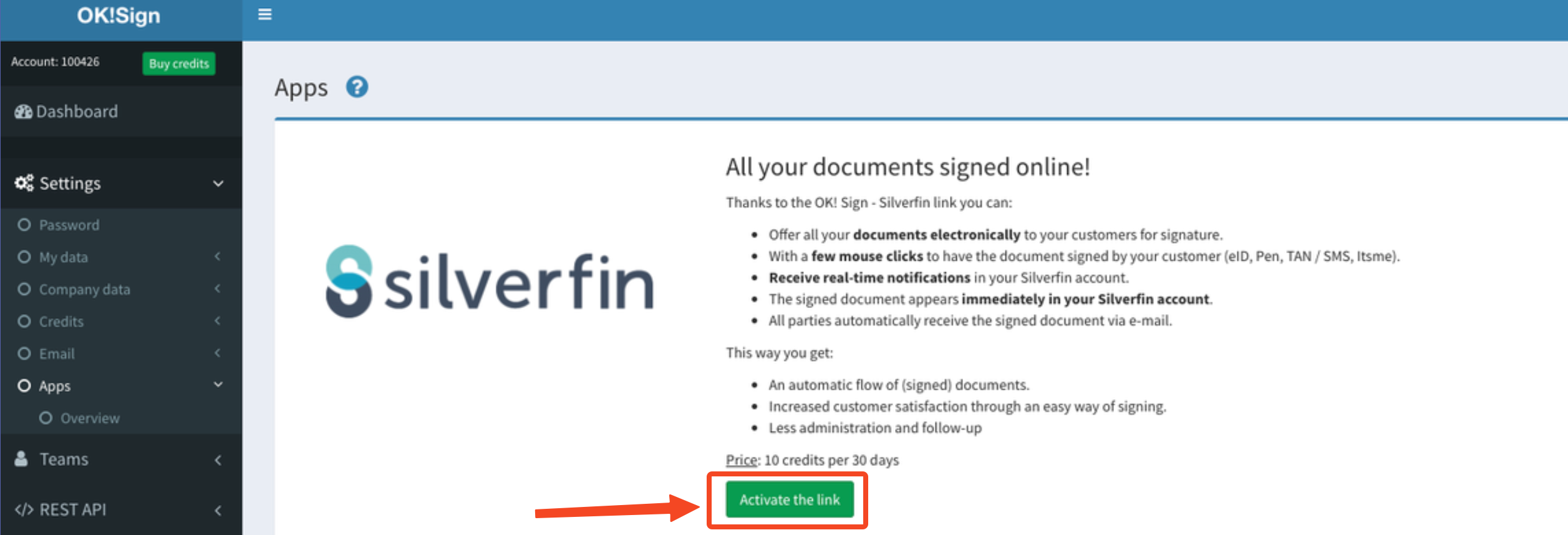
- Log in to your OK!Sign dashboard and navigate to the Apps menu.
- Find the Silverfin link and click Activate the link.
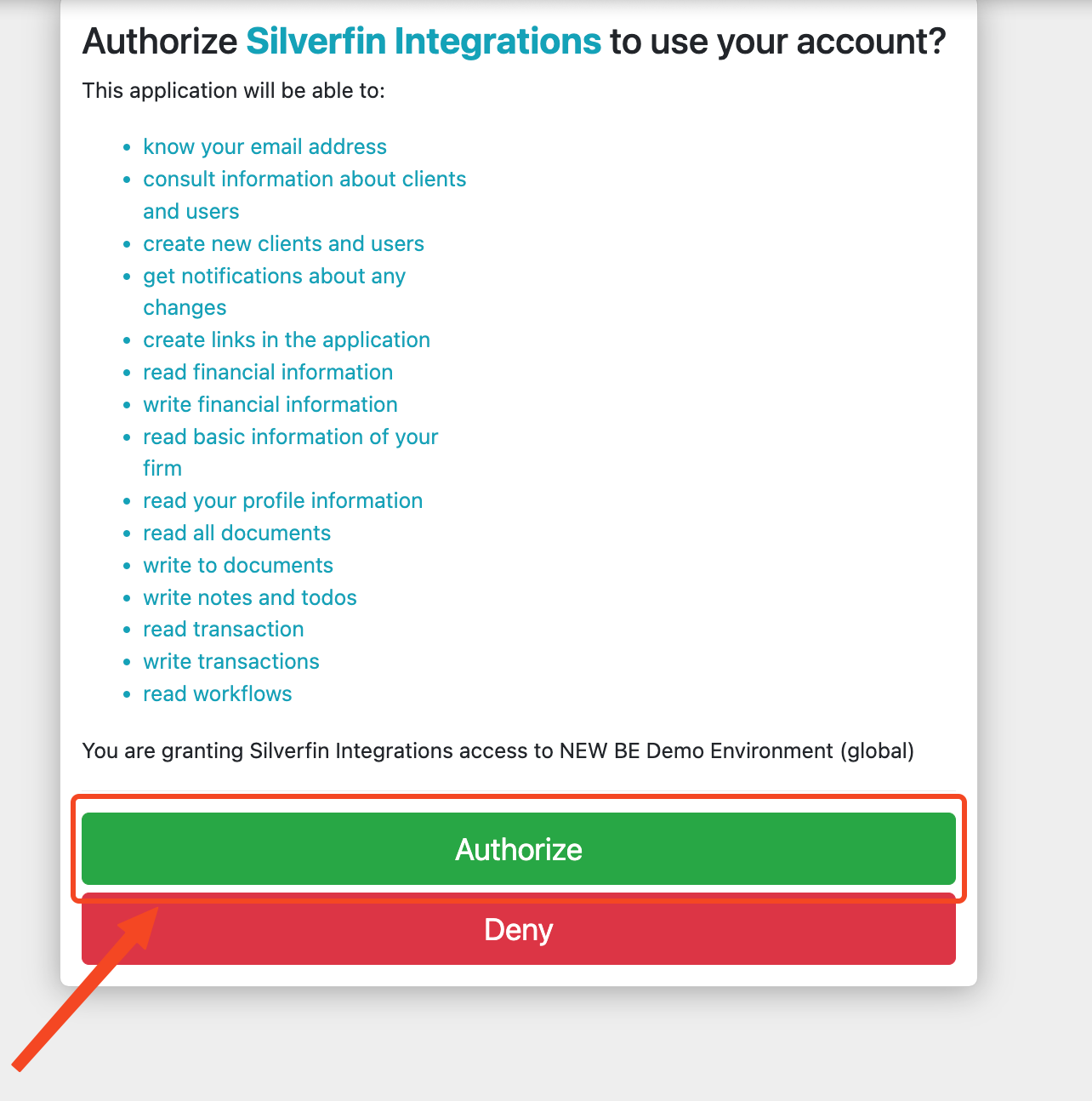
- You will be prompted to log in to Silverfin to authorise the application.
- Click Authorise. Once authorised, the integration is active and ready to use.
How to use OK!Sign in Silverfin
- The OK!Sign integration allows you to send data in Silverfin to OK!Sign for digital signing by multiple parties. Standard Silverfin templates already include sign markers that carry information about each signing party (name, email, and mobile phone number), so OK!Sign can pre-fill the required fields automatically.
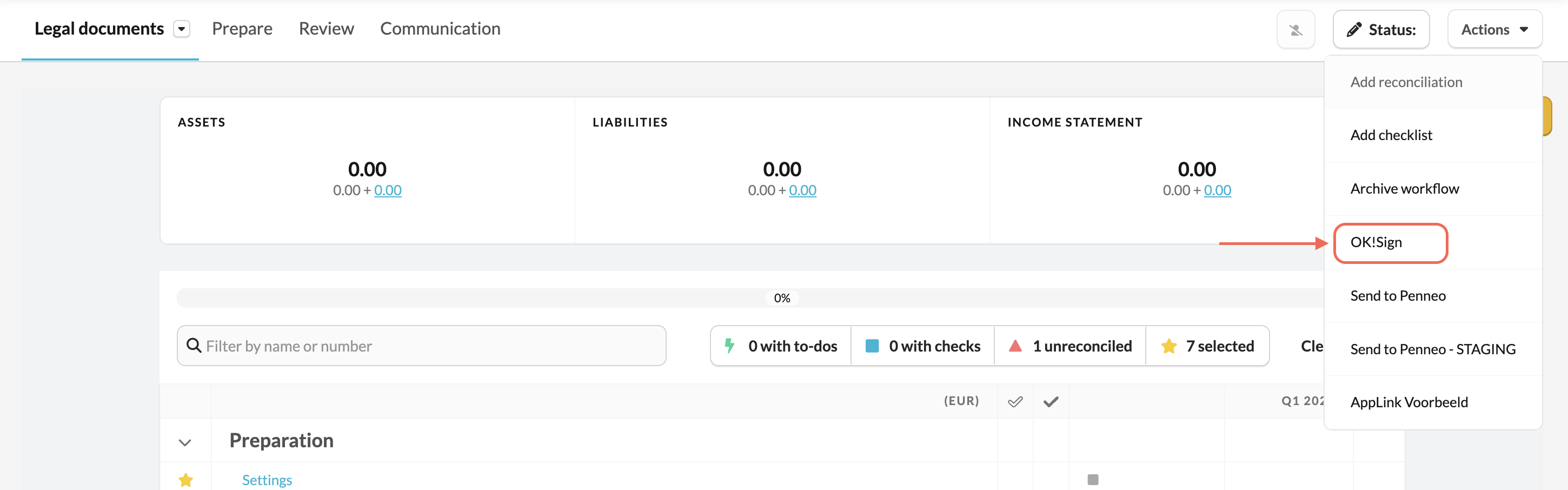
- Signing can be initiated via the Actions menu in certain parts of Silverfin.
Some examples are: Document section, in a reconciliation text, or in a workflow - in both Legal Docs and BE Annual Accounts. - To ensure sign markers are populated correctly, make sure that director and shareholder information - including email address and mobile phone number - is filled in within the client file.
If you successfully set up the integration but the action OK!Sign does not show in some of expected locations, please reach out to OK!Sign.
Signing process
- In the Actions menu of the workflow or reconciliation, select OK!Sign to start the request.
- You will be directed to the OK!Sign website, where the document and signing parties are loaded automatically.
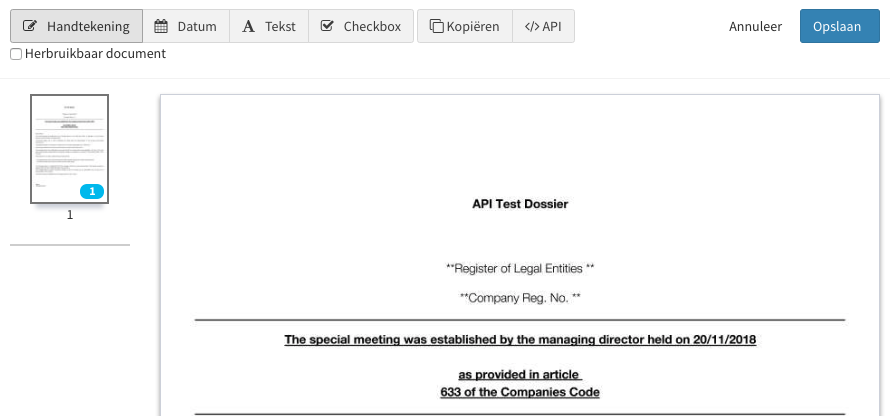
- Review the signing markers and confirm they are positioned correctly in the document. Once satisfied, save and finalise the request.
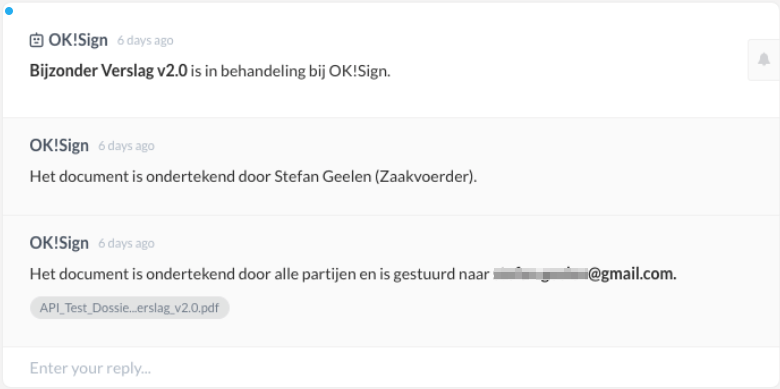
- A comment will appear in the Silverfin file confirming that the signing process has started. This comment will update each time a party signs the document.
- Once all parties have signed, a PDF of the signed document is attached to the message thread in Communication. The document can be downloaded from there or from the OK!Sign dashboard.
If you have any questions or need assistance, please contact your Customer Success Manager or email support@silverfin.com