
| User Roles |  Admin | ✗Staff user | ✗External contributor | ✗Pulse user |
If you no longer need a client file, you can archive it. An archived client file disappears from your active view, so it may look as though it has been deleted. However, it is not permanently removed: the Silverfin support team can restore it for you if needed. This article is relevant for admin users.
Table of contents
How do I archive a client file?
- Open the client file you want to archive.
- In the left panel, click the menu icon next to the client name and select Edit Client.
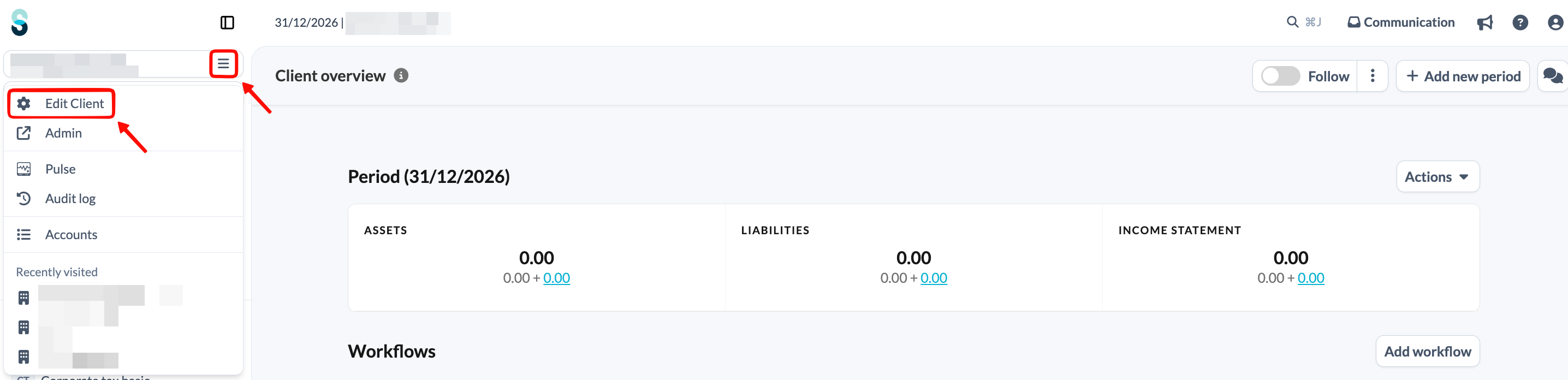
- In the top right corner, click Archive.

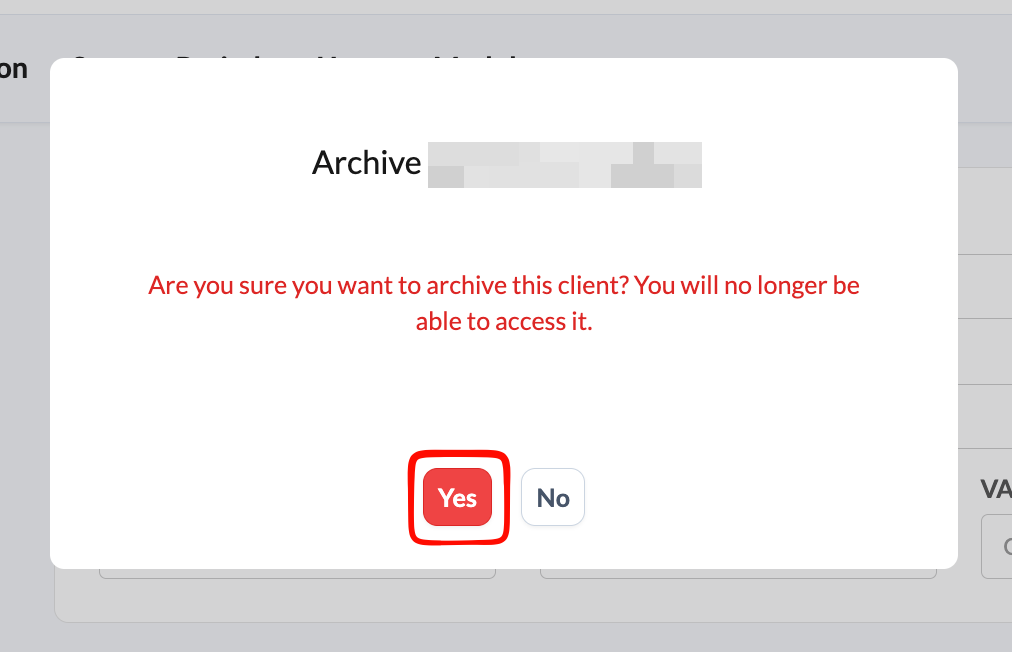
- Click Yes to confirm.
What happens to an archived client file?
- An archived client file no longer appears in your active list, but it remains accessible in the background for the Silverfin support team.
- Only the Silverfin support team can restore an archived client file after approval from an admin user. For guidance, see How to restore archived files in Silverfin?
- If an archived client file is not restored within three years, Silverfin removes it automatically.
- Following contract termination, all client files are deleted in accordance with the agreement.
Good to know: only users with admin rights can archive a client file. If you do not have admin rights, contact an admin user within your firm.