
| User Roles |  Admin Admin |  Staff contributor Staff contributor |  External Contributor External Contributor | ✗Pulse user |
This article explains how account templates work in Silverfin and how users with admin rights can manage them at firm level. It shows where to find account templates, how to assign them to specific account codes, and how to update those allocations when needed.
Table of contents
- What is an account template?
- Managing account templates at firm level
- Where to find account templates
- How to edit account template allocations
- Updating templates for existing accounts
What is an account template?
Account templates help structure the reconciliation of accounts in Silverfin.
In simple terms, an account template defines the layout used when reconciling an account. The template determines how the reconciliation page looks and how information is organised.
Depending on the template assigned to an account, it can:
- Automatically pull values from the balance sheet or income statement
- Indicate where user input is required
- Provide a clear structure that helps users complete reconciliations efficiently
Using account templates ensures that similar accounts are reconciled in a consistent and structured way across your firm.
Managing account templates at firm level
- Administrators can define which account templates are applied to specific accounts within the mapping list.
- When you start using Silverfin, a default set of account template allocations is already configured based on best practices. You can adjust these allocations if your firm requires a different setup.
- Before assigning or editing account templates, make sure the required templates are activated in the Working Papers package in the Marketplace.
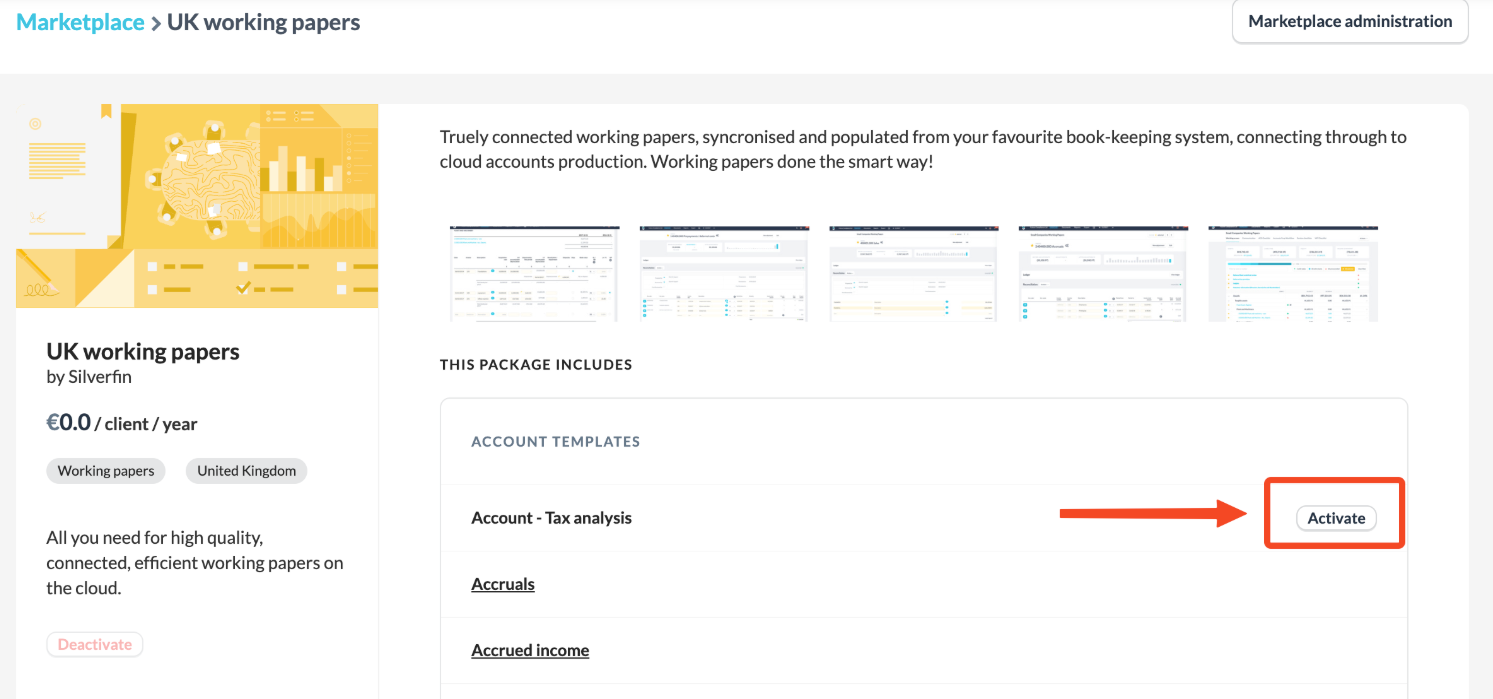
Where to find account templates
You can view all account templates used in your environment at firm level.
- Go to Templates.
- Open the Account Templates section.
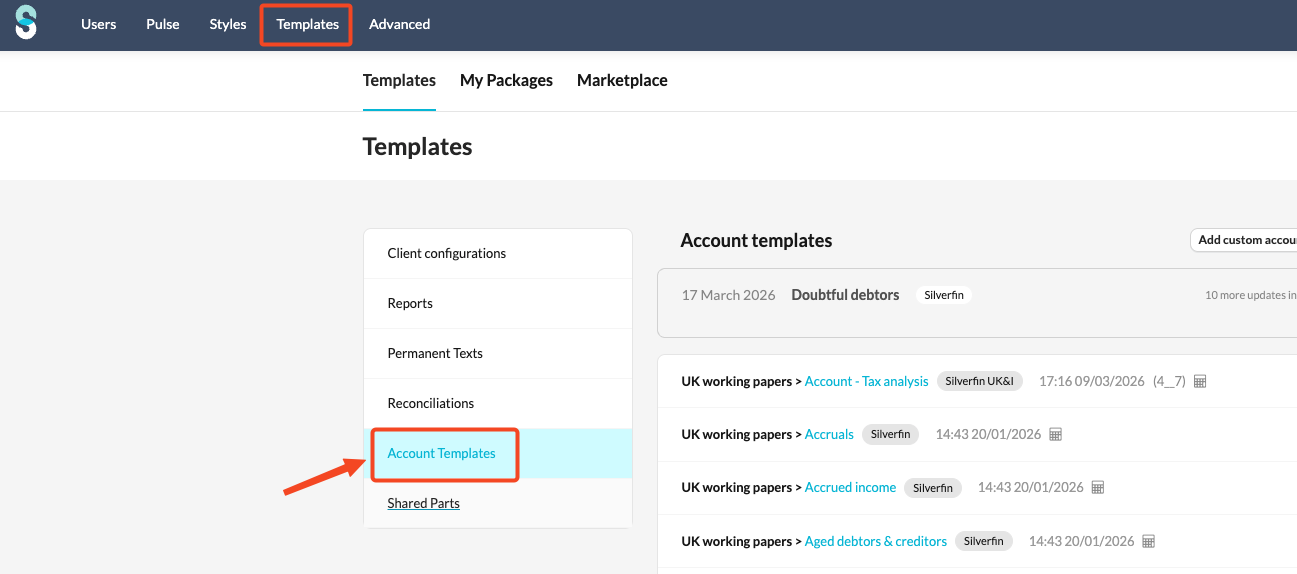
Here you will see a list of all account templates available in your environment.
How to edit account template allocations
You can modify the accounts linked to a template at any time.
- Go to Templates.
- Open Account Templates.
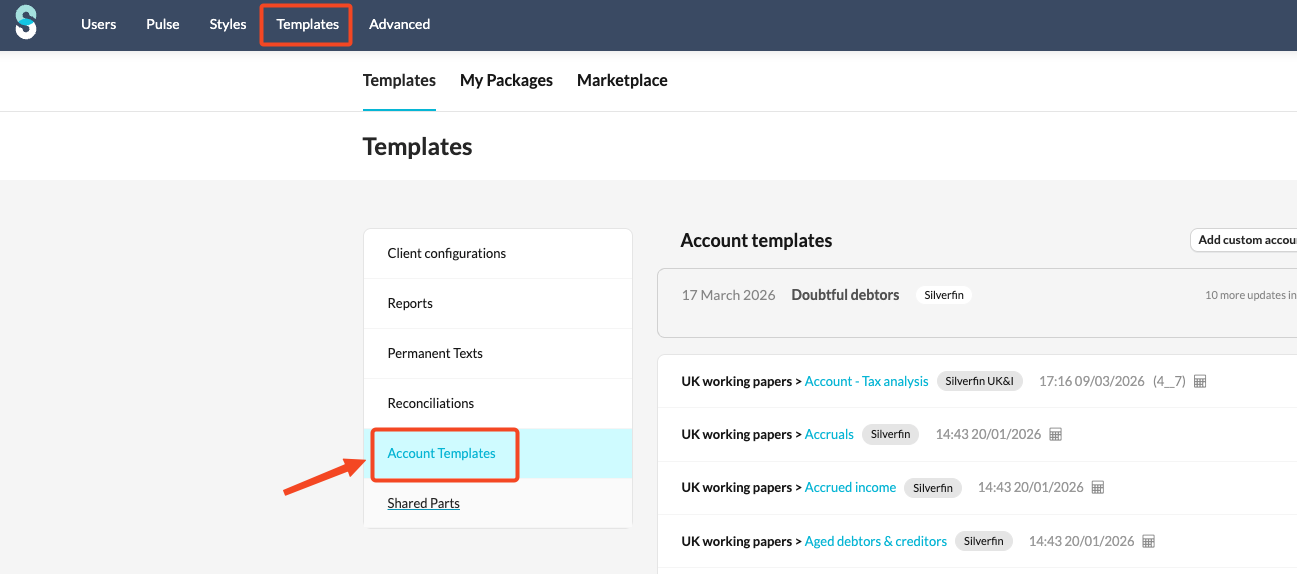
- Select the account template you want to modify.
- Update the account codes or ranges assigned to the template for a specific mapping list. You have also an option to assign account ranges/codes to 'no mapping list' field.
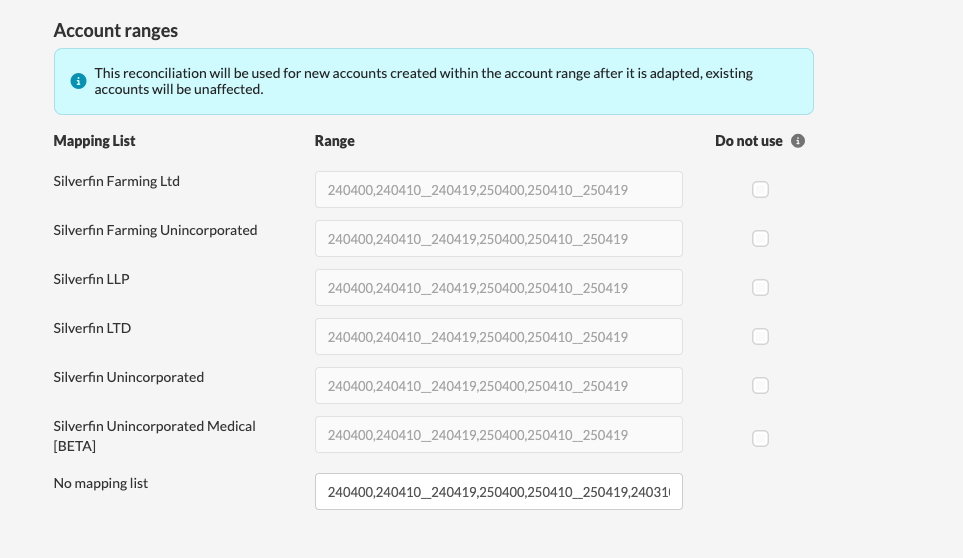
- Save your changes.
It is not possible to adjust ranges for Silverfin mapping lists. This field is greyed out.
- After updating the codes, the template will automatically apply to any new accounts created within the account range. Existing accounts will not be affected.
- You can also prevent a template from being automatically assigned to accounts within a specific range. To do this, click Do not use next to the relevant mapping list. When this option is selected, the account template will not be automatically applied to accounts in that range.
Updating templates for existing accounts
Changes to account template allocations only apply to new accounts created within the defined range. Existing accounts are not updated automatically.
If you need to apply a new account template to existing accounts, please contact your Customer Success Manager or Silverfin Support. They can perform a special action that updates the template allocation for the affected accounts.