| User Roles |  Admin Admin |  Staff contributor Staff contributor |  External Contributor External Contributor | ✗Pulse user |
Silverfin synchronises not only the account number, name, and value, but also detailed information at ledger line level. This allows you to automatically populate account details using synchronised data.
If synchronisation is not available and you want to reconcile an account manually, you can import reconciliation data from an Excel file.
Table of contents
- Import reconciliation data from the ledger
- Steps to import reconciliation data from Excel
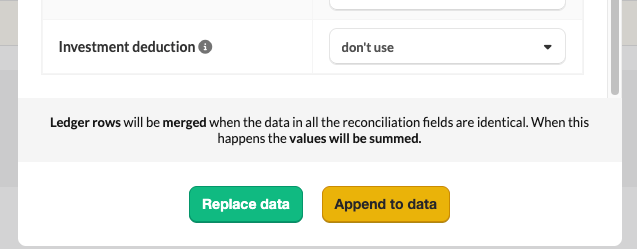
- Replace data or Append to data
Import reconciliation data from the ledger
- Open the relevant account.
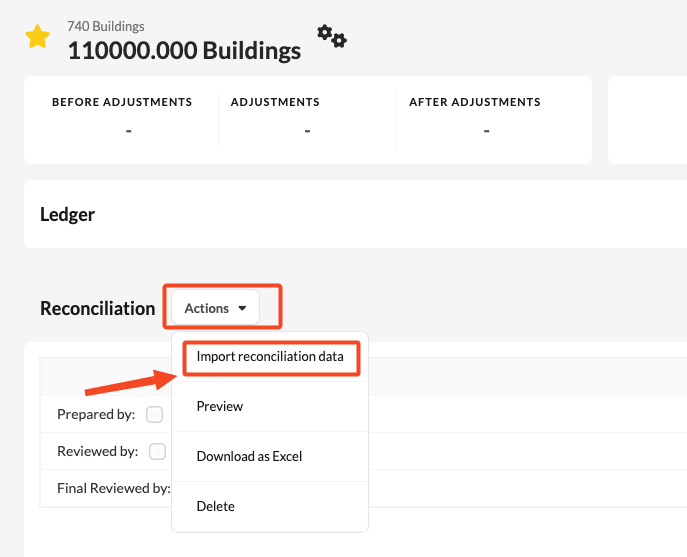
- Scroll down to the Reconciliation section and click Actions.
- Select Import reconciliation data.
- Choose From ledger.
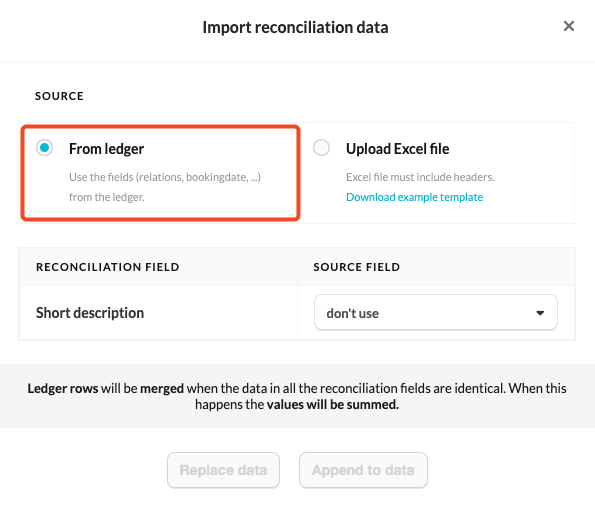
- In the Reconciliation field column, you can see all fields that can be completed in the reconciliation. In the Source field column, you can see the data available in a ledger.
- Assign the correct source field to each reconciliation field.
Ledger rows will be merged when the data in all the reconciliation fields are identical. When this happens the values will be summed.
Steps to import reconciliation data from Excel
- Open the relevant account.
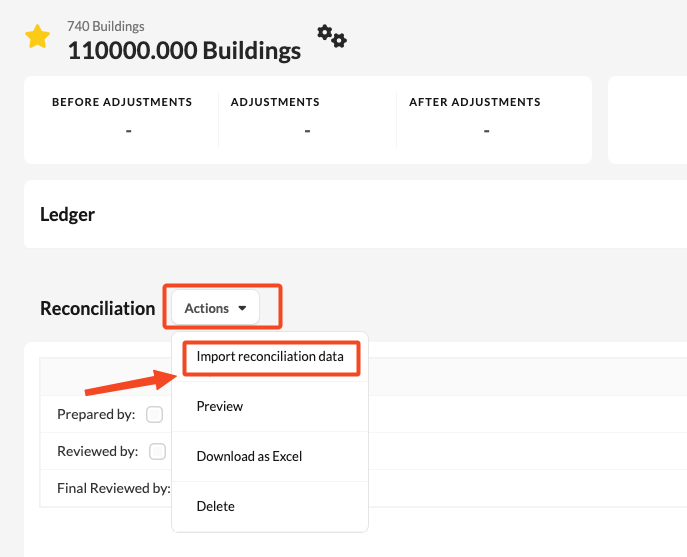
- Scroll down to the Reconciliation section and click Actions.
- Select Import reconciliation data.
- In the Upload Excel file section, download the example template. This template shows the required structure for a successful import. We strongly recommend using this structure. Note: Excel file must include headers.
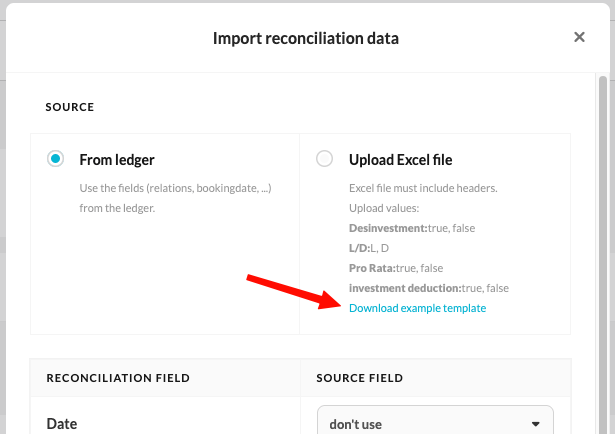
- Add your data to the Excel file.
- After you have added the data to the Excel file, click on 'Upload Excel file' and select the relevant file. If the reconciliation field can find the same name in the Excel file (provided it contains the structure as in the sample template), Silverfin will automatically assign the source field.
Replace data or Append to data
If the account already contains reconciliation data, you can choose how the import is handled:
- Replace data replaces all existing data with the newly imported data.
- Append data adds the imported data to the existing lines without removing them.
Choose the option that best fits your workflow before completing the import.