
| User Roles |  Admin Admin |  Staff contributor Staff contributor | External contributor | Pulse user |
This article explains how to manage the visibility of your Notes and To-dos, so you control which periods they appear in and how long they stay there.
Table of contents
- How do I create a periodic To-do?
- How do I remove a periodic To-do?
- How do I show Notes up until a certain period?
- How do I remove a pinned Note or To-do?
How do I create a periodic To-do?
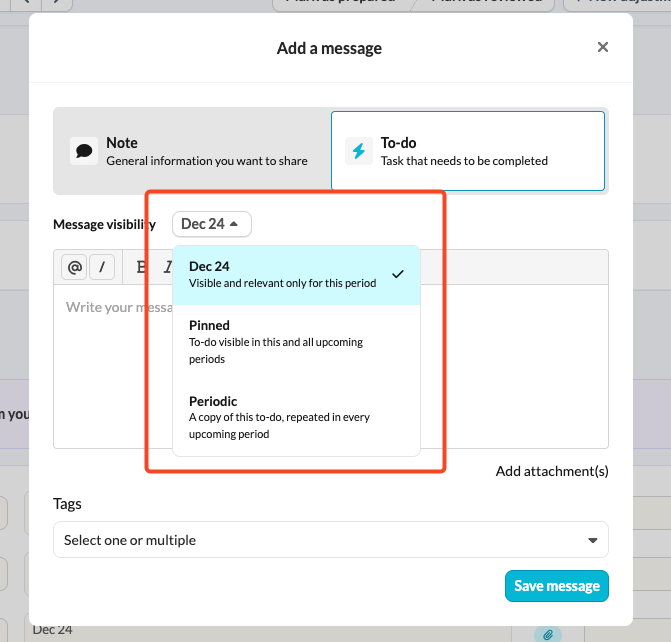
Periodic To-dos generate a separate task for the current period and for each upcoming period, so nothing is overlooked.
You can create tasks for either:
- Current period: shows the Note or task for the current period only, which is handy for time-sensitive reminders.
- Pinned: keeps the Note or task visible across all periods, and you can switch it off at any time.
- Periodic (applies to To-dos only): applies to the current period and all upcoming periods. A separate task is generated for each new period.
How do I remove a periodic To-do?
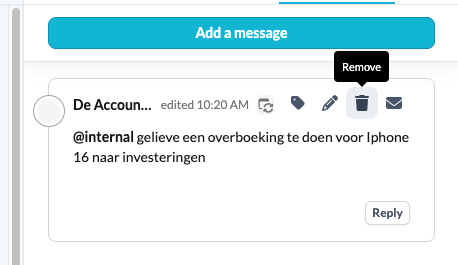
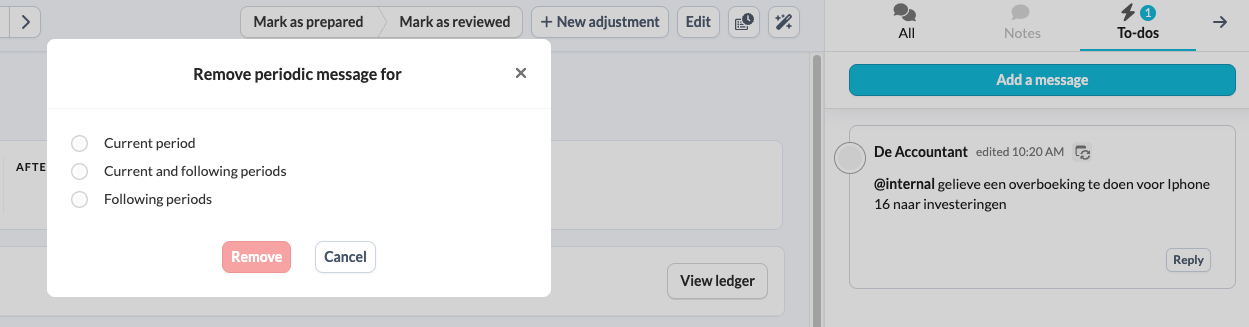
To remove a periodic To-do, click the remove button and select one of the following options:
- Current period: removes it for the current period only.
- Current and following periods: removes it for the current period and all upcoming periods.
- Following periods: keeps it for the current period but removes it from future periods.
How do I show Notes up until a certain period?
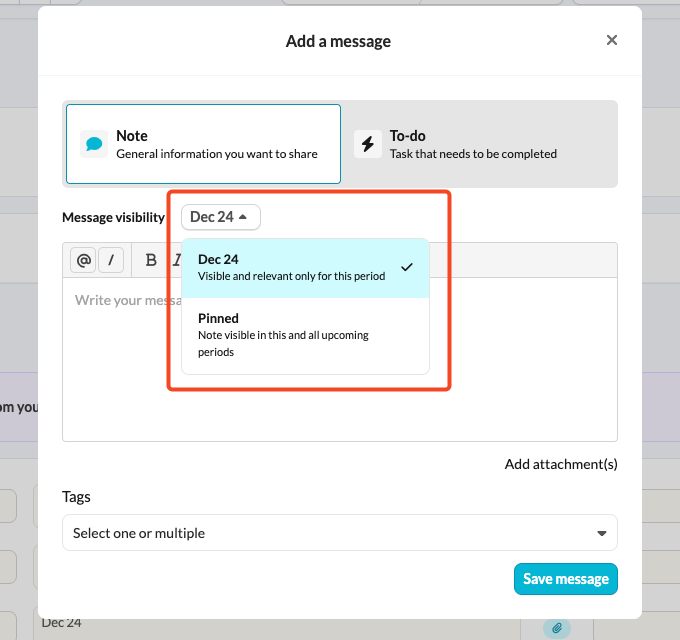
When you add a Note, you can choose between two options:
- Current period: your Note or To-do only appears for the current period, which is ideal for specific reminders.
- Pinned: this replaces the ‘all periods’ option. Your Note stays visible across all periods, and you control when to hide it. This also applies to To-dos.
How do I remove a pinned Note or To-do?
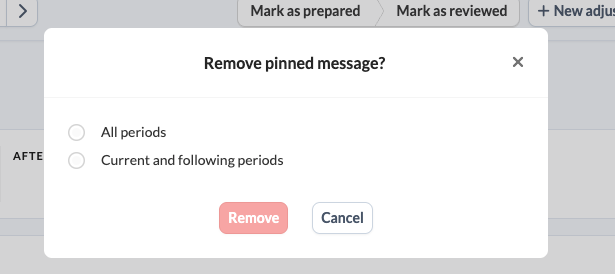
To remove a pinned Note or To-do, click the remove button and choose one of the following options:
- All periods: removes it for all periods.
- Current and following periods: removes it for the current period and all upcoming periods.
Notes and To-dos can only be removed or edited by the user who created them. Only an Admin user can remove Notes and To-dos that were created by inactive users.