
| User Roles |  Admin Admin |  Staff contributor Staff contributor | ✗External contributor | ✗Pulse user |
This article explains how to connect Silverfin with Companies House to synchronise administrative data. Once the connection is established, changes made in Companies House sync through to Silverfin.
Table of contents
- How to set up synchronisation with Companies House at the firm level?
- How to set up synchronisation with Companies House at the client file level?
How to set up synchronisation with Companies House at the firm level?
Only users with admin rights can set up synchronisation at the firm level.
To establish the connection, follow these steps:
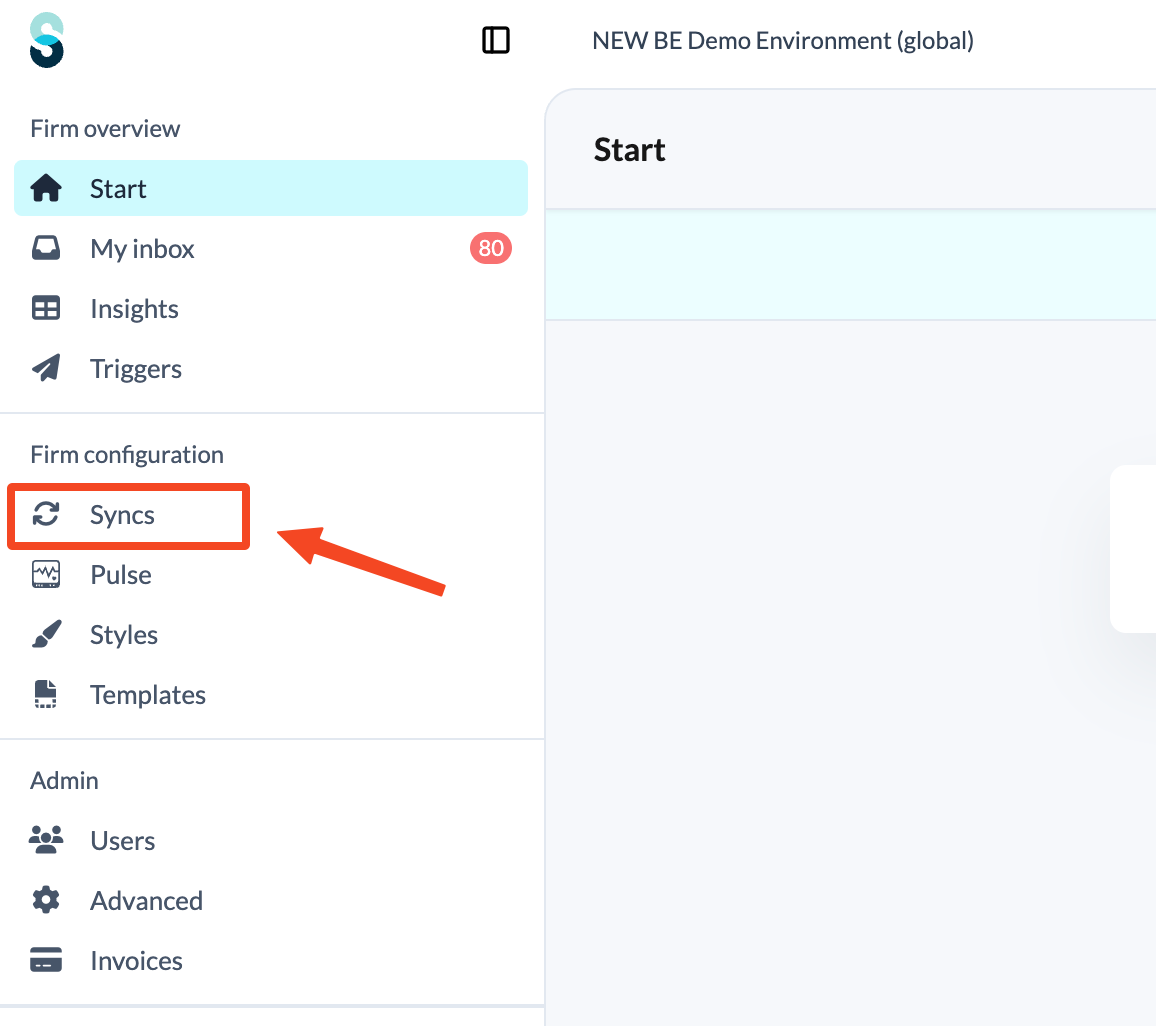
- Click Syncs in the left panel, under Firm configuration.
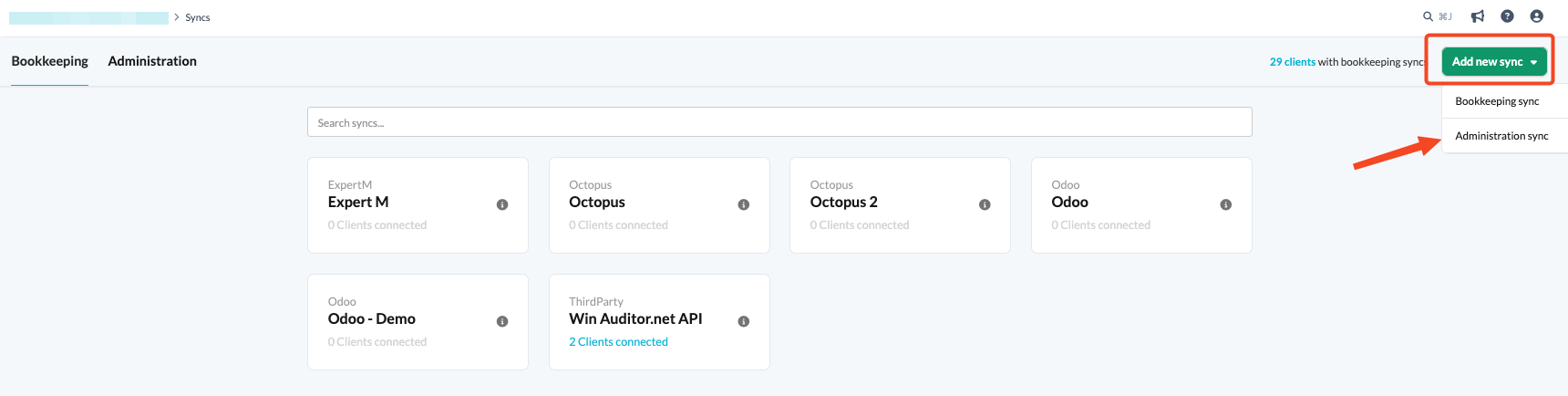
- Click the Add new sync button and choose Administration sync.
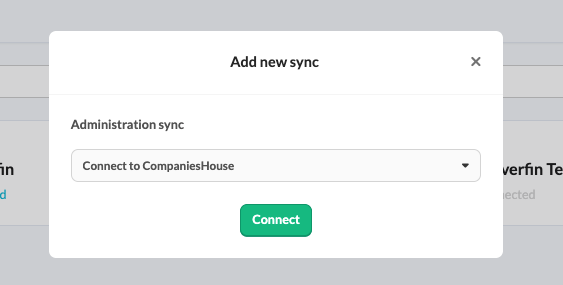
- From the drop-down menu, choose Connect to CompaniesHouses and click Connect.
- Fill in the relevant fields.
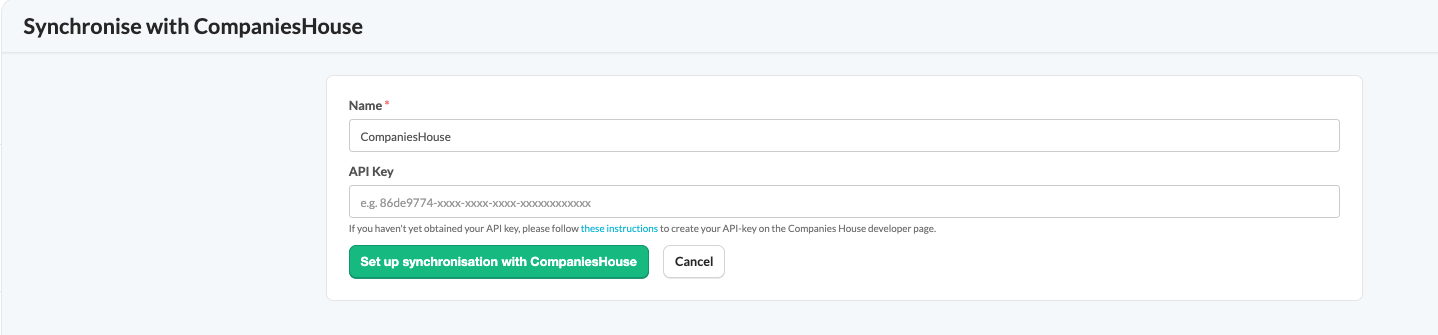
To learn how to obtain the Companies House API key, refer to the following support article.
How to set up synchronisation with Companies House at the client file level?
To link an existing synchronisation to a client file, follow these steps:
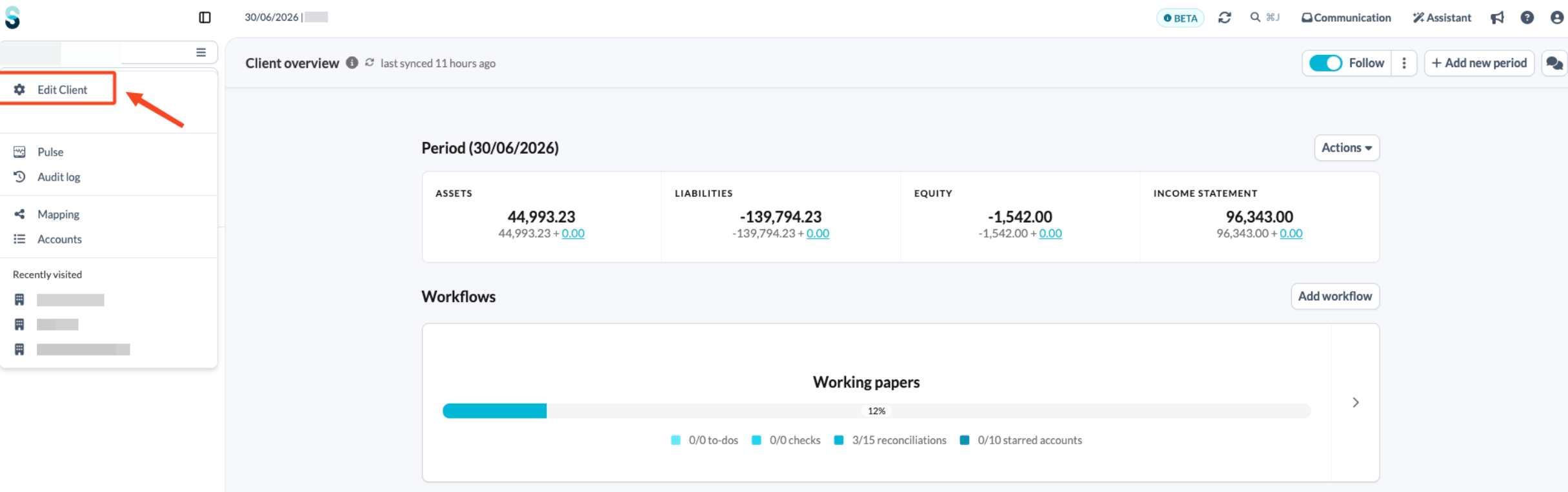
- On the client file overview page, click the client file name at the top of the left panel and choose Edit client.
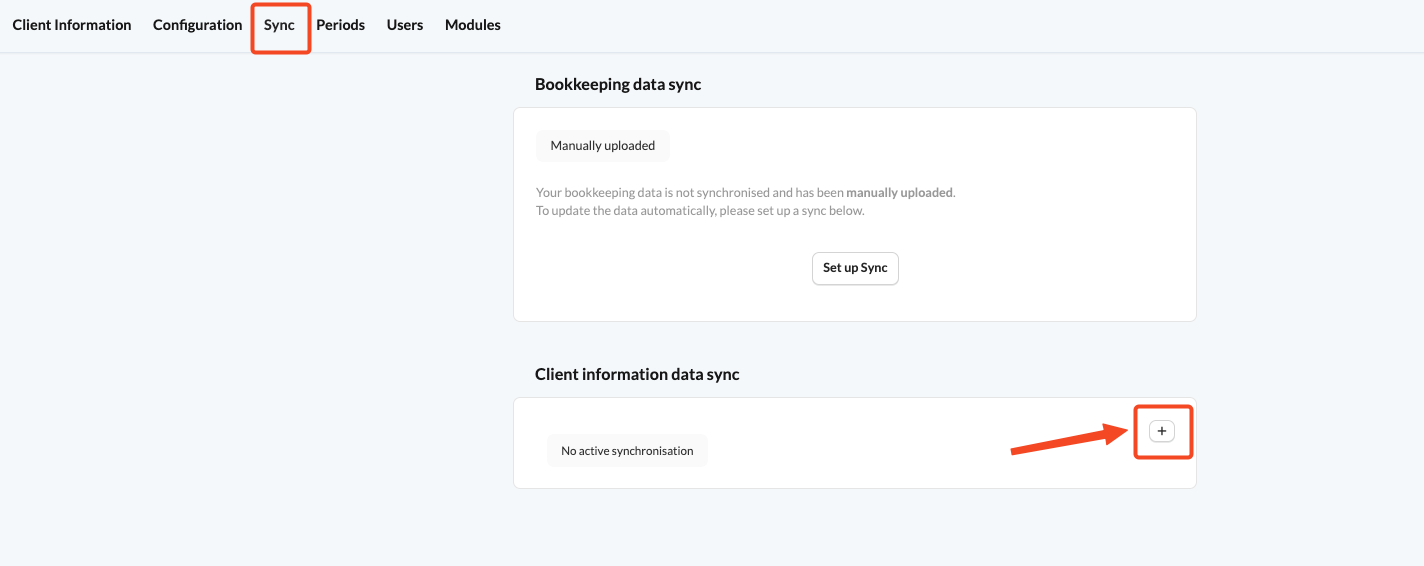
- Click the Sync tab.
- Click the plus sign (+) next to Administration sync.
- Choose Companies House from the list of available administration syncs.
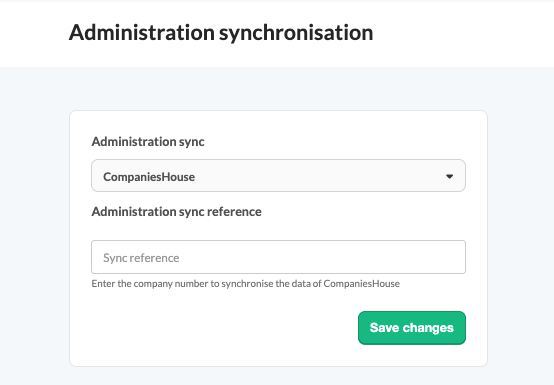
- Assign the correct administration sync reference (company number).
- Save your changes.
If the company number entered in the client file does not match the company number used to synchronise the data, it will automatically update to match the number from Companies House.