
| User Roles |  Admin Admin | ✗Staff contributor | ✗External contributor | ✗Pulse user |
This article explains how to set up synchronisation with QuickBooks while creating a new client file in Silverfin. Once the connection is established, any changes made in QuickBooks sync automatically with Silverfin. If the client file already exists, see How can I set up synchronisation with QuickBooks in an existing file?
Table of contents
- How do I set up a QuickBooks sync when creating a new client file?
- Which accounting method does the QuickBooks sync use?
- Who can create client files in Silverfin?
How do I set up a QuickBooks sync when creating a new client file?
To establish a connection with QuickBooks, we recommend adding the QuickBooks sync while creating the client file, using the Add new client wizard.
- Click Start in the left panel, then click Add new client.

- In the File setup step, under Data source, choose Bookkeeping sync.
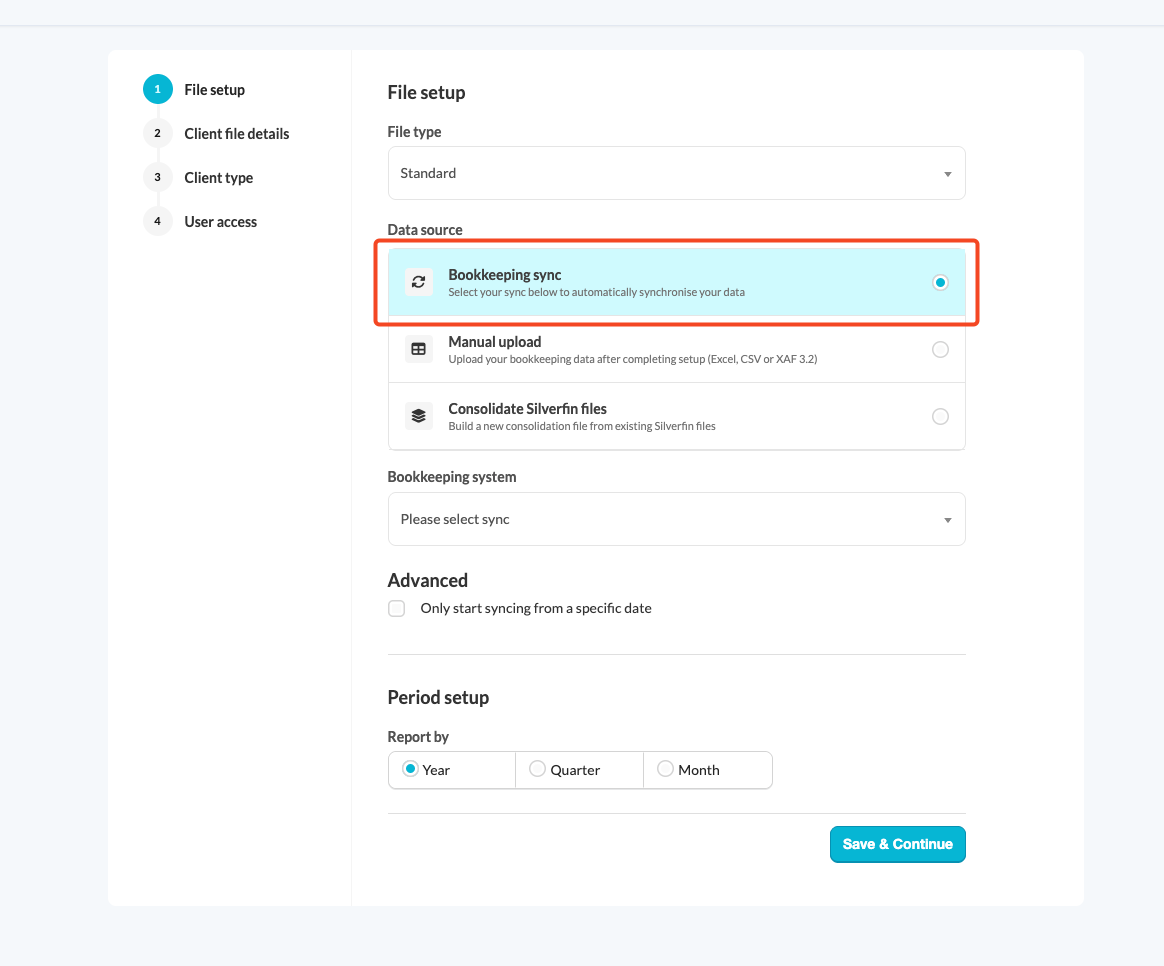
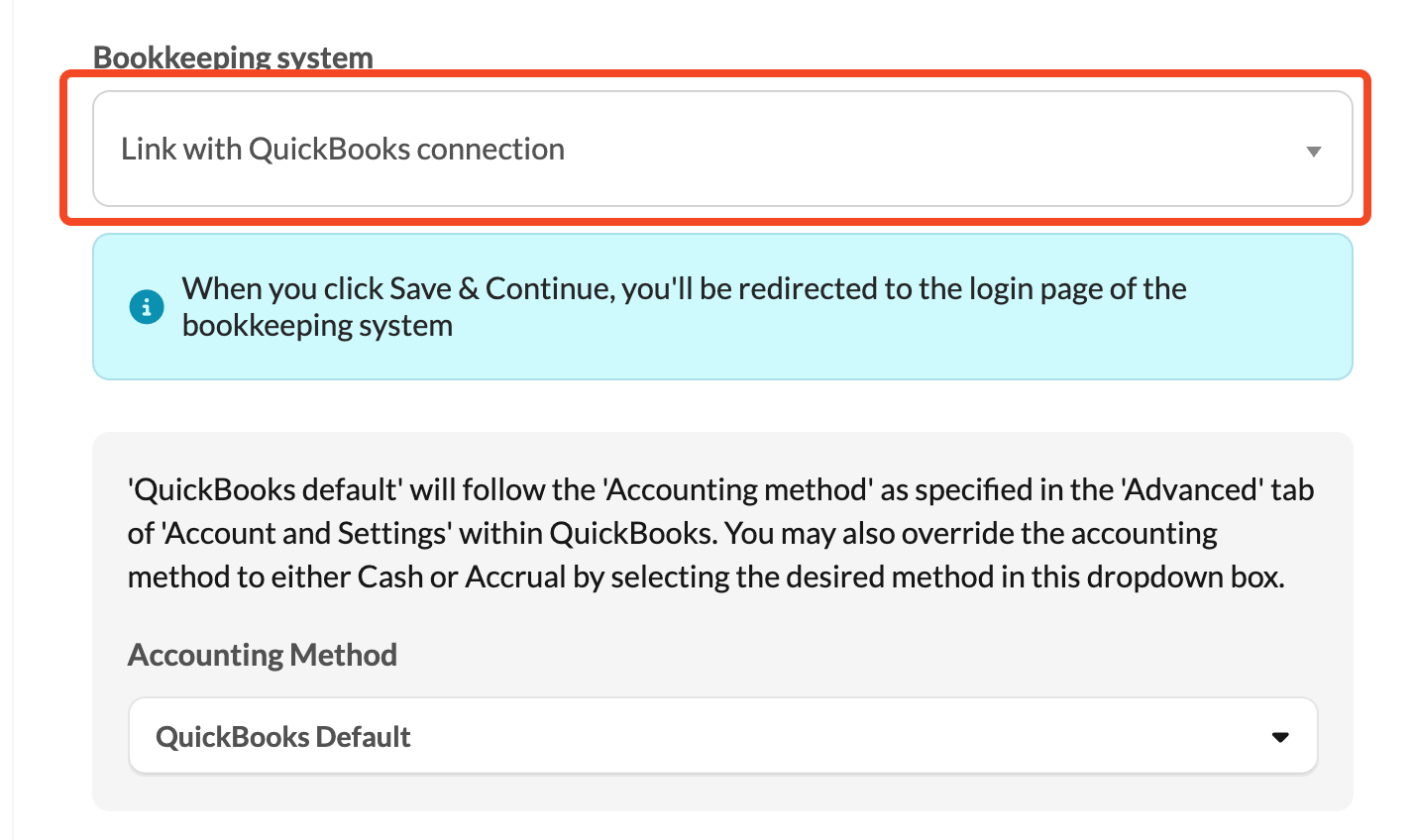
- Under Bookkeeping system, open the drop-down menu. To create a new connection, choose Connect to QuickBooks. To reuse a connection that already exists in your firm, choose it under Existing syncs.
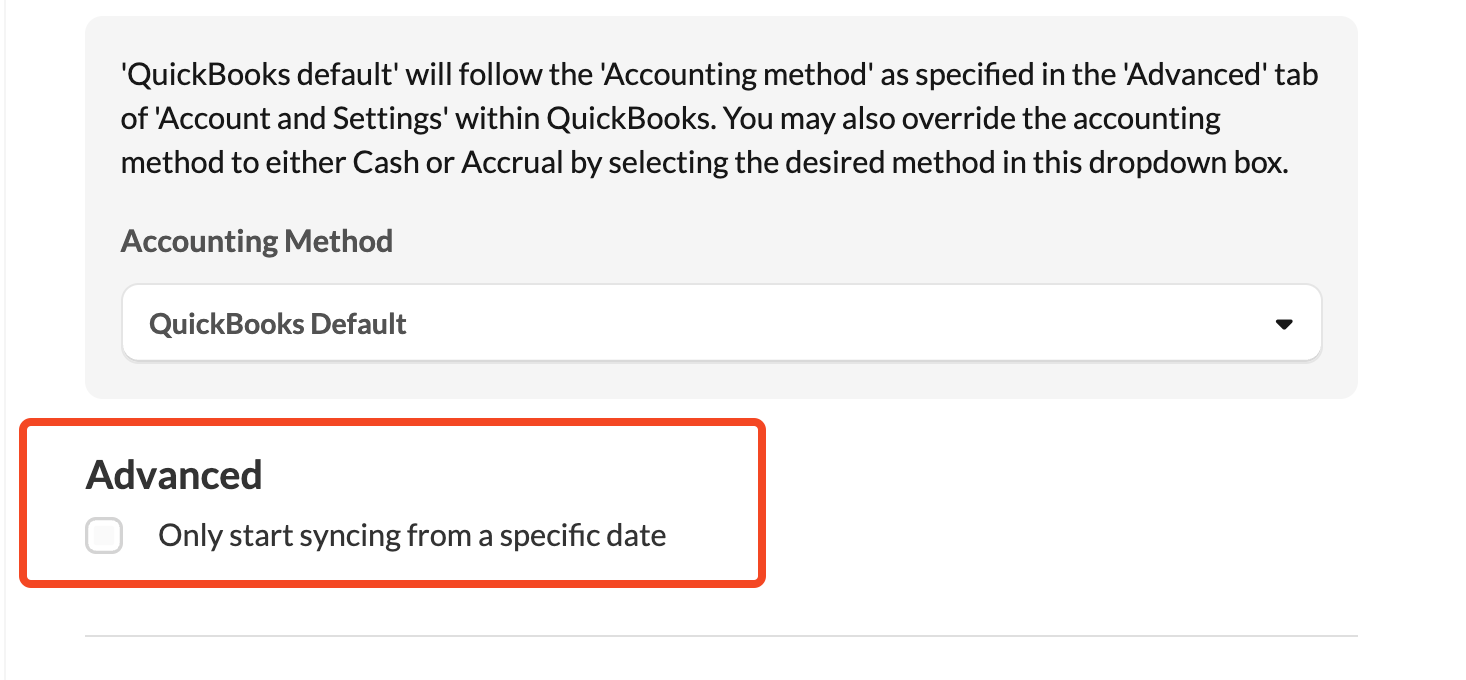
- If you want the sync to start from a specific date, go to the Advanced section, tick Only start syncing from a specific date and fill in Select date. We recommend choosing the start of a financial year.
- Click Save & Continue. You will be redirected to the QuickBooks login page.

- Log in using the credentials of a user who has access to the file you want to sync.
Which accounting method does the QuickBooks sync use?
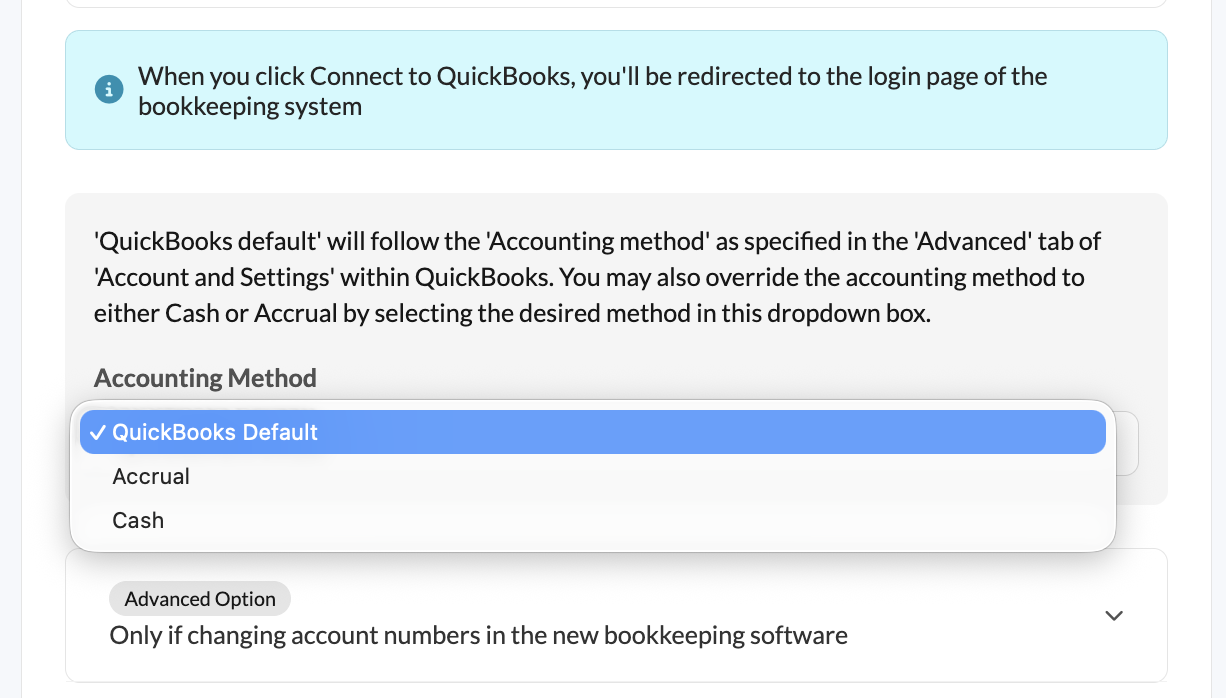
During the QuickBooks synchronisation setup, you will need to choose an accounting method.
- By default, Silverfin follows the accounting method set in QuickBooks (under Account and Settings > Advanced).
- You can override the accounting method to either Cash or Accrual by selecting the method you want in the drop-down box.
Who can create client files in Silverfin?
- New client files can be created by admin users, or by internal users who have been granted the necessary permissions.
- Admin users can assign these permissions in the user settings.