
| User Roles |  Admin Admin | ✗Staff contributor | ✗External contributor | ✗Pulse user |
This article explains how to connect Silverfin with Odoo to synchronise bookkeeping data at the firm level. Once the connection is established, any changes made in Odoo will sync with Silverfin.
Table of contents
- What do I need to know before I set up the Odoo sync?
- How do I set up the connection with Odoo at the firm level?
- How do I obtain an API key in Odoo?
- What access rights does the Odoo user need?
- How do I find the database name in Odoo?
What do I need to know before I set up the Odoo sync?
- Only users with admin rights can set up synchronisation at the firm level.
- Silverfin supports Odoo version 15 and newer.
- Odoo.sh is a customisable version of Odoo and is not officially supported by Silverfin. However, depending on the specific modifications made in Odoo.sh, the connection may still work. If you have any questions, contact Odoo Support.
- There are no additional charges for synchronising with the Odoo cloud package.
How do I set up the connection with Odoo at the firm level?
To establish the connection with Odoo at the firm level, follow these steps:
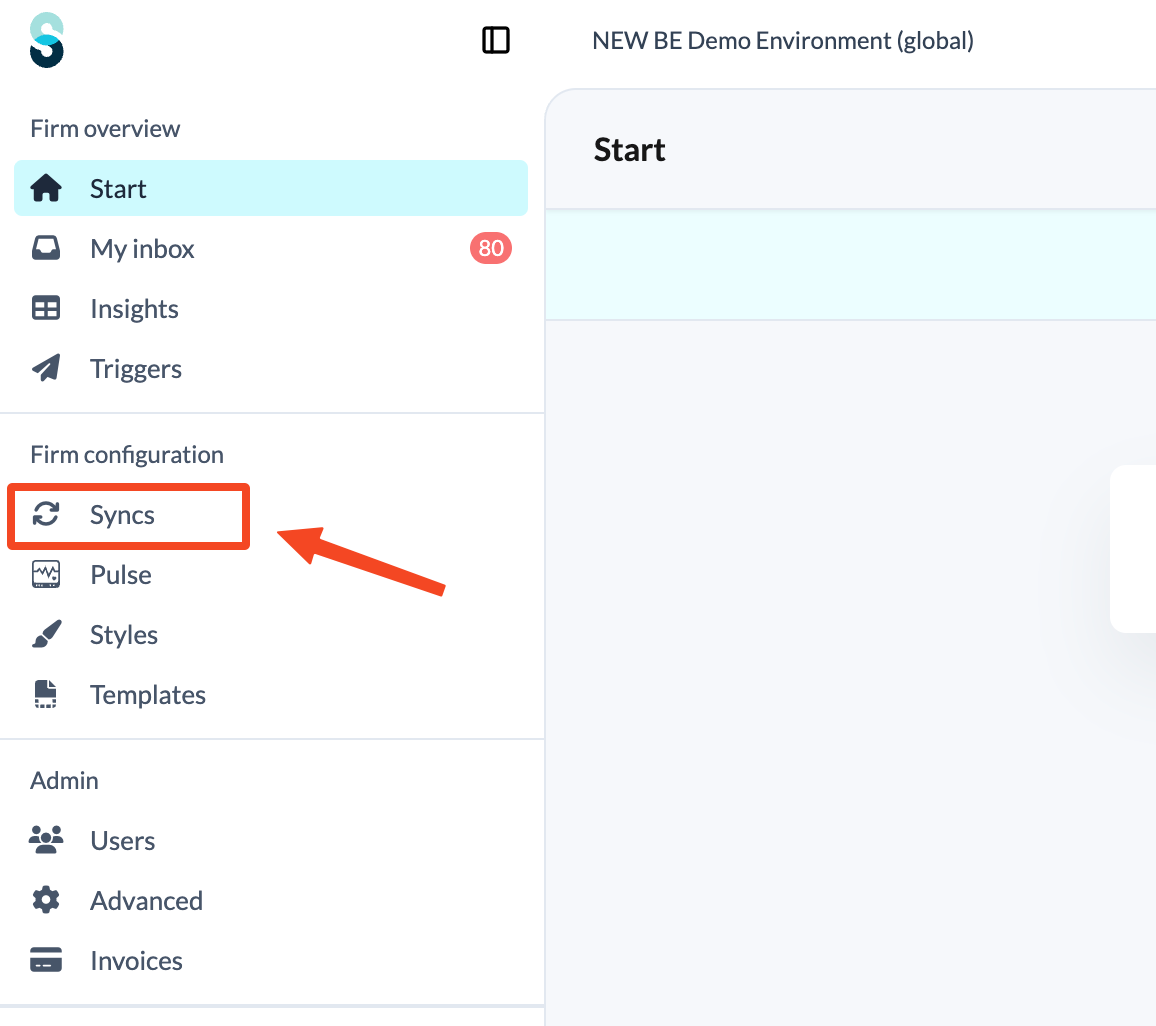
- Click Syncs in the left panel, under Firm configuration.
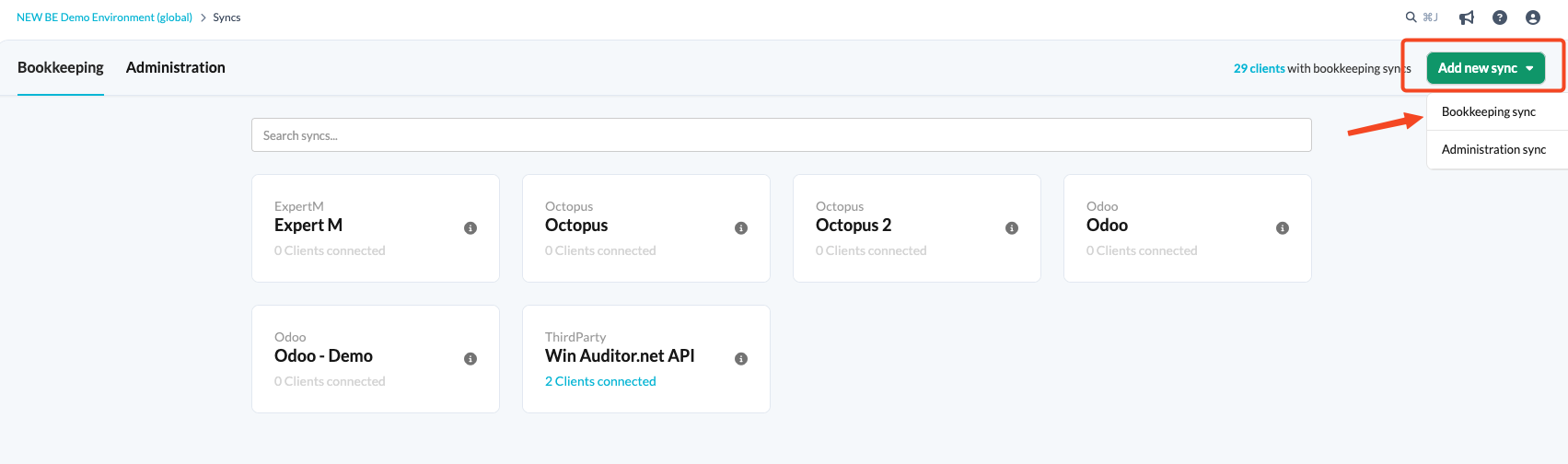
- Click the Add new sync button and choose Bookkeeping sync.
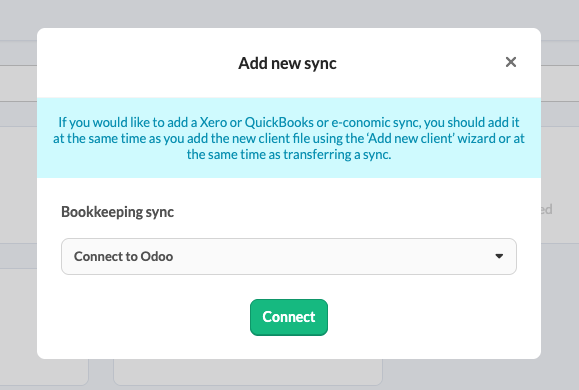
- From the drop-down menu, choose Odoo sync and click Connect.
- Fill in the relevant fields.
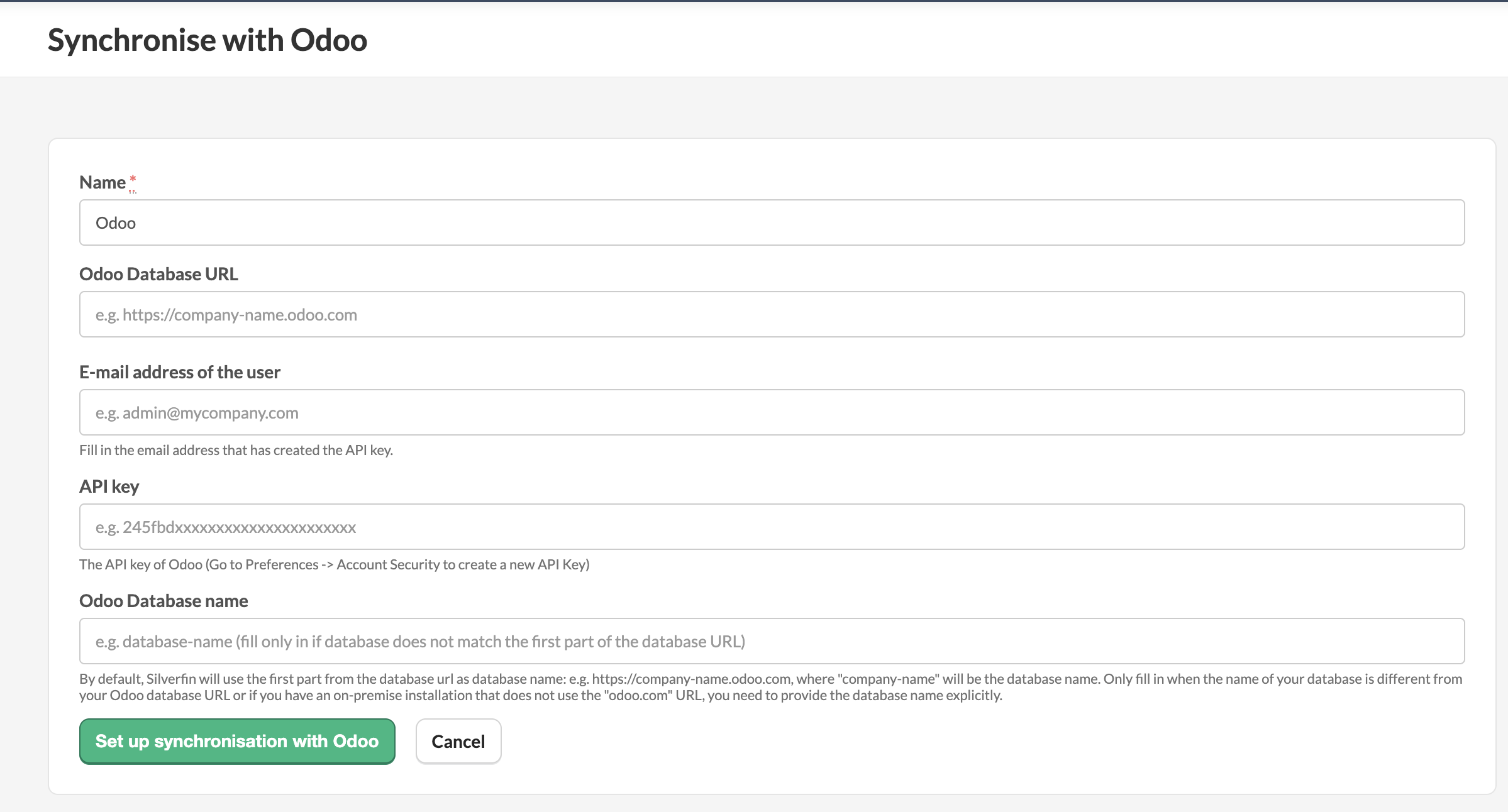
- Name: the name you give to the sync entity.
- Odoo Database URL: this is usually in the format https://companyname.odoo.com, but it may also be a custom domain like mycompany.be. Note: the URL must start with https:// and must not end with /odoo.
- Email address of the user: the email address used to create the API key. Note: the API key acts like the user's password, so the email must match the one used to obtain the API key in Odoo.
- API key: the API key created in Odoo.
- Odoo Database name: by default, Silverfin uses the first part of the Odoo database URL as the database name.
Example: https://company-name.odoo.com → company-name is the database name.- Only fill in this field if:
- the actual database name differs from the subdomain in your Odoo URL, or
- you are using an on-premise Odoo installation with a custom domain (not odoo.com).
- The database name is case sensitive, so make sure the name you provide matches the name in Odoo.
- Only fill in this field if:
Once the synchronisation exists at the firm level, it can be linked to a client file. Linking does not require admin rights: both Admin and Staff contributor users can do this. See How can I sync a client file with Odoo?
How do I obtain an API key in Odoo?
You can find the complete step-by-step guide in the Odoo help article.
What access rights does the Odoo user need?
The Odoo user linked to the API key must have sufficient access rights, otherwise the connection may fail to set up or synchronise. As a minimum, that user needs Show Full Accounting Features - Read Only access. Higher permission levels also work.
How do I find the database name in Odoo?
- There are several ways to find your database name. The correct method depends on the version of Odoo you are using (Cloud or On-Premise).
- The database is typically in the format <subdomain>.odoo.com. The subdomain (the part before odoo.com) is used as the database name.
- When an Odoo Database URL is provided, Silverfin assumes that <subdomain> is the name of the database the sync should connect to. In that case, you should not fill in the Odoo Database name field.
- If the name of the Odoo database differs from the subdomain in the Odoo Database URL, or if you are using an on-premise Odoo installation with a custom URL, you must provide the database name explicitly in the Odoo Database name field.
Option 1
- Go to https://www.odoo.com/my/databases and log in.
- After logging in, the database name is displayed.
- Example: if your URL is company-name.odoo.com, then company-name is likely the database name.
- If this is correct, leave the Odoo Database name field empty.
- If not, enter the correct name.
In the example below, sf-xxx-test is the database name:
Option 2
- Add /web/database/manager to your Odoo URL, so you get the following URL format: https://yourdomain.com/web/database/manager
- The name displayed is your database name:

Odoo database names are not publicly visible for security reasons, which means Silverfin cannot retrieve them. If you have any questions or cannot determine your database name, contact Odoo or your Partner support directly, as they are able to look it up for you.