
| User Roles |  Admin | ✗Staff contributor | ✗External contributor | ✗Pulse user |
This article explains how to connect Silverfin with Octopus to synchronise bookkeeping data at firm level. Once the connection is established, any changes made in Octopus will sync with Silverfin.
Only users with admin rights can set up synchronisation at firm level.
To establish the connection with Octopus at firm level, follow these steps:
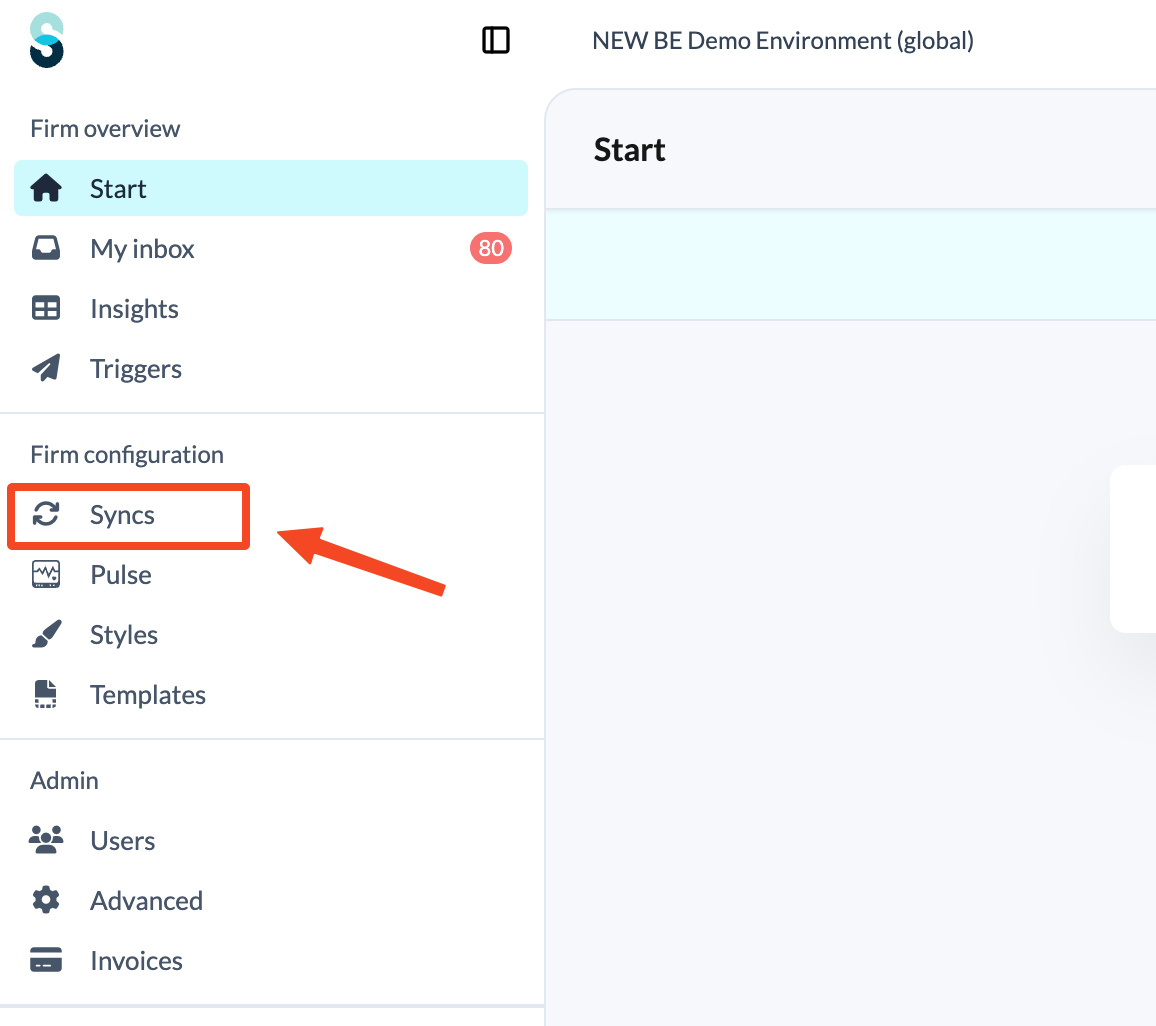
- Click Syncs in the left panel, under Firm configuration.
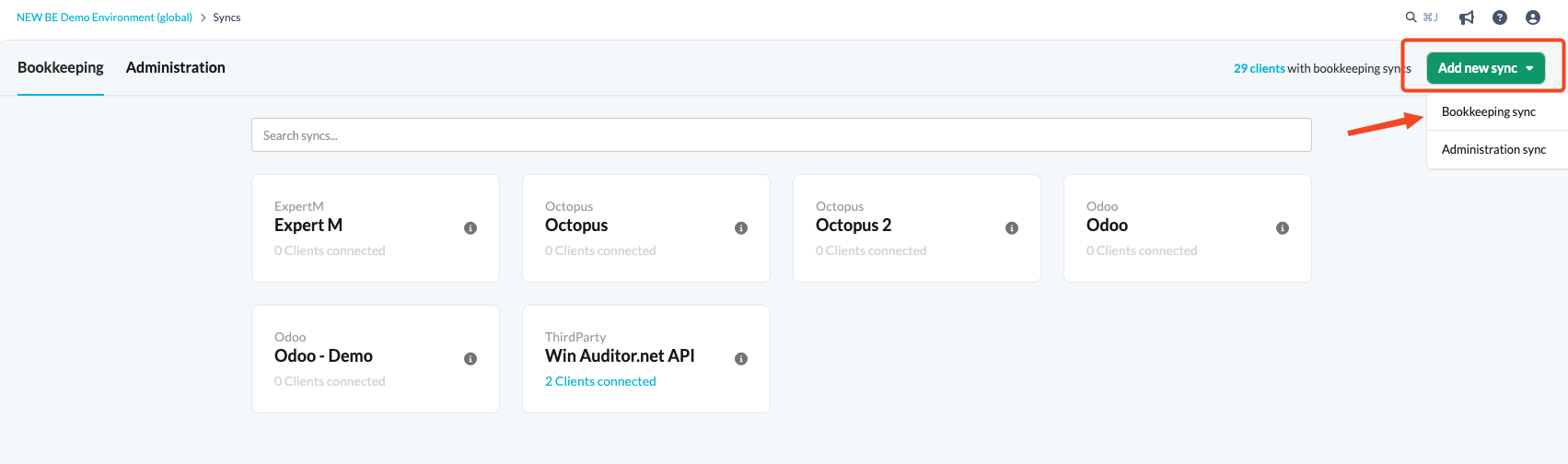
- Click the Add new sync button and choose Bookkeeping sync.
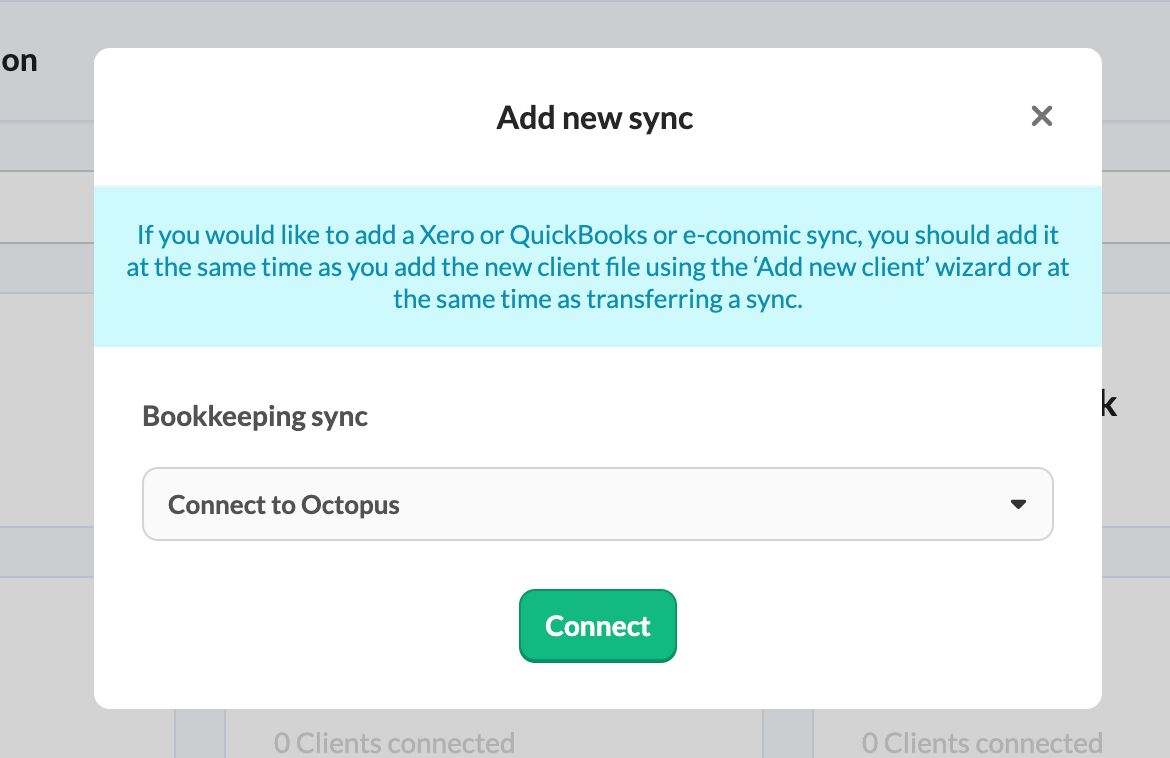
- From the drop-down menu, choose Connect to Octopus and click Connect.
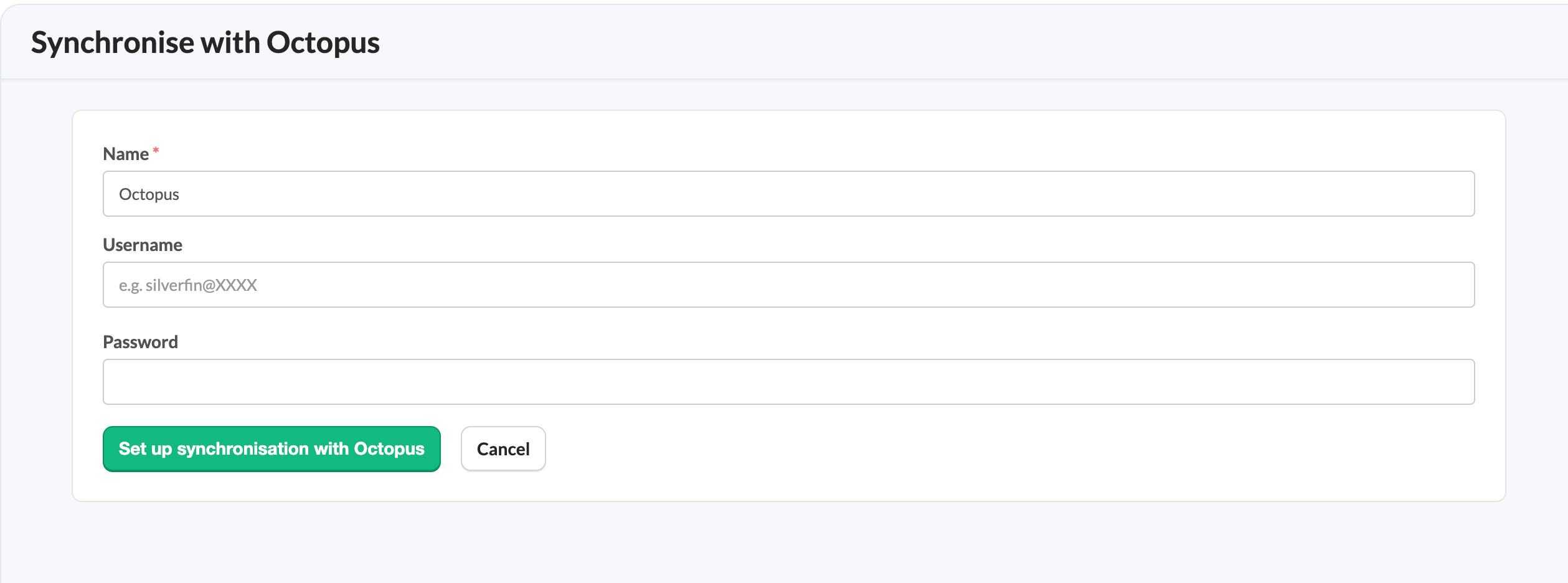
- Fill in the relevant fields and click Set up synchronisation with Octopus.
What do I need to check in Octopus before synchronising?
- Check that the Webservice is enabled in Octopus for the files you want to sync. The Webservice allows Silverfin to access and synchronise the files. Without it, access is not possible.
- Verify the permissions of the Octopus user. The user who sets up the connection between Octopus and Silverfin must be a Main user.
- Contact Octopus if you are unsure how to activate the Webservice.
Once the synchronisation exists at firm level, it can be linked to a client file. See How to set up synchronisation with Octopus in a file?