
| User Roles |  Admin Admin |  Staff contributor Staff contributor | ✗ External contributor | ✗ Pulse user |
This article explains how to connect Silverfin with E-conomic in an existing client file. Once the connection is established, any changes made in E-conomic will automatically sync with Silverfin.
To establish a connection with E-conomic in an existing client file, follow the steps below:
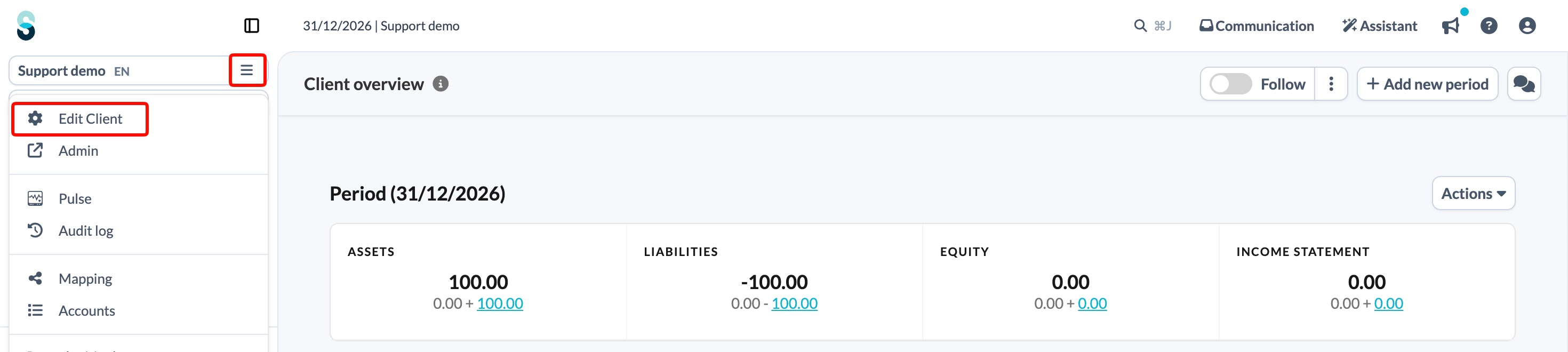
- On the client file overview page, click the client file name at the top of the left panel and choose Edit Client.
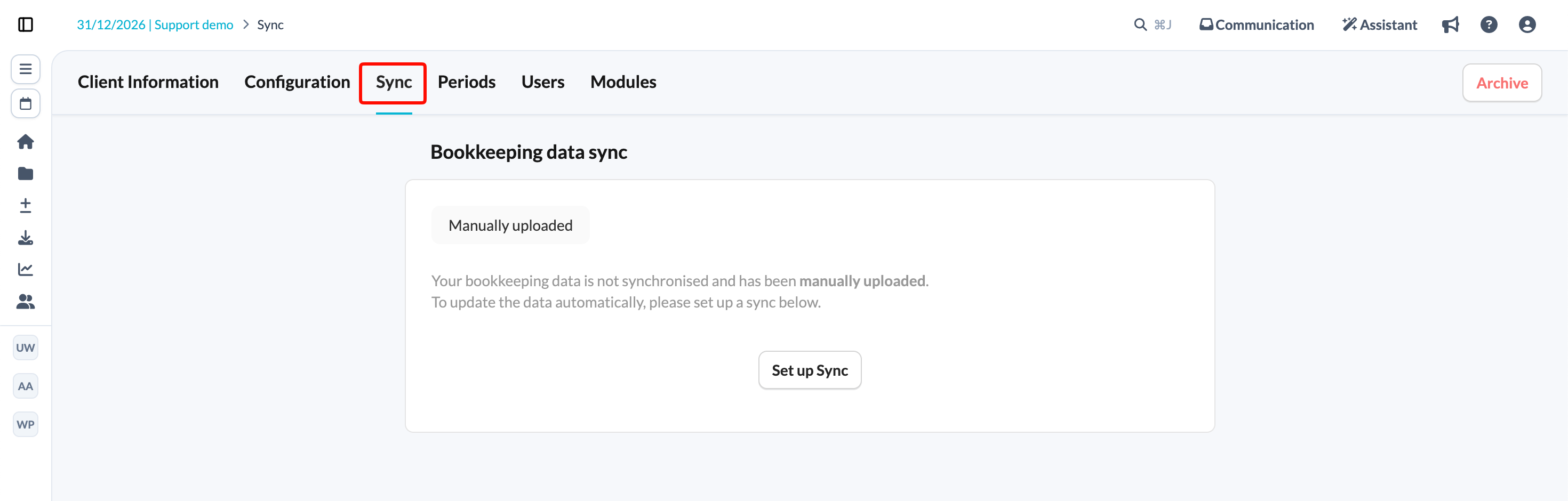
- Click the Sync tab.
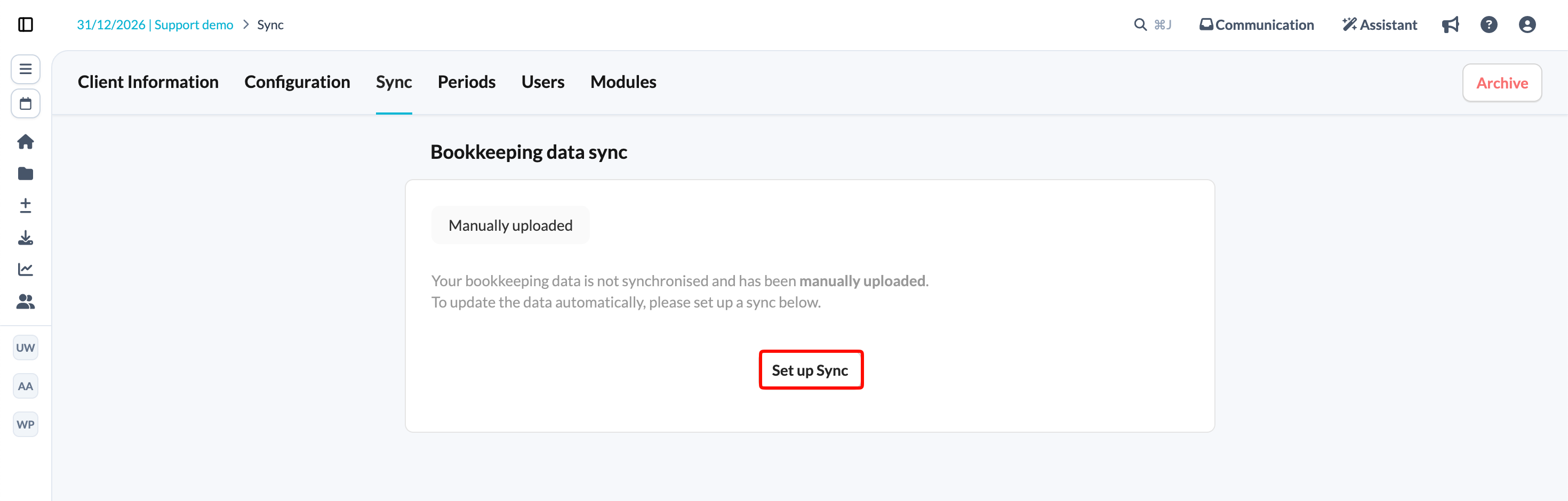
- Click Set up Sync.
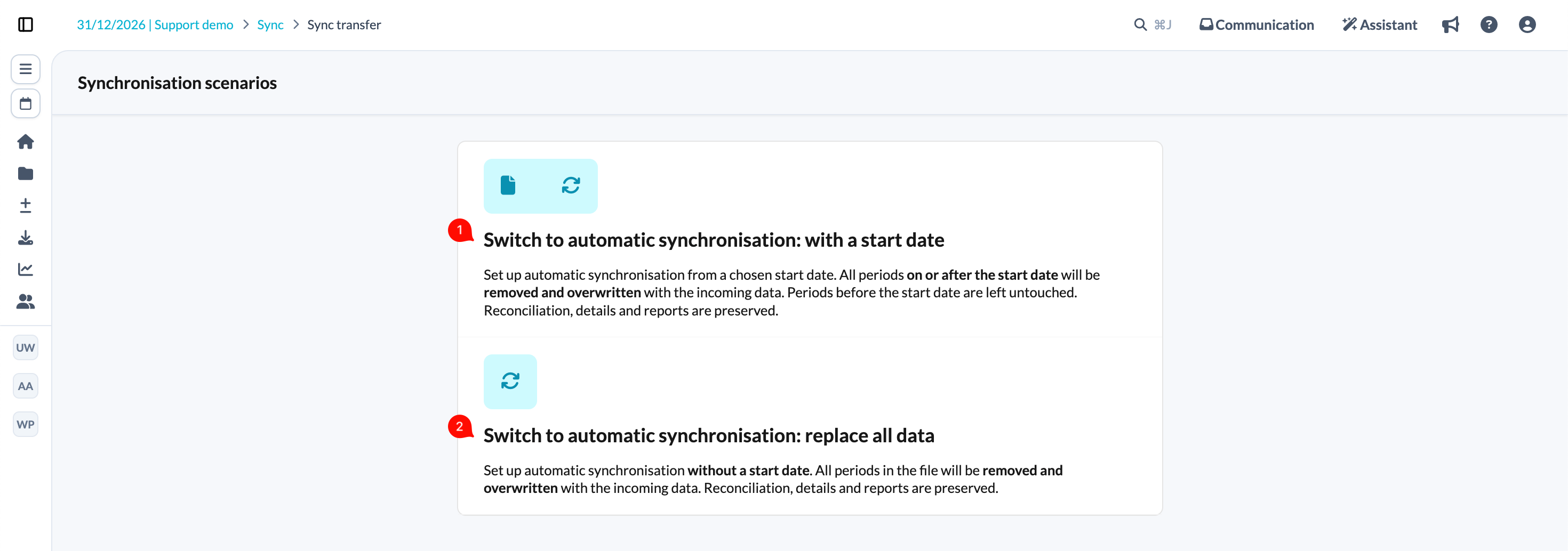
- Choose one of the provided synchronisation scenarios. If you choose the first scenario, you will be prompted to set the sync start date.
- Choose E-conomic from the list of available synchronisations.
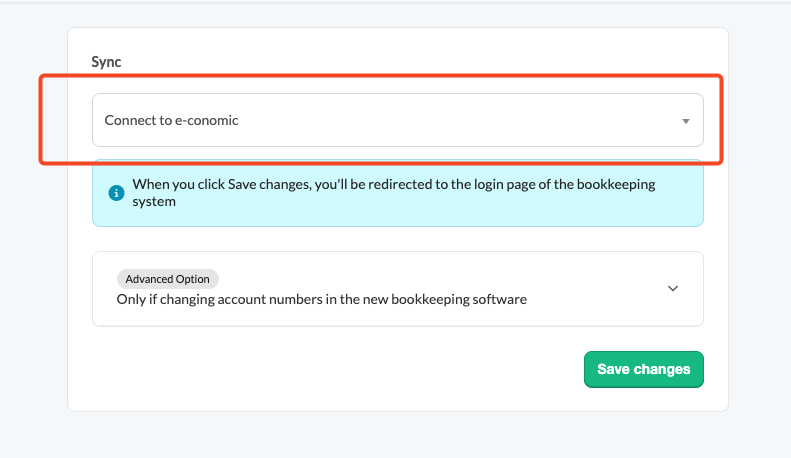
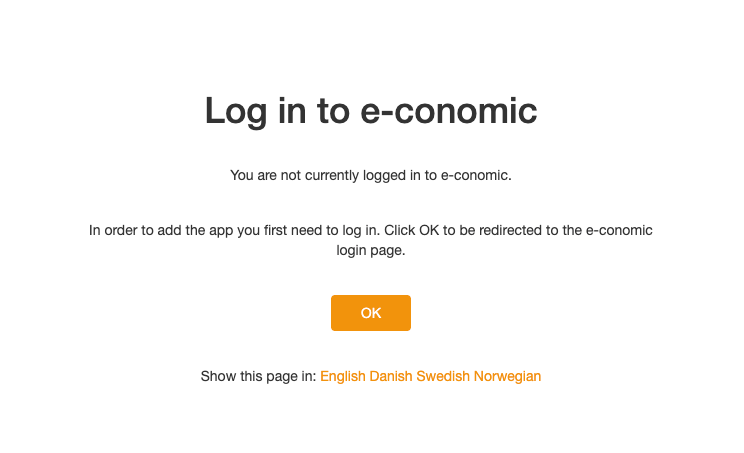
- When you click Save changes, you will be redirected to the accounting software login page. You need to log in with the credentials of the user who has access to the file you wish to sync.
If you are setting up a brand new client file instead, see How to set up synchronisation with E-conomic when creating a new file?