
| User Roles |  Admin Admin | Staff contributor | External contributor | ✗Pulse user |
This article explains how to set up synchronisation with E-conomic while creating a new client file in Silverfin. Once the connection is established, any changes made in E-conomic sync automatically with Silverfin. If the client file already exists, see How to set up synchronisation with E-conomic in an existing file?
Table of contents
- How do I set up an E-conomic sync when creating a new client file?
- Who can create client files in Silverfin?
How do I set up an E-conomic sync when creating a new client file?
To establish a connection with E-conomic, we recommend adding the E-conomic sync while creating the client file, using the Add new client wizard.
- Click Start in the left panel, then click Add new client.

- In the File setup step, under Data source, choose Bookkeeping sync.
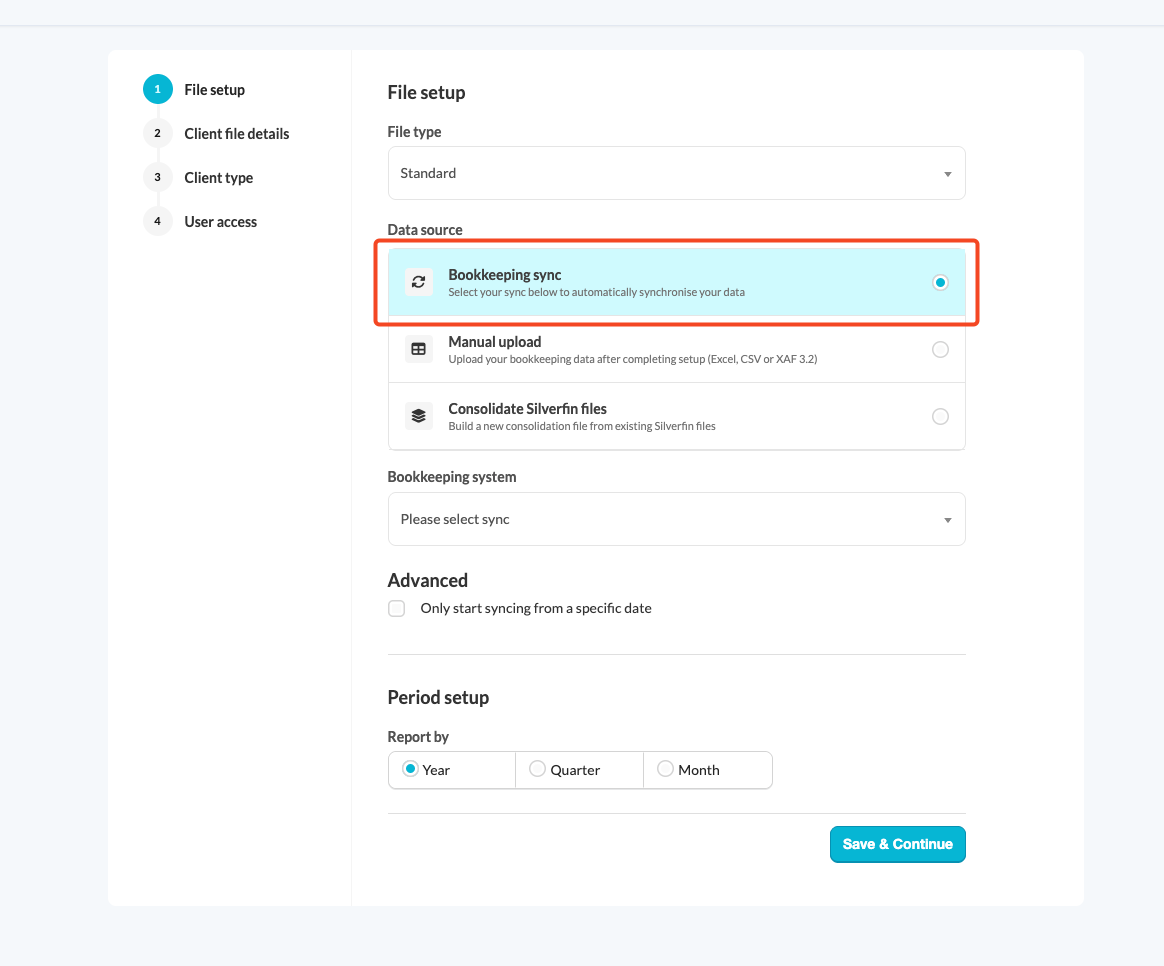
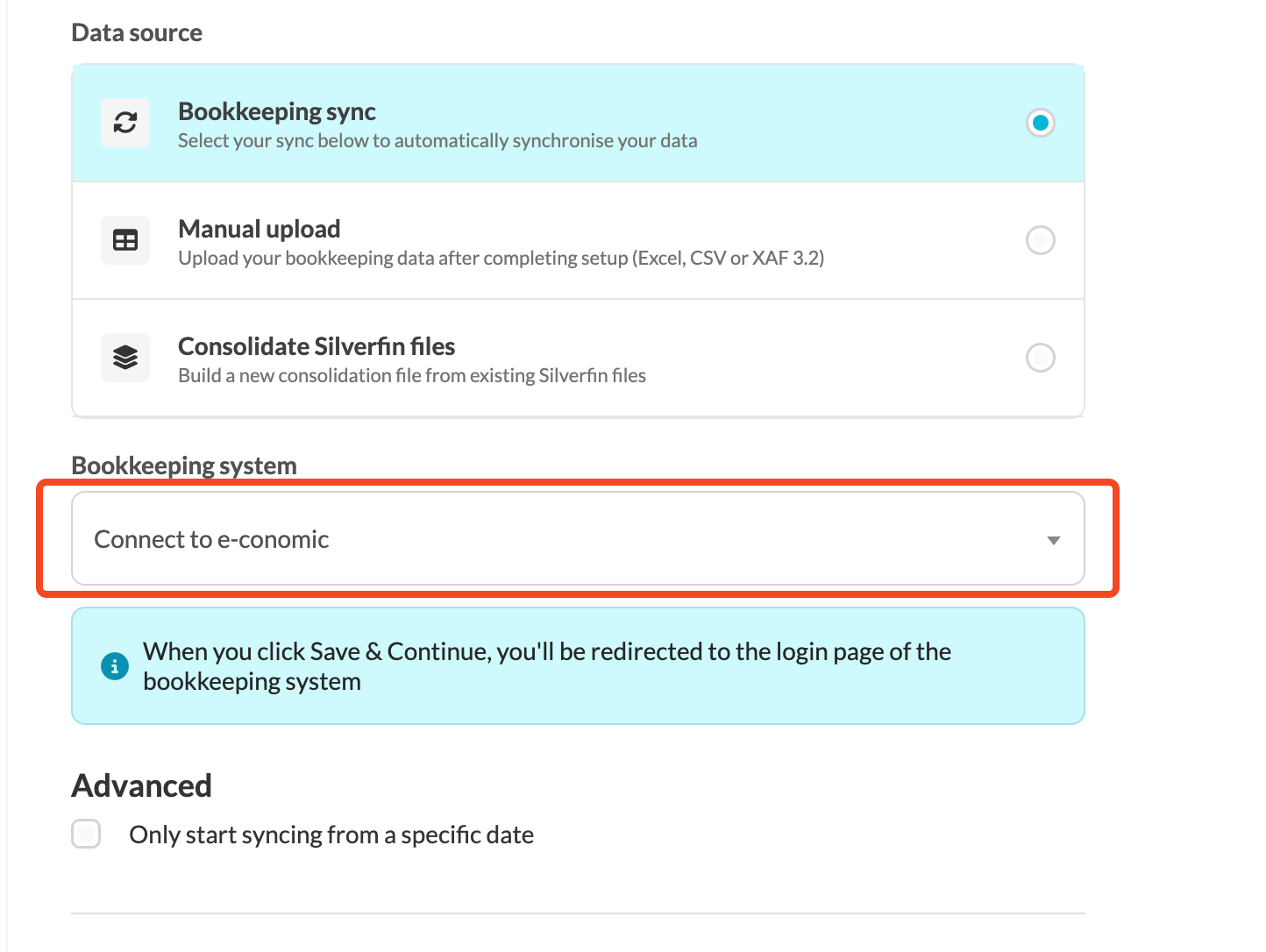
- Under Bookkeeping system, open the drop-down menu. To create a new connection, choose Connect to e-conomic. To reuse a connection that already exists in your firm, choose it under Existing syncs.
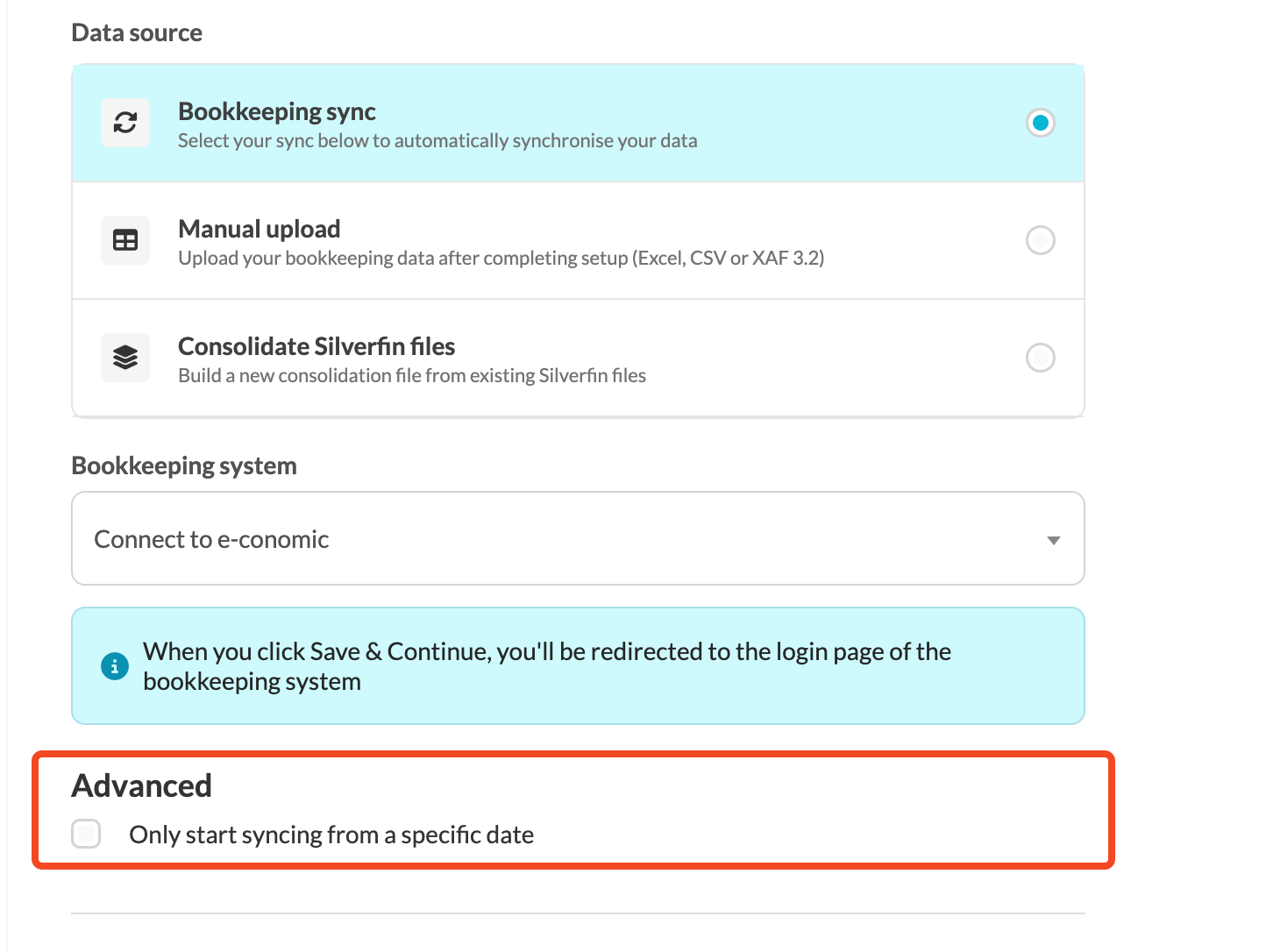
- If you want the sync to start from a specific date, go to the Advanced section, tick Only start syncing from a specific date and fill in Select date. We recommend choosing the start of a financial year.
- Click Save & Continue. You will be redirected to the E-conomic login page.
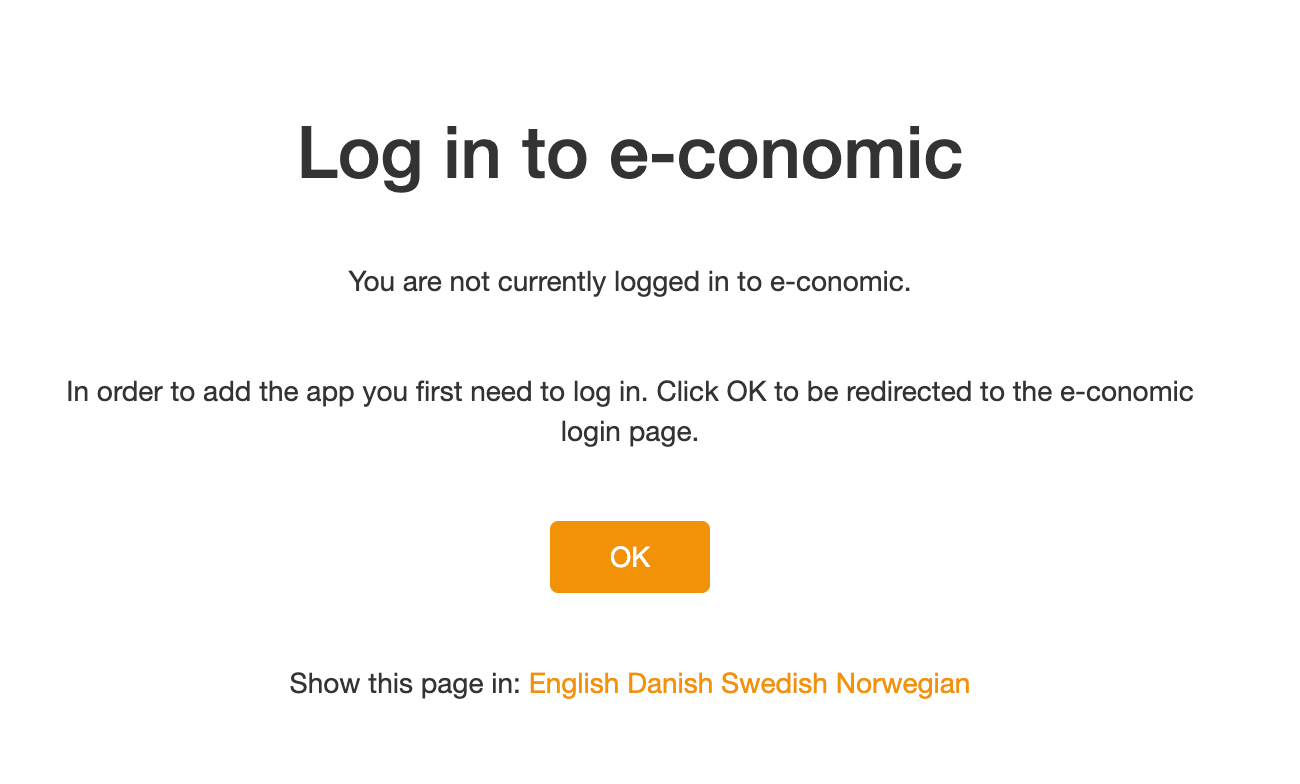
- Log in using the credentials of a user who has access to the file you want to sync.
Who can create client files in Silverfin?
- New client files can be created by admin users, or by internal users who have been granted the necessary permissions.
- Admin users can assign these permissions in the user settings.