
| User Roles |  Admin Admin |  Staff contributor Staff contributor | ✗External contributor | ✗Pulse user |
Uploading the wrong trial balance can happen, for example when the wrong file is selected or the accounts are incorrect. This article explains how to fix an incorrect trial balance upload in Silverfin, and what to do when the mapping screen opens because a mapping list is active for the file.
Table of contents
- What do I do when the mapping screen opens?
- How do I replace bookkeeping data in a specific period?
- Good to know
What do I do when the mapping screen opens?
If you upload a trial balance with incorrect accounts and the mapping screen opens, a mapping list is active in the file. To correct this, complete the mapping and then replace the data.
Steps
- Map all accounts shown on the mapping screen.
- Replace the data in the affected period.
Important to know
- This approach can be time consuming.
- When you replace the data, the accounts from the faulty upload remain in Silverfin as empty accounts.
- You need to remove these empty accounts manually, one by one, or ask Support to remove them in bulk.
How do I replace bookkeeping data in a specific period?
If you uploaded an incorrect trial balance, you can replace the bookkeeping data. This lets you correct mistakes quickly without starting from scratch.
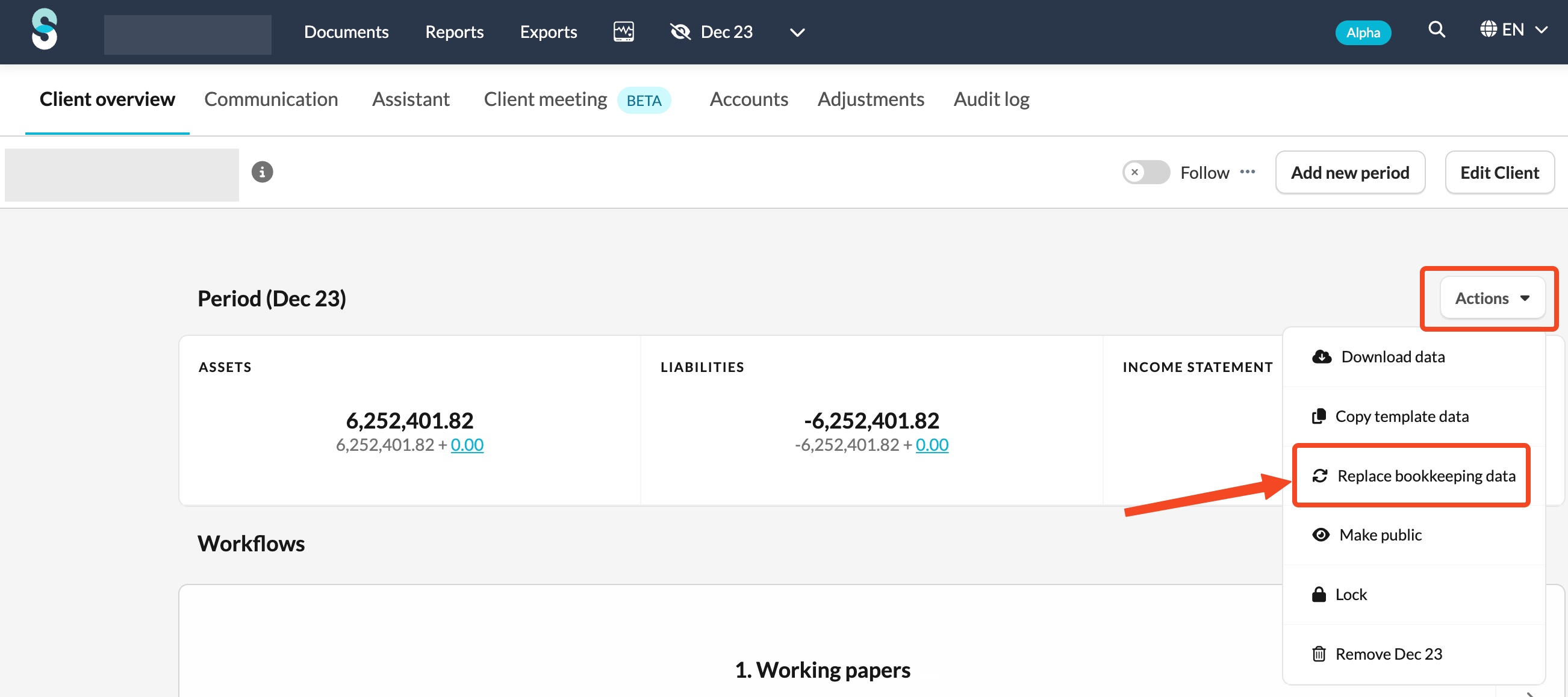
- Click the Actions button on a client overview page. Make sure you are in the period where the data needs to be replaced.
- Select Replace bookkeeping data.
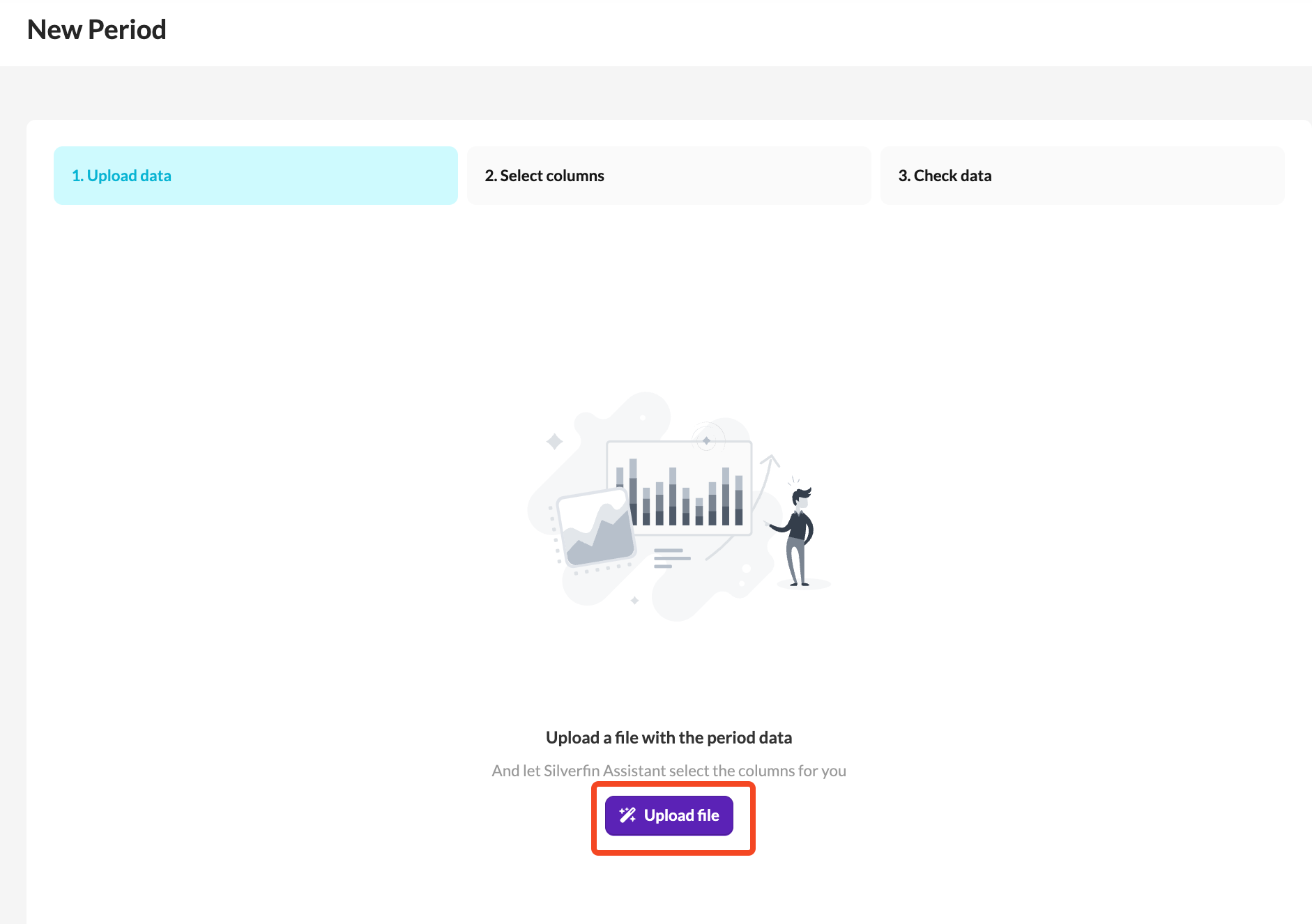
- Click Upload file and choose the file from your computer.
Good to know
- Accounts that are not included in the new file will show a value of 0 after the import.
- If an account has no values and no input data in any period, you can delete it.
- To delete an empty account, go to the Accounts tab and click the bin icon.
For more details on uploading data, see: How do I add manual data to a file?