
| User Roles | ✗External Contributor | ✗Pulse user |
Uploading the wrong trial balance can happen, for example when the wrong file is selected or accounts are incorrect.
This article explains how to fix an incorrect trial balance upload in Silverfin. It covers what to do when the mapping screen opens and a mapping list is active for the file.
Table of contents
When the mapping screen opens
If you upload a trial balance with incorrect accounts and the mapping screen opens, a mapping list is active in the file. In this situation, you have two options.
Option 1. Complete the mapping and reupload the data
You can correct the issue by completing the mapping and then replacing the data.
Steps
- Map all accounts shown on the mapping screen.
- Replace data in the the affected period.
Important to know
- This approach can be time consuming.
- When you replace the data, the accounts from the faulty upload remain in Silverfin as empty accounts.
- You must remove these empty accounts manually, one by one, or ask Support to remove them in bulk.
Option 2. Contact Support to remove the incorrect upload
If the uploaded trial balance is clearly incorrect, you can contact Support.
We can:
- Archive the ledger that contains the incorrect data.
- Clean up any empty accounts created by the upload.
This option is usually faster and avoids manual clean up.
Replacing bookkeeping data in a specific period
If you uploaded an incorrect trial balance you can replace the bookkeeping data. This lets you correct mistakes quickly without starting from scratch.
- Click the Actions button on a client overview page. Make sure you are in the period where the data needs to be replaced.
- Select Replace bookkeeping data.
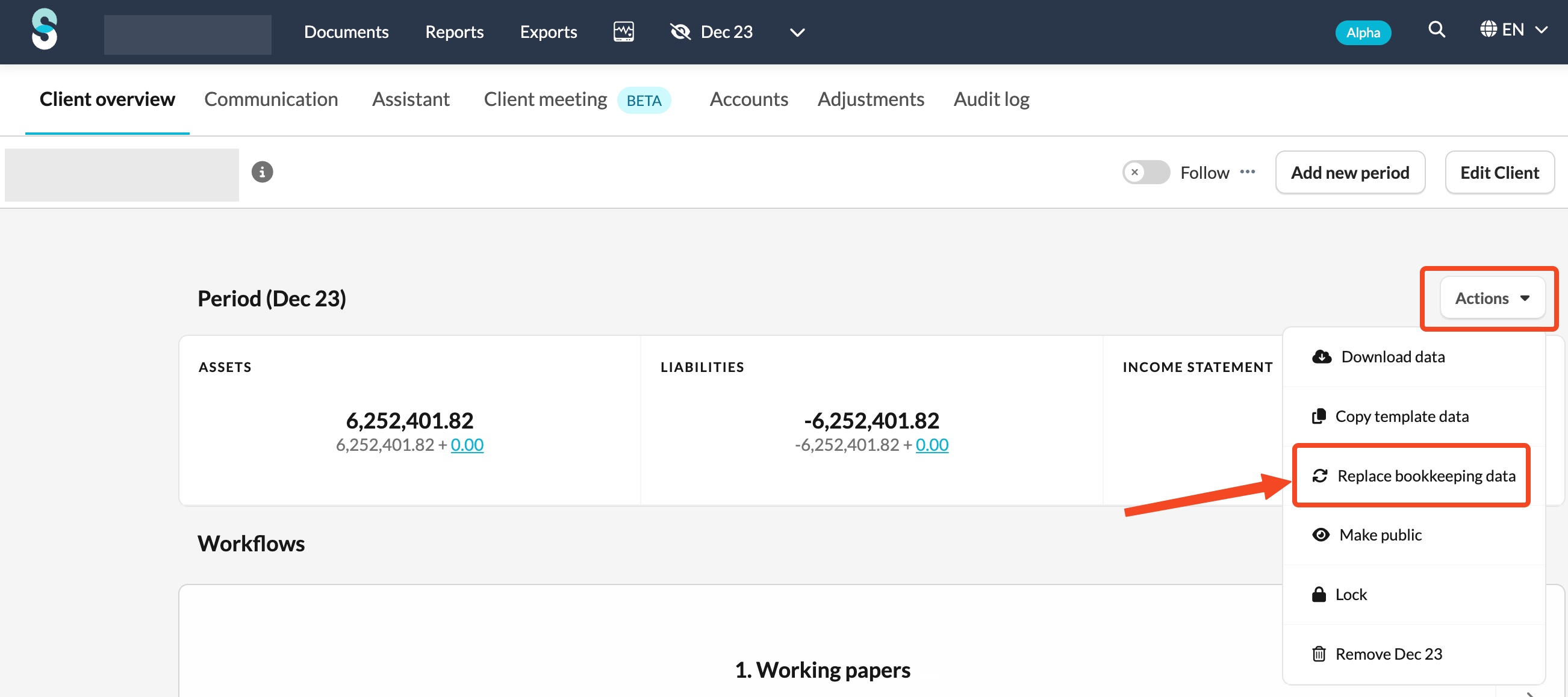
- Click Upload file and choose the file from your computer.
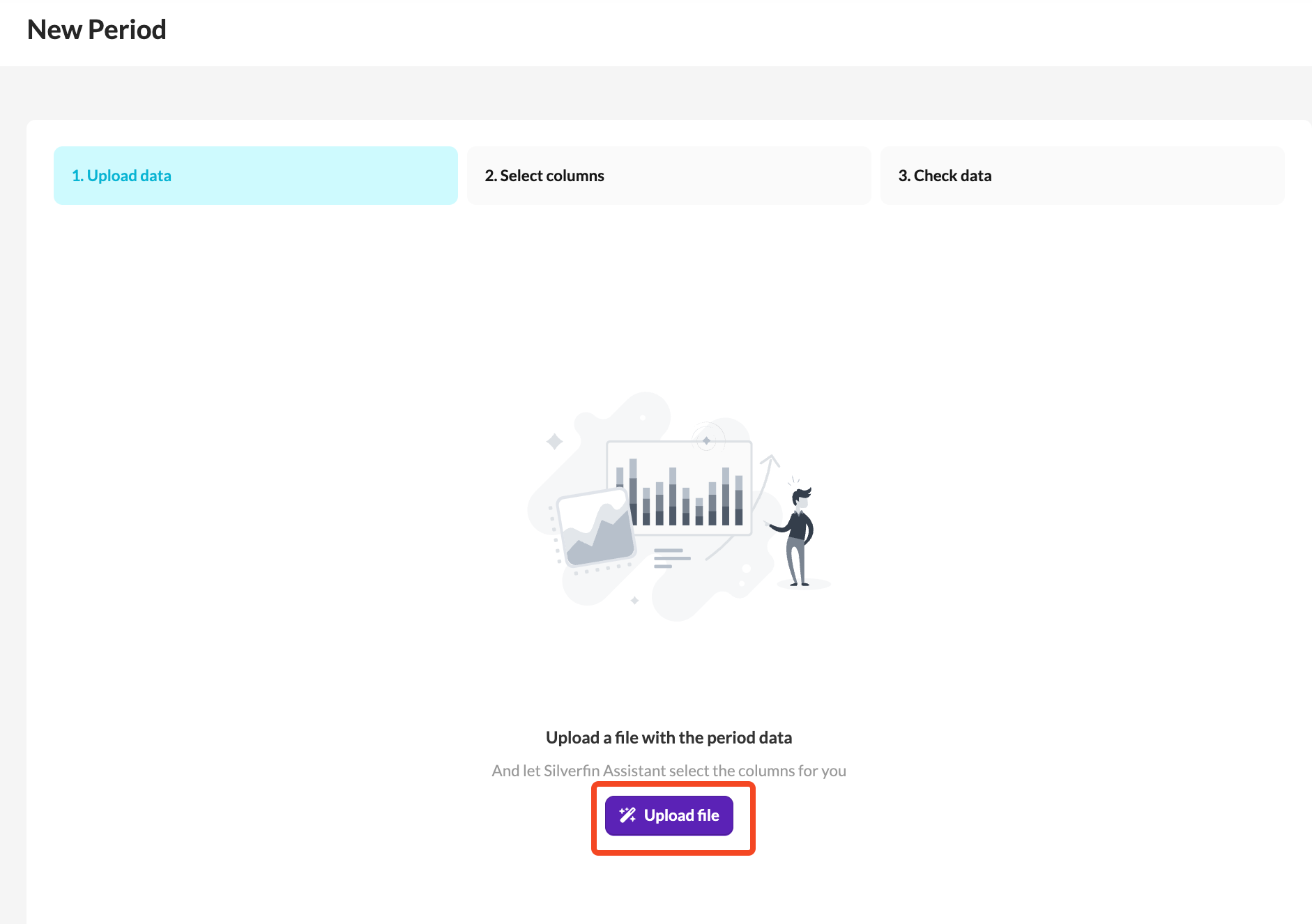
For more details on uploading data, see: How do I add manual data to a file?Good to know
- Accounts that are not included in the new file will show a value of 0 after the import.
- If an account has no values and no input data in any period, you can delete it.
- To delete an empty account, go to the Accounts tab and click the bin icon.