
| User Roles |  Admin Admin |  Staff contributor Staff contributor | ✗ External contributor | ✗ Pulse user |
This article explains how to combine the individual figures with the consolidated figures in a single PDF export, and what steps you need to follow to do so.
Contact your Customer Success Manager
- If you wish to work with consolidation, please contact your CSM. They will support you and ensure the correct configurations are set up in your environment so you can make successful use of this functionality.
- To help you get started with exporting the individual figures in a consolidated file, we ask you to read the attached guide carefully.
Preparation
- When you want to combine the individual figures of the holding company in a single PDF export with the consolidated figures, you will need 2 files: an individual file and a consolidated file.
- You will also need to complete the figures and workflows in both files as you normally would.
Linking Files
- Go to the consolidated file.
- Open the 'General settings – Annual accounts' template.
- For the option 'Consolidated or company-only Financial statements', select 'Consolidated' and press enter.
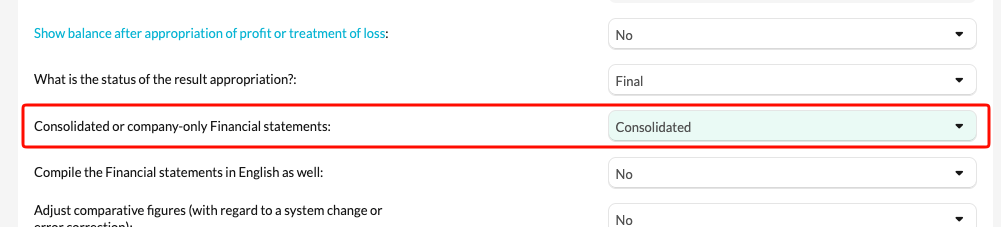
- For the option 'Include the company-only Financial statements in the consolidated Financial statements export (PDF)', select 'Yes' to include the individual figures in the consolidated annual accounts and press enter.

- A new option will now appear where you can link a file if this has not yet been done, or select an existing linked file.

- You can now select 1 file containing the individual figures to include in the consolidated figures.
- You can now generate the export as you normally would — all settings will already be correctly configured.
Points to note
Please bear the following in mind:
- The language setting of both files must be the same — the consolidated file does not override the value set on the individual file.
- You can select 1 file from which to retrieve the individual figures.
- Never use the checkboxes for adding or hiding notes in the PDF Style configuration — manage this via the 'Overview notes' template.
- Your Customer Success Manager will first need to activate something in the environment to enable this functionality — without activation, the new options will not be available in the 'General settings – annual Accounts' template.
- Your Customer Success Manager will copy an existing annual accounts bundle and convert it to the new consolidated version so that all data is correctly carried over.