
| User Roles |  Admin Admin | ✗ Staff contributor | ✗ External Contributor | ✗ Pulse user |
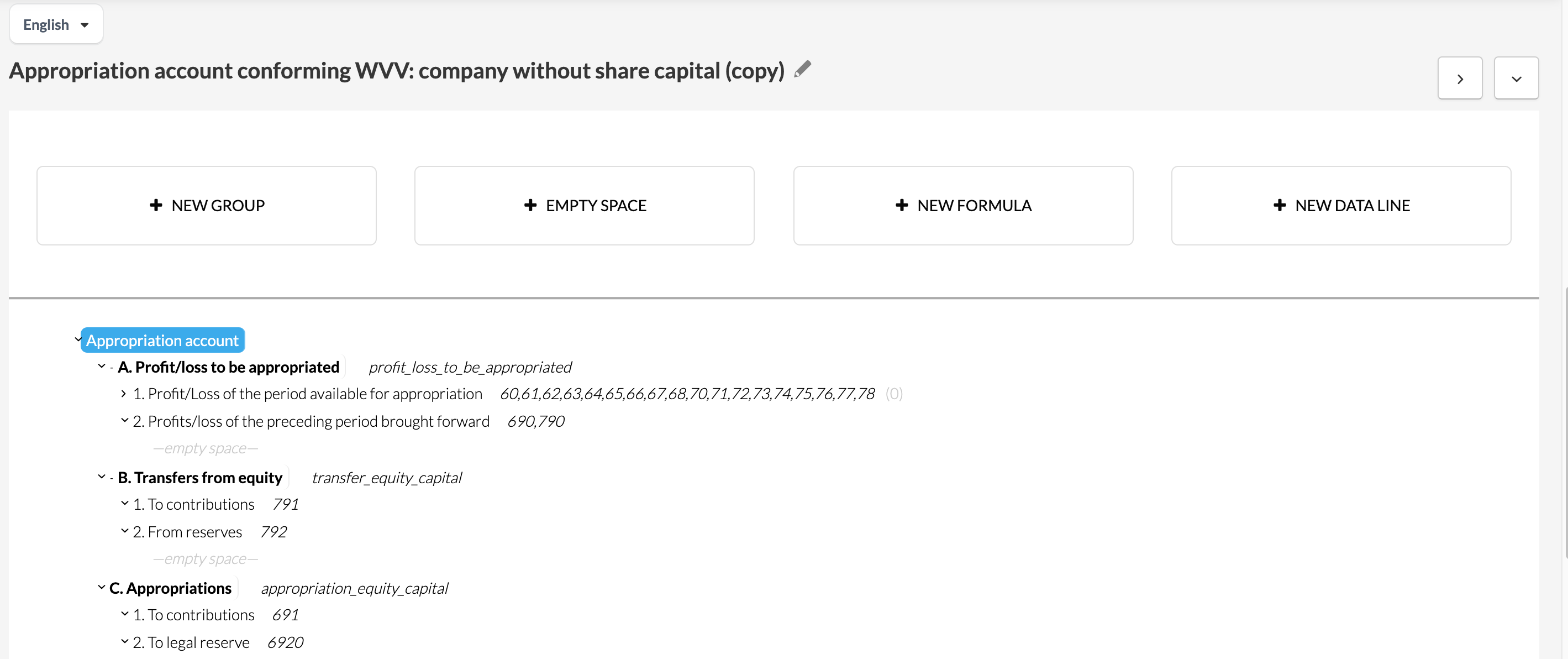
Reports in Silverfin are based on a specific structure in which columns correspond to specific periods and rows are linked to the data in your file, whether this involves groups, accounts or formulas.
Table of contents
Key information
- The settings described in this article apply only when working in a custom report, not a report from the Silverfin Marketplace.
- If you are working from a Silverfin Marketplace template, you will first need to make a copy before you can edit the row structure. For guidance on copying a report, see How can I copy a report at firm level?
How data rows work
Reports in Silverfin are built on a clear structure: columns correspond to specific periods, and rows hold your data. Each row can represent one of four things:
- Accounts - Account numbers or account ranges that determine which account should be assigned to a row.
- A formula – a calculated value based on accounts or tags.
- A manually added data line – a text line entered directly.
- A group – a set of rows collected under a shared heading.
You can drag and drop rows to reorder them and build the correct structure for your report.
How to build formulas in reports
- Open the report template.
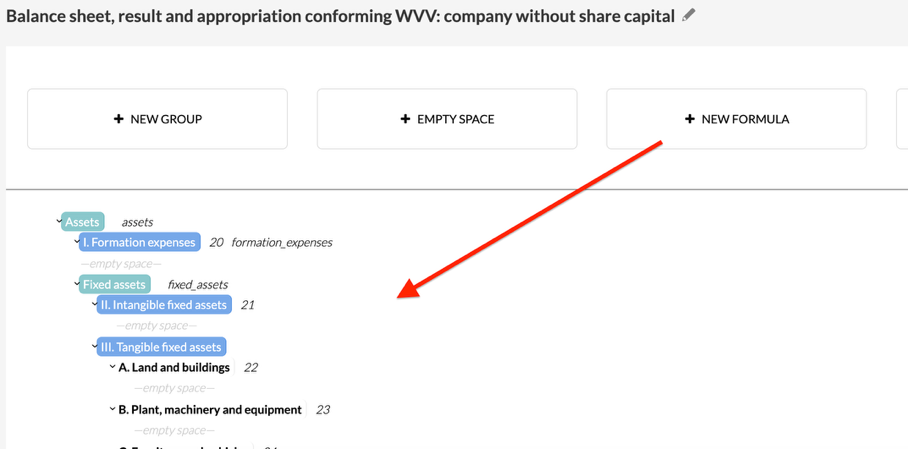
- Drag the + NEW FORMULA block to the position where you want the formula to appear.
- A pop-up screen opens where you can configure the formula.
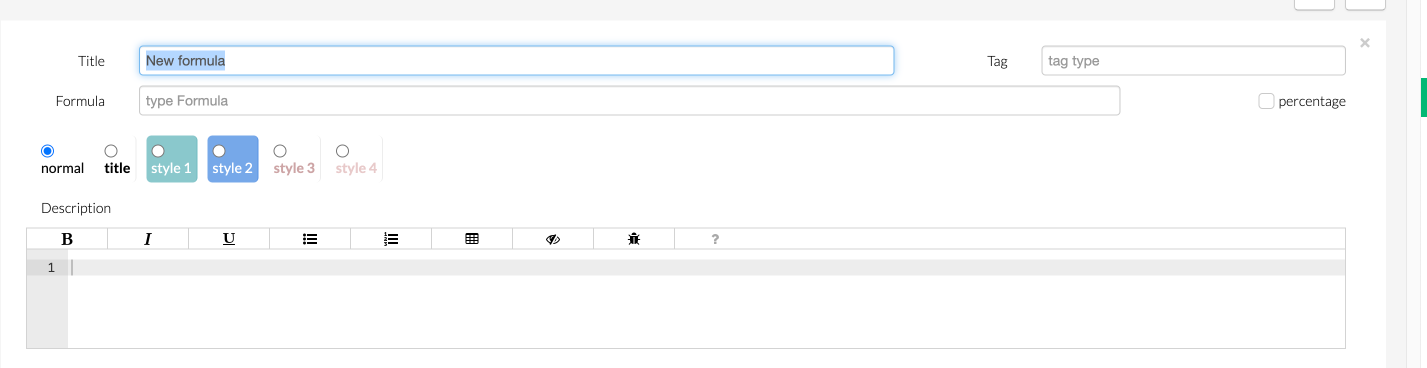
For every formula, you can set the following:
- Title – the heading displayed for the formula row.
- Style – controls the visual appearance.
Formulas can reference accounts, tags, or a combination of both. In the report editor, formulas are marked with the ƒ symbol.
Formulas based on Accounts
- Give your formula a title, then reference the account numbers of ranges you want to include.
- All accounts must follow your chart of accounts.
You can use the following example operators:
| Operator | Function |
+ | Add |
- | Subtract |
/ | Divide |
* | Multiply |
# | Sum all matching accounts |
Example formula:
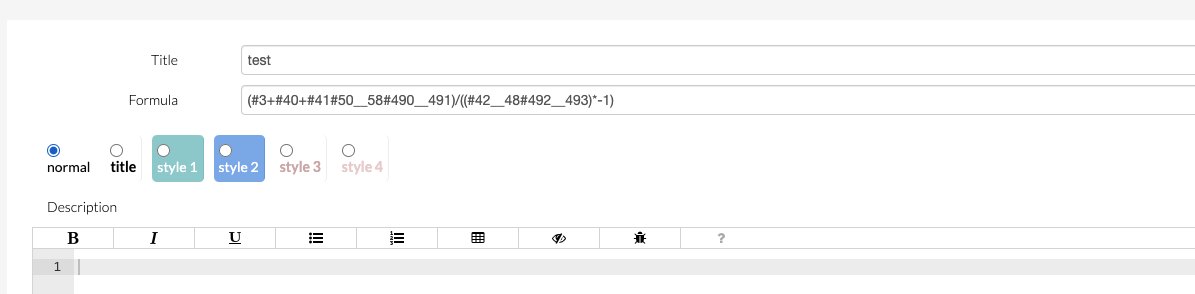
(#3+#40+#41#50__58#490__491)/((#42__48#492__493)*-1)
- #3 – sums all accounts beginning with 3.
- #40 – sums all accounts beginning with 40.
- #50__58 – sums all accounts from 50 through to 58. Note: use two underscores (__) with no spaces.
- You can also reference a single account number directly, without a # hashtag.
Formulas based on tags
A tag is a label you assign to a formula so you can reference its value in other formulas.
Tag rules:
- Tags are case-sensitive – use lower case only.
- No spaces are allowed – connect words with an underscore (e.g.
gross_profit).
Example:
- Assign the tag
gross_profitto your Gross Profit formula row.
- In a second formula, reference
gross_profitto use that total in a new calculation.
You can also combine tags and account references in the same formula.
Groups
Groups let you organise rows under a shared heading and control how their totals are displayed and used.
To add a group, drag the group block into your report.
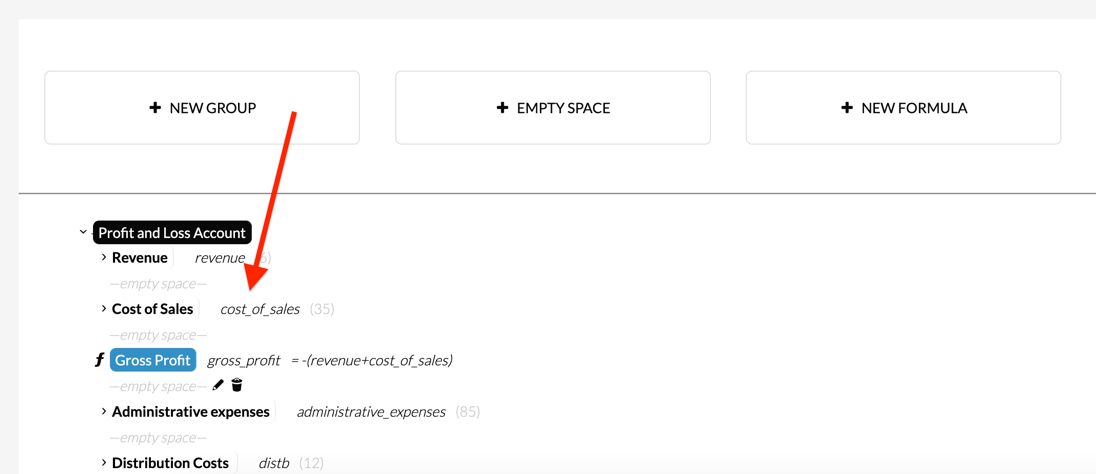
The group settings screen lets you configure the following:
- Title – the heading displayed for the group.
- Style – controls the visual appearance.
- Account range – defines which accounts are included in the group.
- Tag – assigns a tag to the group total so it can be referenced in formulas elsewhere.
- Switch sign – reverses the sign of values in the group (for example, to display liabilities as positive figures).
- Show value – displays the sum of all values within the group.
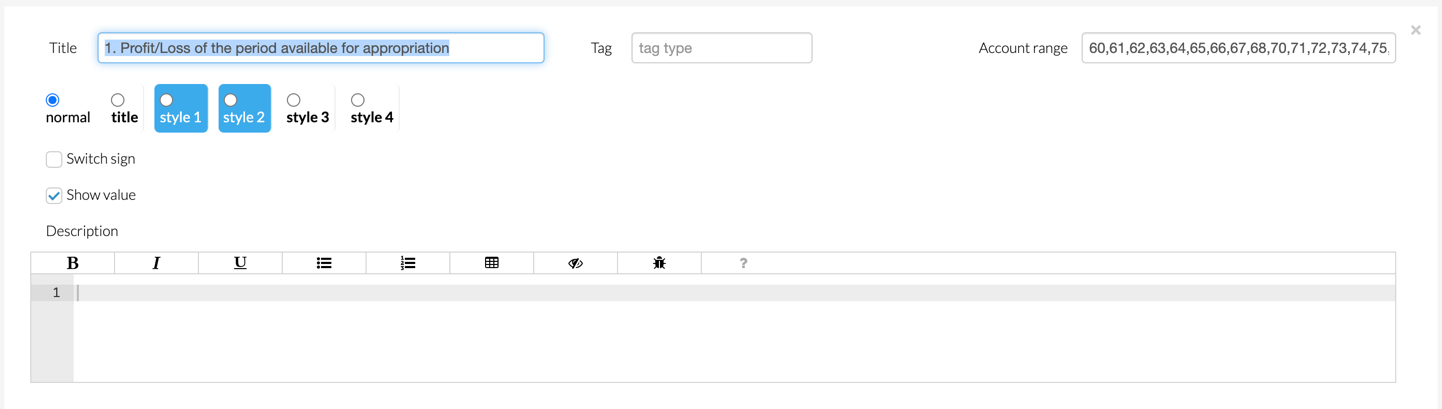
Once your data rows, formulas, and groups are in place, your report is ready to work with. You can continue building on this structure by adjusting periods columns to suit your needs.