
| User Roles |  Admin Admin |  Staff contributor Staff contributor | ✗External Contributor | ✗ Pulse user |
This article explains how to export Annual Accounts in Silverfin for the Luxembourg market, covering both the eCDF templates (eCDF Balance Sheet & eCDF Profit and Loss accounts) and the account notes. The export requires two separate style bundles and a two-step process.
Table of contents
- Setting up the required styles
- Style 1 — eCDF export style
- Style 2 — Annual accounts export style (account notes)
- How to export eCDF + account notes
- Step 1 — Export the eCDF content
- Step 2 — Export all annual accounts content
Setting up the required styles
To export both the eCDF templates and the account notes, you need two separate style bundles set up in your Silverfin environment. Each style serves a different purpose and must not be used interchangeably.
For general guidance on creating and editing style bundles in Silverfin, see: How to update the style bundle?
Style 1 - eCDF export style
- This style is used exclusively to export the eCDF Balance Sheet and eCDF Profit and Loss accounts. It should already be available in your Silverfin environment. If you cannot find it, please contact support@silverfin.com.
- The style is pre-configured to meet the eCDF PDF requirements (alignment, footer, side margins, and so on). While it is possible to adjust settings such as font size or margins, doing so may break the eCDF export. We recommend keeping the following settings as they are:
- Font size: no larger than 9
- Side margins: no wider than 1.5 cm
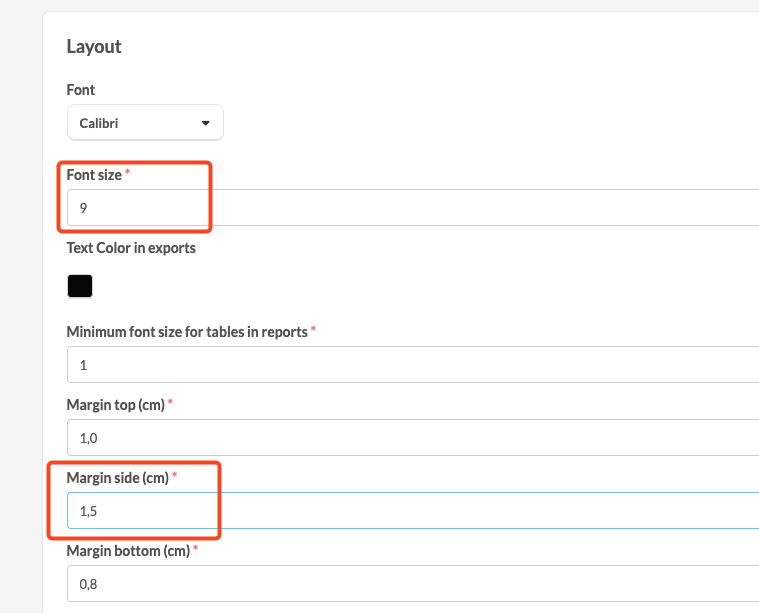
Note: font size and margin settings affect each other. Changing one may require adjusting the other to keep the export valid. When in doubt, leave both settings unchanged.
This style should only be used to export eCDF content. Do not use it to export account notes or any other content.
Style 2 - Annual account notes export style
- This style is used to export the full set of annual accounts content: not only the eCDF templates, but also the account notes. It is configured to combine both the eCDF PDF (added as an external document) and the account notes into a single export.
The style bundle is set up to include:
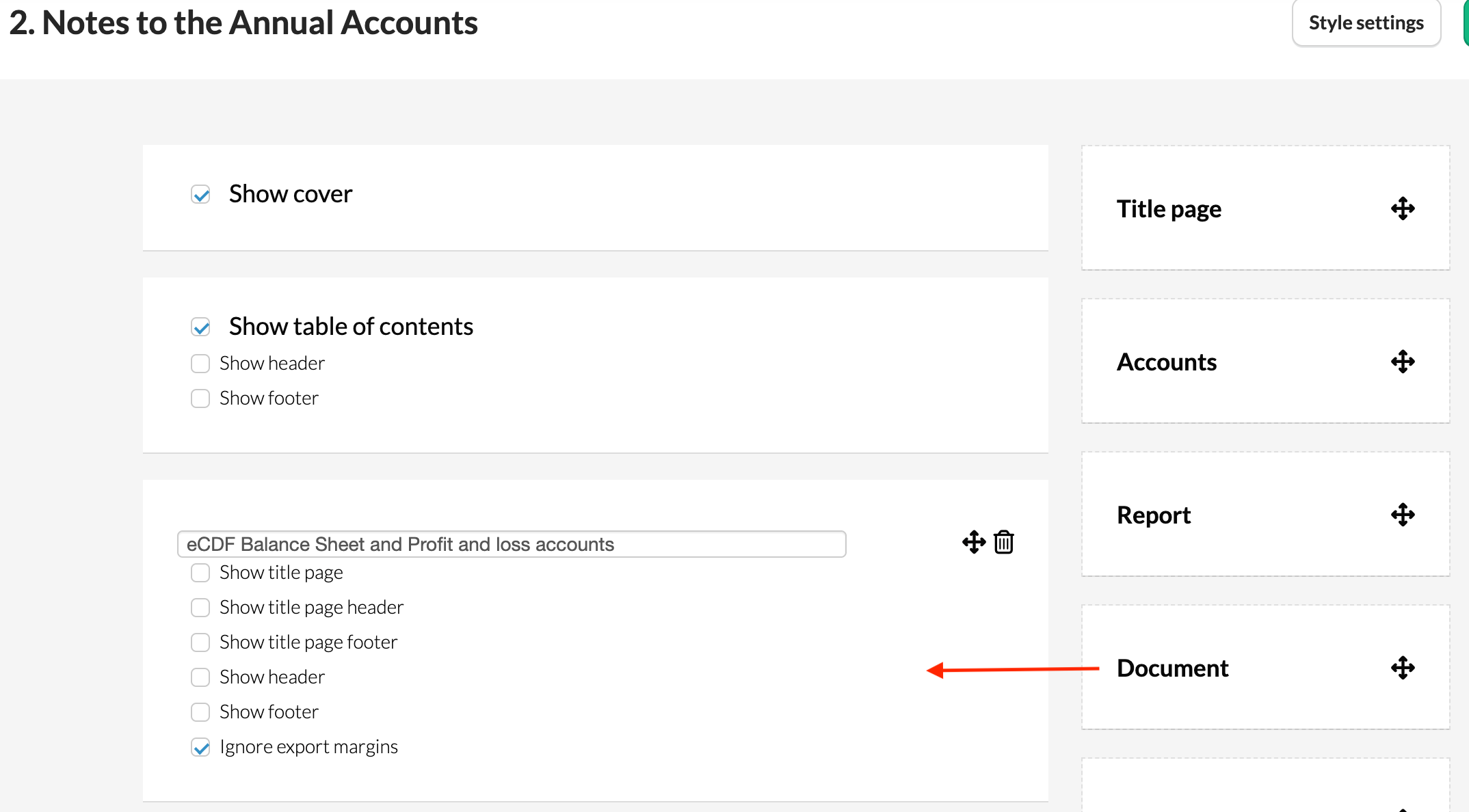
- An external Document block - where you will add the eCDF PDF generated in Step 1
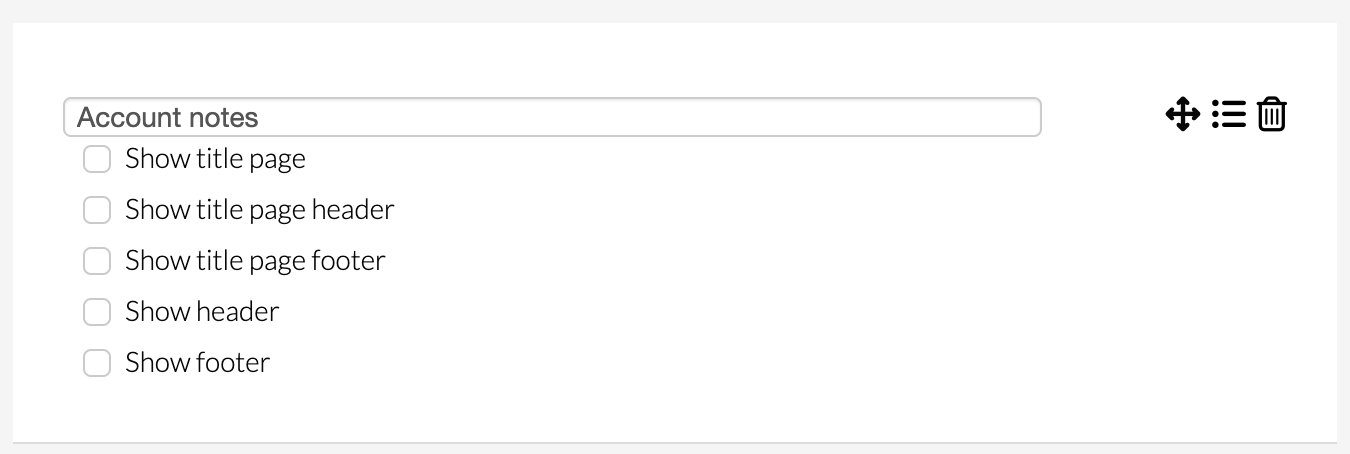
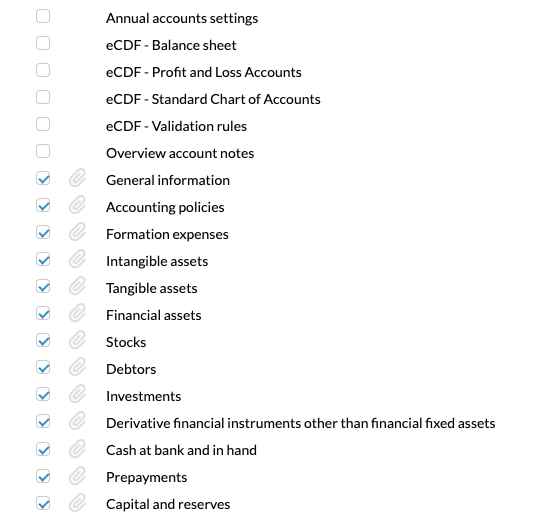
- The Account notes - with all relevant account notes selected
How to export eCDF + account notes
The export is a two-step process. You must first export the eCDF content on its own (with the correct margins and eCDF footer), and then export all annual accounts content - including the eCDF PDF from Step 1 - using the second style.
Step 1. Export the eCDF content
- In the client file, open the export screen and select the eCDF export style (Style 1).
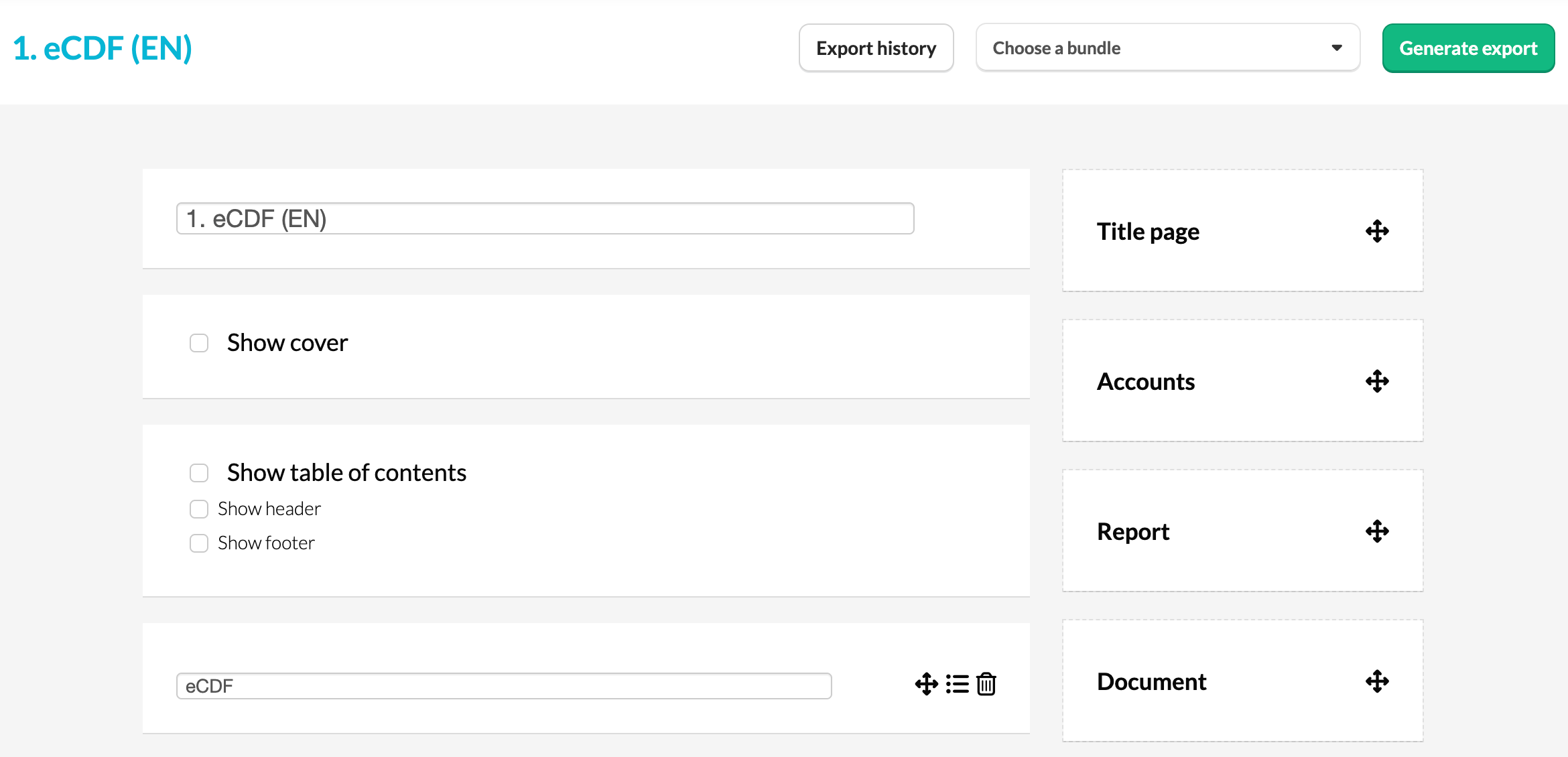
- Run the export. The resulting PDF will have the correct eCDF formatting (margins, footer, and so on).
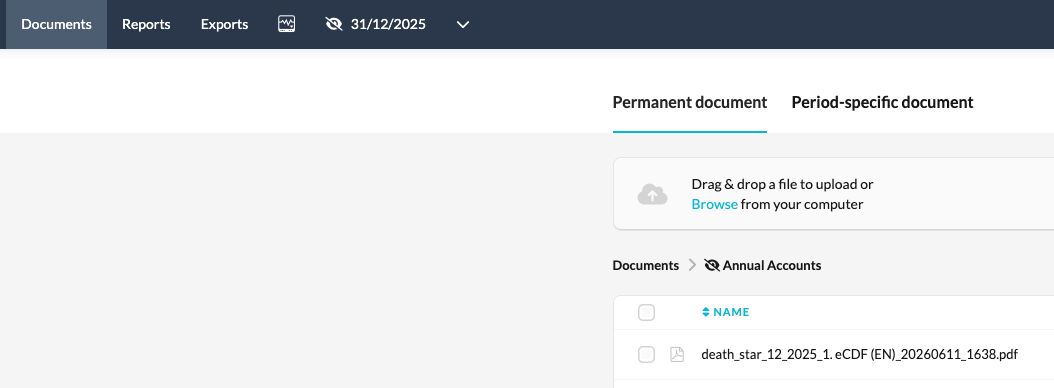
- Save the PDF to the client's Documents folder in Silverfin.

- Storing it there makes it easy to locate and attach in Step 2.
Step 2. Export all annual accounts content
- In the export screen, select the annual accounts export style (Style 2).
- Drag a new Document block onto the grey area in the style layout.
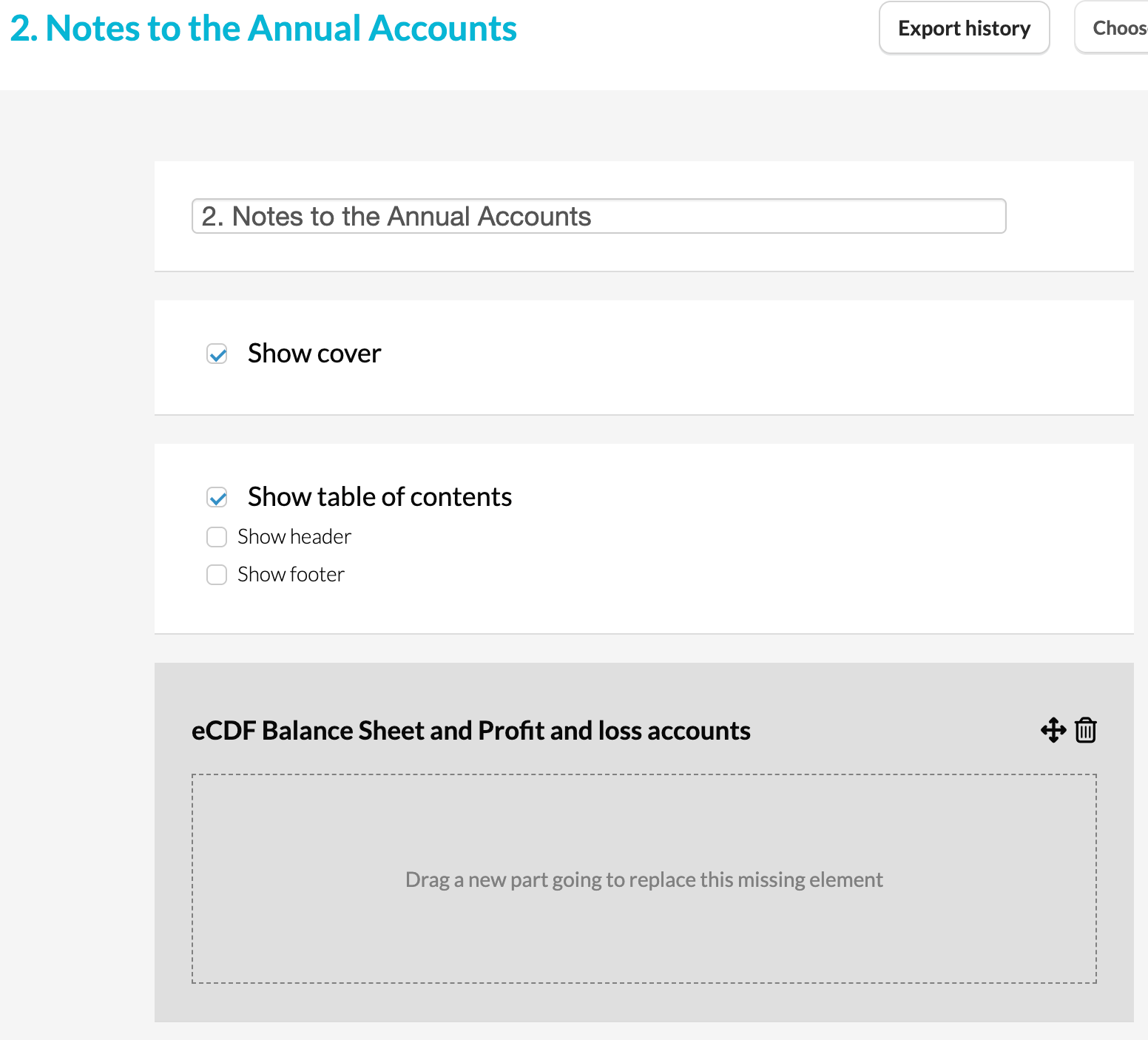
- Select the eCDF PDF you saved in Step 1 from the client's Documents folder.
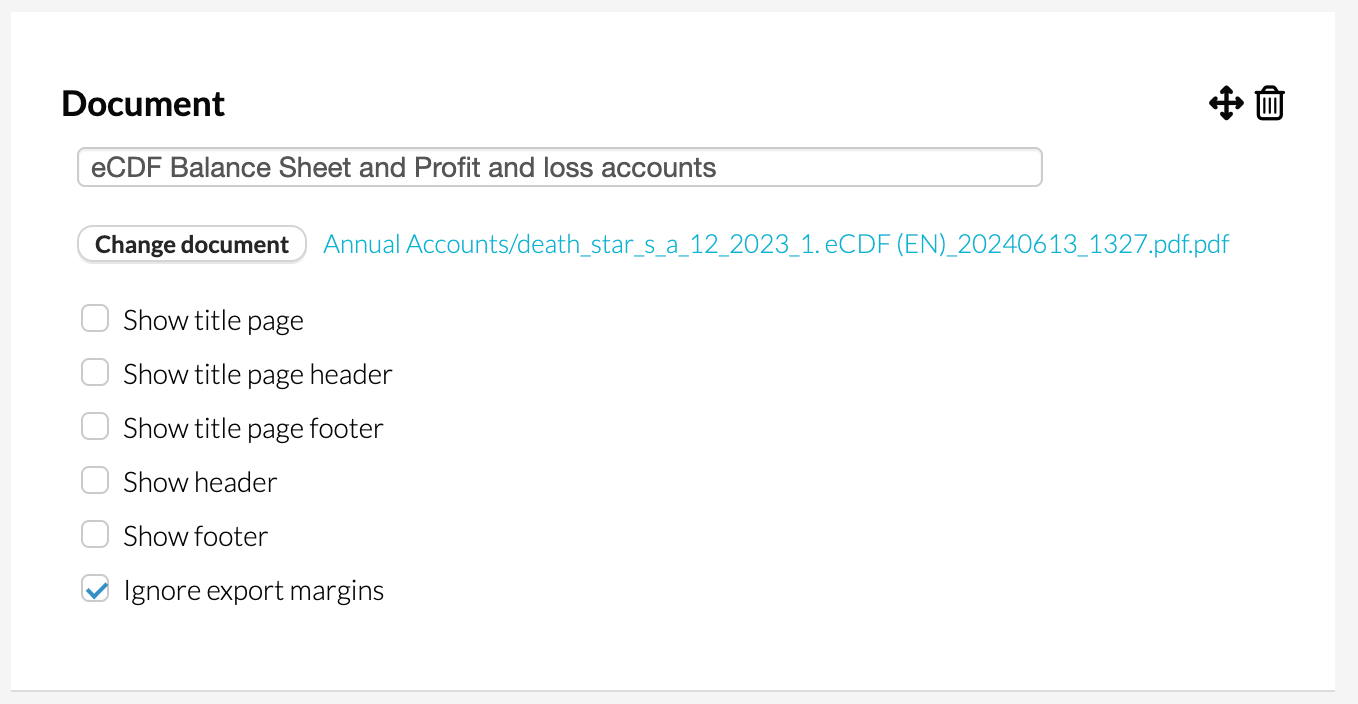
- Make sure the option Ignore export margins is ticked for the Document block. This ensures the eCDF PDF is included exactly as generated in Step 1, without any additional margins being applied.
- Run the export. The final PDF will contain both the eCDF content and all account notes.