
| User Roles |  Admin Admin |  Staff contributor Staff contributor |  External Contributor External Contributor |  Pulse user Pulse user |
This article explains how to reset your password through Visma Connect, the account system behind your Silverfin login, when you have forgotten it or want to change it. It also covers the one-time sign-in link, which lets you sign in once without changing your password. It is relevant for anyone who signs in to Silverfin with an email and password.
Table of contents
- When should I use this?
- How do I start a password reset?
- Which recovery method should I choose?
- How do I set a new password?
- How do I sign in with a one-time link?
- FAQ
When should I use this?
This is an on-demand flow that you start yourself. Use it when you:
- Have forgotten your password entirely.
- Want to change your password because you suspect it has been compromised.
- Want to use a one-time sign-in link to sign in once without typing your password – for example on an unfamiliar device.
Visma Connect offers two recovery methods on the same screen: Reset password (set a brand-new password) and One-time sign in link (a link that signs you in once and leaves your existing password unchanged).
How do I start a password reset?
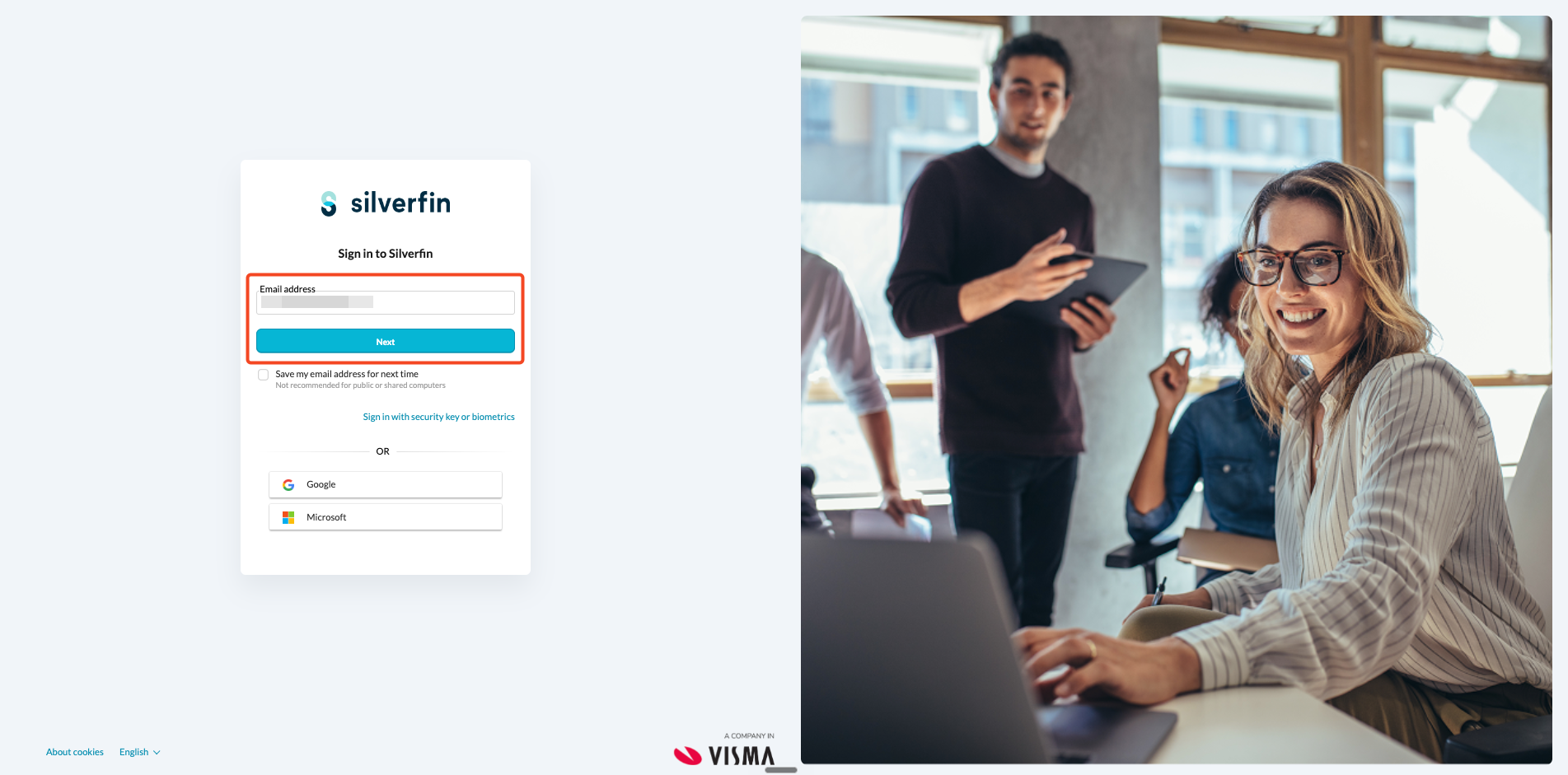
- On the Silverfin sign-in screen enter your email address and click Next. This is the same screen you use for normal sign-in.
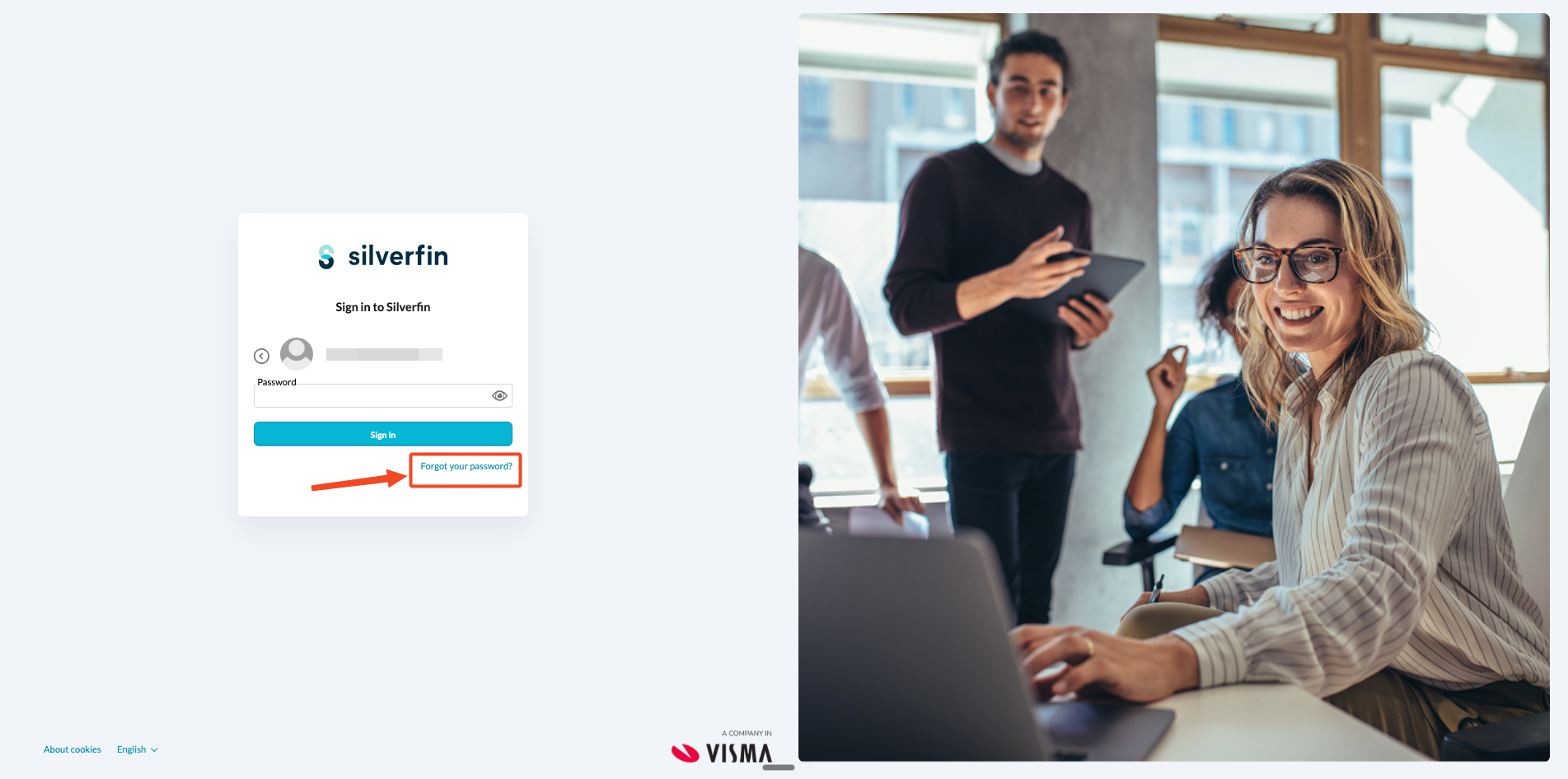
- On the password screen, click the Forgot your password? link below the Sign in button.
- The email address at the top of the password screen is pre-filled and read-only.
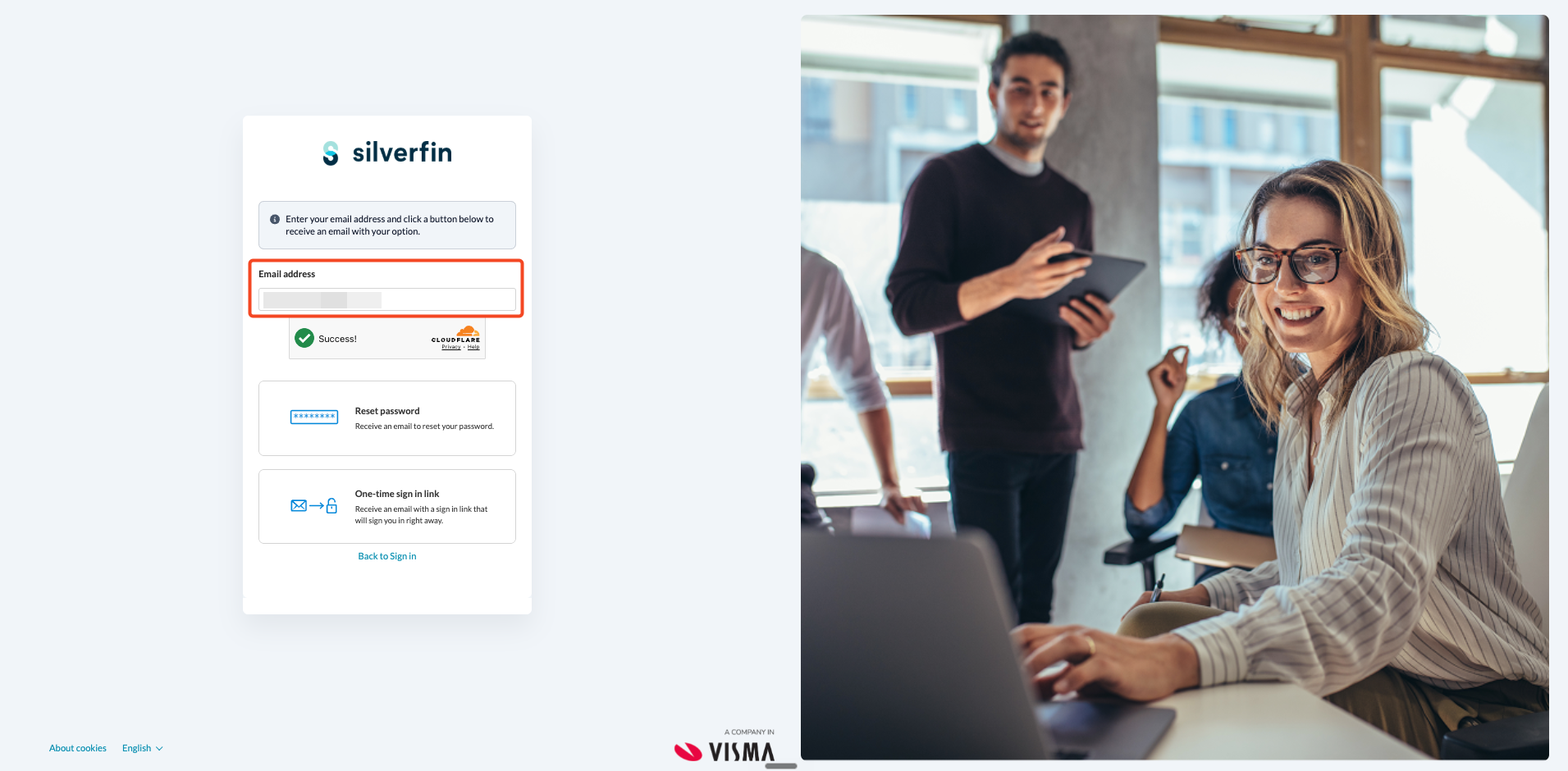
- To recover a different account, click the back arrow at the top-left and enter a different email address.
Which recovery method should I choose?
On the recovery screen you will see your email address (pre-filled and read-only) and a Verify you are human check. Complete that check first – the buttons below it stay disabled until it passes. Then choose one of the two methods:
- Reset password – sends you an email with a link to set a new password. Best when you want a password you will keep using.
- One-time sign in link – sends you an email with a magic link that signs you in once, without changing your password. Best when you just need access right now.
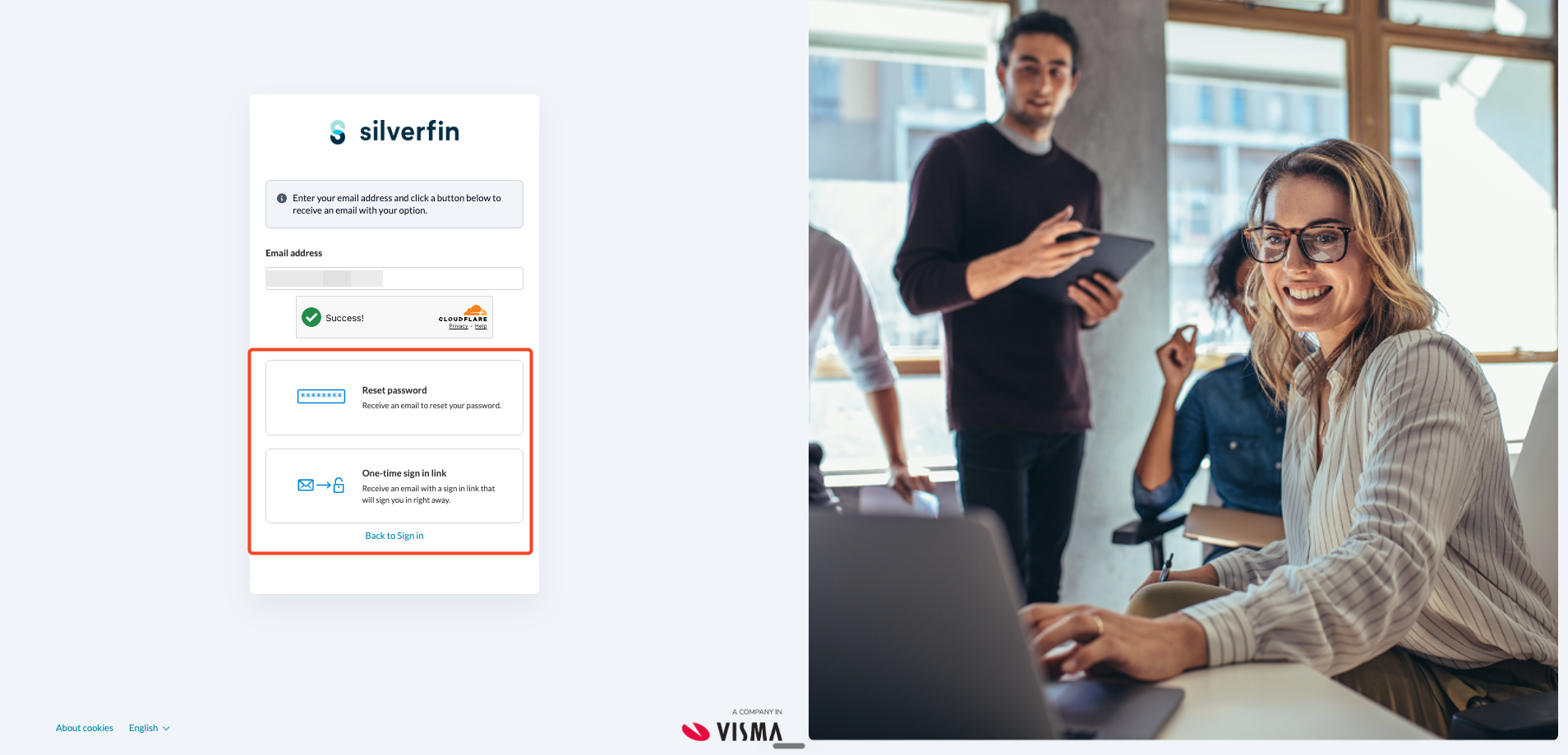
Both methods send the email to the address shown on screen – the one you typed on the sign-in page. You cannot send it to a different address from here (this is deliberate, to protect accounts). If you mistyped, click Back to Sign in and start again.
How do I set a new password?
After you click Reset password, Visma Connect sends an email with a one-time link. The confirmation screen reminds you that the email may take a few minutes to arrive and could land in your spam or junk folder.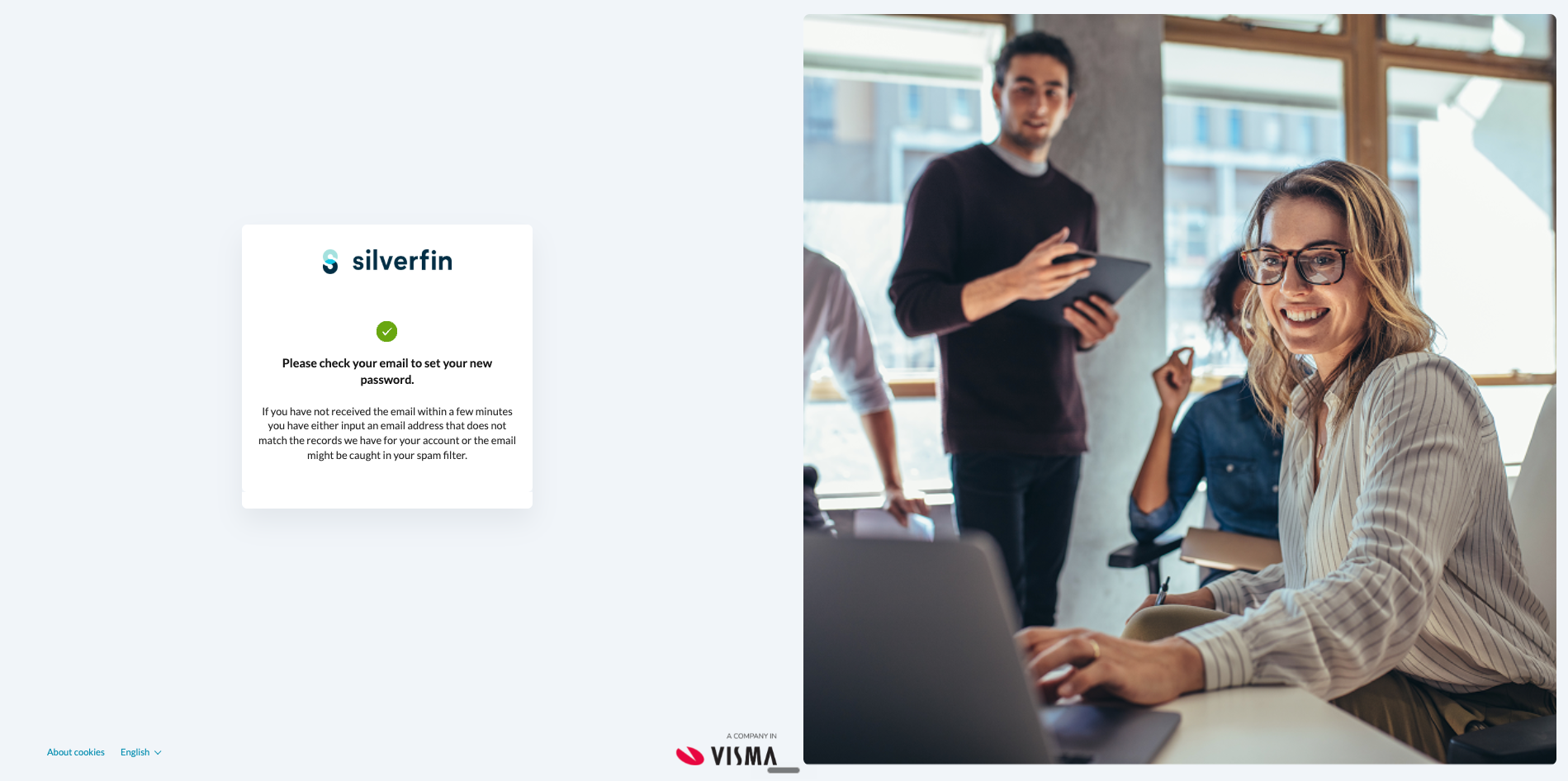
- Open the email and click the link. The Please, enter your new password screen opens.
- Type your new password in New password and again in Confirm password.
- Click Change password.
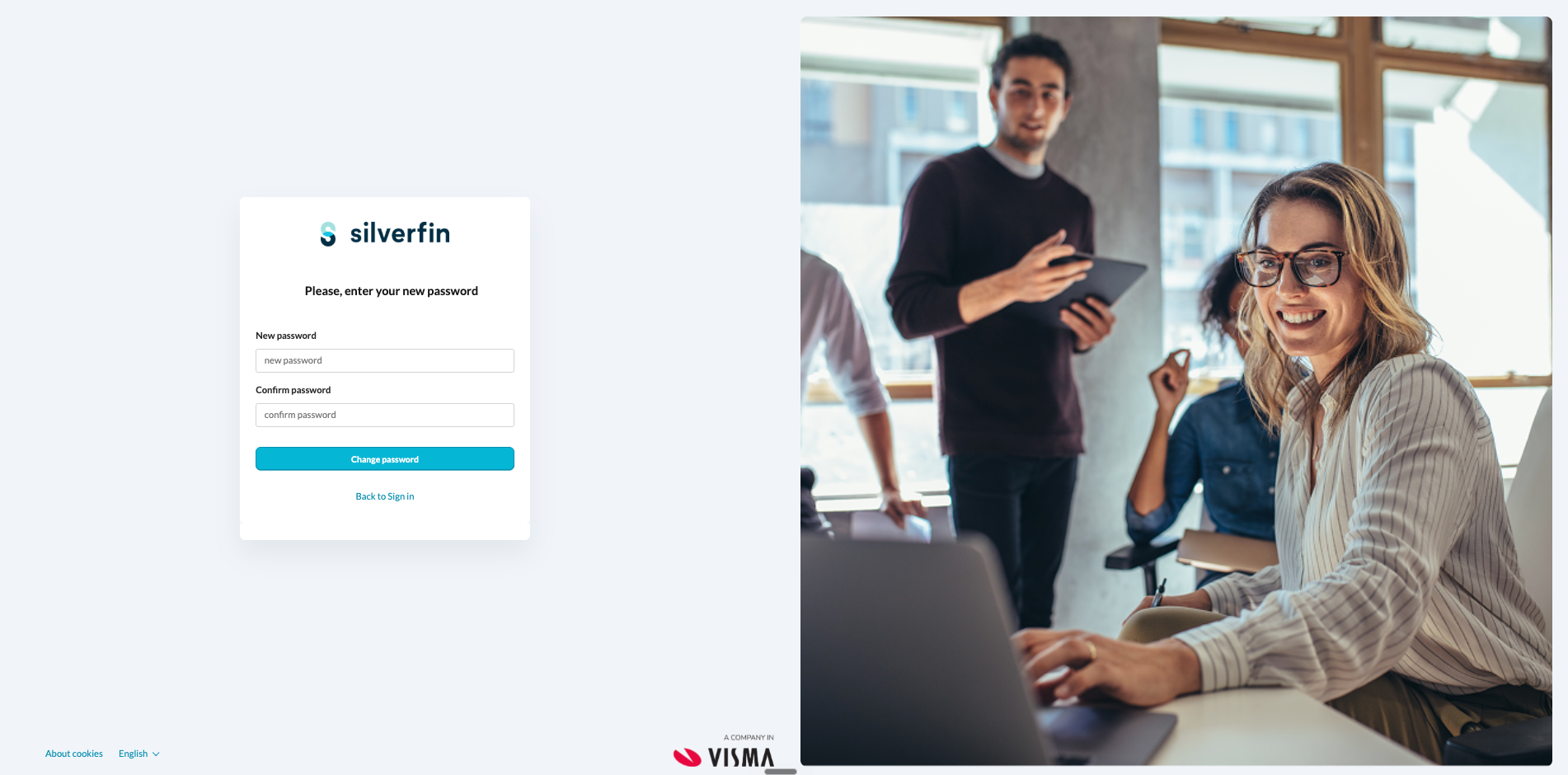
Your new password must meet the Visma Connect password policy:
- be at least 15 characters long,
- not appear in a known data breach (this is checked automatically), and
- meet no complexity rules - uppercase letters, lowercase letters, numbers and symbols are not required.
The rules are checked as you type and shown in a tooltip next to the field, with each rule turning green once it is met. All rules must be met before Change password is enabled.
The reset link in the email is single-use and time-limited. If it expires, start again from Forgot your password? to request a new one. After you set the password you are signed in and asked for your second factor, just like a normal sign-in.
How do I sign in with a one-time link?
After you click One-time sign in link, Visma Connect sends an email with a single-use sign-in link. The confirmation screen shows the same reminders about delivery time and the spam folder.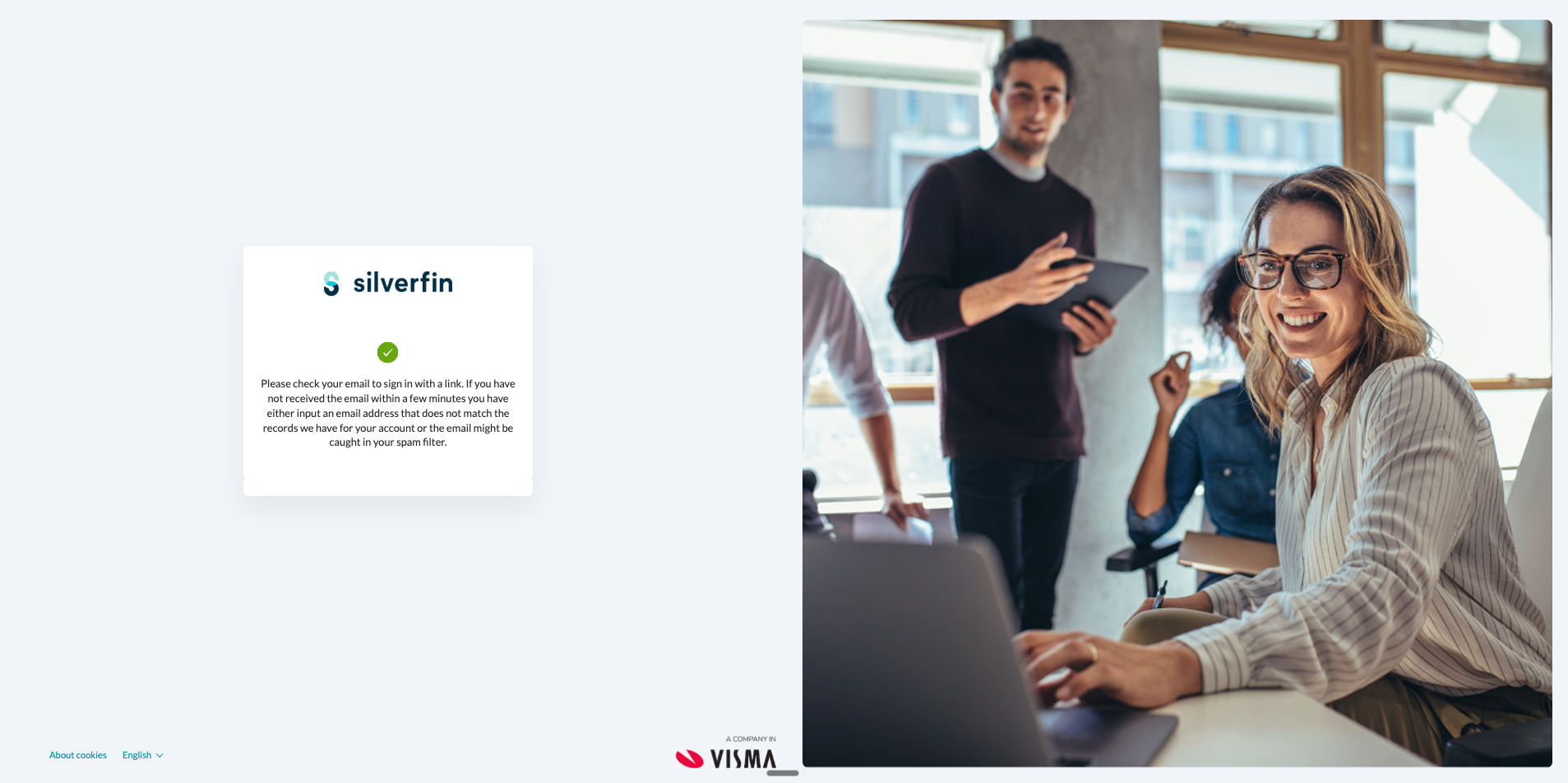
Clicking the link in the email signs you in once, without asking for a password. Your existing password is not changed and stays valid for future sign-ins.
The magic link is single-use and time-limited. Once the session ends you will need to sign in again with your password, or request another one-time link. A magic link is only as secure as your email account, so on a shared or untrusted device the Reset password method is the safer choice.
FAQ
Does "Reset password" log me out of other sessions?
Yes. Setting a new password invalidates existing sessions. The user will need to sign in again on every device.
Does the one-time sign-in link change my password?
No. The magic link signs the user in once; the existing password remains unchanged.
How long is the reset / magic link valid?
Both links are single-use and only valid for 15 minutes. If a link has expired, request a new one.
Why is there a Cloudflare check on the recovery screen?
To prevent automated abuse — bots cannot spam the reset endpoint to enumerate valid email addresses or flood inboxes.
Can a firm admin reset another user's password?
No. Each user must reset their own password via this flow. Admins cannot set or recover passwords on behalf of users.
What happens if I request a reset but I never had a Visma Connect account at this email?
The confirmation screen is shown either way (anti-enumeration), but no email is sent. If the user truly believes the address is correct, escalate so engineering can verify the account exists.
Does this flow work for SSO users?
No — SSO users authenticate via their identity provider and don't have a Visma Connect password to reset. They must contact their IT admin to reset their IdP credentials.