
| User Roles |  Admin Admin |  Staff contributor Staff contributor | External contributor | Pulse user |
This article explains what to do if you can't complete your two-factor authentication (2FA) when signing in to Silverfin. Whether you've lost your authenticator app or just need a new emergency code, the steps below will get you back in.
Before you begin, you'll need to have already entered your email and password on the sign-in screen.
Table of contents
- Which reset option do I need?
- How do I get to the reset screen?
- How do I set up my authenticator again?
- How do I get a new emergency code?
- Frequently asked questions
Which reset option do I need?
There are two reset options, both reached through the "Try another way" screen during sign-in. Pick the one that matches your situation:
- I lost my authenticator app - your phone was lost, stolen or reset, or you uninstalled the app. You'll need to set up 2FA from scratch.
- My authenticator still works, but I need a new emergency code - your app is fine, but you want to generate a fresh backup code.
How do I get to the reset screen?
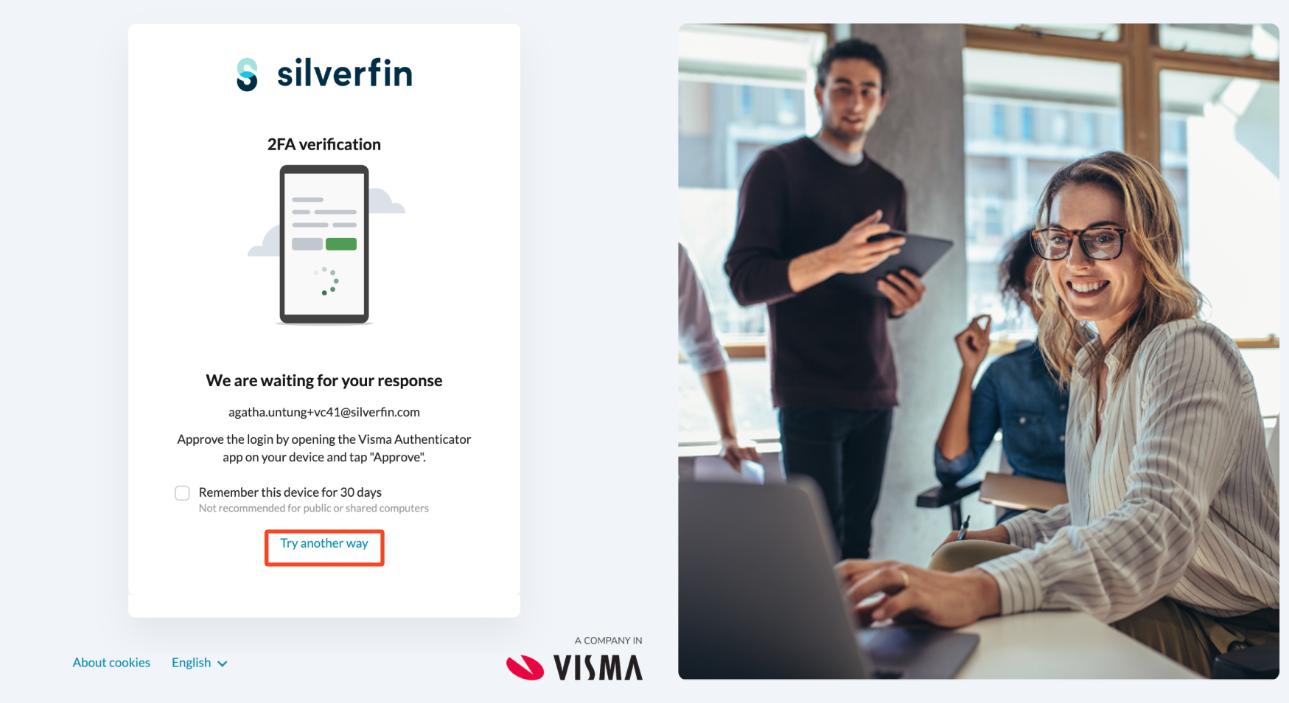
- Start signing in as usual. Go to the Silverfin sign-in page, enter your email and password, and continue to the 2FA verification screen.
- Select "Try another way".
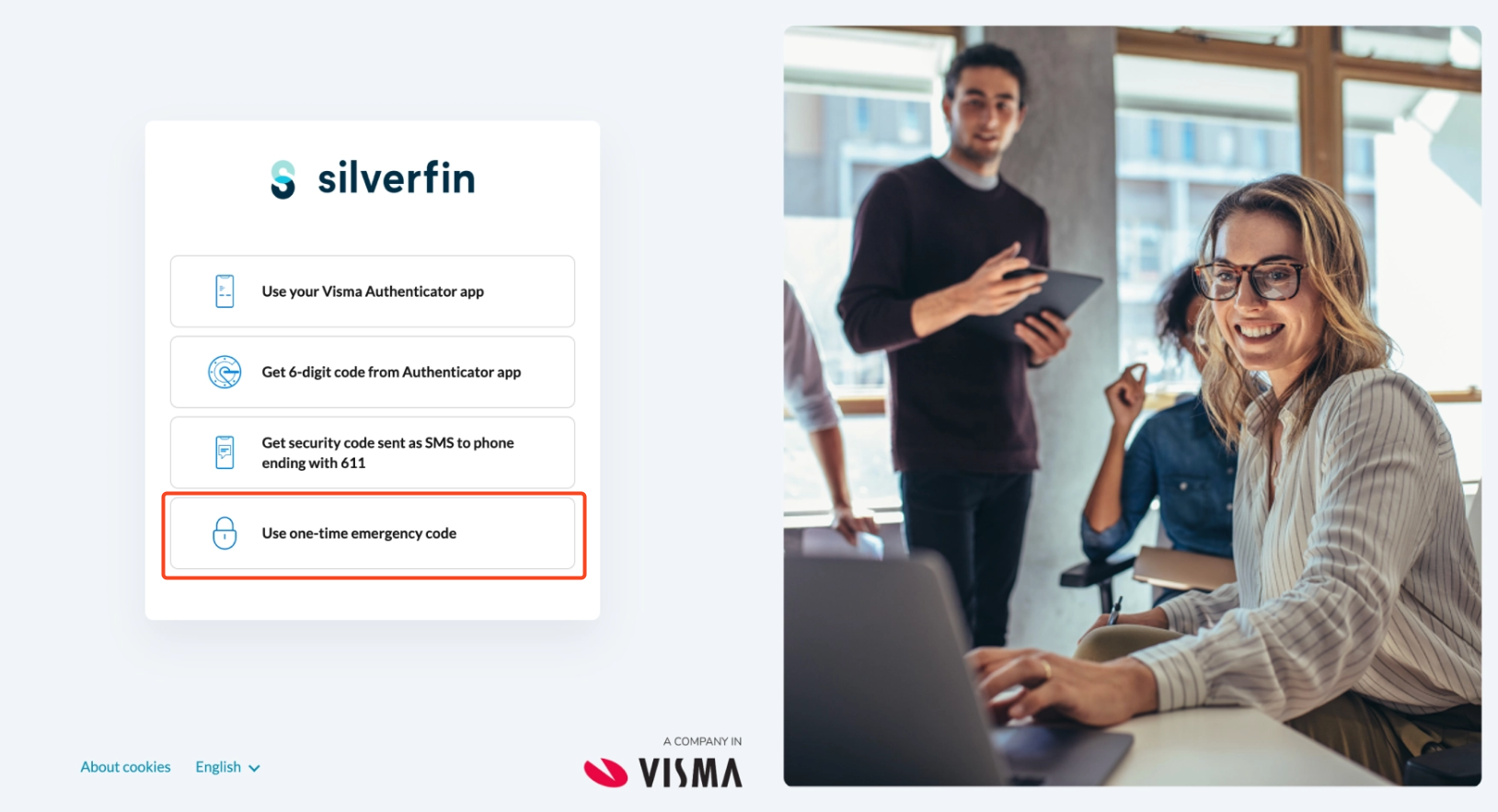
- Select Use one-time emergency code. This is the code you were asked to save when you first set up your 2FA. Read more in How do I sign in to Silverfin for the first time after migrating to Visma Connect? If you don't have it saved, contact Silverfin Support: they can verify your identity and send you a new emergency backup code.
How do I set up my authenticator again?
Use this if: you've lost access to your authenticator app, for example a new phone, a deleted app, or a phone that was lost or stolen.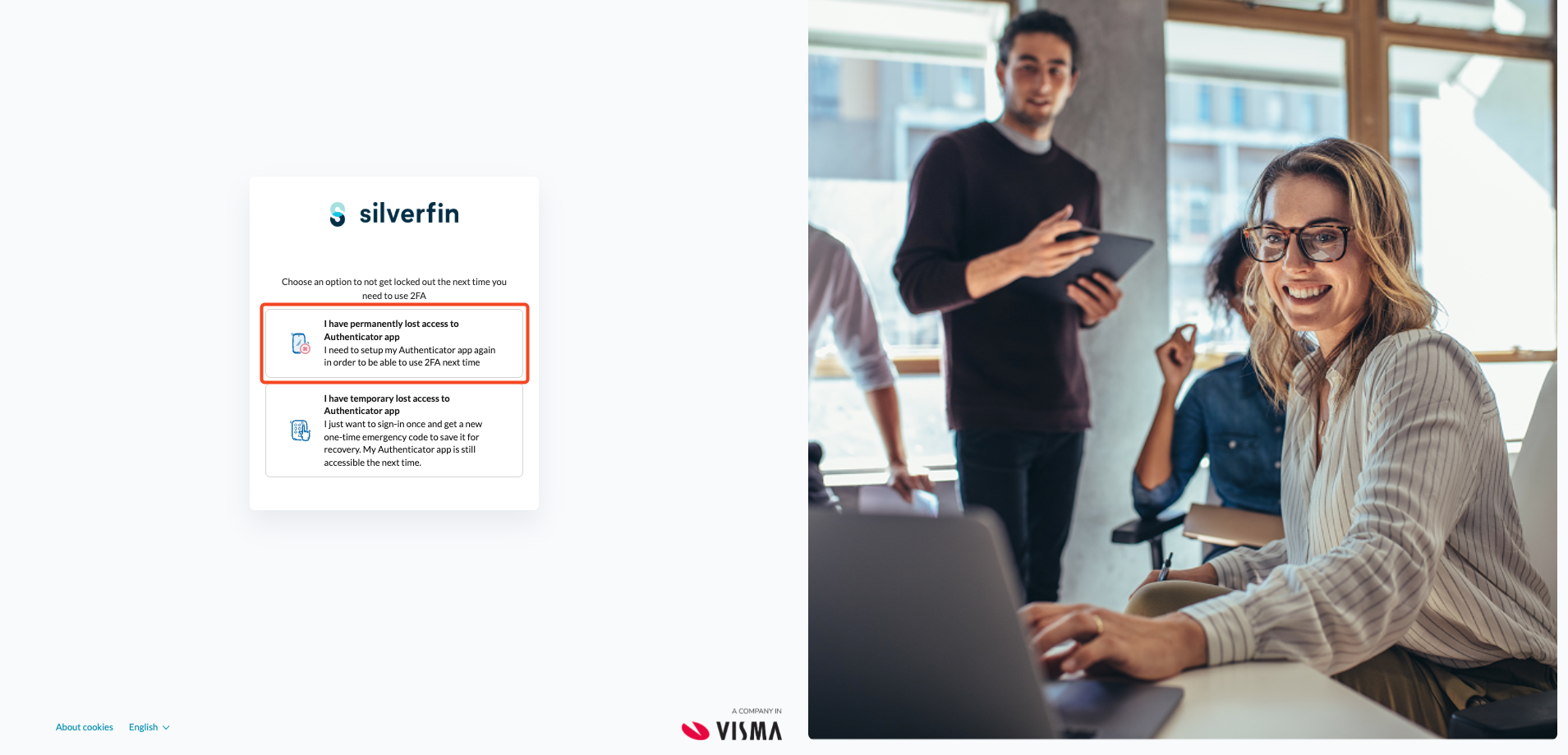
What happens
Selecting I have permanently lost access to Authenticator app takes you through the full 2FA setup from scratch - the same experience as when you first enabled 2FA. At the end, your new authenticator is linked to your account and you receive a new emergency code. Your old authenticator codes stop working.
For the step-by-step setup guide, see How do I sign in to Silverfin for the first time after migrating to Visma Connect?
How do I get a new emergency code?
Use this if: your authenticator app is working fine, but you want to generate a new emergency code - for example, you've used your previous one, or you want a fresh copy stored somewhere safe.
This option does not change your authenticator app. Your existing 2FA setup stays exactly as it is - you're only creating a new backup code.
- Select 'I have temporary lost access to Authenticator app'.
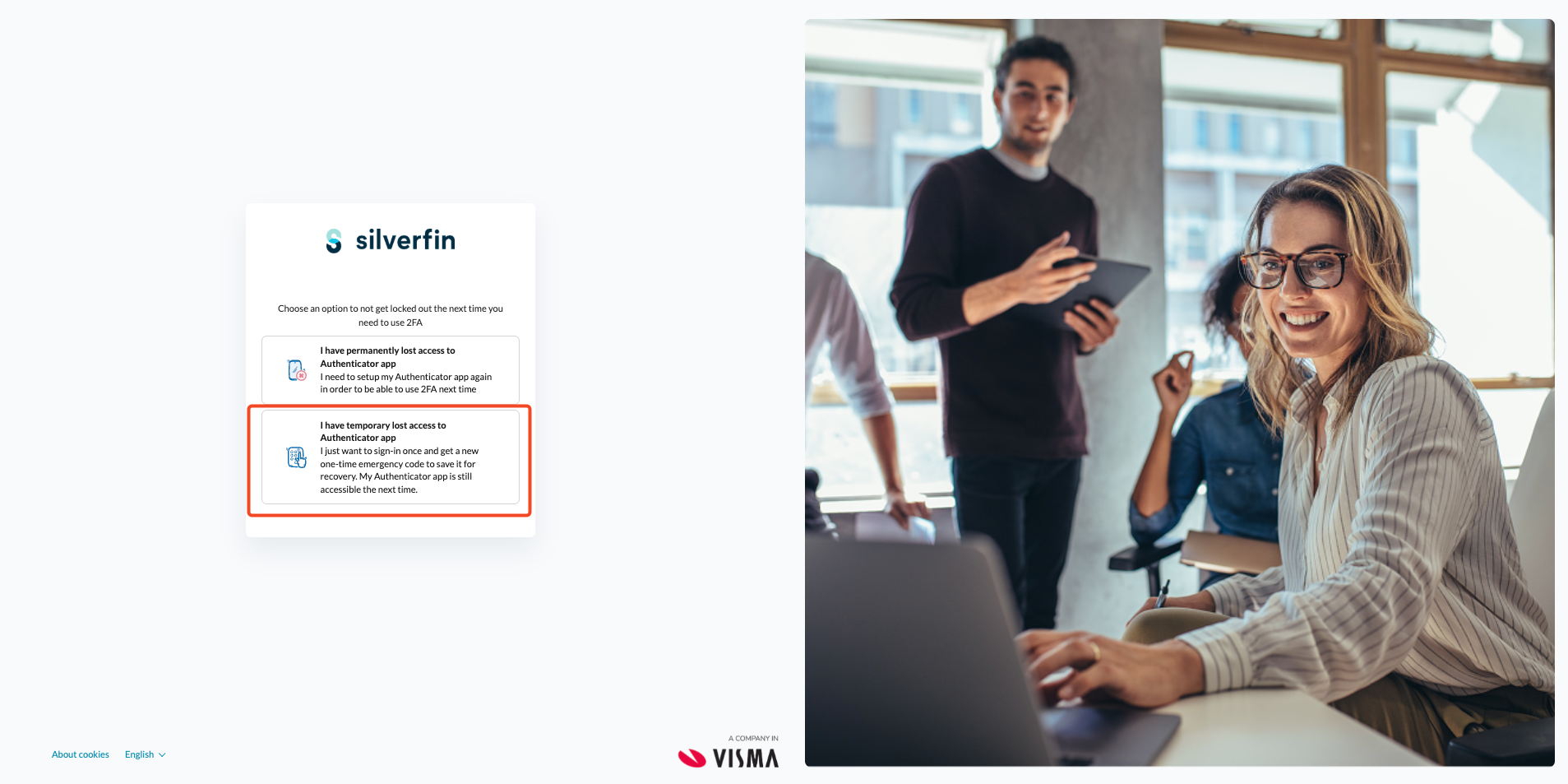
- Save your new emergency code. Your new emergency code appears on screen - it looks something like
F6XU-O0KI-N9IJ-1IDE-792D. Tick "I have safely copied and stored this code" and select Next.
Store this code somewhere safe - a password manager, or a printed copy in a secure place. Once you leave this screen you won't be able to view it again, and your previous emergency code will no longer work.
Frequently asked questions
I lost my phone and I don't have my emergency code. What do I do?
If you've lost both your authenticator app and your emergency code, contact Silverfin Support. Our team will verify your identity and help you regain access.
Will resetting my 2FA affect my sign-in straight away?
If you set up your authenticator again: yes. Once setup is complete, you'll sign in using your new authenticator. If you only generate a new emergency code: nothing changes about how you sign in, and your authenticator continues to work as before.
Can I have more than one emergency code at a time?
No. Each time you generate a new code, it replaces the previous one. Only the most recently generated code is valid.
How many times can I use an emergency code?
Emergency codes are single-use. Once you enter a code, it's consumed and can't be used again.
Does "I have permanently lost access to Authenticator app" delete my old authenticator?
Yes. After completing the new setup, your old authenticator codes no longer work. Only your newly registered authenticator is valid.
My authenticator app is working fine. Do I need to set it up again?
No. If your app is working, generate a new emergency code instead. Setting up your authenticator again is only for when you've lost access to the app itself.