
| User Roles |  Admin Admin |  Staff contributor Staff contributor |  External contributor External contributor |  Pulse user Pulse user |
When your firm is migrated to Visma Connect, you sign in to Silverfin through a new sign-in screen using the email address and password you already use. After signing in, every user must set up two-factor authentication (2FA). This article walks you through the whole first sign-in, from entering your password to saving your emergency code, and is relevant for anyone who signs in to Silverfin with an email address and password.
This flow applies to firms that sign in with an email address and password. If your firm uses single sign-on (SSO), you will be migrated through a different process and do not need to follow these steps.
Table of contents
- How do I sign in with my email and password?
- Why am I being asked to change my password?
- Which authenticator app should I use?
- How do I set up 2FA with the Visma Authenticator app?
- How do I set up 2FA with another authenticator app?
- How do I add an SMS backup number?
- What is the one-time emergency code, and why must I save it?
- Why do I need to set up 2FA?
- What if I don't want to connect my phone, or I don't have a smartphone?
- Frequently asked questions
- Need help?
How do I sign in with my email and password?
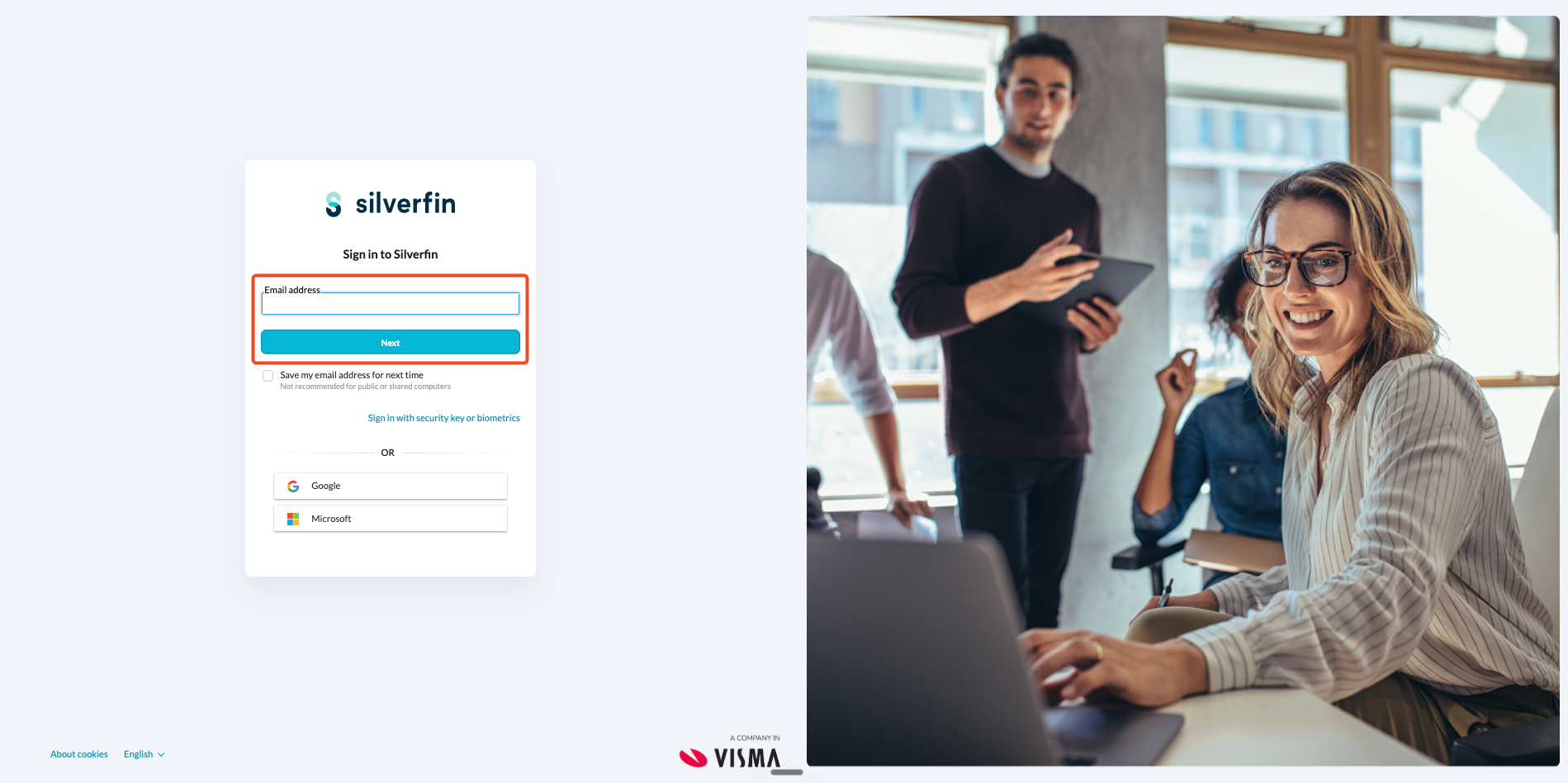
- On the Silverfin sign-in screen enter your email address and click Next.
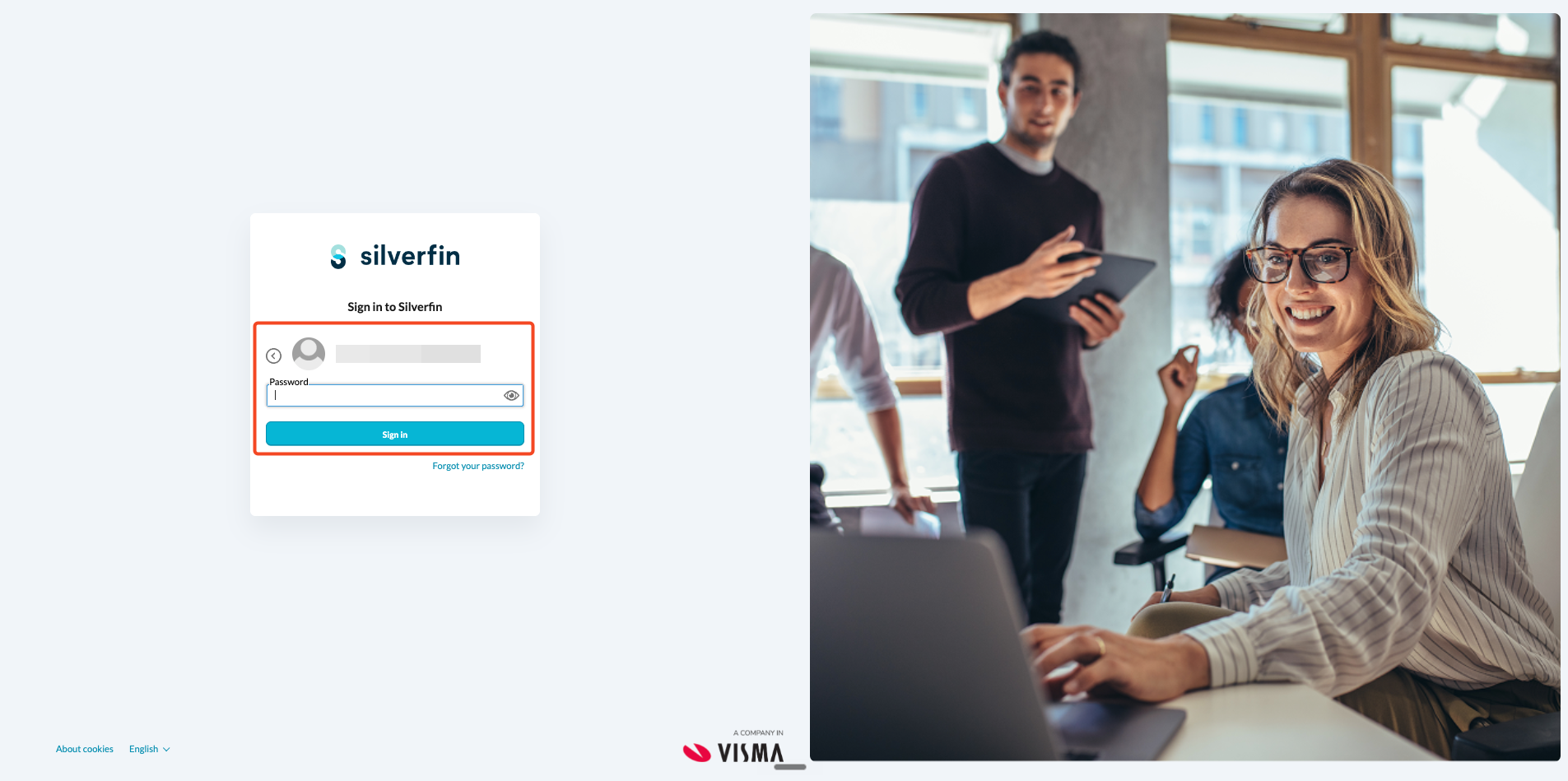
- Enter the password you already use for Silverfin and click Sign in. There's no need to reset it - your existing password still works, as long as it meets Visma Connect's security policy. If you forgot your password click the button 'Forgot your password?' and follow the instructions.
The sign-in screen also shows other options:
- Sign in with a security key or biometrics: Don't use these the first time you sign in after migration.
- Sign in with Google or Microsoft: available only if your Silverfin email address matches the Google or Microsoft account you use. See How do I sign in to Silverfin with Google or Microsoft? (Visma Connect) for the full details.
Why am I being asked to change my password?
If your current password does not meet Visma Connect's security policy, you are asked to set a new one before you can continue. If your password already meets the policy, you skip this step and go straight to setting up two-factor authentication.
Your new password must:
- be at least 15 characters long,
- not appear in a known data breach (this is checked automatically), and
- uppercase letters, lowercase letters, numbers and symbols are not required.
The requirements appear in a tooltip next to the New password field, and each one turns green as you meet it.
A passphrase made of three or four unrelated words easily meets the 15-character minimum and is much easier to remember than a short, complex password.
Which authenticator app should I use?
After the password step, every user must enable 2FA. You can choose either option during setup:
- Visma Authenticator (recommended) - supports push notifications, so you tap Approve on your phone instead of typing a code each time.
- Any other authenticator app - for example Google Authenticator, Microsoft Authenticator, 1Password or Authy. These generate a rotating 6-digit code that you type in at each sign-in.
2FA is mandatory for every migrated user and cannot be skipped.
How do I set up 2FA with the Visma Authenticator app?
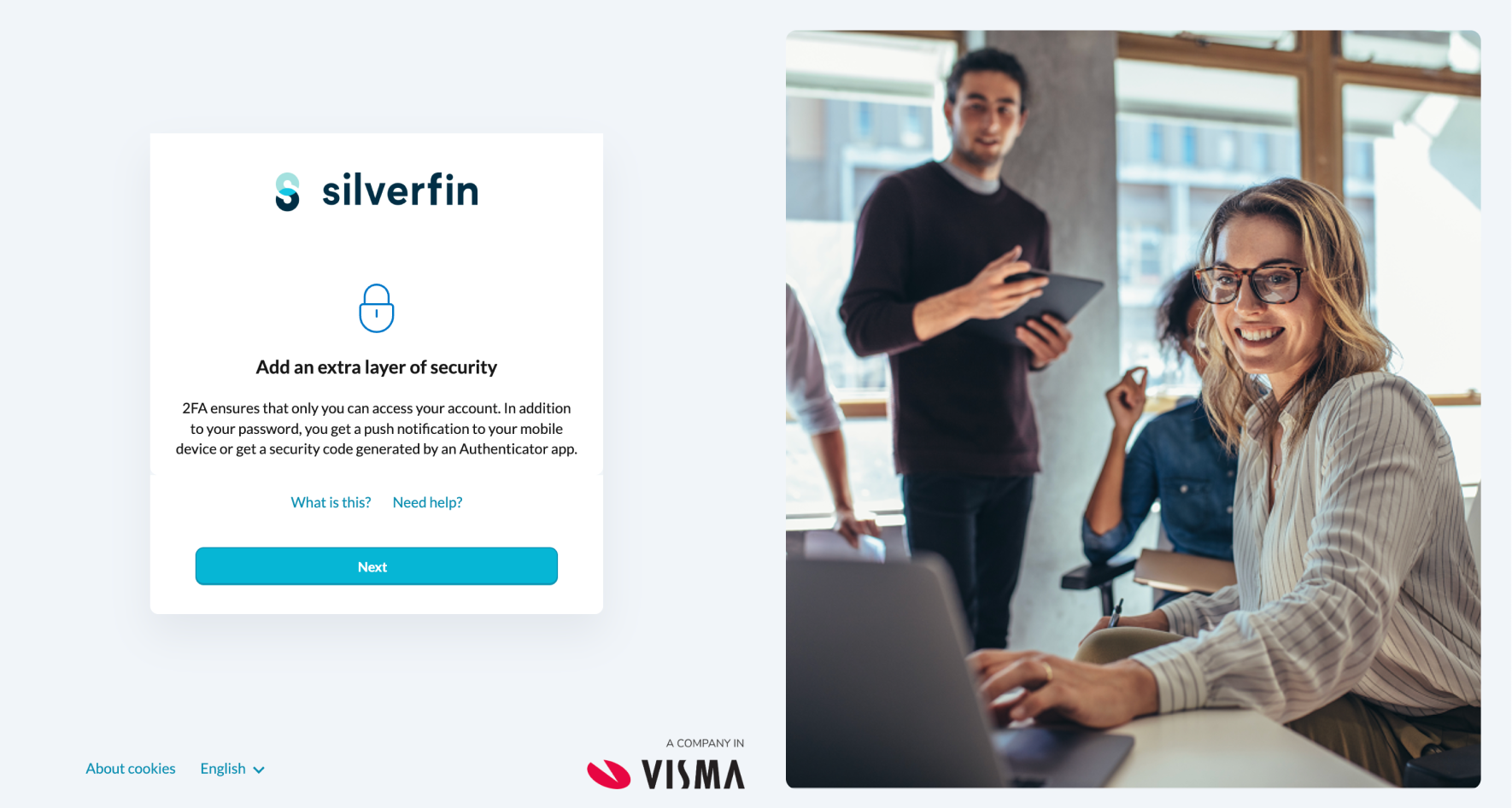
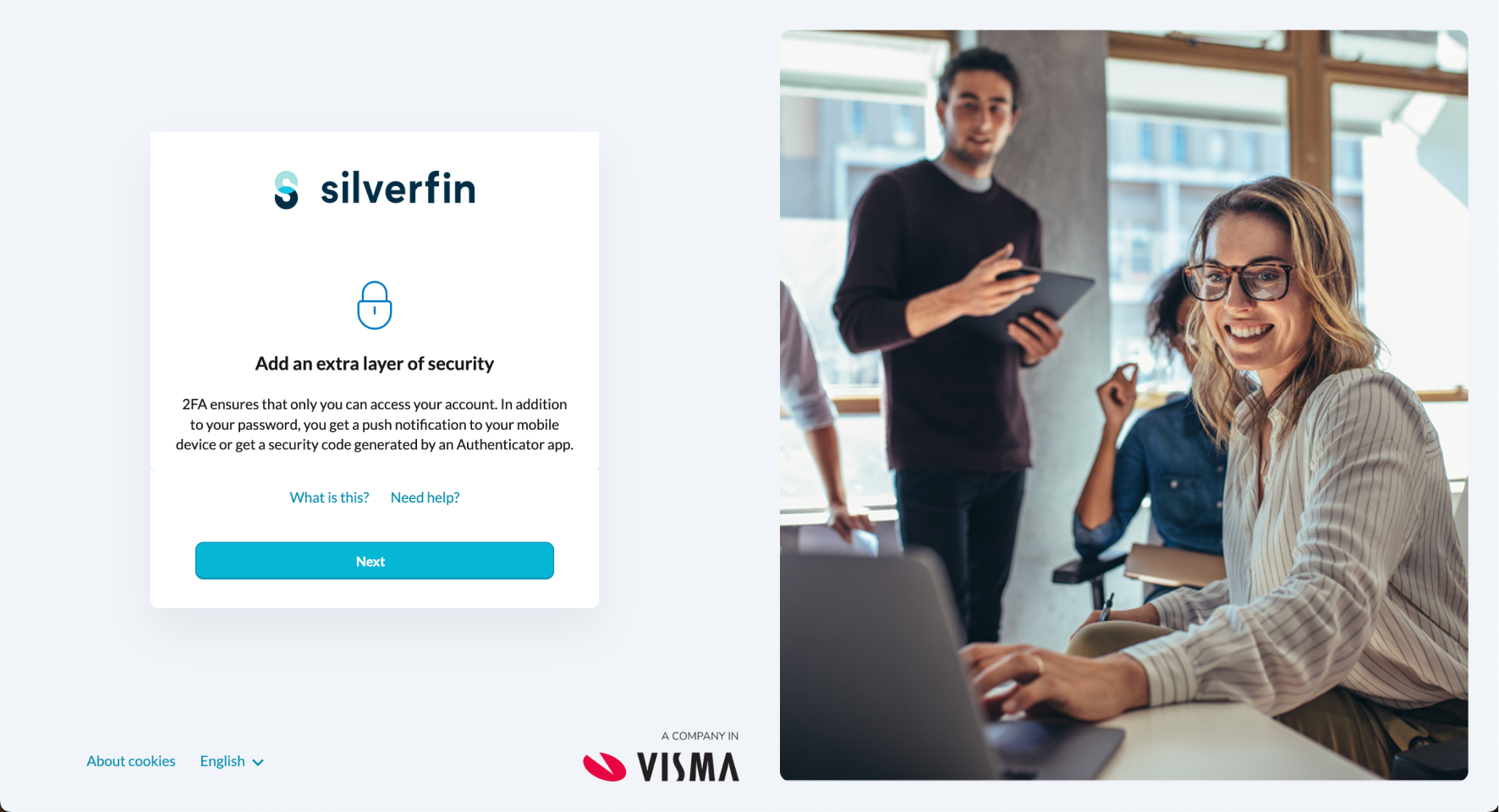
- On the Add an extra layer of security screen, click Next.
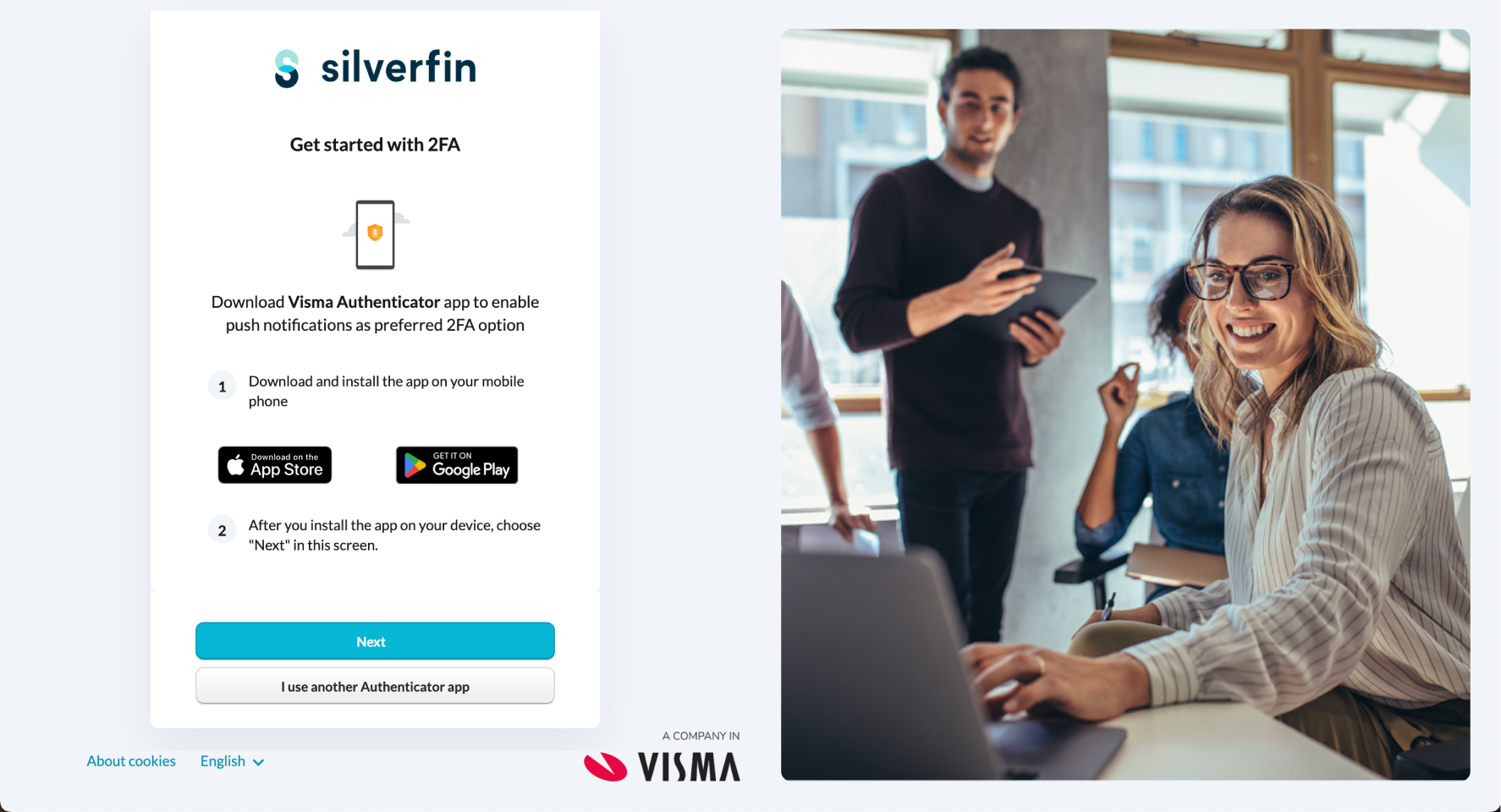
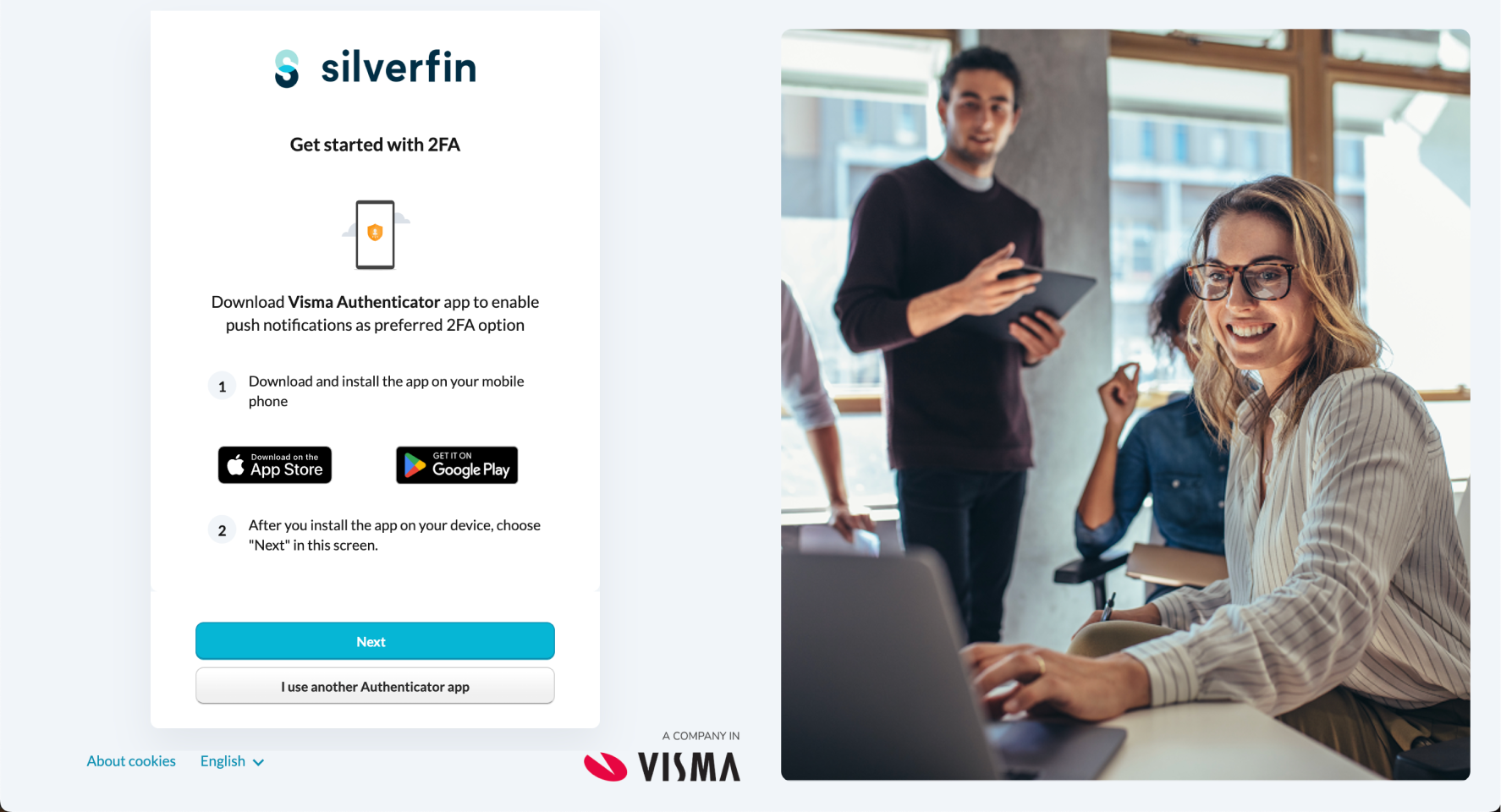
- Install Visma Authenticator on your phone from the App Store or Google Play, then click Next. (If you would rather use a different app, click I use another Authenticator app and follow the next section instead.)
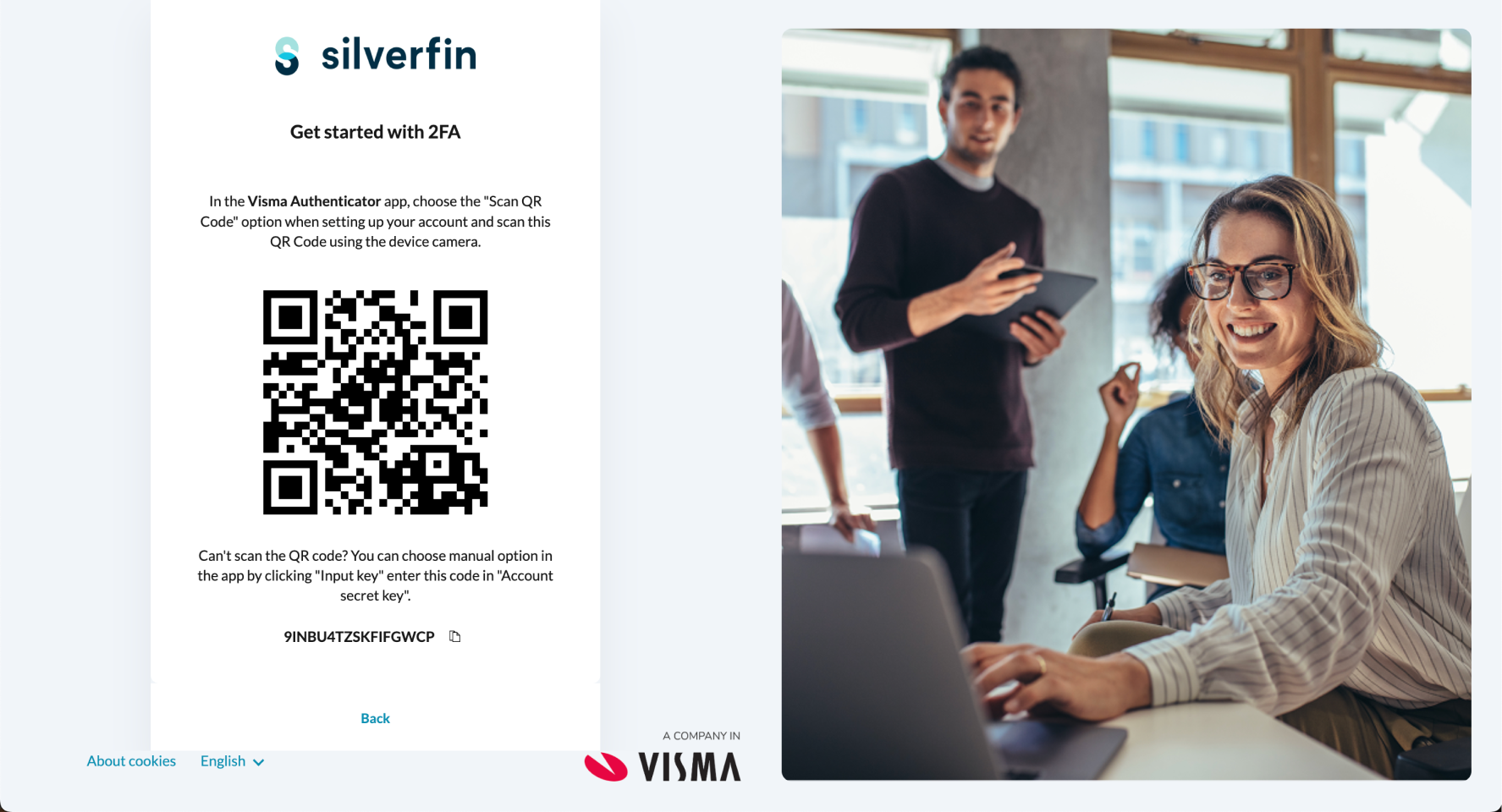
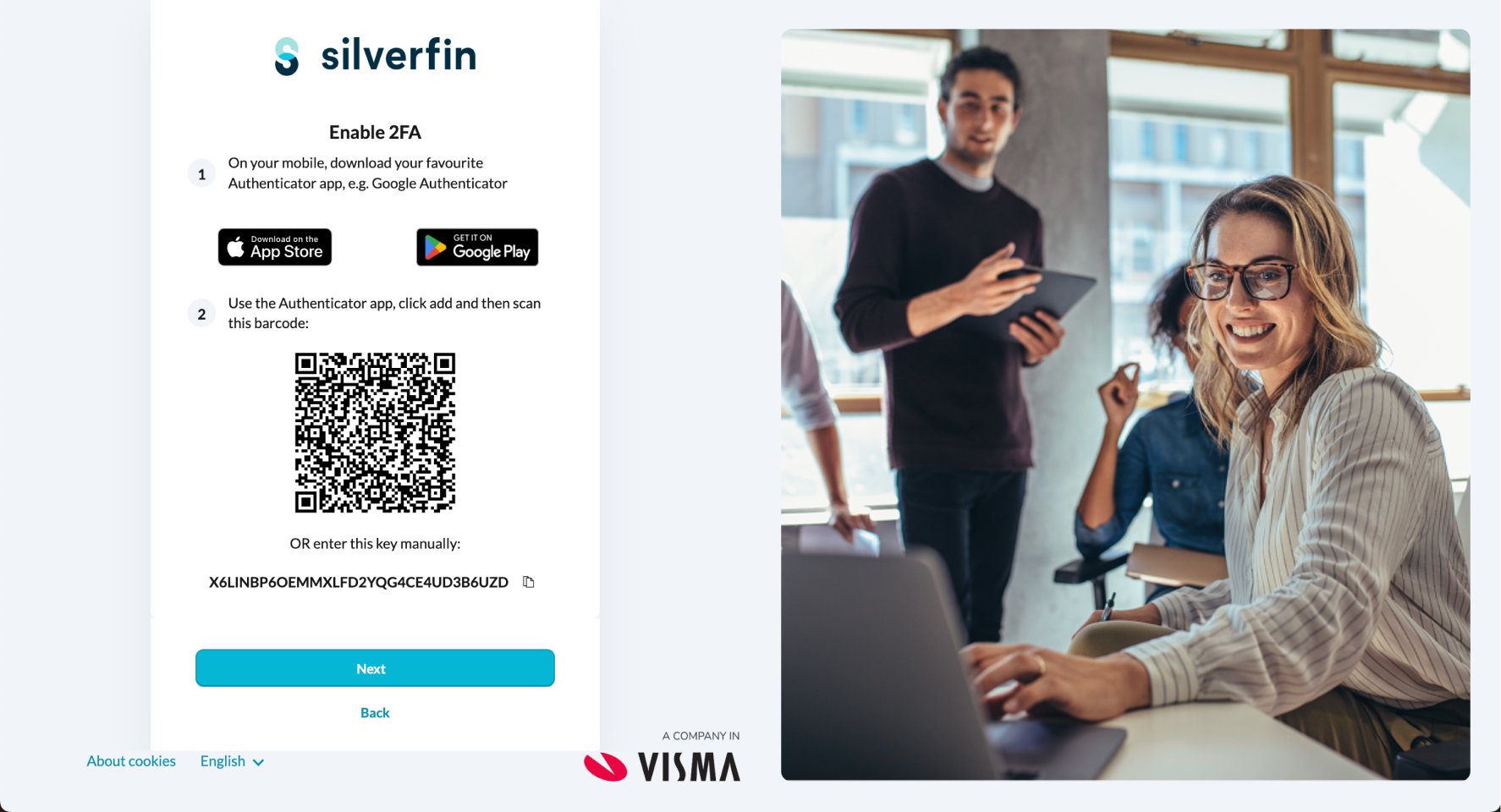
- In the Visma Authenticator app, choose Scan QR Code and scan the code shown on screen. If you cannot scan it (for example, you are setting up on the same device), choose Input key in the app and paste the secret key shown below the QR code.
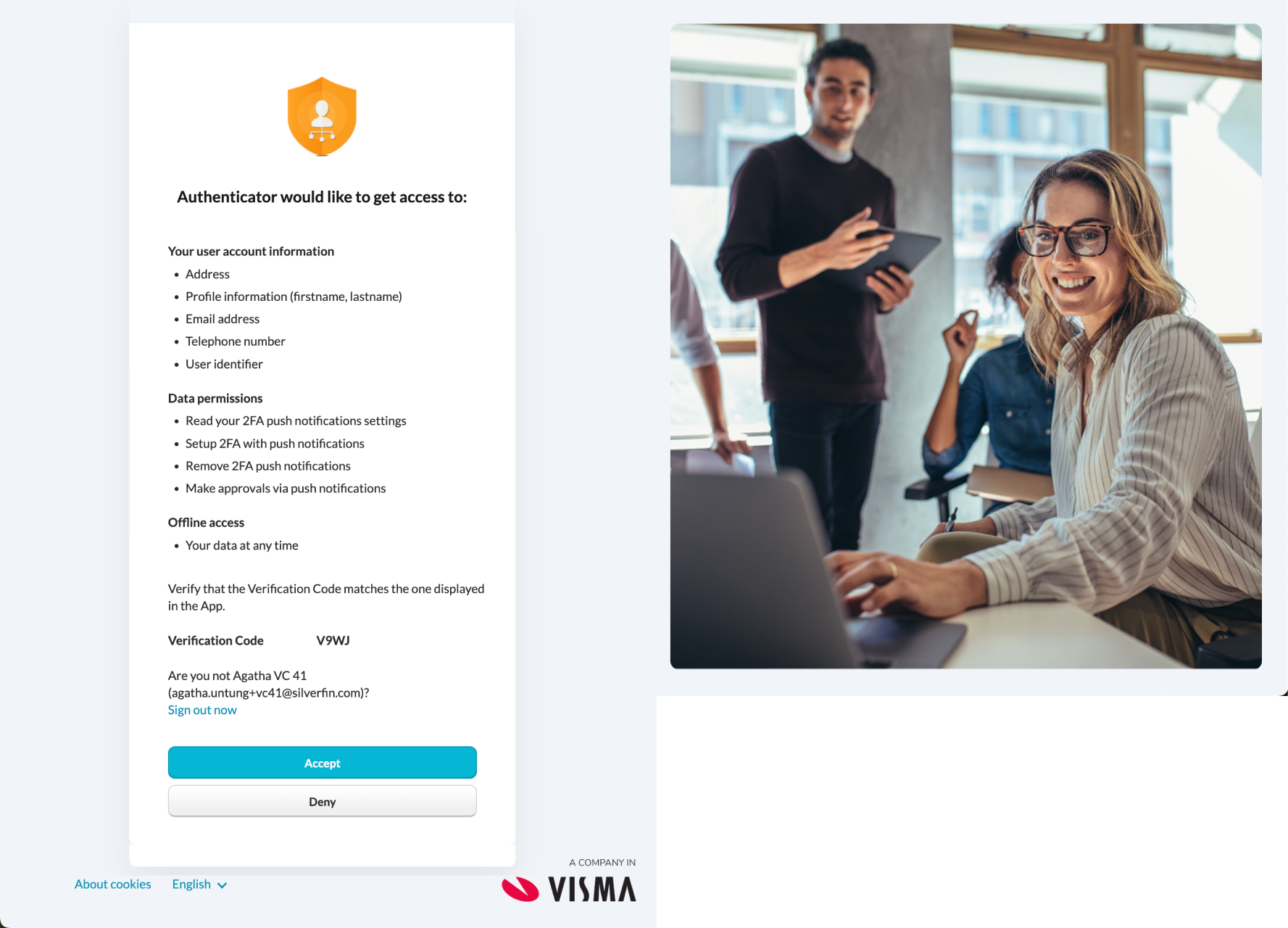
- Check that the verification code on screen matches the one in the app, then click Accept to approve the data the integration needs (account information, push permissions and offline access).
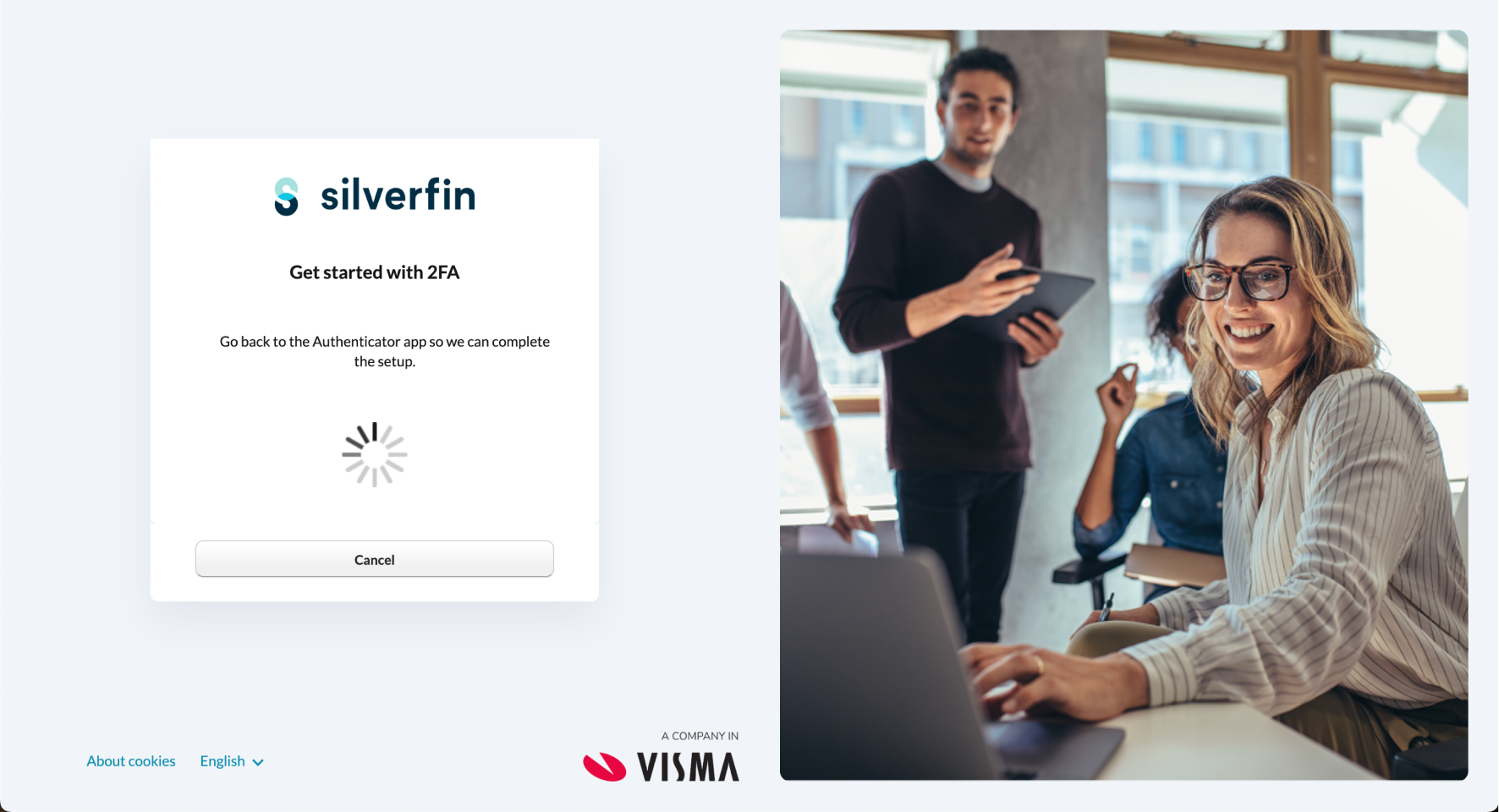
- On your phone, tap Approve when prompted. This links your device to your account.
Allow notifications for the Visma Authenticator app so it can send you push notifications at sign-in.
How do I set up 2FA with another authenticator app?
- On the Add an extra layer of security screen, click Next.
- On the Get started with 2FA screen, click I use another Authenticator app.
- In your chosen app, add a new account and either scan the QR code shown or paste the manual key. Then click Next.
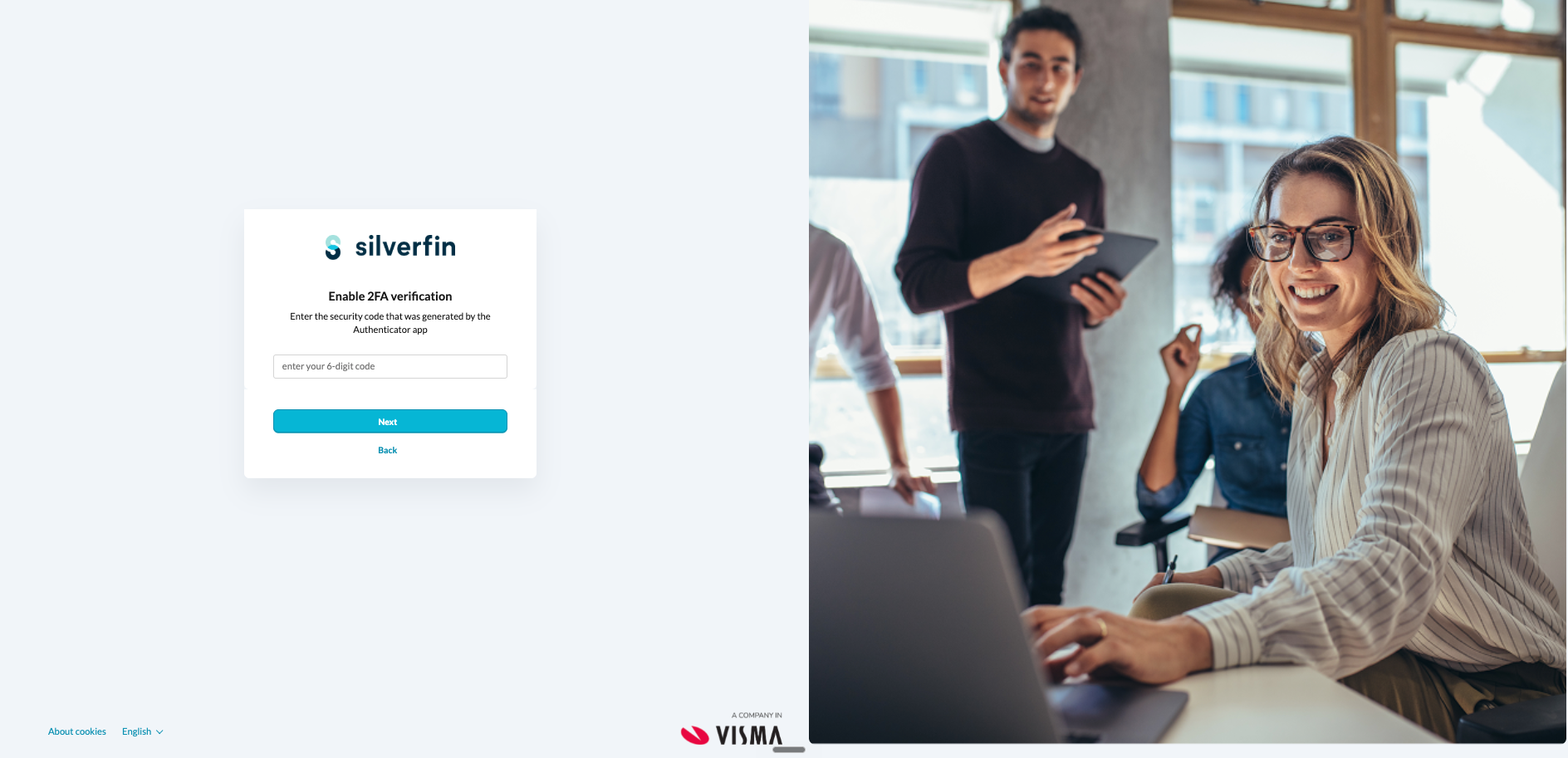
- Type the rotating 6-digit code from your app into the Enable 2FA verification screen and click Next.
Unlike Visma Authenticator, other apps do not send push notifications. At every sign-in you will need to open your app and type the current 6-digit code.
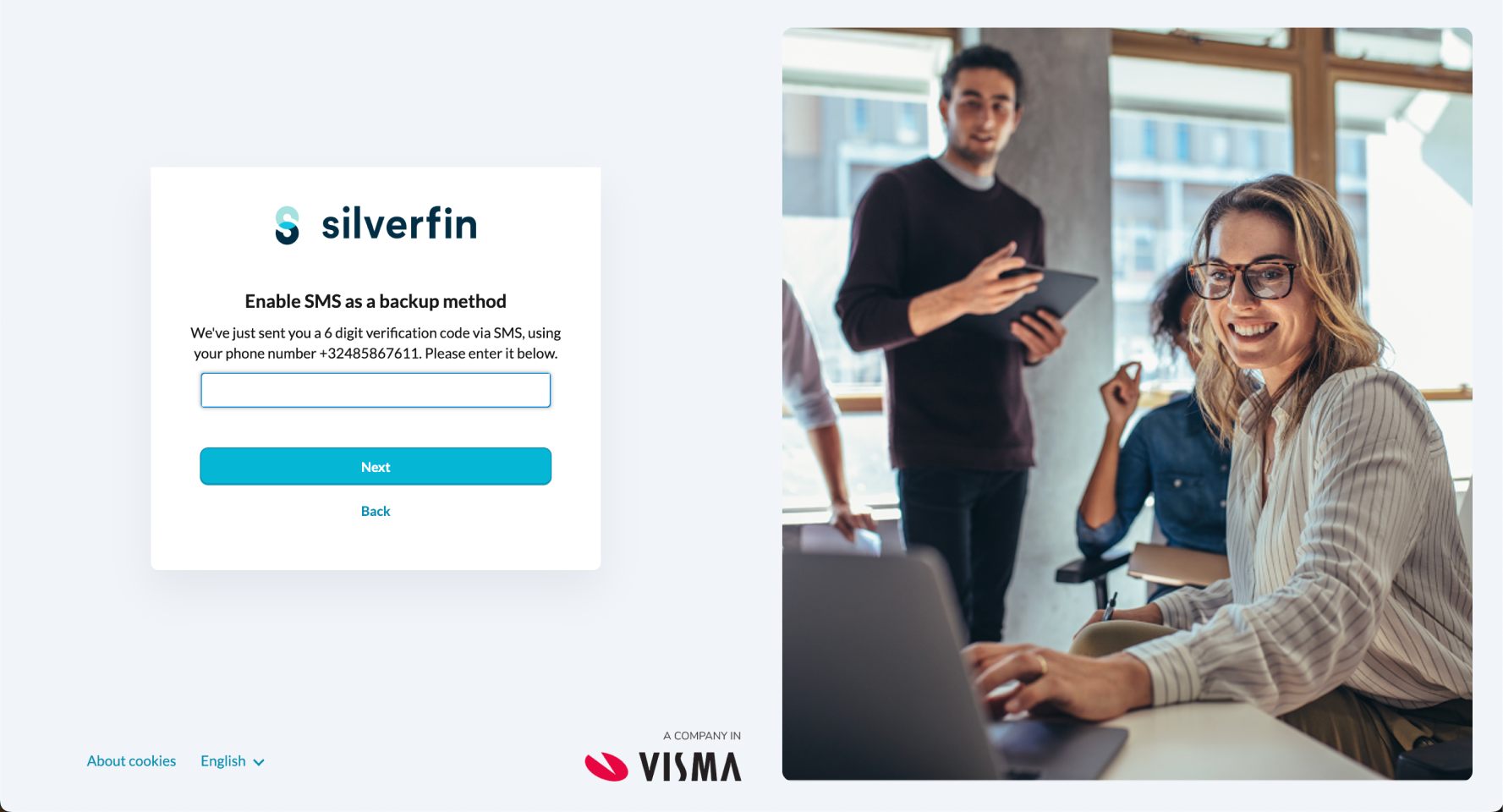
How do I add an SMS backup number?
Adding an SMS backup number is optional but strongly recommended. It is the fallback you use if your authenticator app is unavailable, for example if you lose your phone, reinstall the app or have no internet connection.
- Enter a mobile number that can receive SMS messages.
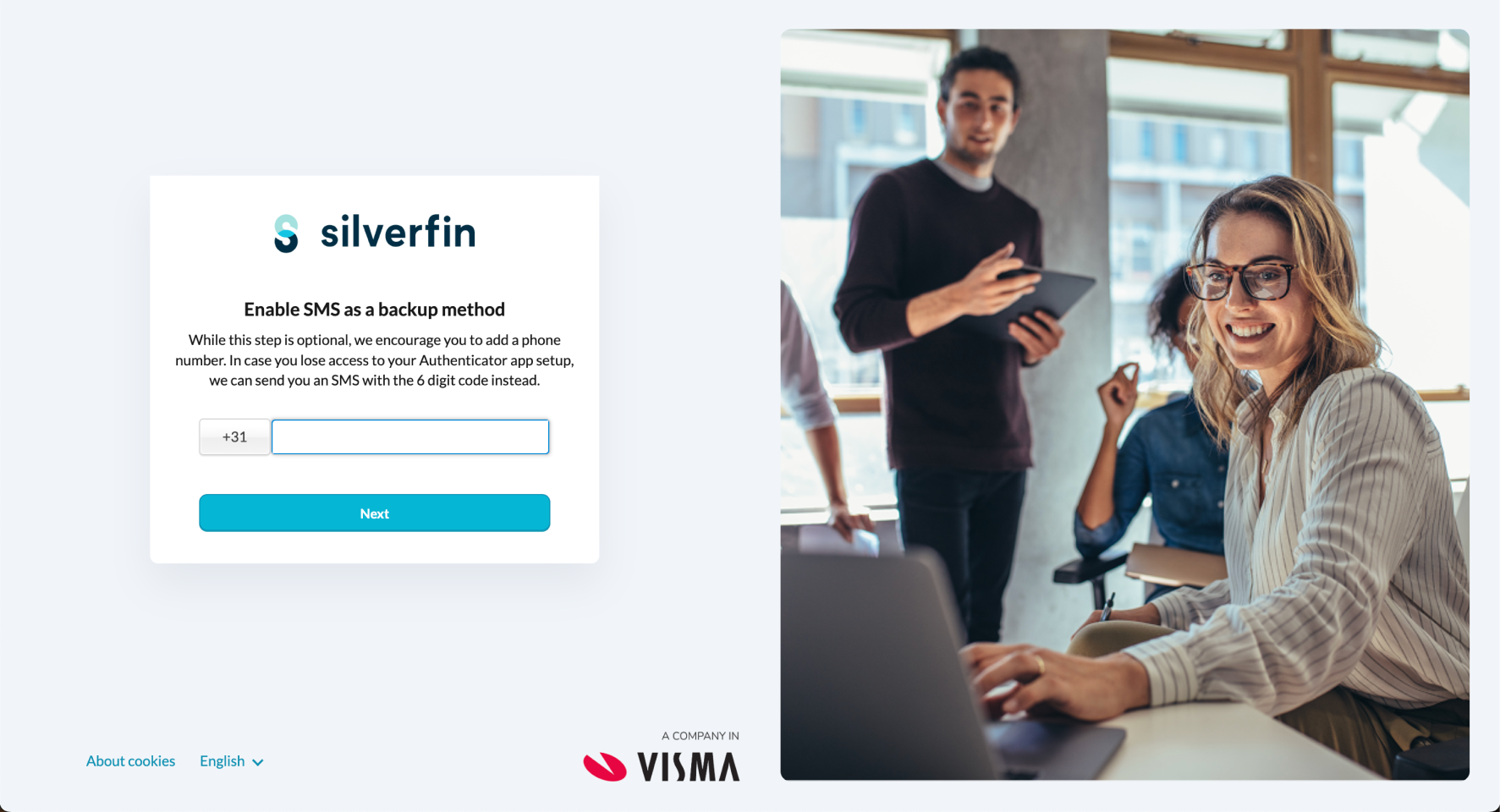
- Visma Connect sends a 6-digit code to that number. Enter the code to confirm the number works.
What is the one-time emergency code, and why must I save it?
At the end of setup you are shown a single-use emergency code in a format like XXXX-XXXX-XXXX-XXXX-XXXX. You must tick I have safely copied and stored this code before you can click Done.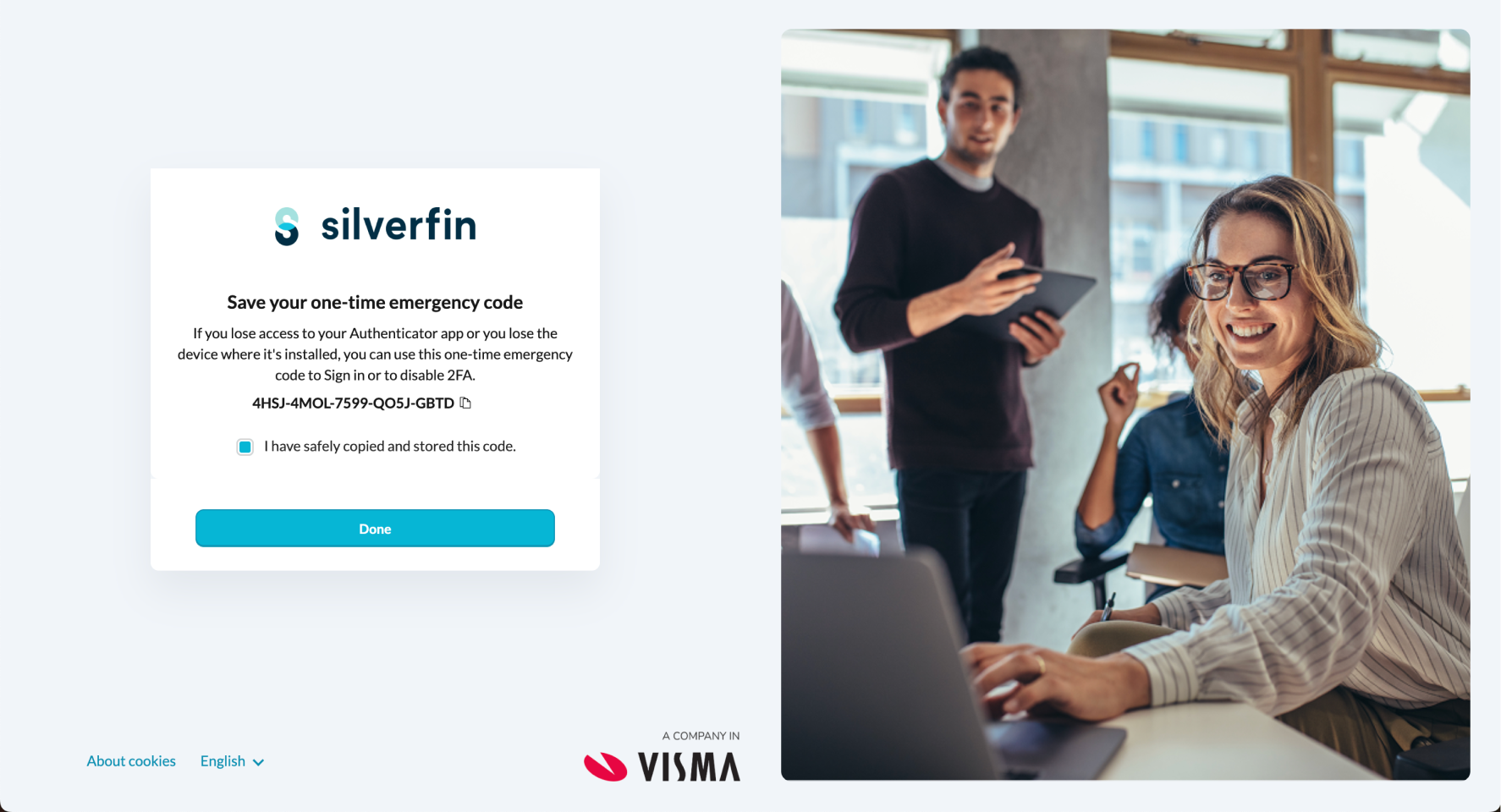
This code is the only way back in if you lose both your authenticator app and your SMS backup. Store it somewhere durable, such as a password manager. If you lose your app, your SMS backup and this code, you will need to contact Silverfin Support to verify your identity and reset your 2FA.
Why do I need to set up 2FA?
Two-factor authentication is the minimum protection for the client data you hold in Silverfin. A username and password on their own are not enough, because anyone who learns them could sign in. A second factor means that even if your password is exposed, your account — and your clients' data — stays protected.
Securing professional accounts with an authenticator app has been standard practice for over a decade, so in most firms it is already used elsewhere day to day.
What if I don't want to connect my phone, or I don't have a smartphone?
Your phone is not the only option. You can meet the 2FA requirement and sign in without a personal mobile in several ways:
- Microsoft or Google sign-in – intended for teams whose work email runs on Microsoft or Google (not personal accounts). See How do I sign in to Silverfin with Google or Microsoft? (Visma Connect).
- Passkey – can be set up on the work computer itself (Windows Hello on a PC, Touch ID on a Mac) or with a physical security key, so no phone is needed. See How do I set up a passkey to sign in to Silverfin? (Visma Connect)
- A password manager such as 1Password – these can generate the 2FA code within the password manager itself, so again no phone is required. Just make sure that account is itself well protected, since it now holds your second factor.
Frequently asked questions
Do I have to reset my password during migration?
No, unless your current password does not meet the new Visma Connect policy. The password you already use is accepted automatically.
Is 2FA optional?
No. Every migrated user must enable 2FA at first sign-in, and there is no way to skip it.
Do I have to use Visma Authenticator?
No. Any authenticator app works. Visma Authenticator is recommended because it supports push notifications.
Is SMS 2FA enough on its own?
No. SMS is only a backup method. Your main method must be Visma Authenticator or another authenticator app.
What does the one-time emergency code do?
It lets you sign in once if you lose access to your authenticator app. It is single-use, so after using it you should set up 2FA again.
What if I lose my phone?
Use your one-time emergency code to sign in, then set up 2FA again on your new phone.
What if I lose both my phone and my emergency code?
Contact your firm administrator or Silverfin Support. They will help you recover your account once they have verified your identity.
Can my firm admin set up 2FA for me?
No. For security reasons, each user must set up 2FA themselves at first sign-in. Admins can help by letting users know about the change in advance.
I cannot scan the QR code. What should I do?
In your authenticator app, choose Input key or Manual entry and paste the secret key shown below the QR code on the Silverfin screen.
I never received an SMS. What should I do?
Click Back, check the number (including the country code) and request a new code. Some providers occasionally filter SMS messages. If the code still does not arrive, you can skip the SMS step, but you will then not have that backup option.
I clicked Accept in the app, but nothing happened.
Make sure you tap Approve on the pending request in the Visma Authenticator app on your phone, not just on the permissions screen.
Need help?
If you get stuck, contact Silverfin Support. Have your email address and your firm's name ready so we can help you faster.