
| User Roles |  Admin Admin |  Staff contributor Staff contributor | ✗External contributor | ✗Pulse user |
The P&L analytical review template builds a period-on-period (or quarter/month-on-quarter/month) breakdown of the profit and loss account, with automatic variance £ and % columns and a comment box against every line, so that the person preparing or reviewing the accounts can explain movements before the accounts are finalised. It is a review/working-paper tool rather than a note or disclosure — its output is not carried into the primary statements or the notes. It supports the analytical review procedures that auditors and accountants are expected to perform as part of understanding the entity and assessing the risk of material misstatement (see Background, below), and it pairs with the Balance Sheet analytical review template, which does the equivalent job for the balance sheet.
Table of contents
- When should I use this template?
- Before you start
- Background: why this working paper exists
- Step 1: Choose the comparison basis
- Step 2: Set the rounding
- Step 3: Review the table structure
- Step 4: Check the subtotals
- Step 5: Review the gross margin
- Step 6: Medical practices
- Checking the reconciliation warning
- What flows through to the rest of the accounts/workflow?
- What rolls forward next year?
- Where the data comes from
- Frequently asked questions
When should I use this template?
Use it on any UK engagement where you want a structured, evidenced review of profit-and-loss movements year-on-year (or period-on-period) rather than a one-off eyeballing of the trial balance. It's useful both as a completion-stage review (comparing the final P&L to the prior year) and, where the client is on a monthly or quarterly trial balance, as a rolling management-accounts review during the year. It also has a purpose-built layout for medical practices/GP partnerships (see Step 6).
Before you start
- The relevant UK Working Papers workflow must be added to the company.
- The template reads directly from the trial balance using standard UK nominal-code mapping ranges (the same account-mapping convention used across Silverfin's UK templates), so it needs the trial balance/nominal ledger to already be mapped — there's nothing to configure in this template itself for that.
- If the company is a medical practice/GP partnership, set the Industry field to "medical" on the General settings reconciliation first — this template picks that up automatically and switches its whole structure (see Step 6). There's no toggle for this inside the P&L analytical review template itself.
- Decide up front whether you want a yearly, quarterly or monthly comparison (Step 1) — this depends on how often the client's trial balance is produced.
Background: why this working paper exists
This template doesn't produce a note or a disclosure — nothing it calculates is picked up elsewhere in the accounts. It exists to give preparers and reviewers a structured place to compare current-period figures to a prior period (or budget), investigate any significant differences, and record an explanation for each material movement. That's a routine part of understanding the business and catching misstatements, unusual transactions or going-concern indicators before the accounts are finalised — the template is evidence that review took place, not a source of figures for the accounts themselves.
Step 1: Choose the comparison basis
At the top of the template:
Comparison (custom.comparison.freq) — a dropdown whose options depend on how often the company's trial balance is produced (company.periods_per_year):
- Trial balance produced monthly (12 periods/year): Yearly, Quarterly or Monthly
- Trial balance produced quarterly (4 periods/year): Yearly or Quarterly
- Trial balance produced annually (1 period/year): Yearly only
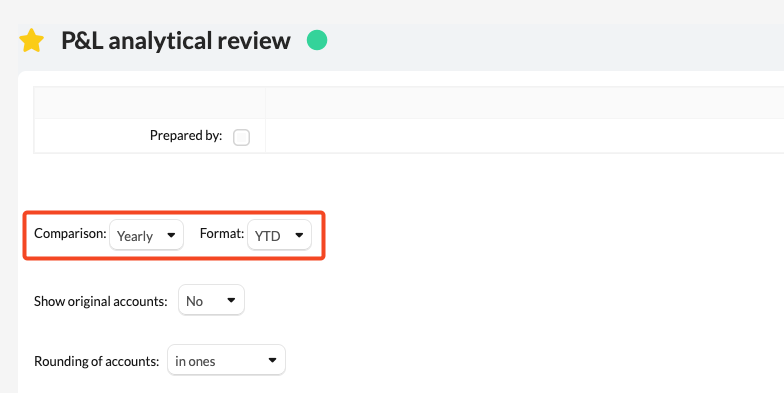
Default is Yearly.
- If you choose Monthly, a second field appears — Months to compare (custom.number.months), a dropdown from 1 to 11 (default 1) — controlling how many preceding months are shown alongside the current month.
- If you choose Yearly, a second field appears — Format (custom.data.format), a dropdown of YTD or PTD (default YTD). YTD shows the cumulative balance from the start of the financial year to the period end, as normal. PTD (period-to-date) instead nets off the previous period's cumulative balance, so the column shows only the movement in the most recent accounting period rather than the full year-to-date figure — useful when you're reviewing at an interim monthly/quarterly close within a longer year rather than at the year end.
- If you choose Quarterly, the template works out which quarter you're in from the trial balance dates and shows each quarter's movement (netting consecutive cumulative closing balances) rather than requiring you to pick a quarter.
Underneath, Show original accounts (custom.show.original_accounts) is a Yes/No dropdown (default No). Leave it at No to see Silverfin's standardised, mapped account descriptions in the account-level breakdown; switch it to Yes to instead see the client's original trial-balance account numbers and names.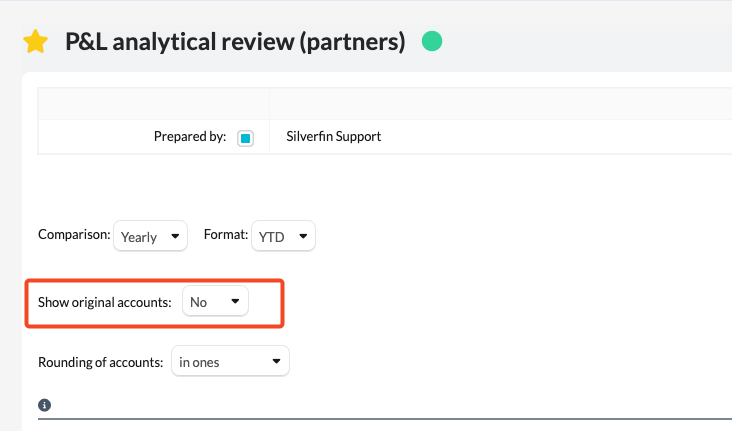
Step 2: Set the rounding
Rounding of accounts (custom.rounding.ofAcc) is a dropdown — "in ones", "in thousands" or "in millions" (default "in ones"). This scales every figure in the table and updates the currency heading shown under each column (£, £'000 or £'m) accordingly.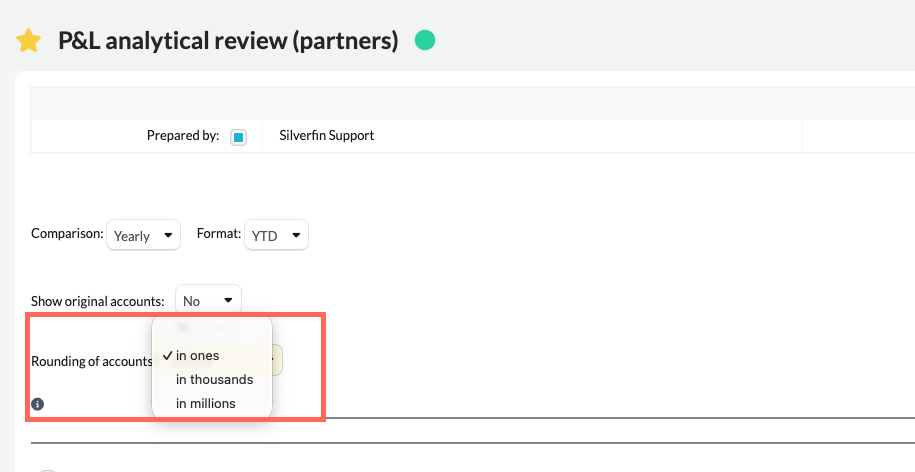
Step 3: Review the table structure
The table lists the P&L in three tiers, each with its own show/hide control:
- Header rows (e.g. Revenue, Other revenue, Cost of sales, Administrative expenses, Marketing/selling/promotion, Distribution costs, Establishment costs, Other operating income/expense, Income from shares and similar undertakings, Income from other fixed asset investments, Other non-operating profit/loss, Interest receivable and similar income, Interest payable and similar expenses, Other finance income/costs, Taxation) — each has a boolean tick-box. Ticking it reveals the category rows underneath.
- Category rows (e.g. under Revenue: Domestic, EU, Rest of World, Rental recharges, and so on) — each also has its own boolean tick-box. Ticking it reveals the individual trial-balance accounts that make up that category, with a link through to each account. Each category row also has a text field (default text is the standard category description) that you can overtype to relabel the line if the standard wording doesn't suit the client.
- Account rows — the individual nominal accounts within a ticked category, each linking back to the account in the trial balance.
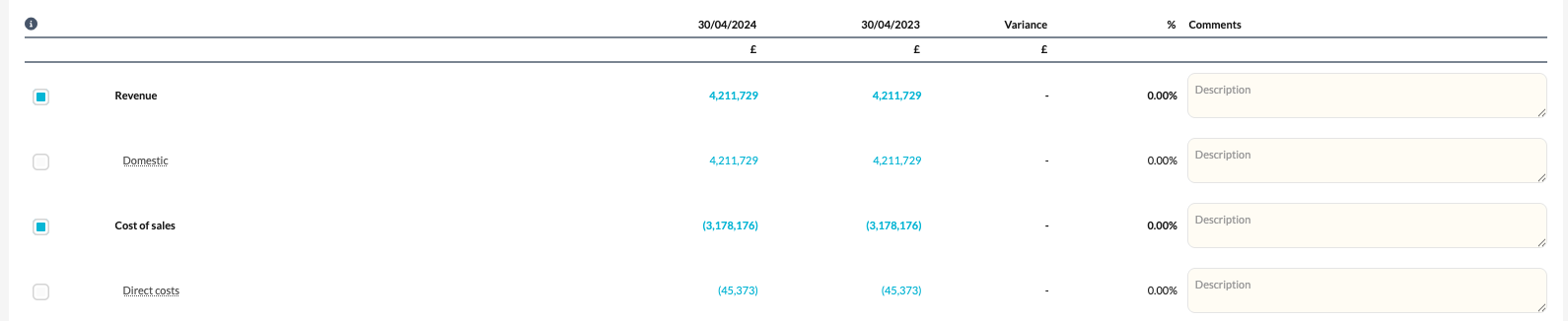
A line at any tier is only shown at all if it has a non-zero value in either the current or comparative column — empty categories don't clutter the table, regardless of whether their tick-box is ticked.
Every header, category and account row (and the subtotal rows below) has its own free-text comment box (placeholder "Description") for recording your explanation of the balance or its movement — this is where the actual review evidence goes.
Once a comparative period exists, the template automatically adds a Variance column (£) and a % column next to the current and comparative figures, with the sign handled correctly so a swing from profit to loss (or vice versa) still reads sensibly. If no comparative period exists yet (e.g. the company's first year in Silverfin, or the first quarter/month of trading), those columns and the comparative column simply don't appear.
Step 4: Check the subtotals
Beneath the categories, the template shows the standard P&L subtotals — Gross profit/loss, Operating profit/loss, Profit/loss before tax and Profit/loss after tax — each with its own comment box, and its own variance £/% versus the prior period.
Step 5: Review the gross margin
A Gross margin % row is calculated automatically (gross profit divided by revenue plus other revenue) for the current and comparative period, with the percentage-point variance shown alongside — there's no separate setting for this; it's derived from the categories above.
Step 6: Medical practices
If the Industry field on the company's General settings reconciliation is set to "medical", this template automatically swaps to a GP/medical-practice P&L structure instead of the standard categories: NHS income, Other NHS income, Other non-NHS income, Dispensing gross margin, Gross practice income (subtotal), Expenditure, Investment income, Interest receivable, Interest payable, Other finance income/costs, Surplus of income over expenditure for practice (subtotal), Personal income, Personal expense, and Partners' net medical income (subtotal). All the same show/hide, comment and variance behaviour described above applies — only the categories and mapped accounts differ.
Checking the reconciliation warning
If the total profit or loss calculated by the template for the current period doesn't match the profit/loss per the trial balance (the profit_after_tax or, for medical practices, partners_net_medical_income subtotal), a warning banner appears showing both figures and asking you to contact support@silverfin.com. This is an informational flag rather than a blocking "unreconciled" status — it exists to catch a mapping gap (an account posted somewhere the template's ranges don't pick up) so it can be corrected.
What flows through to the rest of the accounts/workflow?
Nothing. This is a standalone review working paper — no other template reads its figures, and it doesn't populate any note, disclosure or iXBRL tag. Its value is the evidenced review itself (the ticked-open detail and the comments recorded against each line), not any output it produces.
What rolls forward next year?
All of the custom inputs roll forward from period to period in the normal way, since nothing in the template explicitly clears them: the comparison frequency, months-to-compare, format, show-original-accounts and rounding settings; every header/category tick-box; every relabelled category title; and every comment you've entered. In practice this means the template opens next year already showing the same lines you had expanded and the same categories you'd renamed, with last year's comments still visible until you overtype them for the new period.
Where the data comes from
Figures come straight from the trial balance for the current period and, depending on the comparison frequency chosen, from the equivalent prior period(s) — prior year (period.minus_1y), prior month(s) (period.minus_1p, minus_2p, minus_3p...) or the equivalent prior quarter, worked out from the period's month-end dates. Accounts are grouped into the categories shown using the same standard UK nominal-code mapping ranges used elsewhere in Silverfin's UK templates (e.g. account range 4–8 and others for revenue/costs) — there is nothing to map specifically within this template; it relies on the trial balance already being correctly coded. For medical practices, the Industry flag is read from the General settings reconciliation, not set here.
Frequently asked questions
Why do I only see one column of figures with no variance?
No comparative period exists yet for the frequency you've chosen (e.g. it's the company's first year in Silverfin, or the first month/quarter of a monthly/quarterly comparison). The comparative and variance columns only appear once a prior period is available.
What's the difference between YTD and PTD when comparing yearly?
YTD shows the cumulative year-to-date balance as normal. PTD nets off the previous period's cumulative balance so you see only the most recent period's movement — useful for reviewing an interim monthly/quarterly close mid-year rather than the whole year to date.
Why has the template switched to a completely different set of categories?
The company's Industry is set to "medical" on the General settings reconciliation, which switches this template to the medical/GP practice P&L layout described in Step 6.
Does anything I enter here appear in the accounts or notes?
No. This is a review working paper only — nothing calculated or entered here flows into the primary statements, any note, or an iXBRL tag.
How do I review the balance sheet in the same way?
Use the companion Balance Sheet analytical review template, which mirrors this layout (comparison frequency, rounding, show/hide tiers, variances and comments) for the balance sheet.