
| User Roles |  Admin Admin |  Staff contributor Staff contributor | ✗External contributor | ✗Pulse user |
This article explains how the PKI Signing integration works in Silverfin, how to activate it, and how to send documents for signing. It is relevant for firms in the NL market that have Silverfin documents signed electronically.
Table of contents
- What does the PKI Signing integration do?
- What do I need before I start?
- How do I get the API credentials?
- How do I set up the integration in Silverfin?
- Where does the signing option appear in Silverfin?
- How do I send documents from a document folder?
- How do I send documents from the period overview?
- What happens after I send the documents?
What do I need before I start?
- API client credentials (a clientID and a secret) from the PKI Signing helpdesk.
How do I get the API credentials?
Request the API credentials from the PKI Signing helpdesk at support@pkisigning.nl.
The helpdesk provides you with a clientID and a secret. You need both to configure the signing integration on the Silverfin side.
How do I set up the integration in Silverfin?
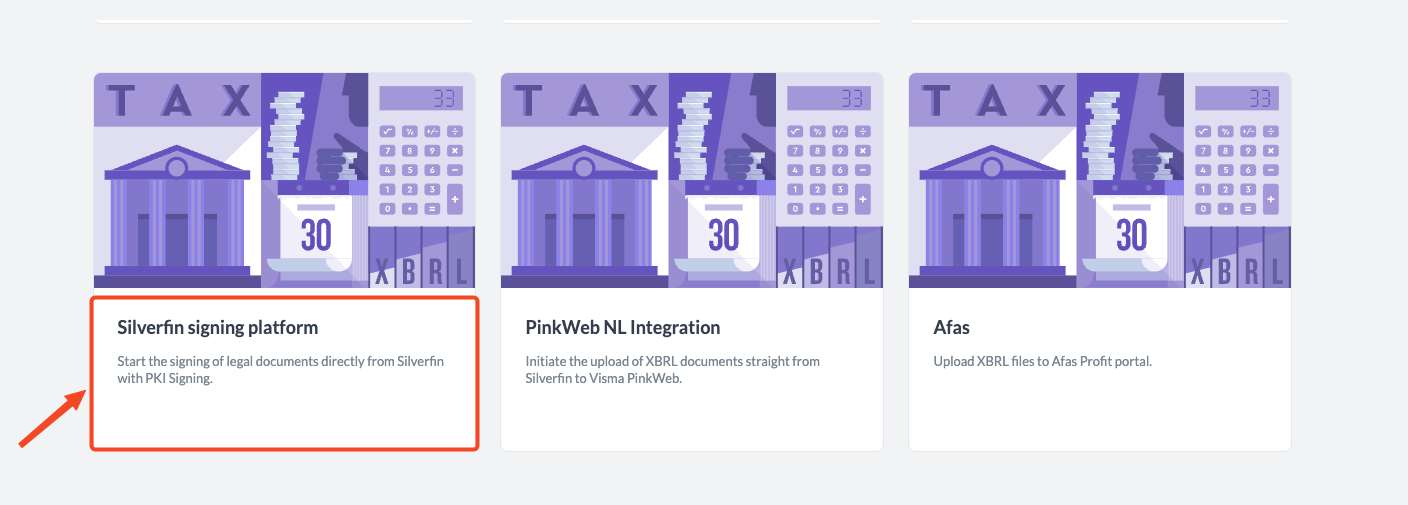
- Go to the PKI Signing setup page on our integrations page: https://integrations.getsilverfin.com.
- Enter the API client information (the clientID and the secret).
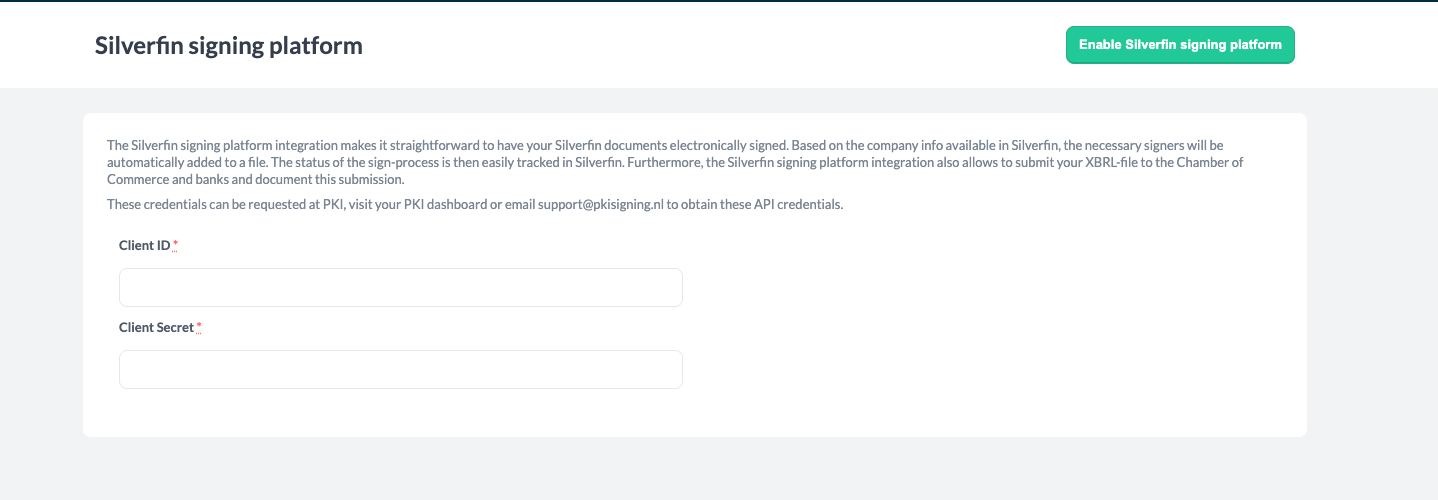
- Click Create PKI signing integration.
Where does the signing option appear in Silverfin?
Once PKI Signing is active, the Send to Silverfin Signing action becomes available in two places:
- In the Actions menu within a document folder in Silverfin.
- Via the Download data option in the Actions menu on the period overview.
How do I send documents from a document folder?
- Open the folder in Silverfin.
- Select Send to Silverfin Signing from the Actions menu.
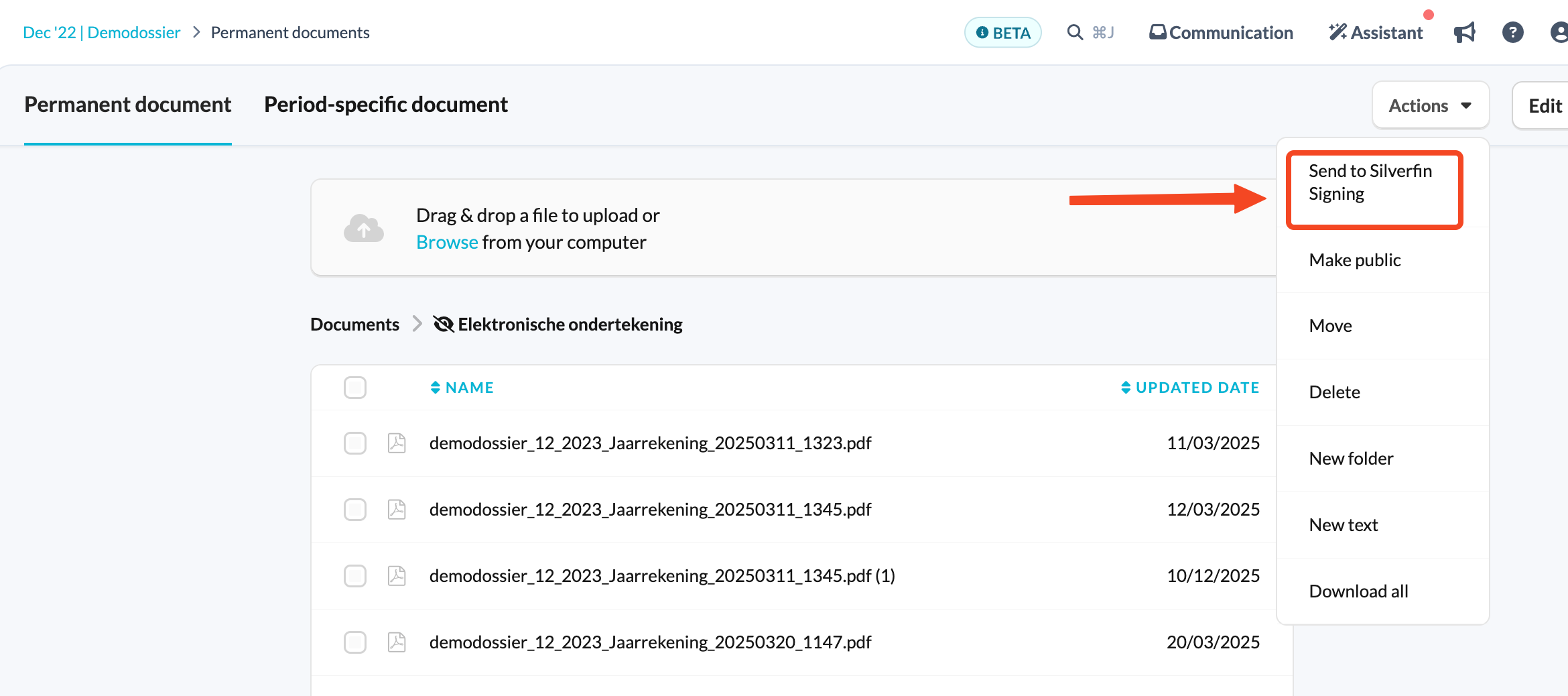
This picks up all the documents in the folder and sends them to the PKI Signing platform for signing.
How do I send documents from the period overview?
- Go to the period overview and select Download data from the Actions menu.
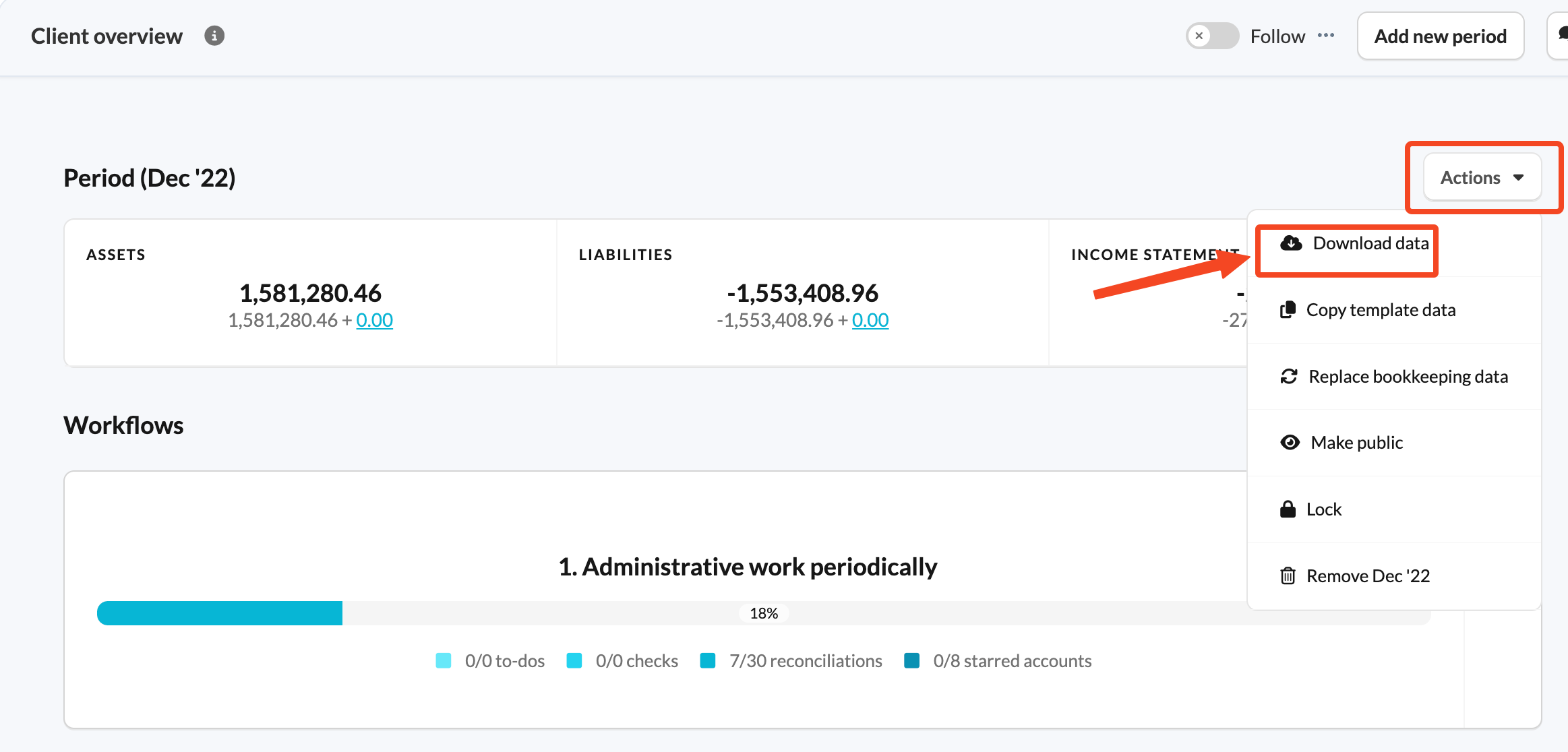
- Select NL Publicatiestukken (micro/klein/middelgroot). This generates a new export file based on that template, available for download.
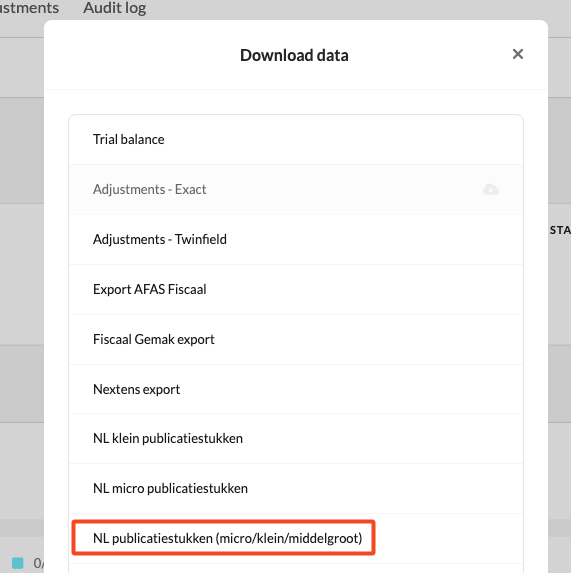
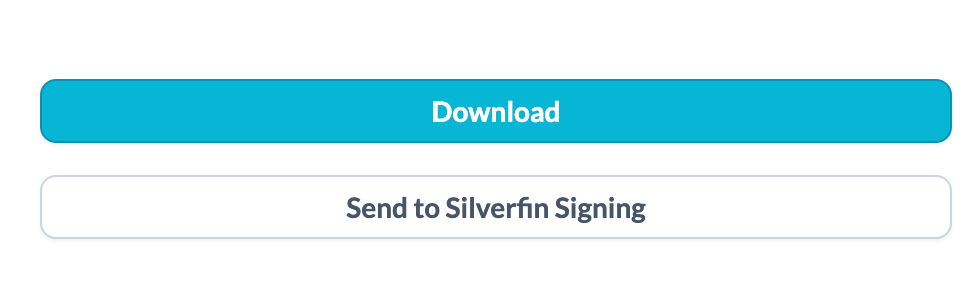
- On the next screen, select Send to Silverfin Signing - the same option found in the Documents folder section.
What happens after I send the documents?
The document is sent to the PKI Signing platform, where the sign markers are presented in the document itself.
You then initiate the signing flow from within PKI Signing to request the signatures from the signees.
If you have any questions or need assistance with the set-up process, please contact your Customer Success Manager or e-mail support@silverfin.com.