
| User Roles |  Tenant administrator Tenant administrator | ✗Staff contributor | ✗External contributor | ✗Pulse user |
Firms that have already migrated to Visma Connect can let their colleagues sign in to Silverfin through their own identity provider, for example Microsoft Entra ID, instead of a Visma Connect password. Your firm's own tenant administrator sets the connection up in Visma Connect Authentication Settings; Silverfin Support arranges the tenant and checks the identity provider at the end. This article is relevant for tenant administrators and IT contacts at firms that are already using Visma Connect.
Table of contents
- Who sets up SSO for my firm?
- How do I request SSO?
- What do I need to check before I start?
- How do I set up the SSO connection?
- What happens after I confirm the connection works?
- What changes for my colleagues once password sign-in is off?
- What do I do when a user's email address changes?
Who sets up SSO for my firm?
Your firm's own tenant administrator does the set-up, in Visma Connect. Silverfin Support cannot configure SSO on your behalf.
How do I request SSO?
Contact Silverfin Support with the email address of the person who will administer the tenant, usually your firm's IT administrator.
Before you nominate someone, read through the steps in How do I set up the SSO connection? so you know what the role involves.
What do I need to check before I start?
- Your firm has already been migrated to Visma Connect. SSO can only be set up on an existing Visma Connect tenant.
- Email addresses match exactly. Every user's email address in Silverfin must match their address in your identity provider exactly. A difference of a single character stops that user signing in.
- Your users already exist in Silverfin. SSO does not create Silverfin users, so anyone who needs access has to be added in Silverfin first.
How do I set up the SSO connection?
- Sign in to Visma Connect with the administration tenant account and make sure multi-factor authentication (MFA) is set up. If the account has just been created, activate it through the welcome email first. Sign it with the password to avoid having access denied.
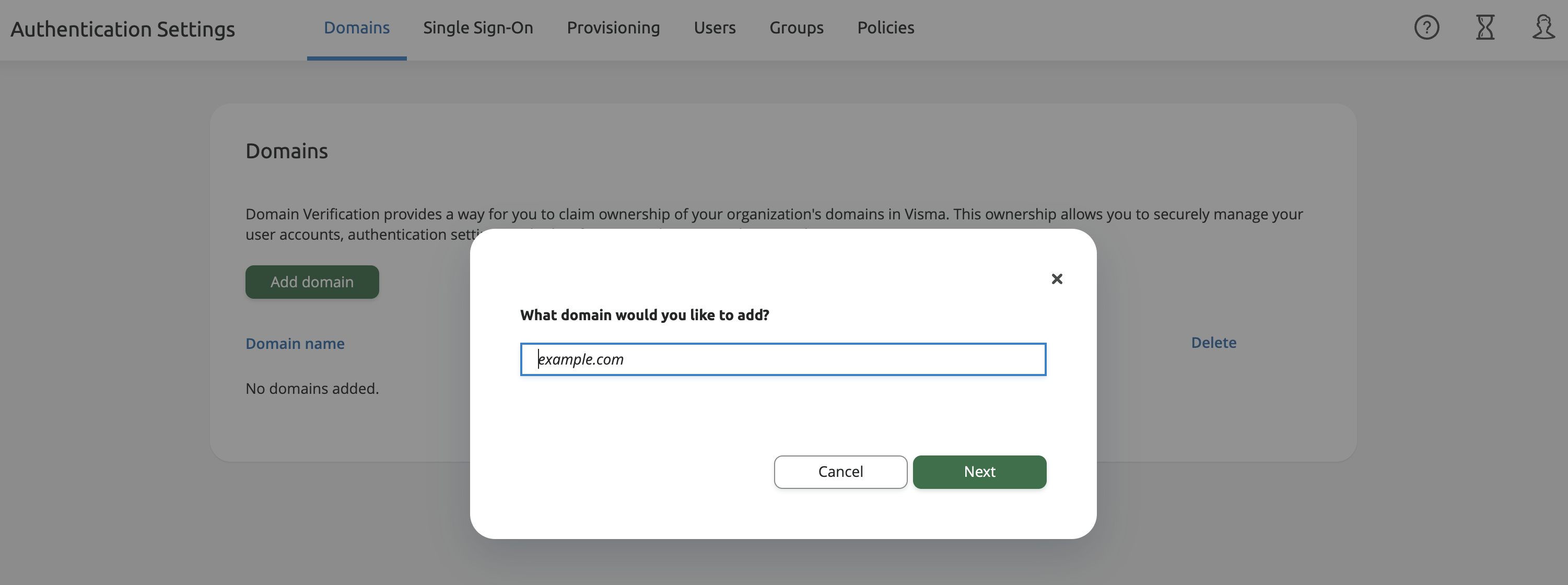
- Add and verify every email domain your SSO users will sign in with, for example yourfirm.be. You verify a domain with a DNS TXT record or with a verification file on your website. See Visma's documentation on Domains.
- On the Single Sign-On tab, set the My Domain name and Redirect after sign-in: Silverfinbefore you add the identity provider. The My Domain name can only be changed while no provider exists, and Silverfin's routing uses it.
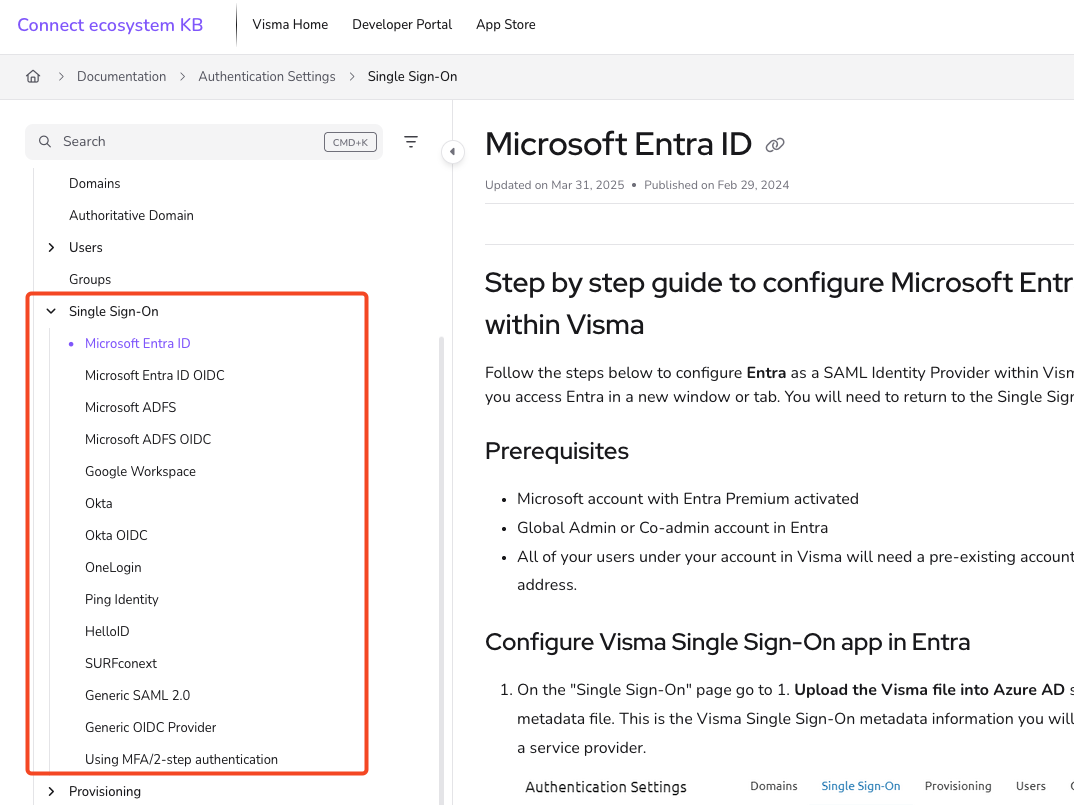
- Set up the SSO connection to your identity provider in the tenant, for example Microsoft Entra ID. Leave Just-in-time provisioning switched off on the identity provider setup, because users must already exist in Silverfin. See Visma's documentation on Microsoft Entra ID; the other providers are listed in the left-hand navigation of that page.
- Check that the identity provider sends email_verified: true for every Silverfin user. Visma Connect refuses the sign-in of any user without it.
- Confirm the connection by signing in at connect.getsilverfin.com with an account on one of your verified domains, choosing the SSO button on the second step of the sign-in flow. Then send confirmation that the connection works to Silverfin Support.
- Check that every user listed on the Users tab of Authentication Settings for your verified domains has an account at the connected identity provider. From the moment password sign-in is switched off, those users can only sign in through the provider, and anyone without an account there is locked out.
- Disable password sign-in in the tenant policies by turning Visma Connect off there. From then on, users on your verified domains can only sign in with SSO.
What happens after I confirm the connection works?
Your confirmation lets Silverfin Support check that your identity provider is registered on the Silverfin side. From then on, your firm opens only for users who signed in through your registered provider, and a user who reaches your firm through another identity provider is refused.
What changes for my colleagues once password sign-in is off?
Users whose address is on one of your verified domains sign in through your identity provider only. They no longer use a Visma Connect password.
External users are not affected. They keep the normal Visma Connect login.
What do I do when a user's email address changes?
Change the address on the Visma Connect account first, and in the identity provider second, because Visma Connect matches users by email address.
For the full steps, including how to change many addresses at once with a CSV file, see How do I change email addresses for users in my firm? (Visma Connect).
Before you disable password sign-in in step 8, check the Users tab one more time. Any user on a verified domain who does not have an account at the connected identity provider loses access the moment passwords are switched off.