
| User Roles |  Admin Admin |  Staff contributor Staff contributor | ✗External contributor | ✗Pulse user |
Following a client file in Silverfin offers key advantages for effective team collaboration. It keeps you up to date with important notifications and makes communication within your team easier. This article explains what you gain from following a client file, how to switch it on, and how to see which files you are already following.
Table of contents
- Why should you follow a client file?
- How do I follow a client file?
- How can I see which client files I am following?
Why should you follow a client file?
What notifications do you receive?
- When you follow a client file, you receive notifications for any messages sent to @internal.
- This makes sure that all team members involved in the file stay informed and engaged.
How does following improve collaboration?
- Following a client file keeps everyone who is actively involved in the loop.
- We recommend following the files you work on, so that you stay up to date with any changes or communications.
How do I follow a client file?
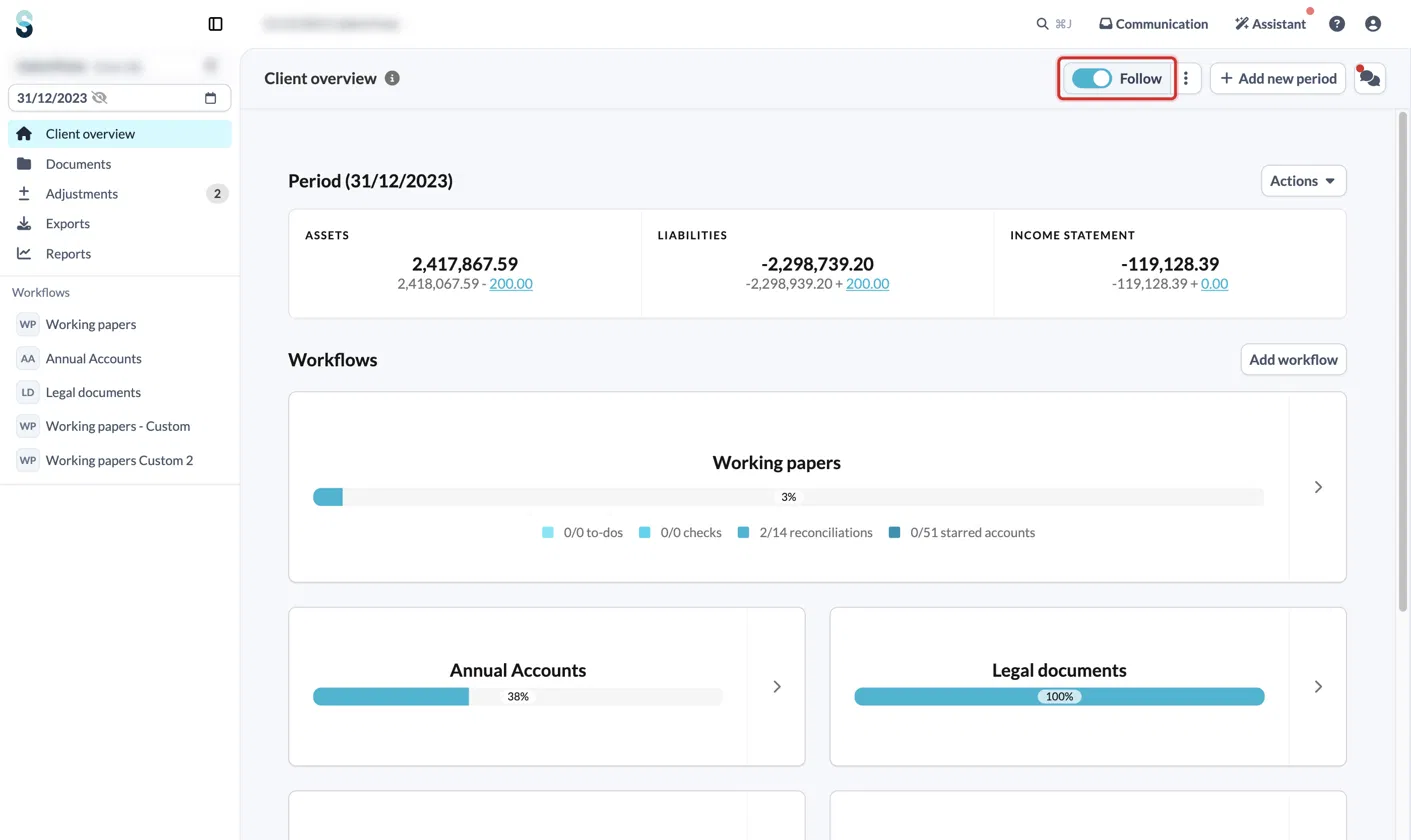
- Open the client file and go to Client overview.
- In the top right of the page, switch on the Follow toggle.
How can I see which client files I am following?
- On the client overview page, click the three dots next to the Follow toggle.
- Click View all files followed by me.
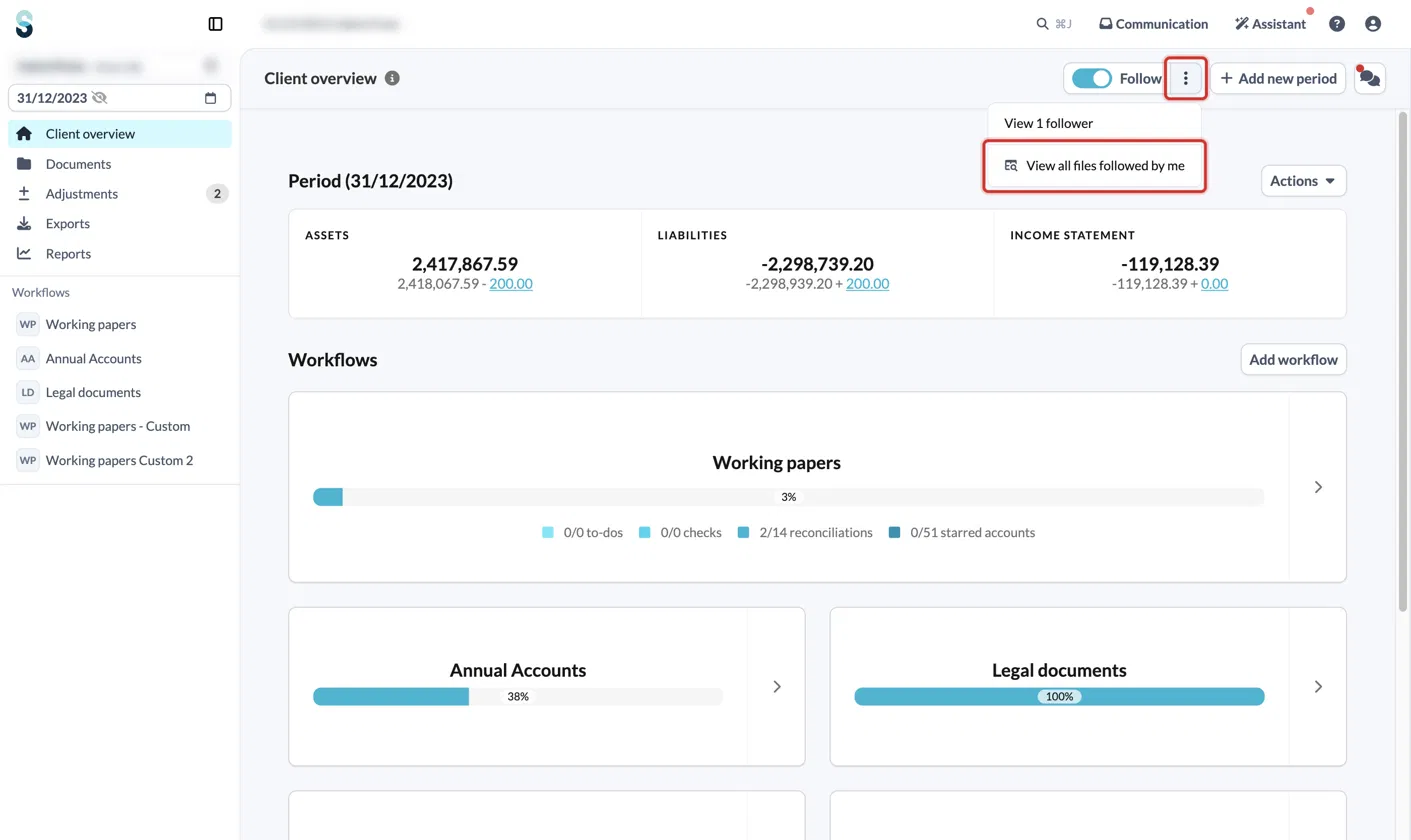
The same menu shows how many people follow this client file.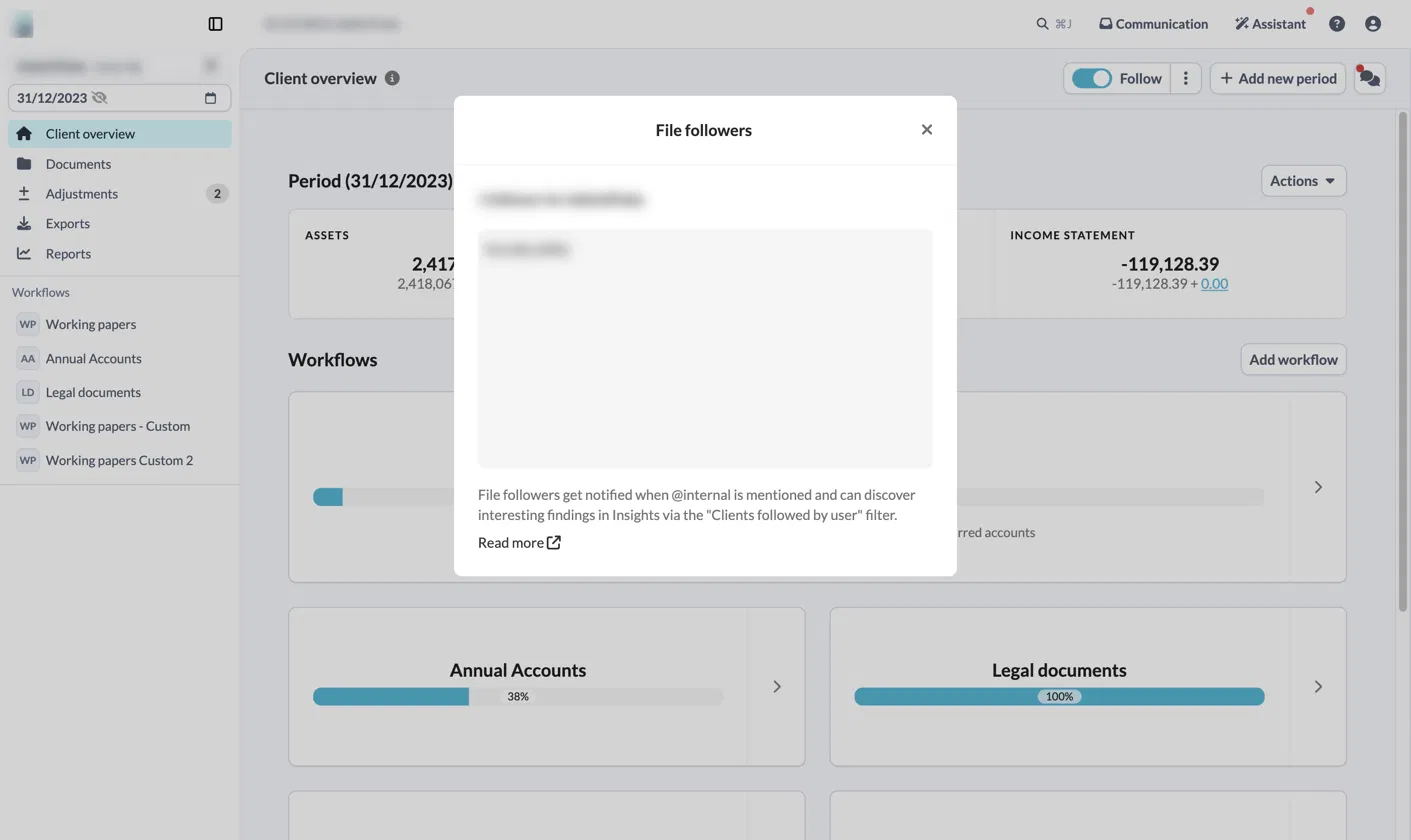
Following a client file in Silverfin keeps communication and engagement within your team running smoothly. Make sure to follow the files you are actively involved in, so that you stay informed and collaborative.
Only admin users and internal staff users can follow a client file.