
| User Roles |  Admin Admin |  Staff contributor Staff contributor | ✗External contributor | ✗Pulse user |
In this article, we outline the steps you need to follow to archive or delete a workflow in a client file. You can do this in an individual file, or for several client files at once through the Insights module.
Table of contents
- Key information
- How do I archive a workflow in a client file?
- How do I remove a workflow?
- How do I archive a workflow for several client files in Insights?
Key information
- Before you can remove a workflow, it must first be archived.
- You cannot remove or archive the default workflow set in the client template. Each file must have at least one active workflow.
- You cannot remove an additional workflow set in the client template. It can only be archived.
- Archiving a workflow means the related reconciliations will no longer be editable in any period, unless they are also used by other workflows in the client file.
- Deleting a workflow permanently removes all its templates and data. Templates used in other workflows will retain their data.
- Deleting a workflow is irreversible. Make sure the workflow is no longer needed before you proceed.
- Archiving or deleting a workflow is recorded in the audit log.
How do I archive a workflow in a client file?
To archive a workflow, follow these steps:
- Open the workflow you wish to archive.
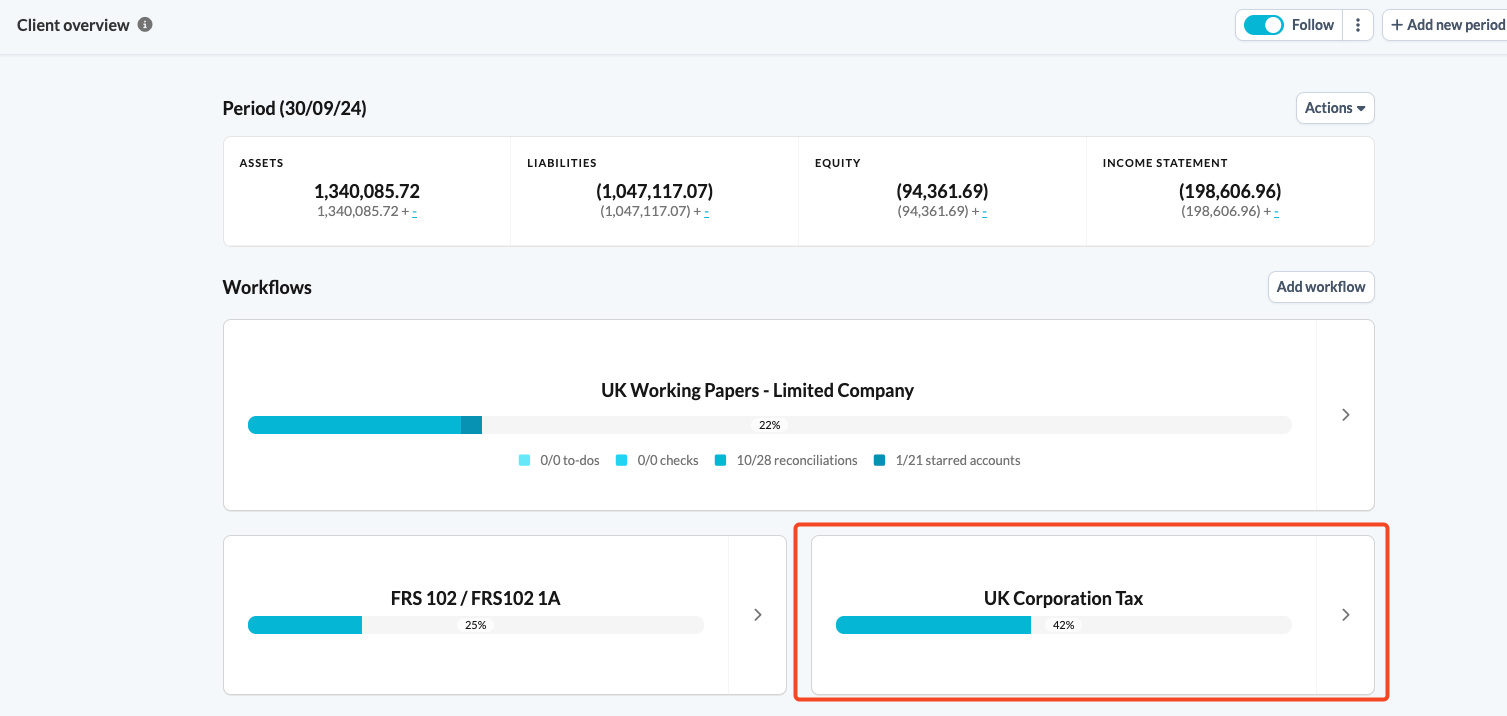
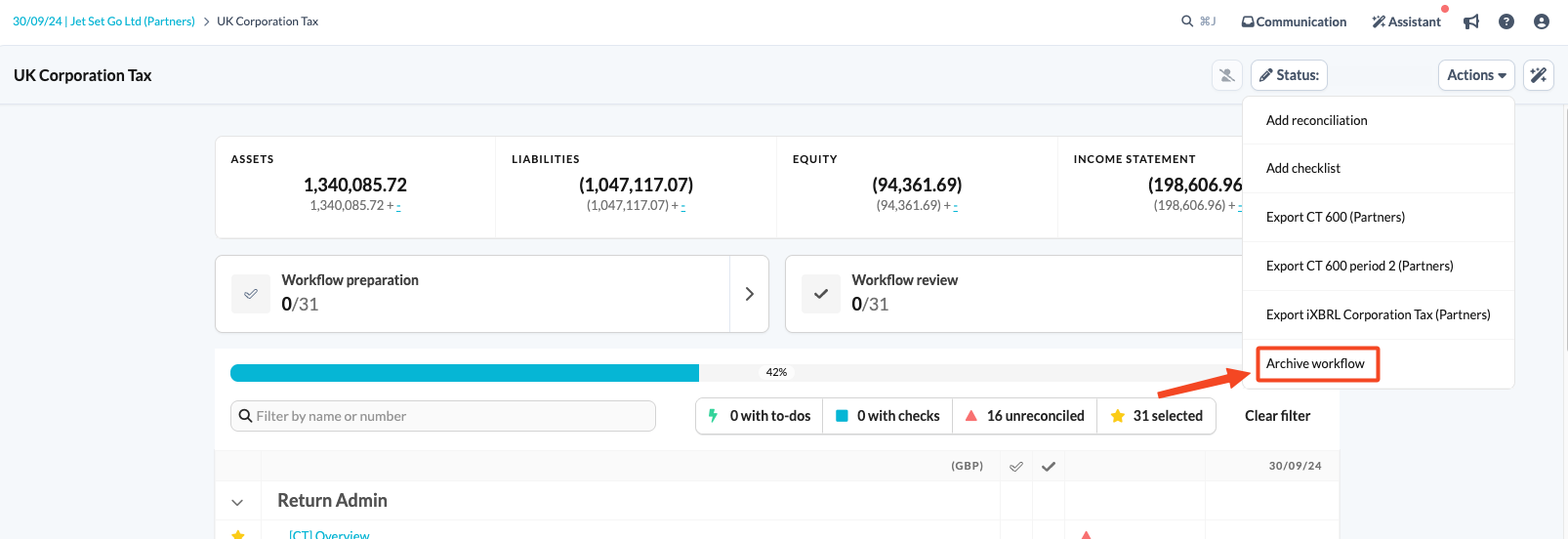
- Click the Actions button and select Archive workflow from the drop-down menu.
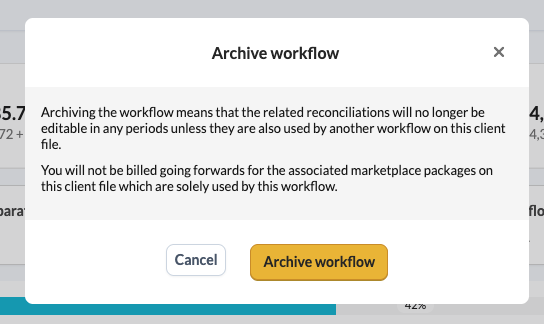
- To prevent accidental archiving, a confirmation window will appear. Read the information provided carefully and confirm your choice.
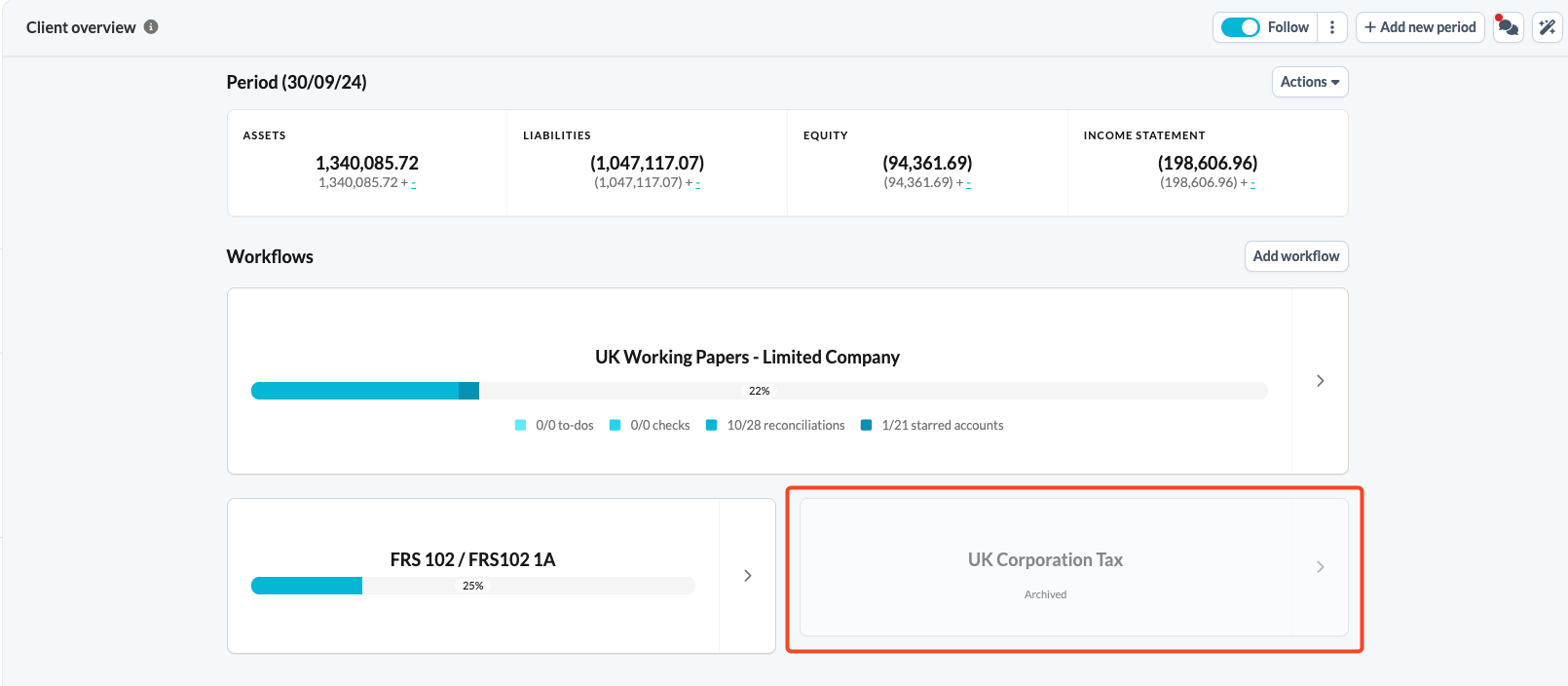
- After archiving, the workflow is greyed out on the client overview page, indicating its archived status.
How do I reactivate or remove a workflow?
Once a workflow is archived, you can delete it by following these steps:
- Open the previously archived workflow.
- Click the Actions button.
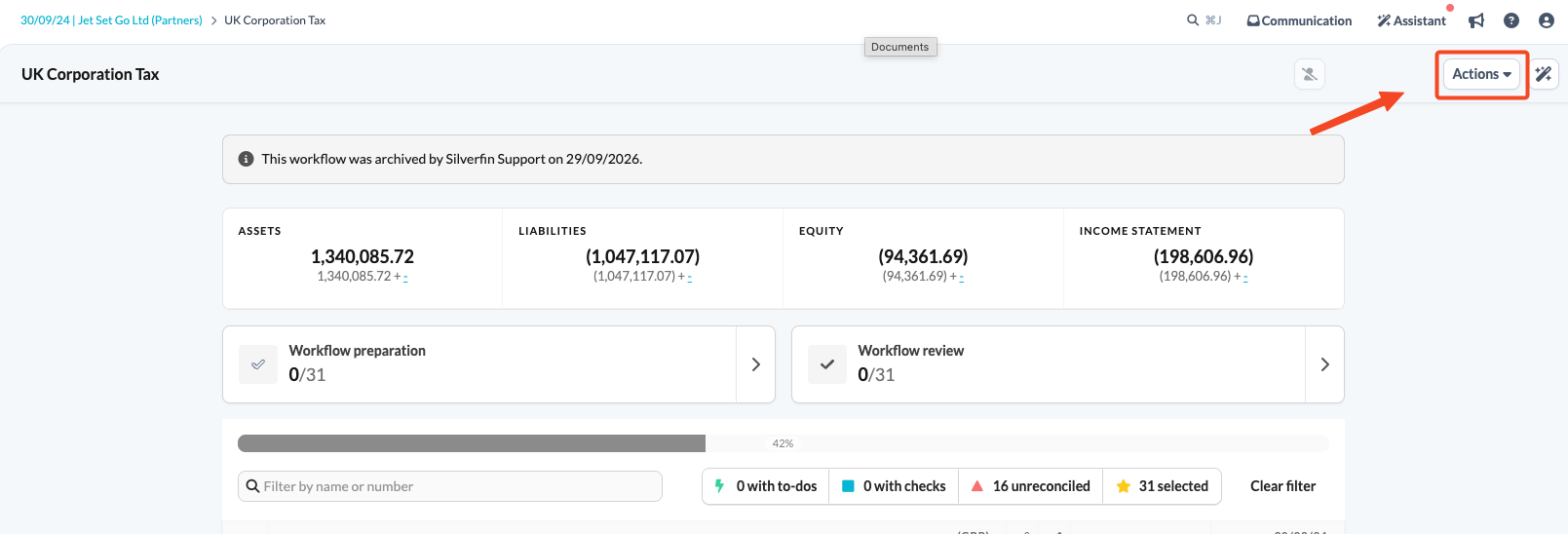
- You have the option to either reactivate or delete the workflow. Select Remove workflow.
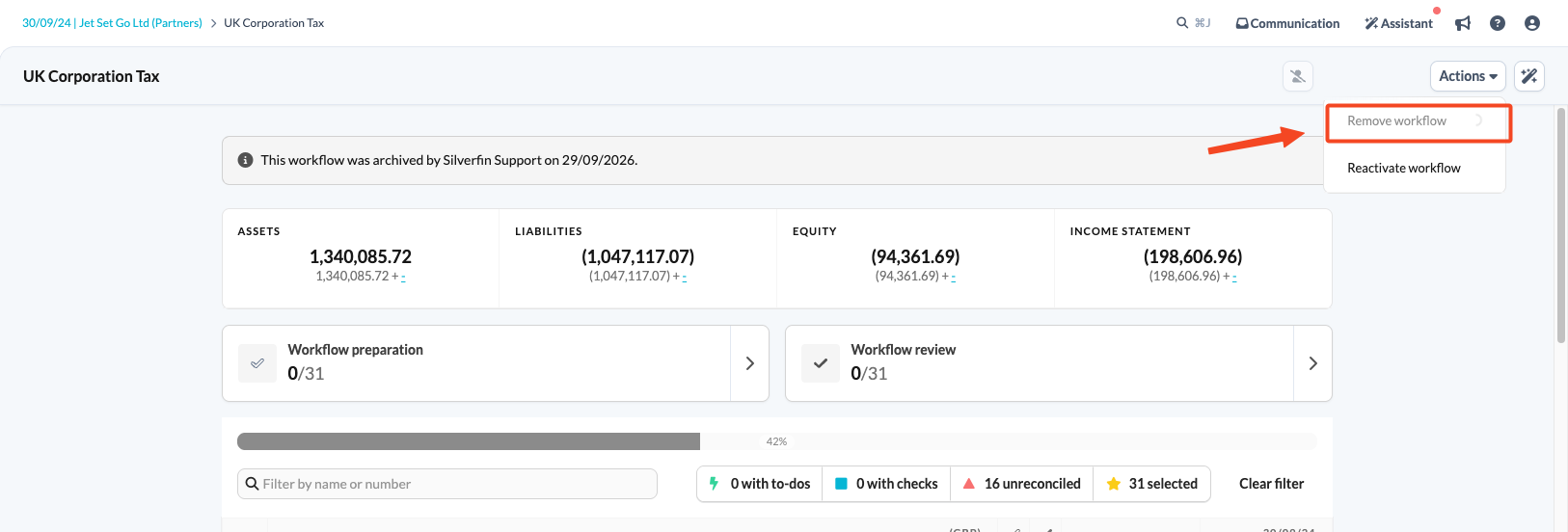
- You are directed to a confirmation window. Confirm your decision to permanently delete the workflow.
How do I archive a workflow for several client files in Insights?
Admin users can archive workflows for several client files at once directly from Insights.
- Open Insights and choose a query. Note: the all clients query shows every file you have access to.
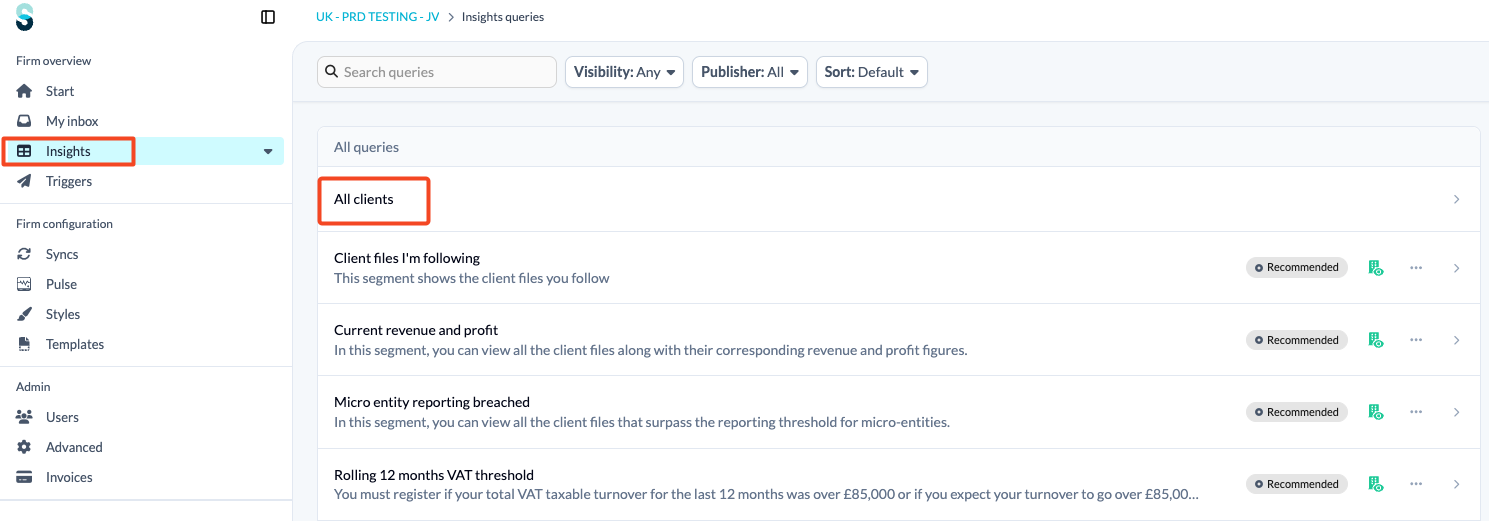
- Select the client files you want to update.
- Click the Actions button.
- Choose Archive a workflow.
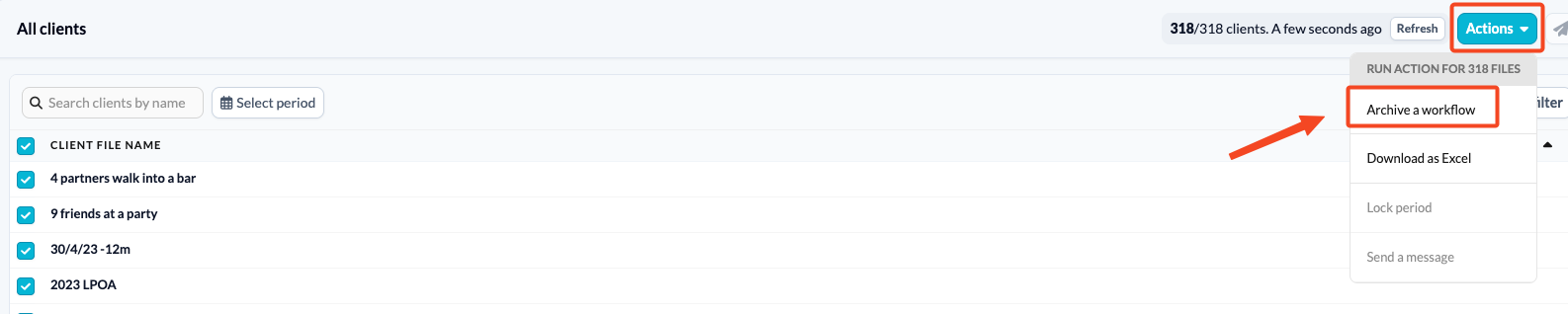
- In the next screen, select the workflow you want to archive.
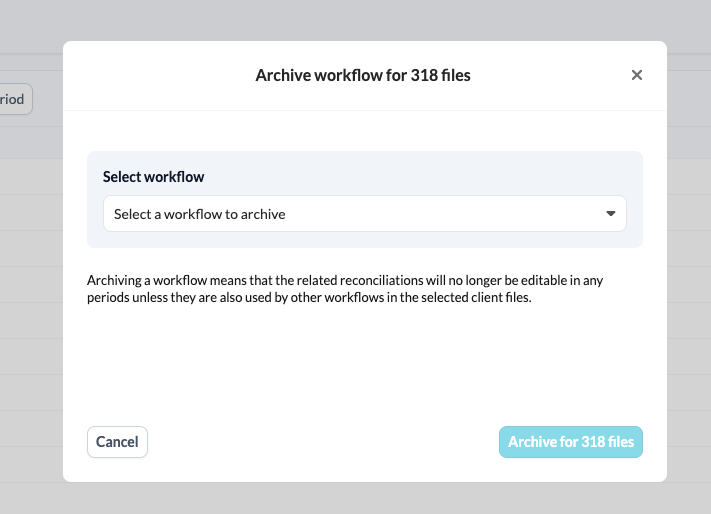
- Click Archive for x files.
For more on queries and the other bulk actions available, see How to use Insights module in Silverfin?