
| User Roles |  Admin Admin |  Staff contributor Staff contributor |  External Contributor External Contributor | ✗Pulse user |
This article provides an explanation of how to use the '275A - Liquidation Reserve' template in the Corporate Tax workflow. It describes how to automatically process data by making the appropriate links in the work dossier, eliminating the need for manual entry. Additionally, the article offers a step-by-step guide on setting up an additional liquidation reserve with the current fiscal year's profit, teaching you how to efficiently transfer the data to form 275A.
Table of contents
Liquidation reserve
The 275A - Liquidation Reserve template is part of the corporate tax workflow, included in both the basic and complete modules. Typically, you do not need to fill out this template manually.
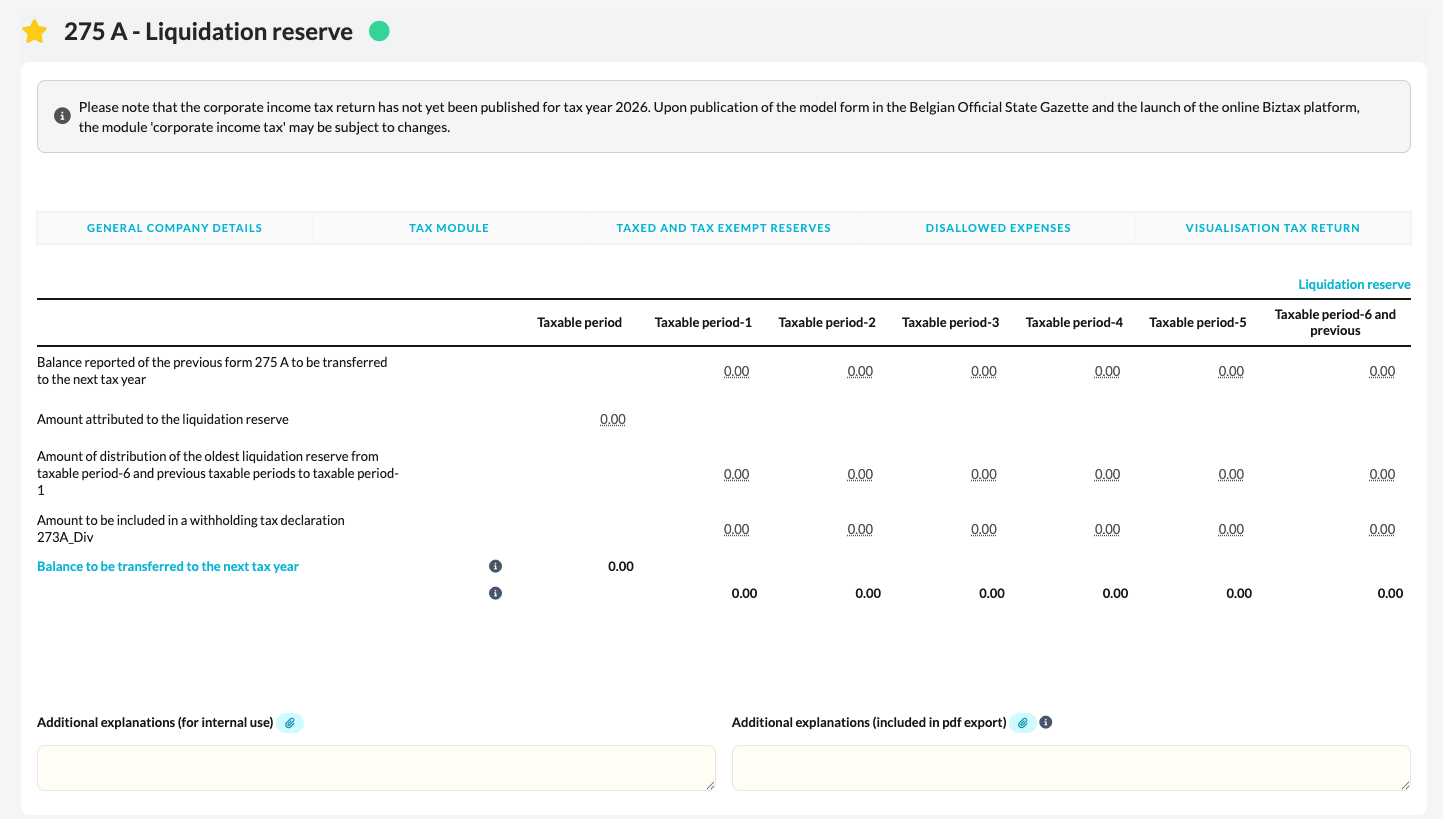
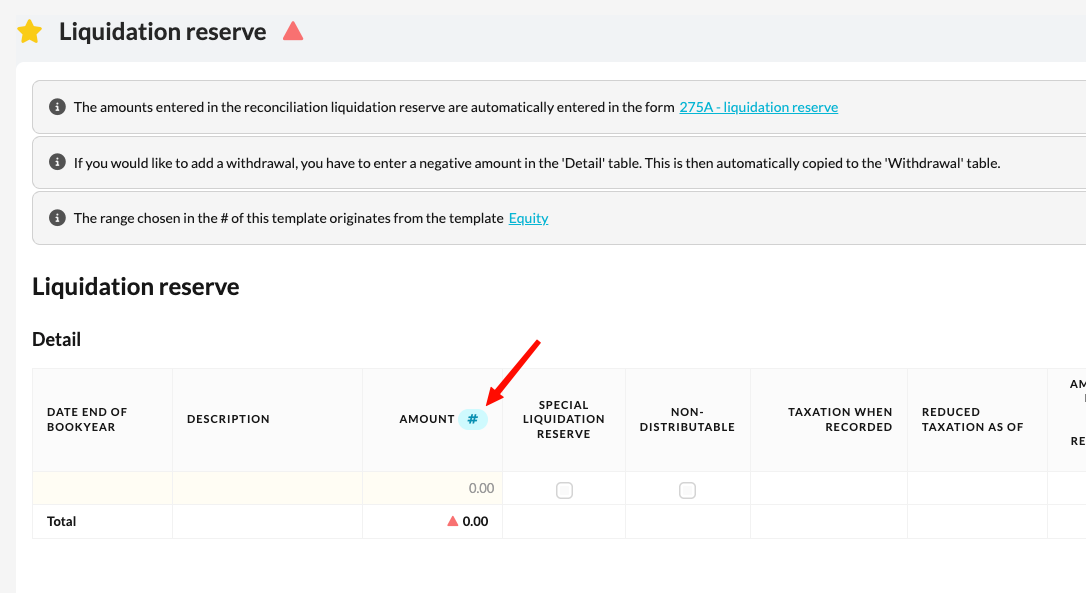
When you use the "Liquidation reserve" template from the working papers and link the required accounts to the appropriate hashtag, or manually add the amounts, the necessary data will automatically be transferred to the 275A - Liquidation reserve.
Guidance on additional liquidation reserve
Follow the steps below if you decide to establish an additional liquidation reserve with the profit of the current fiscal year while calculating the estimated taxes and performing result processing:
- Record the estimated taxes before allocating the result (i.e., before creating an additional liquidation reserve) in the accounting package and then synchronise with Silverfin.
- Check the 'Results of the year to be attributed' field in the Tax Calculation template; this shows the profit or loss after taxes.
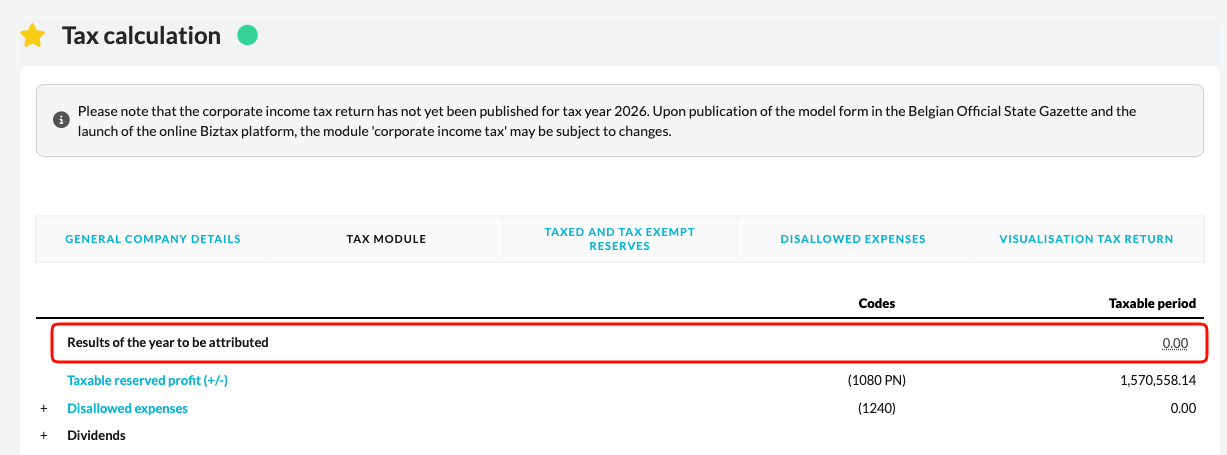 If you decide (in the case of a profit) to allocate the entire amount to the liquidation reserve, divide the amount by 1.1 to determine the amount to be recorded as reserves. Then, execute this entry in the accounting software and synchronise again with Silverfin. For files with manual uploads, you can always process the entry via a correction entry in Silverfin.
 - After the additional booking of the liquidation reserve and synchronisation with Silverfin, a red triangle appears next to the 'Liquidation Reserve' template in the work file. It is important that the workflow of the work file is fully completed (100%) before performing the tax calculation. Therefore, it is necessary to ensure that a green dot appears again next to the "Liquidation Reserve" template.
Due to the further completion of the "Liquidation eserve" template in step 3 and the automatic transfer of this information to form 275A - Liquidation Reserve, this appendix of the corporate tax is correctly filled out after step 3.