
| User Roles |  Admin Admin | ✗Staff contributor | ✗External contributor | ✗Pulse user |
This article explains how to connect Silverfin with WinbooksOnWeb to synchronise bookkeeping data. Once the connection is established, any changes made in WinbooksOnWeb will sync with Silverfin.
To connect an individual client file to WinbooksOnWeb, see How to set up synchronisation with WinbooksOnWeb in a file?
Table of contents
How to set up synchronisation with WinbooksOnWeb?
Only users with admin rights can set up synchronisation at the firm level.
To establish the connection with WinbooksOnWeb at the firm level, please follow these steps:
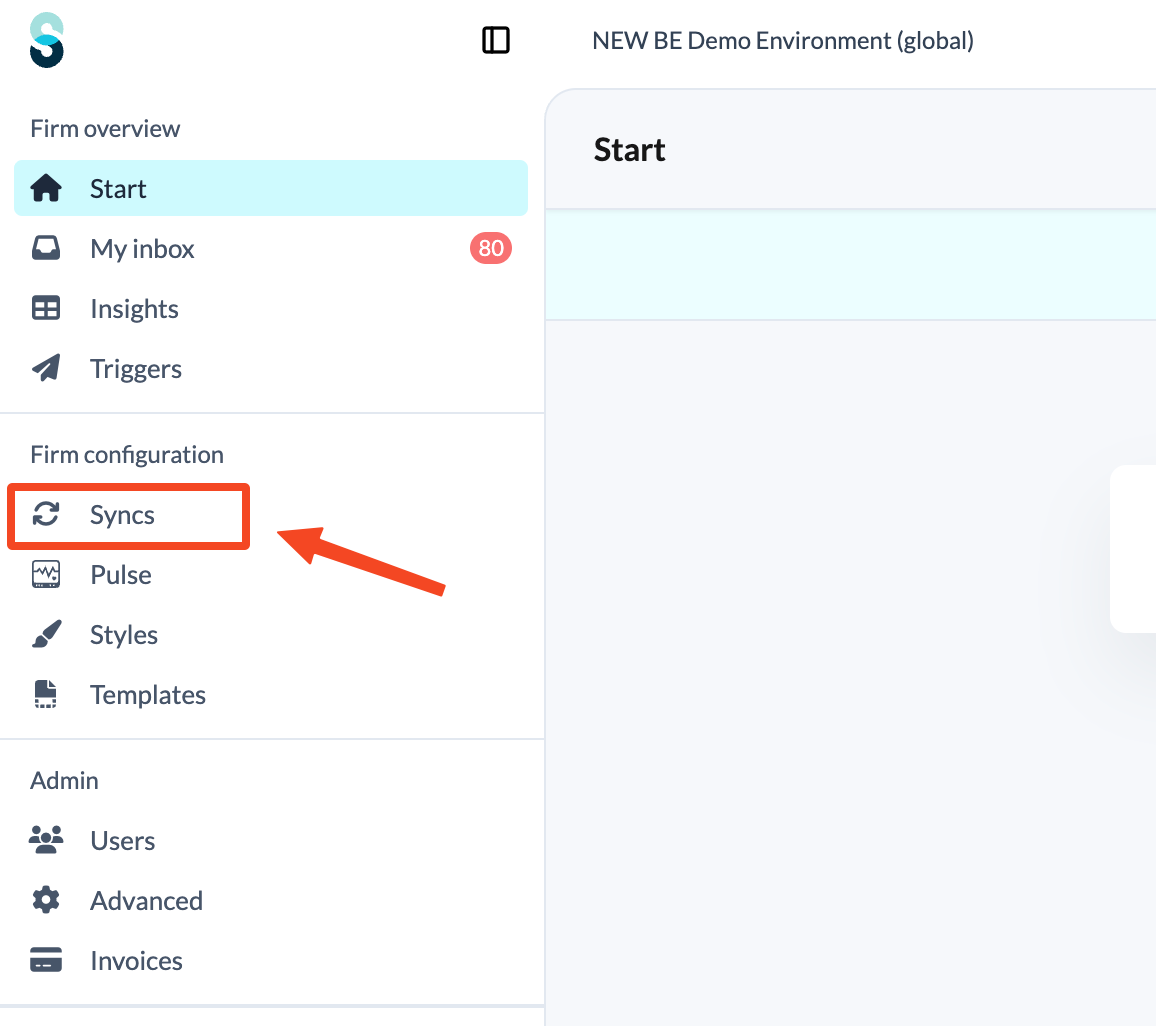
- Click Syncs in the left panel, under Firm configuration.
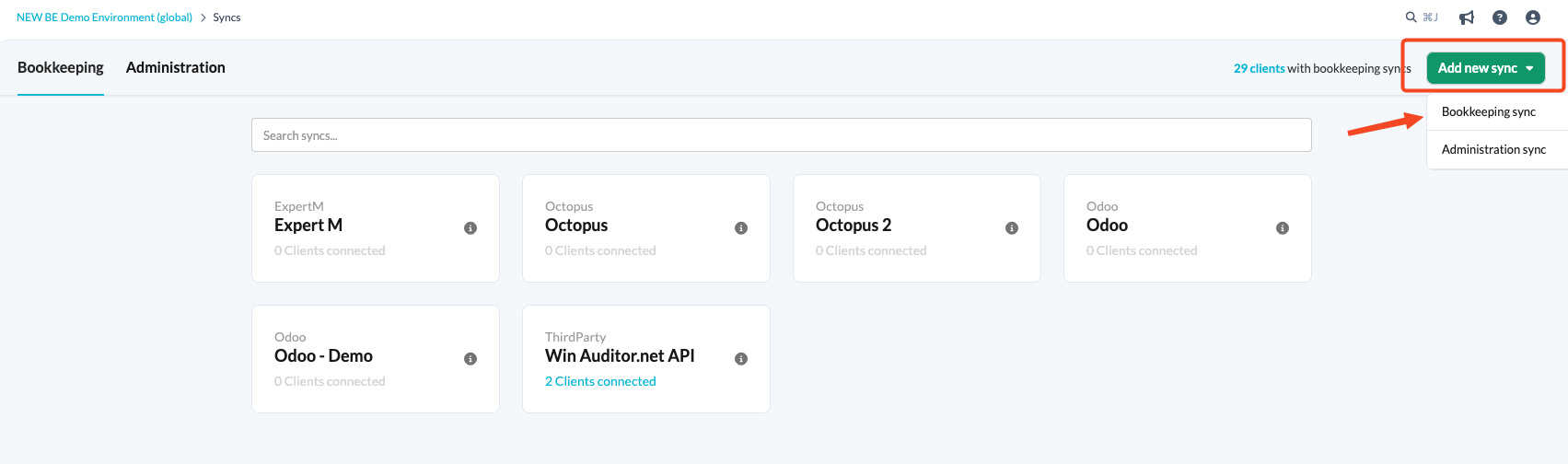
- Click the Add new sync button and choose Bookkeeping sync.
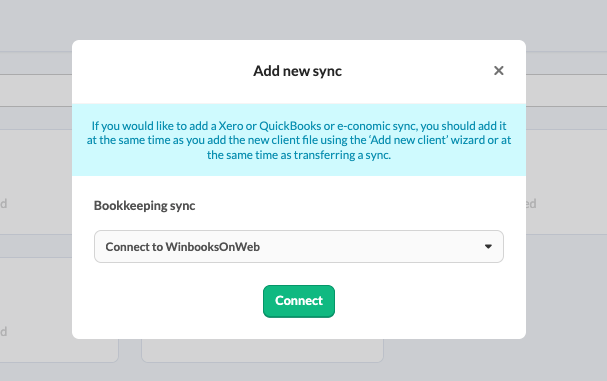
- From the drop-down menu, select Connect to WinbooksOnWeb under Manual configuration, then click Connect.
- Complete the fields on the Synchronise with WinbooksOnWebscreen:
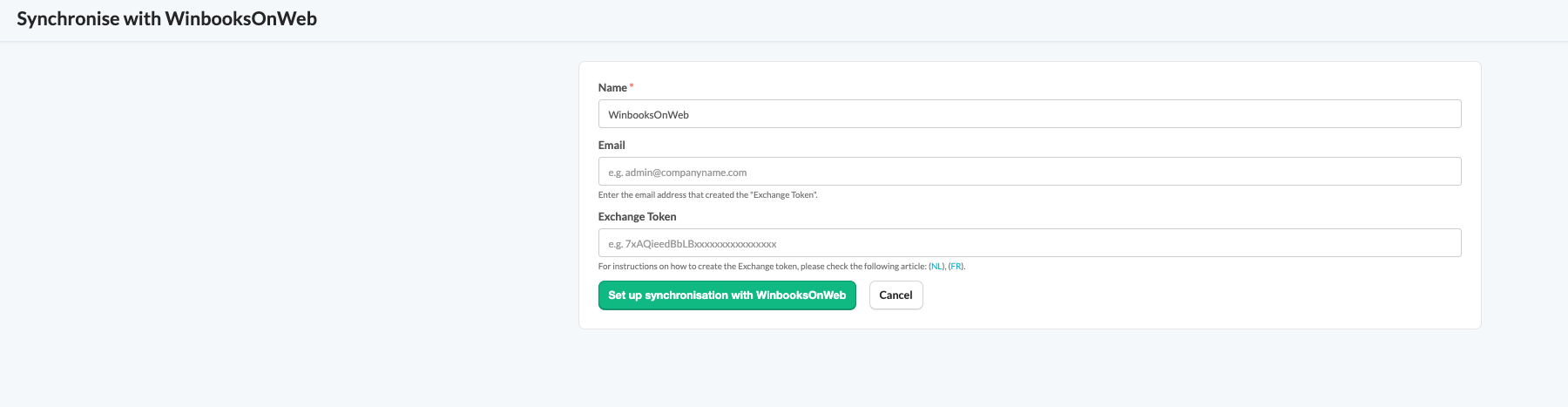
- Name: pre-filled with WinbooksOnWeb. You can change it to something more descriptive.
- Email: the email address used to create the Exchange Token.
- Exchange Token: the token itself. See the next section for how to create one.
How to create an Exchange Token?
To sync your data from WinbooksOnWeb with Silverfin, you'll need to create an Exchange Token.
Make sure to follow the steps below using an account with full access - usually the one that manages the licence.
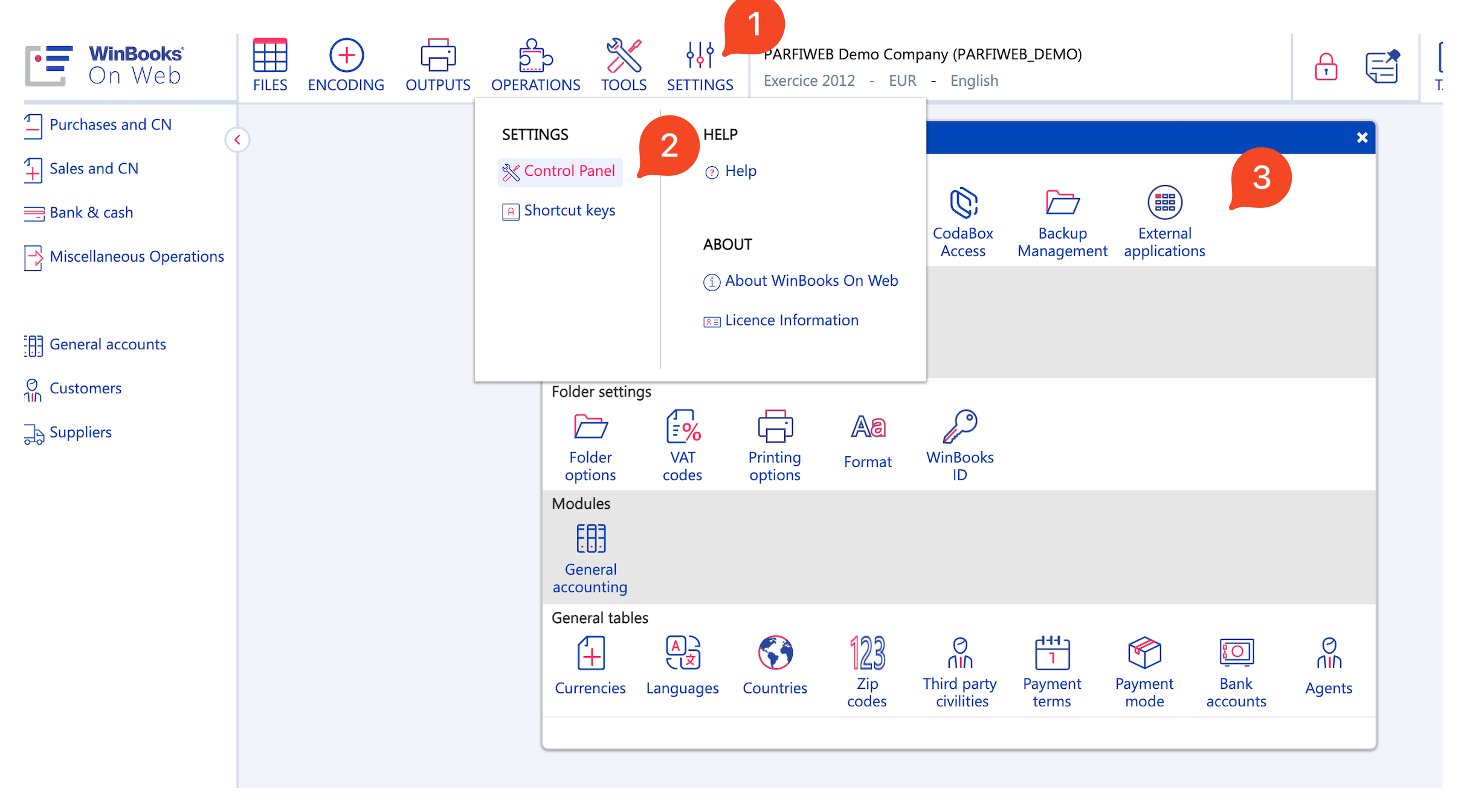
- In WinbooksOnWeb, go to Settings → Control Panel → External applications.
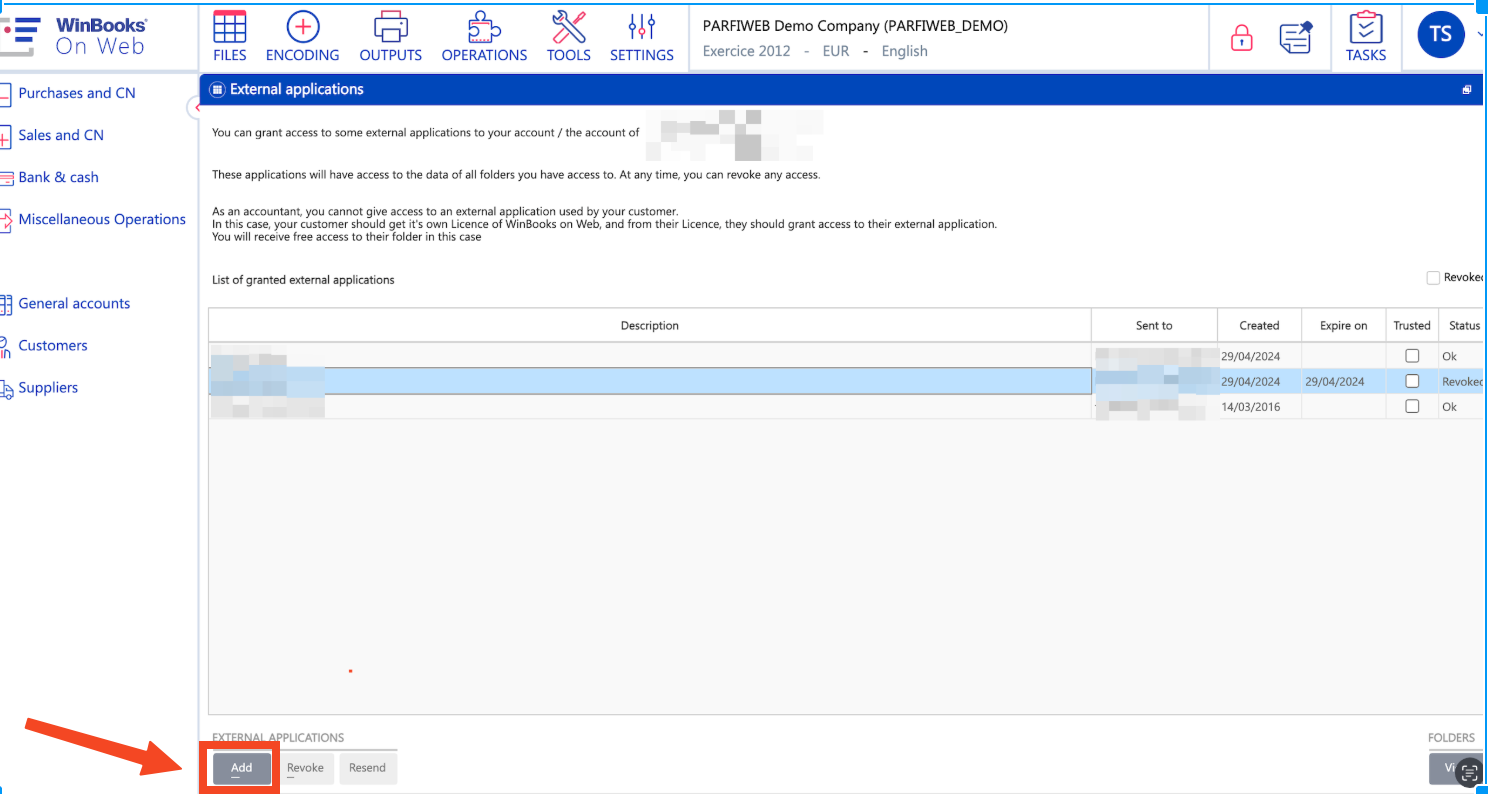
- Click Add.
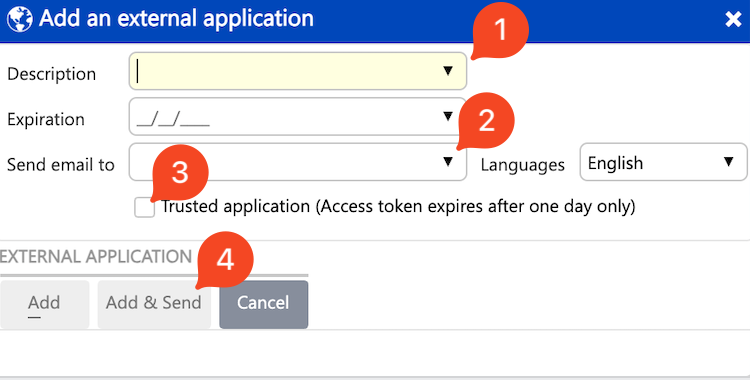
- Complete the form:
- Description (1): give your token a clear name.
- Email (2): enter the address where the token should be sent. Use your own if you're the applicant.
- Trust this application (3): enable this to extend the time you have to enter the token in Silverfin.
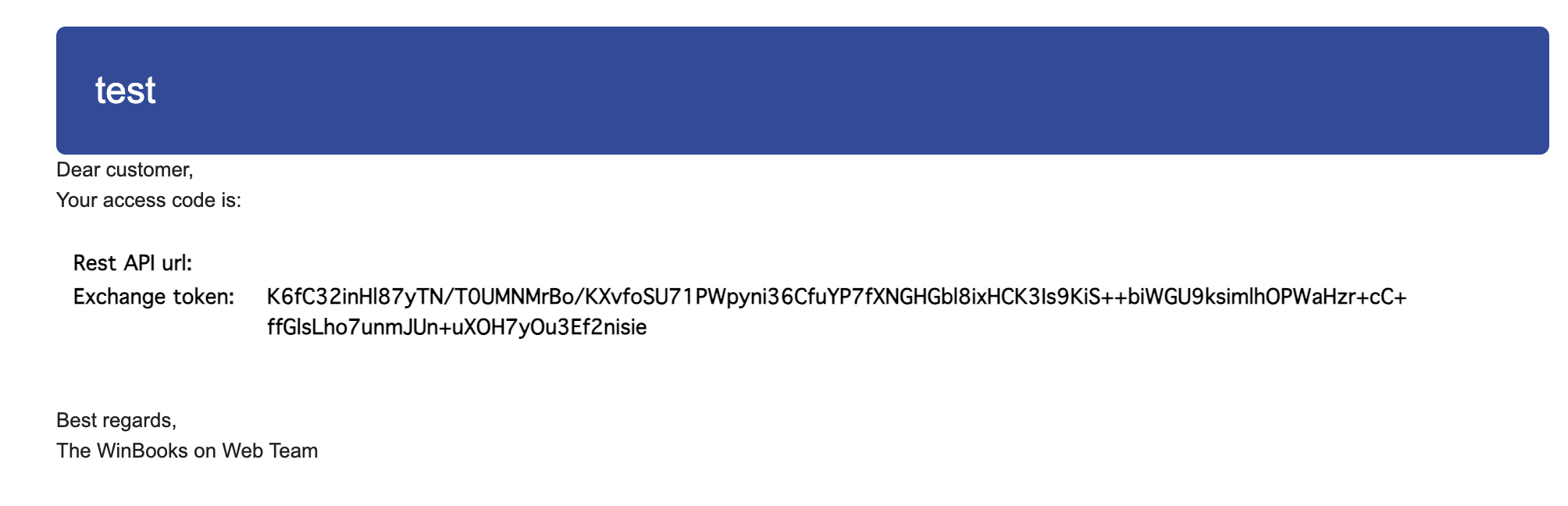
- The token will be sent to the email address you provided.
- Open the email and copy the Exchange Token.
- In Silverfin, paste the token and the email address you used to generate it.
- Once synchronisation is started at the firm level, you can connect to WinbooksOnWeb within the client file.
You’ll need the company code from WinbooksOnWeb - this is your synchronisation reference. You can find it in the company switcher when logging into WinbooksOnWeb: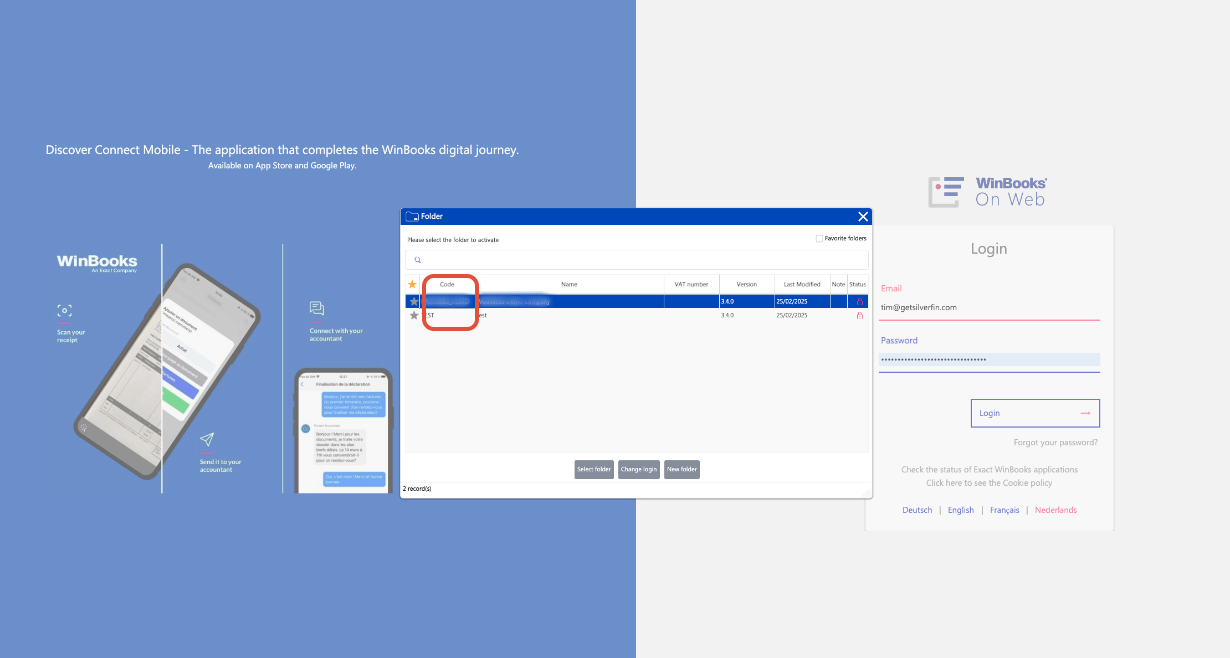
Can’t see the External applications section?
- If you don’t see the External applications section, the REST API module may not be active for your licence or client file.
- In that case, please contact WinbooksOnWeb support or your client to have it enabled.