
| User Roles |  Admin Admin | ✗Staff contributor | ✗External contributor | ✗Pulse user |
This article explains how to connect Silverfin with Yuki at firm level to synchronise bookkeeping data. Once the connection is established and sync is set up in a file, any changes made in Yuki will sync with Silverfin.
Table of contents
- How do I set up the Yuki connection at firm level?
- How do I obtain the Yuki Webservice access key (API key)?
How do I set up the Yuki connection at firm level?
Note: Only users with admin rights can set up synchronisation at firm level.
To establish the connection, please follow these steps:
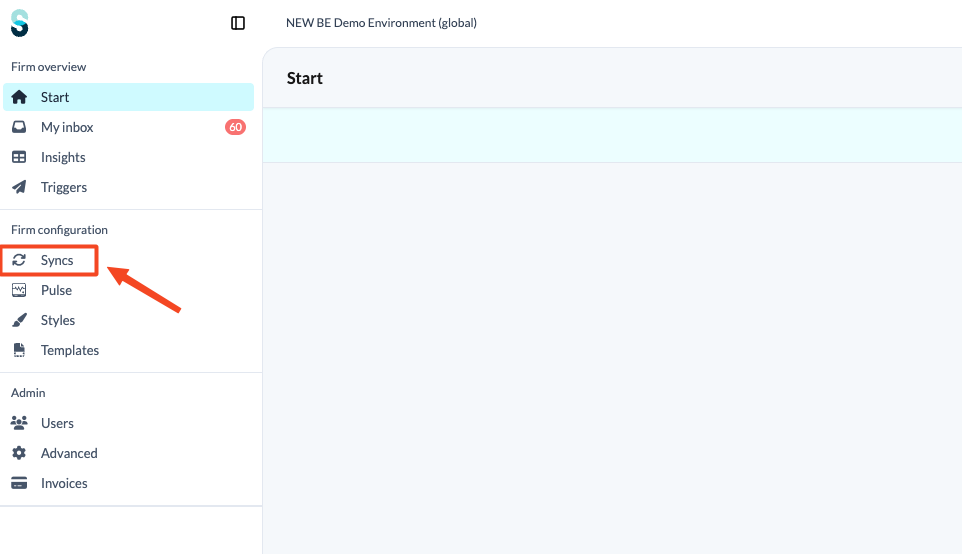
- On the firm overview screen, click the 'Syncs' tab.
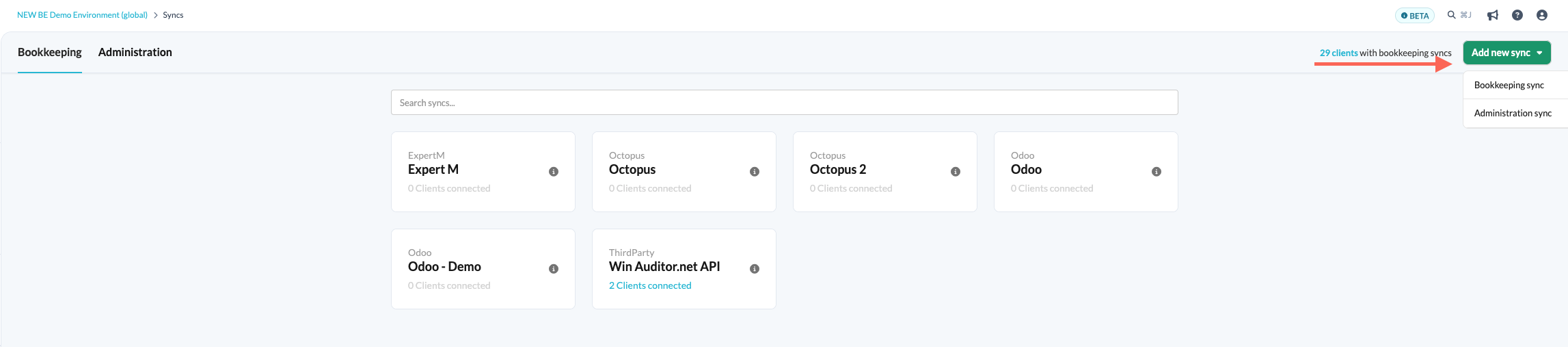
- Click the 'Add new sync' button and choose 'Bookkeeping sync'.
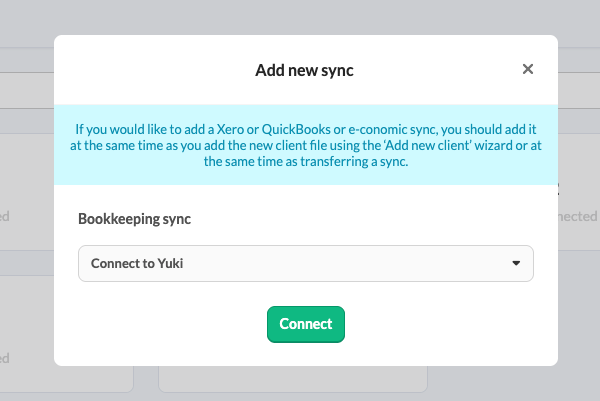
- From the drop-down menu, choose 'Yuki sync' and click 'Connect'.
- Fill in the relevant fields.
How do I obtain the Yuki Webservice access key (API key)?
To obtain the key, please read the Yuki and Silverfin article published on the Yuki website. Please note that this article is only available in Dutch and French.