
| User Roles |  Admin Admin |  Staff contributor Staff contributor | External contributor | Pulse user |
My Inbox helps you view and respond quickly to messages where you are mentioned, so your communication stays in one place. Read on to learn how it works at firm level, and how to sort your inbox to suit your workflow.
Table of contents
- What does My Inbox show at firm level?
- How do I sort my inbox?
- What else should I know about My Inbox?
What does My Inbox show at firm level?
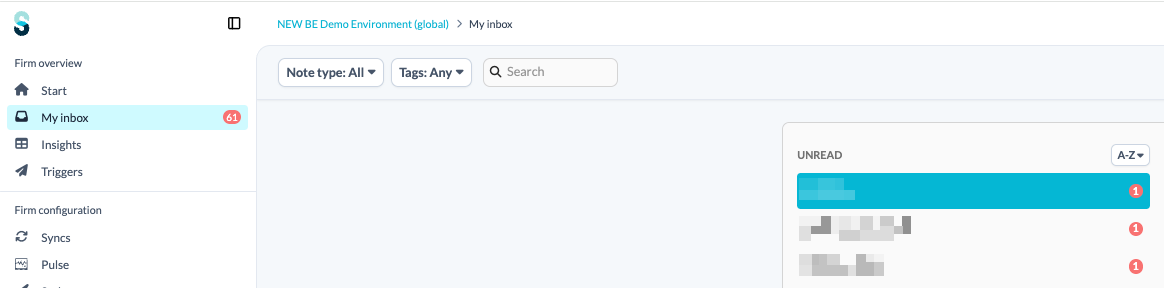
My Inbox gives you an overview of messages across all client files, including:
- All communications you have written yourself, that is, notes and To-dos.
- All communications where you were mentioned personally, or mentioned with @internal or @external.
- All communications from the client files you are following.
How do I sort my inbox?
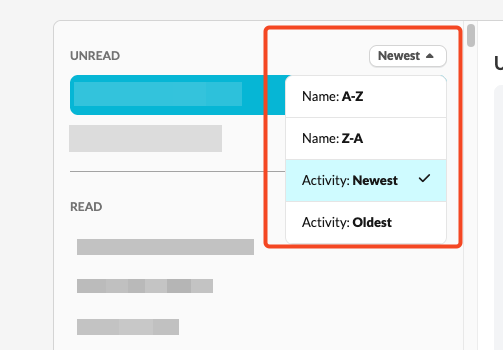
You can sort the firm inbox to help you stay on top of ongoing conversations. A sort dropdown is available for both the Unread and Read sections, and your selection is saved per user.
Four sort options are available:
- Name: A-Z - client files listed alphabetically.
- Name: Z-A - client files listed in reverse alphabetical order.
- Activity: Newest - client files with the most recent communication shown first.
- Activity: Oldest - client files with the oldest communication shown first.
What else should I know about My Inbox?
- Pulse users only see communication if they are mentioned specifically (@pulseusername) or if @external is used.
- Internal communication is not visible to external contributors.
- You can mention yourself in a To-do or a note.
- Checking off a To-do does not trigger a new message in the inbox.
As a workaround, leave a comment in addition to checking off the To-do, so a notification is triggered.