
| User Roles |  Admin Admin |  Staff contributor Staff contributor |  External Contributor External Contributor | ✗ Pulse user |
The Stock verification account template, linked to the 3-accounts, helps you quickly reconcile with the inventory and add the associated inventory details.
Table of contents
- How do I add the "Stock verification" account template to the account?
- Use of the template
- Indicators in Silverfin
How do I add the "Stock verification" account template to the account?
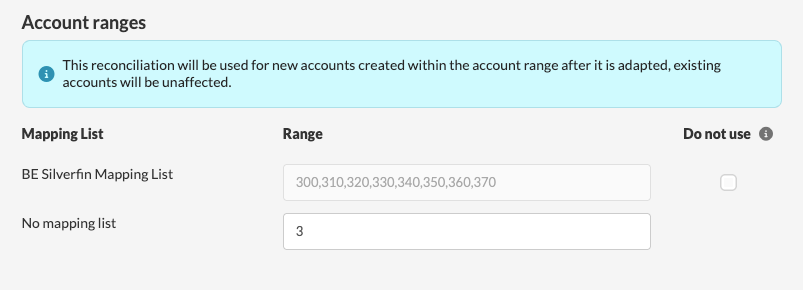
At the office level, an admin user can define the ranges for the template. This can be done in various scenarios, whether using mapping or not.
At the file level, you can add the template within the account in the working file via the 'Edit' button in the top right corner.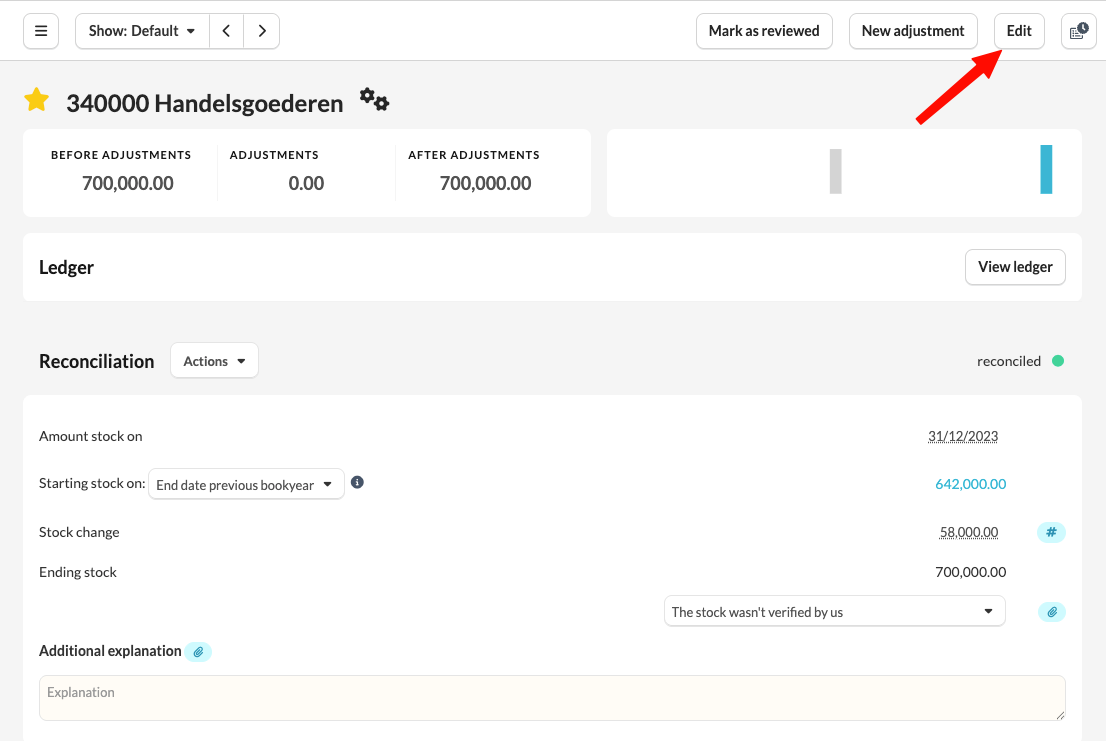
Use of the template
- Inventory check
With the drop-down menu, you can indicate whether the inventory has been checked. This helps in tracking the status of your inventory.
- Adding a document
Use the paperclip icon to attach related documents to your digital work file. This ensures that all your information is neatly organized in one place.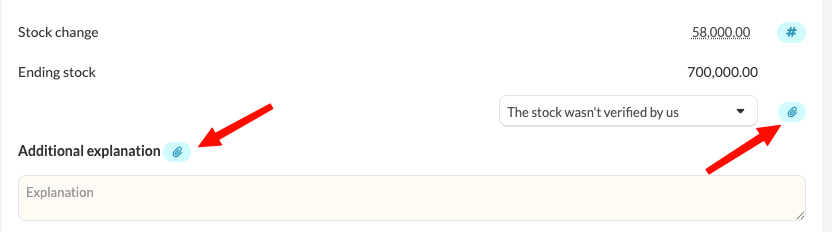
- Inventory Adjustment
You can add the relevant inventory adjustment account using the hashtag.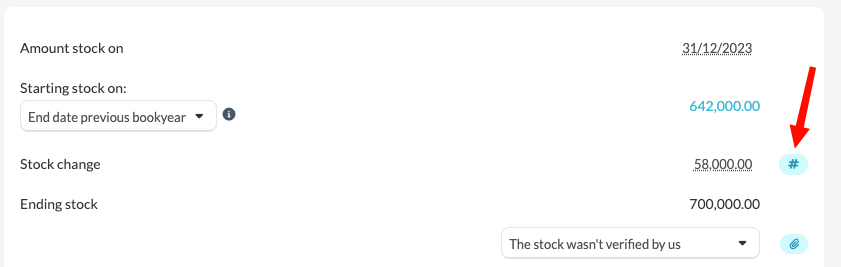
Indicators in Silverfin
- Green dot:
Appears when the inventory amount matches the amount recorded in the ledger account. - Red triangle:
Is displayed when there is no match between the inventory amount and the ledger amount.