| User Roles |  Admin Admin |  Staff contributor Staff contributor | ✗External contributor | ✗Pulse user |
The account template "Provisions", linked to the 16-accounts, allows you to build up the history of provisions, along with the corresponding write-downs, increases and decreases.
Table of contents
- The account template Provisions
- Completing the note
- Dynamic fields based on the type
- Inclusion in template 204.3
The account template Provisions
To change the account template to "Provisions", go to the 16-account and select "Actions" > "Edit" in the top right corner. Then choose the account template "Provisions" from the list. It's possible that the correct account template is already selected, because Silverfin has recognised the account as a 16-account, or because you have already mapped the account to a 16-account yourself.
The general ledger data you see here comes from a synchronisation or a manual upload and is ready to be explained.
Completing the note
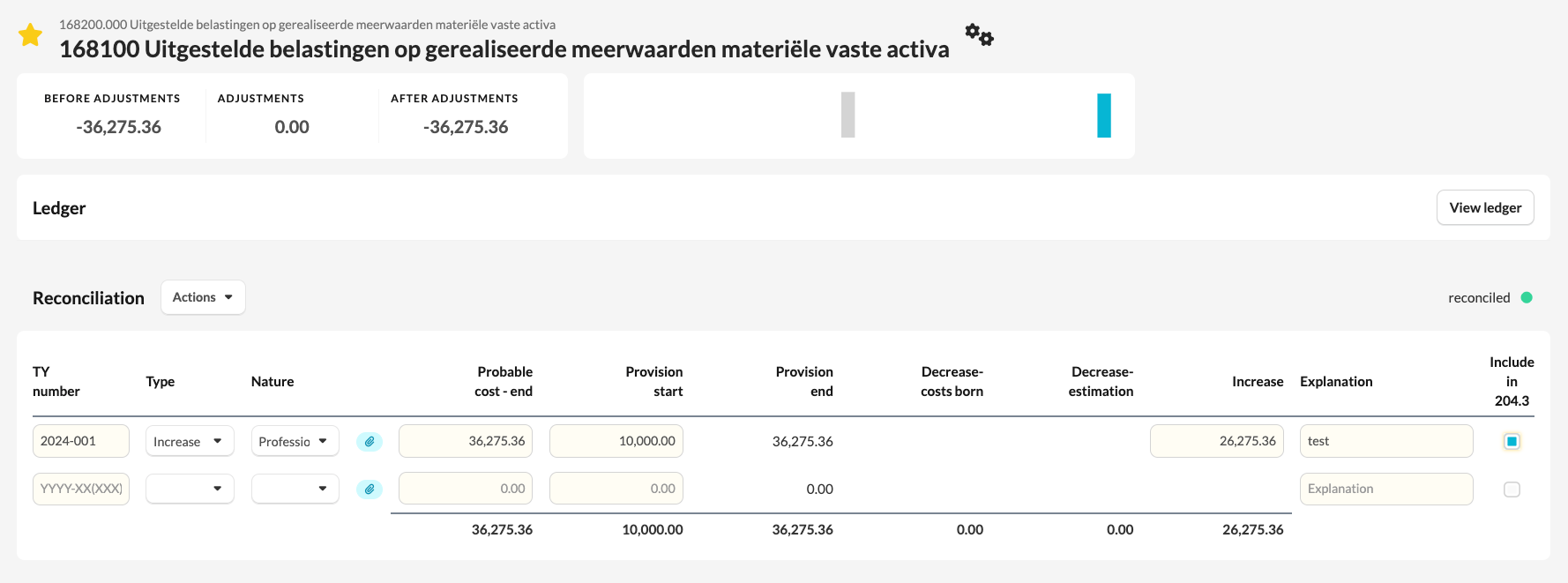
You start by entering the assessment year and a number, so you can easily identify the specific provision. Next, you choose the type, and then the nature of the provision from the drop-down menu. You can also enter the probable cost and the amount of the provision at the start of the financial year. The closing balance of the provision is always calculated automatically. Would you like to add an attachment per provision? You can do this easily by clicking the paperclip.
Dynamic fields based on the type
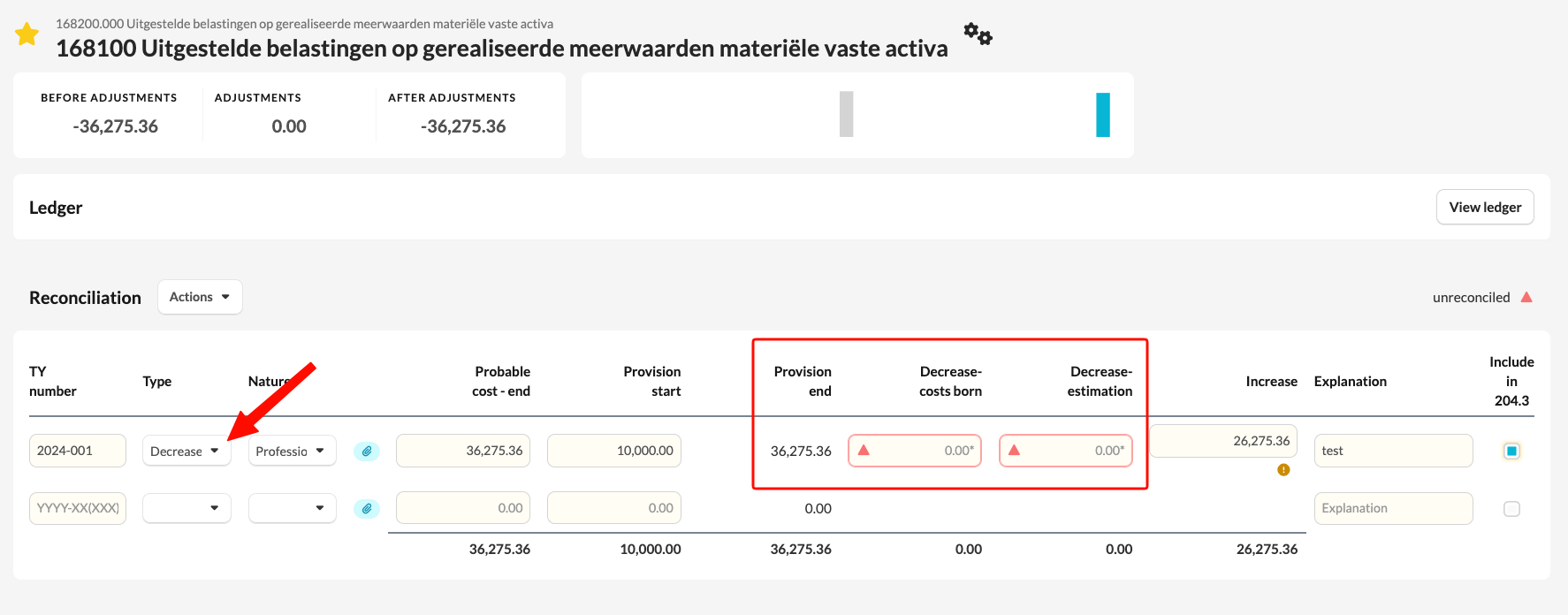
In this example, we have selected the type "Increase" for the provision. The account template will therefore also ask for the amount of the increase. If we change the type to "Decrease", you'll see that the fields you need to fill in also change, depending on the input Silverfin expects.
You get a green circle in Silverfin when the sum of the transactions matches the amount booked on the general ledger account. If there's no match, Silverfin shows a red triangle.
Inclusion in template 204.3
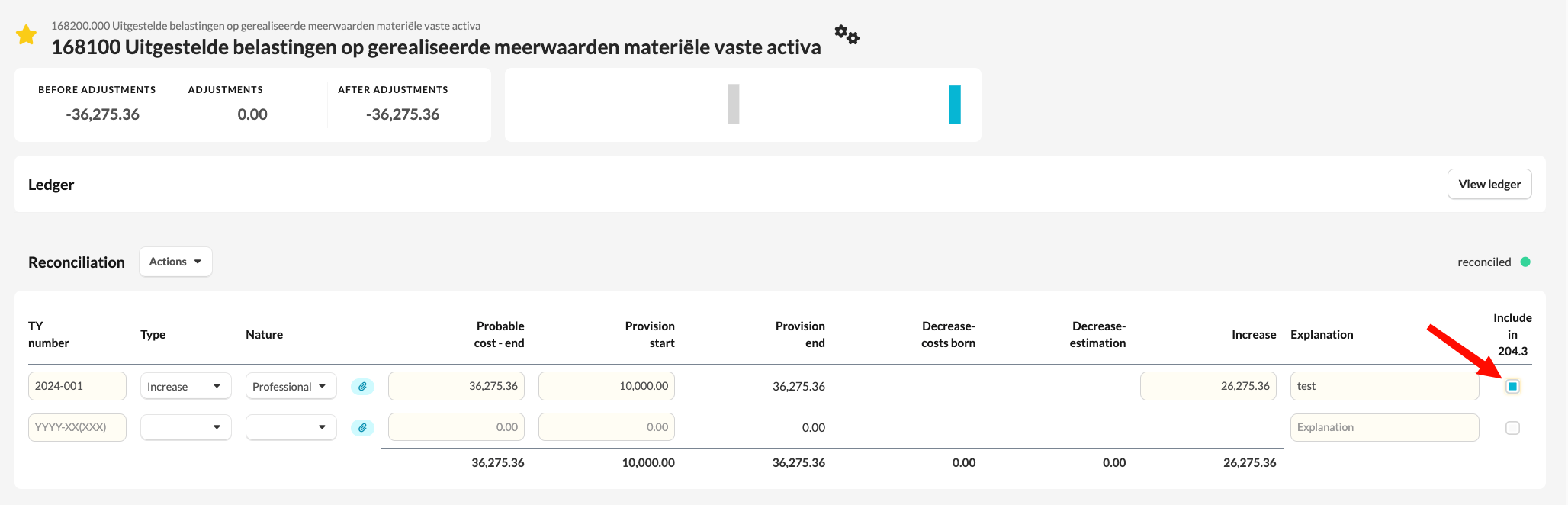
You can have the data from the note automatically included in the template "204.3 Write downs and provisions" by ticking the option "Include in 204.3". You can determine this line by line.
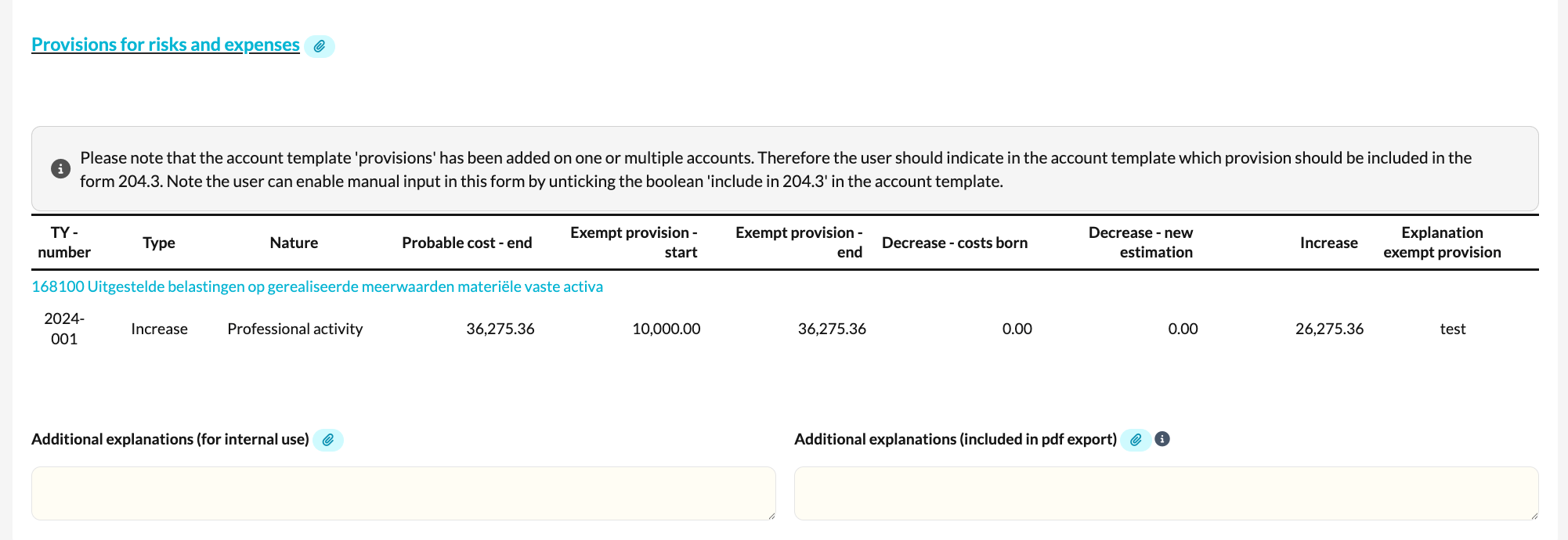
Under the section "Provisions for risks and expenses" in the template "204.3 Write downs and provisions", you'll find a clear overview of the provisions you've entered in Silverfin using the account template "Provisions".