
| User Roles |  Admin Admin | ✗Staff contributor | ✗External contributor | ✗Pulse user |
This article explains how to connect Silverfin with AFAS (Profit) at the firm level. It covers adding an app connector in AFAS, importing GetConnectors, generating a Token and finding your Environment ID. Once the connection exists at the firm level, you can link it to your client files.
Table of contents
- How do I set up synchronisation with AFAS at the firm level?
- How do I obtain a Token?
- What is my Environment ID?
- Does Silverfin support sync of documents from AFAS?
- What if I have a separate account for every supplier and customer and I want just one account for each?
How do I set up synchronisation with AFAS at the firm level?
To set up synchronisation with AFAS, follow these steps. Only users with admin rights in Silverfin can set up synchronisation at the firm level.
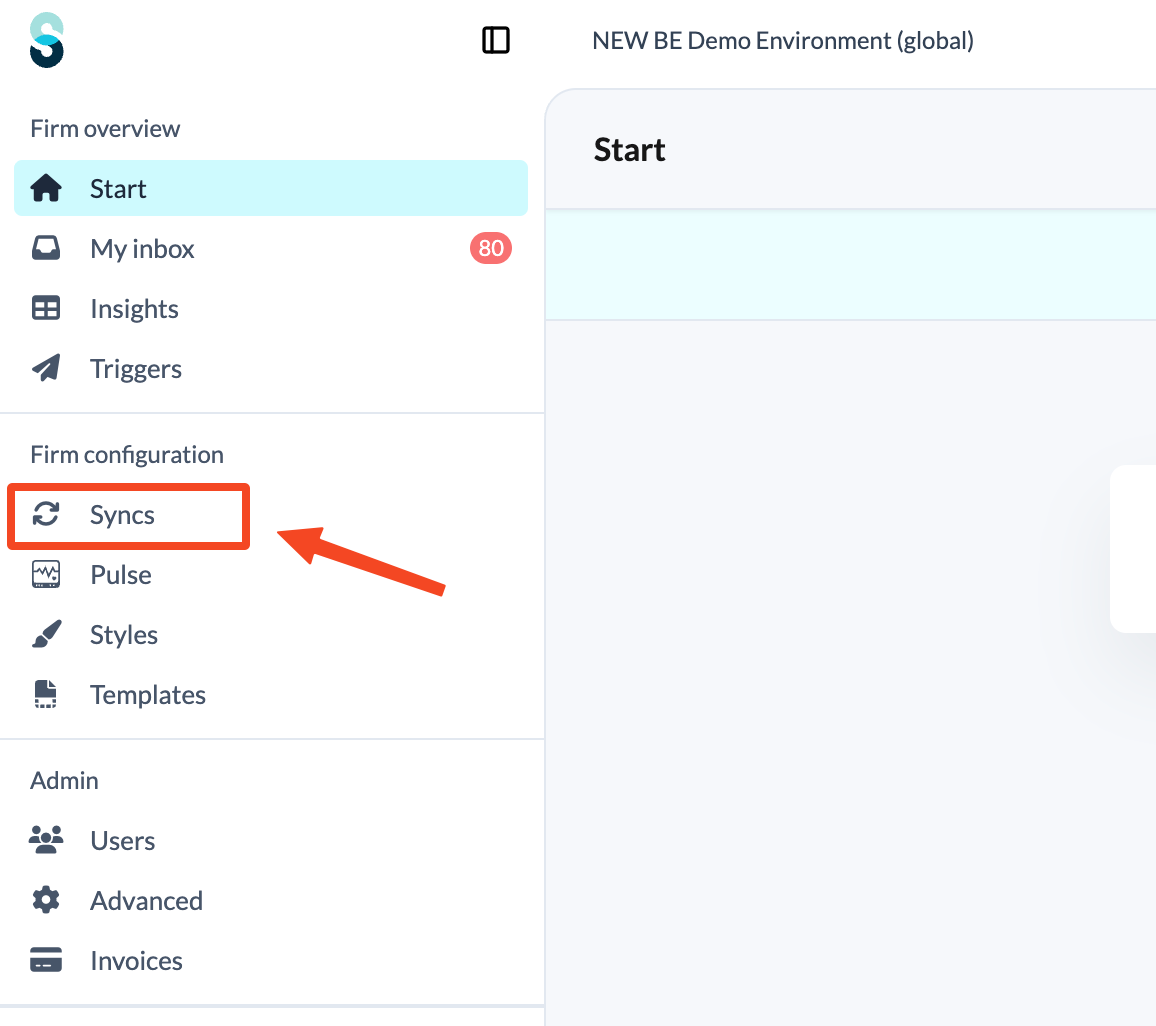
- Click Syncs in the left panel, under Firm configuration.
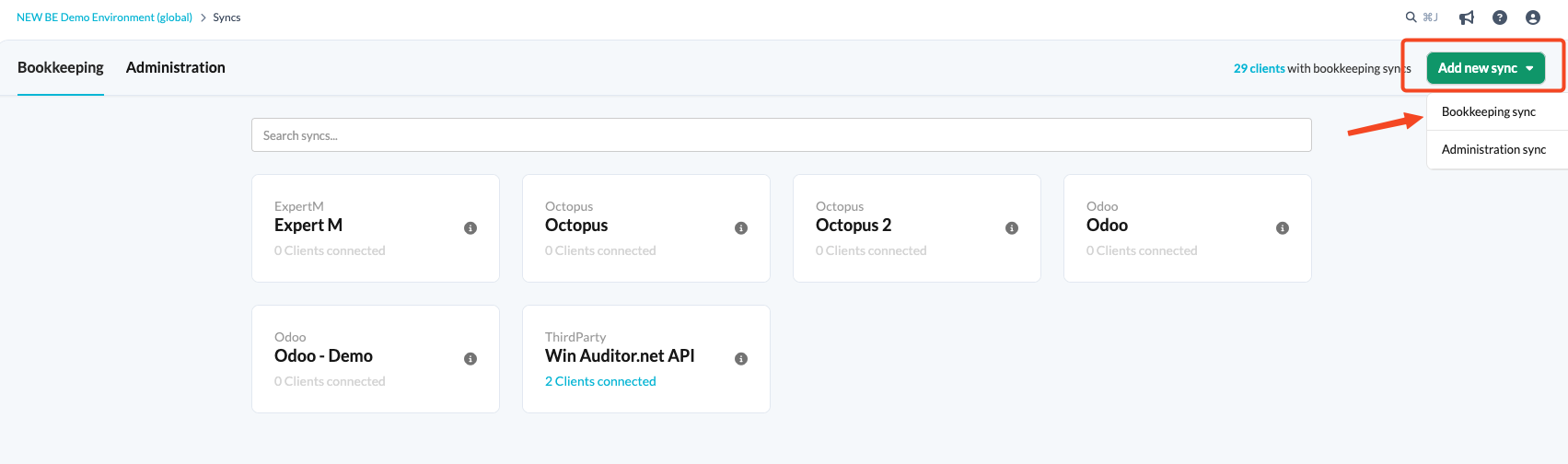
- Click the Add new sync button and choose Bookkeeping sync.
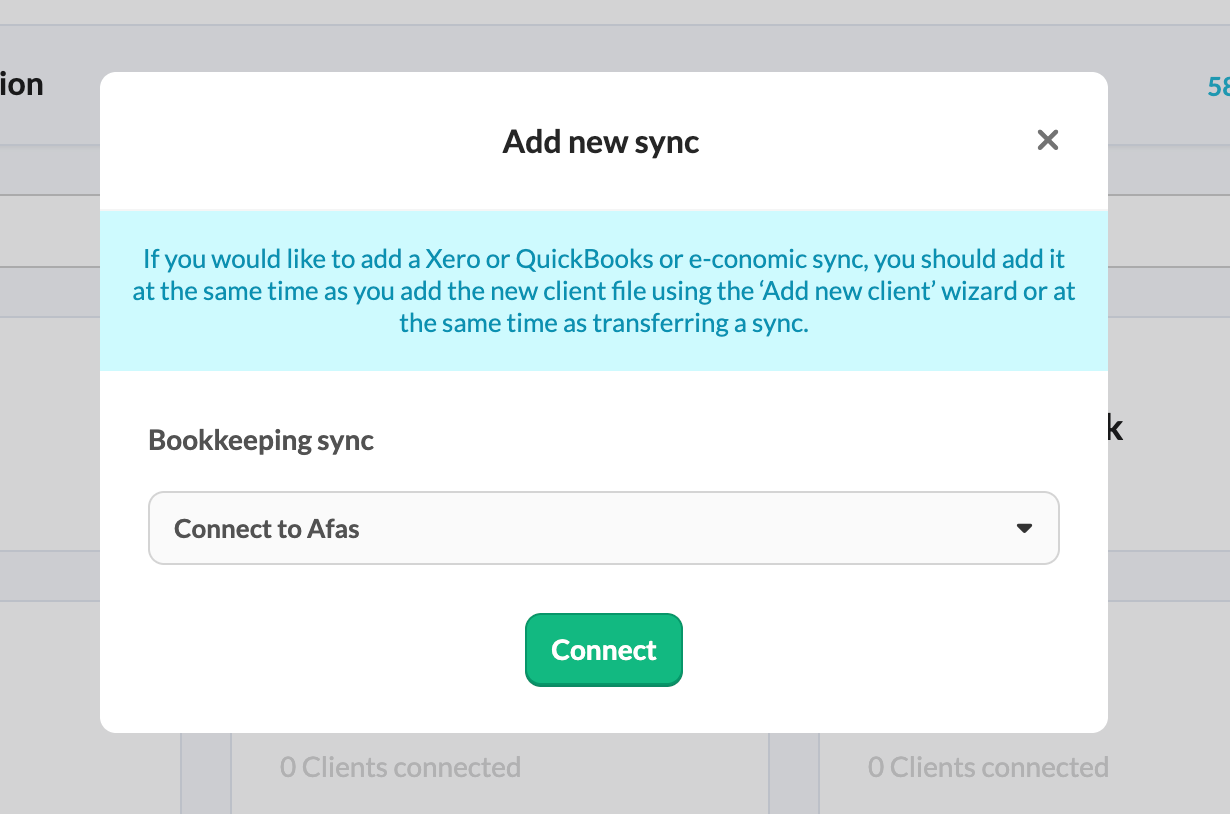
- From the drop-down menu, choose Connect with Afas and click Connect.
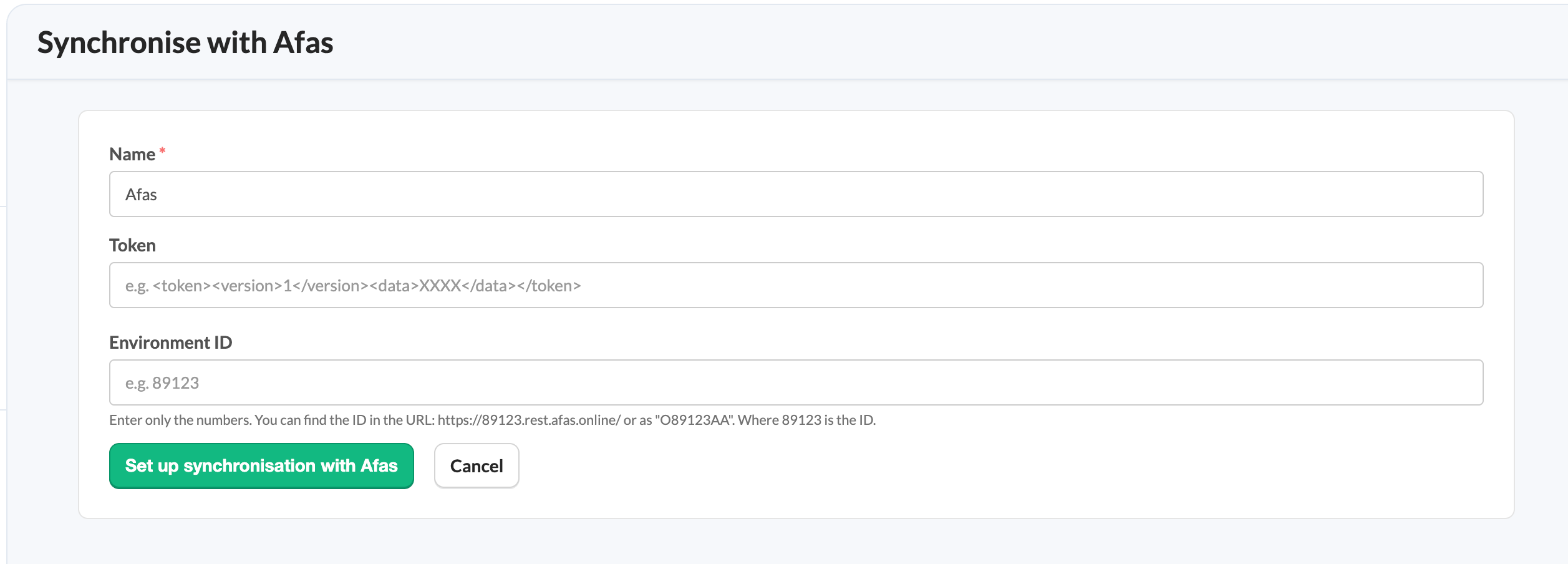
- Fill in the Name, Token and Environment ID.
Once the synchronisation exists at the firm level, it can be linked to a client file. Linking does not require admin rights: both Admin and Staff contributor users can do this. See How to set up synchronisation with AFAS (Profit) in a file?
How do I obtain a Token?
Step 1: Add the App Connector
- Log in to AFAS (Profit).
- Navigate to General > Manage > App connector.
- Click New.
- Add a new App connector using these settings:
- Description: Silverfin
- Automatically generate token: Yes
- Create a new user group: Yes
- Create a new user: Yes
Step 2: Add GetConnectors
- In the App Connector wizard, proceed to the next step for adding GetConnectors.
- Click Actions > Import to import the GetConnectors found in the attachment at the bottom of this article.
Step 3: Generate a Token
- Click Finish.
- Add the generated Token in the synchronisation wizard.
Add the Token in the following format: <token><version>1</version><data>58A1C697C5F3476F838199C0412F625C4F2C46E4CEA6735454FDBB9EEBEBD48</data></token>
What is my Environment ID?
Your environment URL in AFAS looks like this: https://12345.rest.afas.online/. The number part (in this example 12345) is your unique Environment ID.
Does Silverfin support sync of documents from AFAS?
No, Silverfin does not support syncing documents from AFAS.
What if I have a separate account for every supplier and customer and I want just one account for each?
In the past, every individual customer and supplier came through to Silverfin as a separate account. We have since created new GetConnectors. To receive one customer account and one supplier account with the AFAS sync, use the newest version of our GetConnectors, available in the attachment below.