
| User Roles |  Admin Admin |  Staff contributor Staff contributor | ✗External contributor | ✗Pulse user |
This article explains how to connect a Silverfin client file with Horus to synchronise bookkeeping data. Once the connection is established, any changes made in Horus will sync with Silverfin.
To link existing synchronisation with the client file, please perform the following steps:
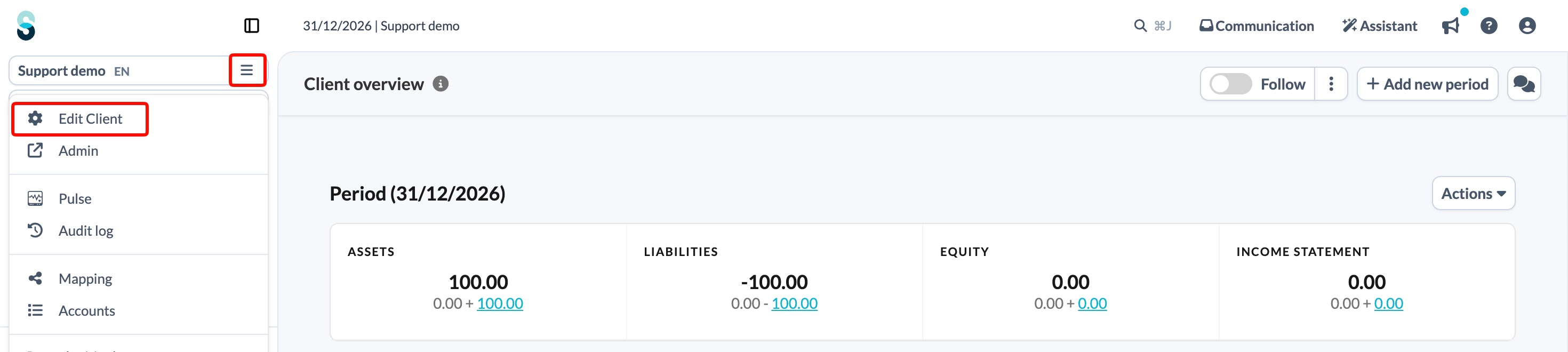
- On the client file overview page, click the client file name at the top of the left panel and choose Edit Client.
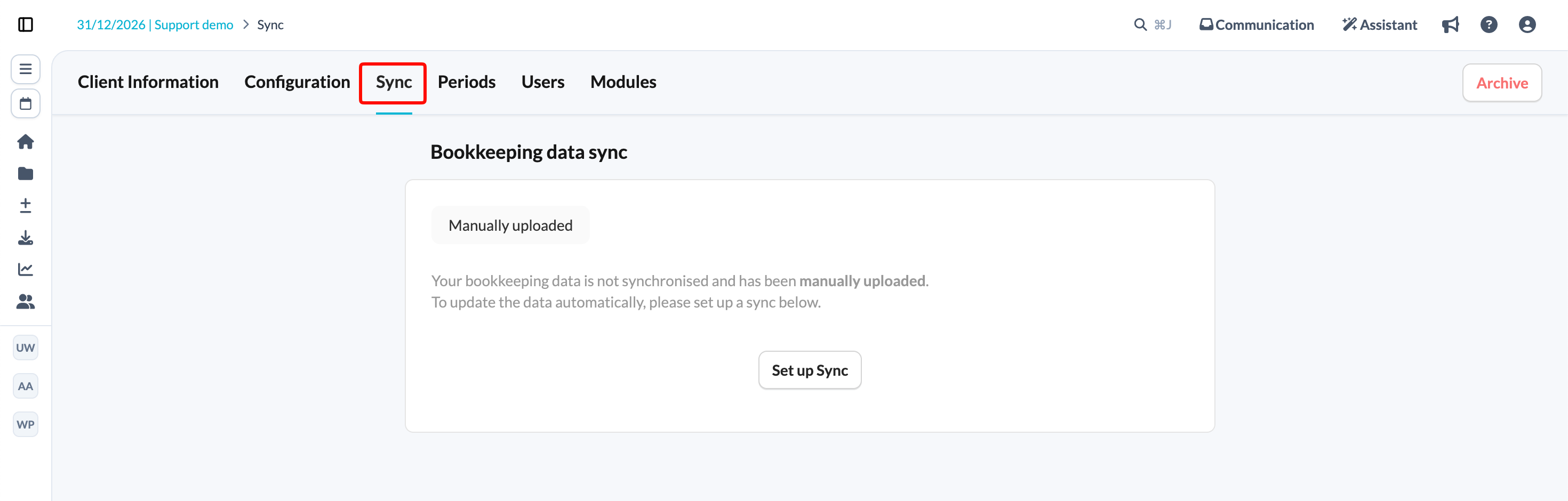
- Click on the Sync tab.
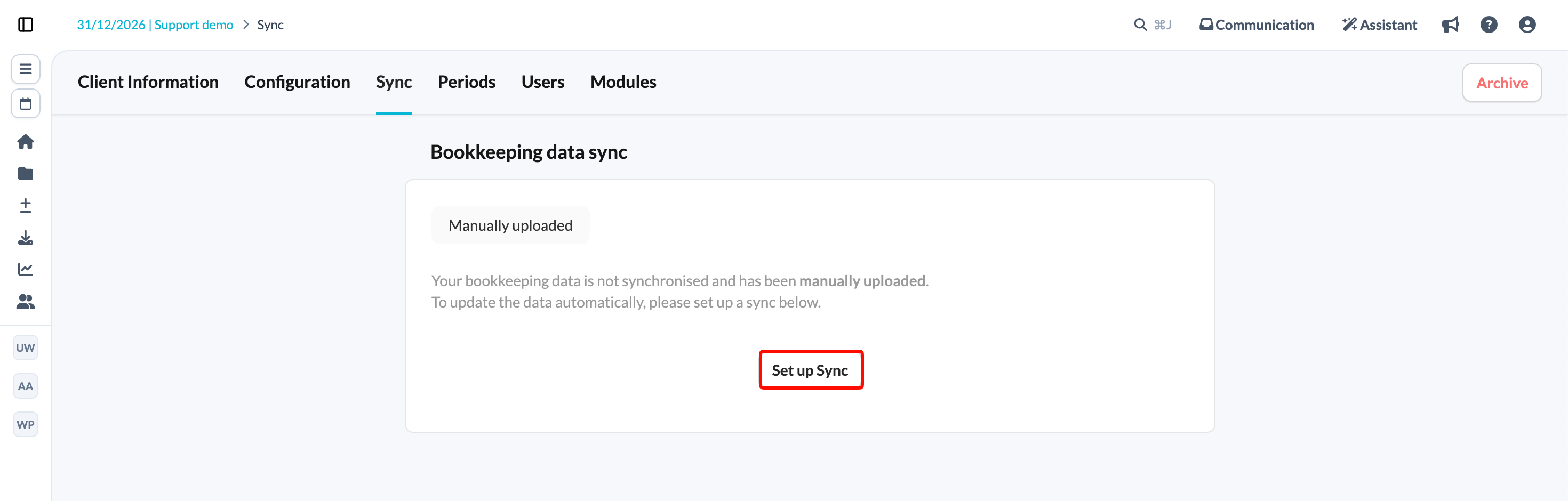
- Click Set up Sync.
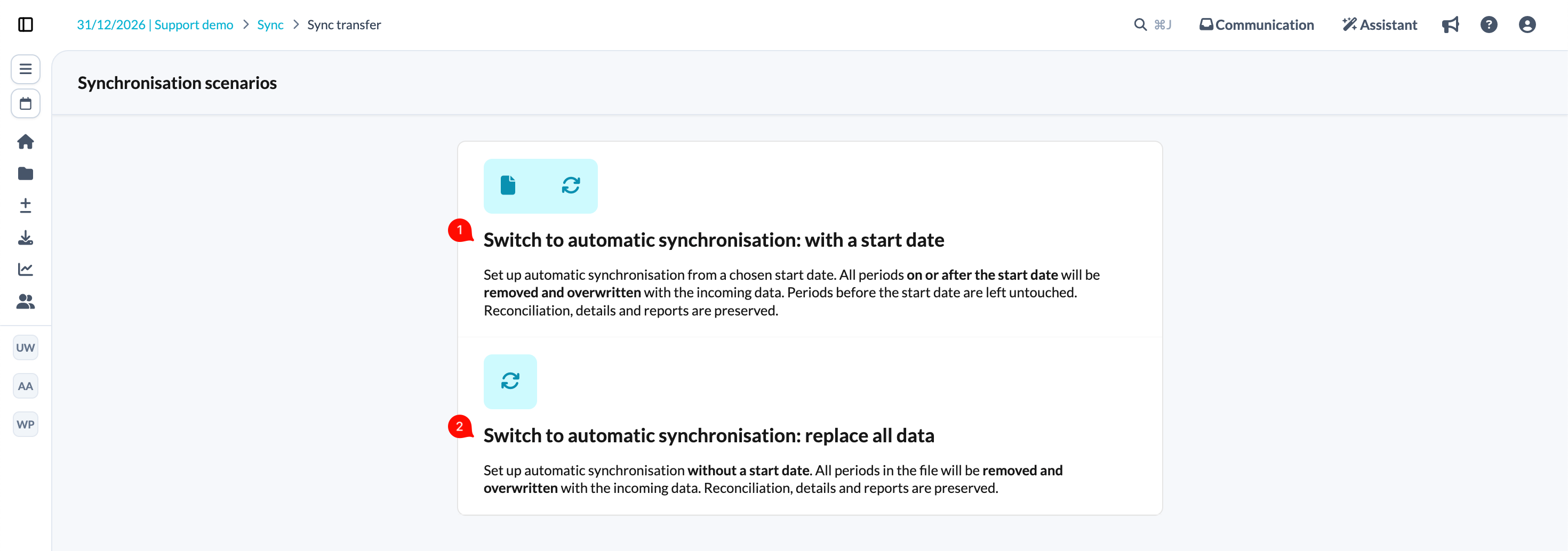
- Choose one of the provided synchronisation scenarios. If you have chosen the first synchronisation scenario, you will be prompted to set the start date of the synchronisation.
- Choose Horus from the list of available synchronisations and choose a sync reference.
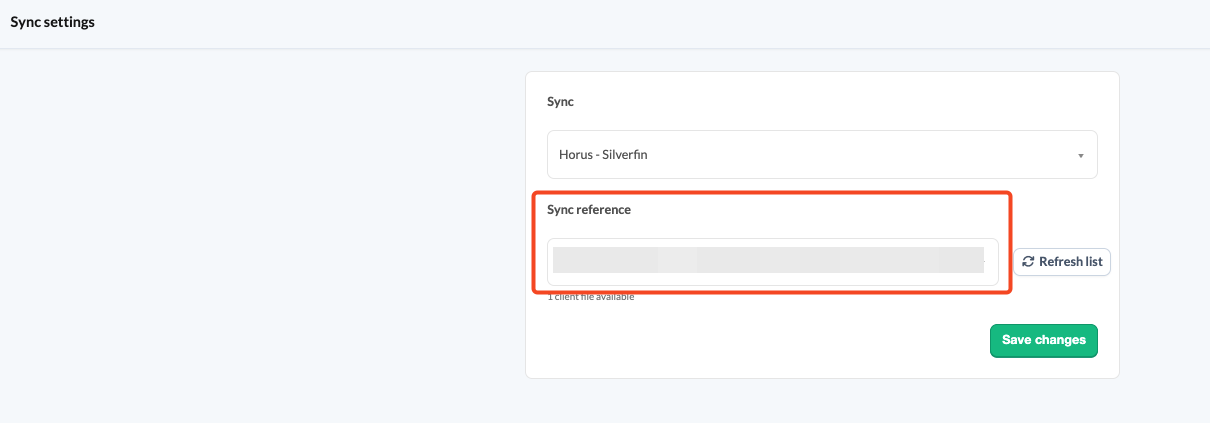
- Save changes.
Figures are updated automatically every night with the latest data in Silverfin. To retrieve updated figures during the day, use the synchronisation arrows on the top right.
Synchronisation with Horus has to be set up at firm level before you can link it to a client file. For those steps, see How to set up synchronisation with Horus at firm level?
How can you determine which transactions are synchronised from Horus to Silverfin?
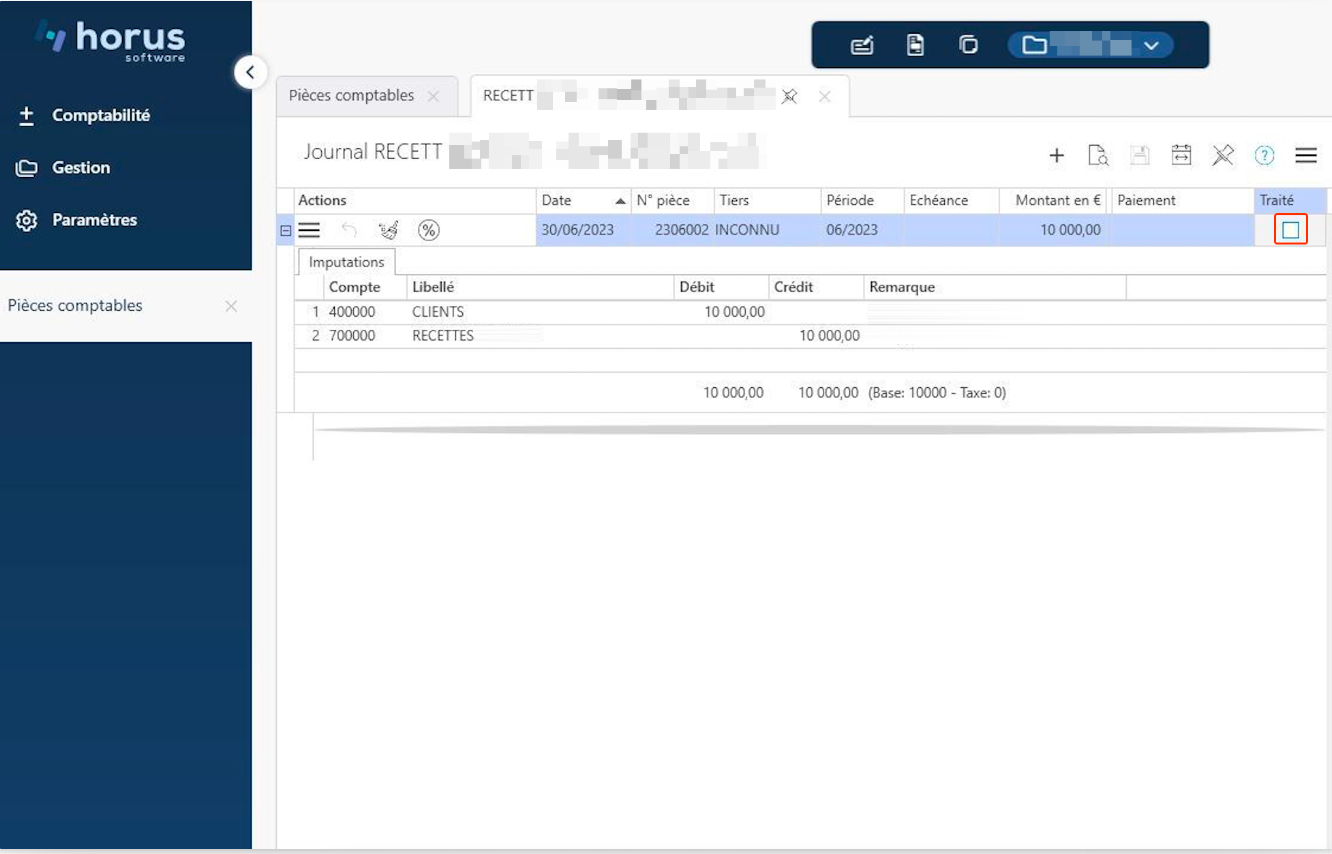
- Transactions from Horus are only synchronised with Silverfin if they have been confirmed.
- If transactions from Horus are missing in Silverfin, check in Horus to make sure that all transactions have been confirmed.
Why can't I find my Horus private files in the drop-down menu in Silverfin?
- Private files are restricted in Horus, which means you need to create a new sync entity using the details of the file owner.
- Are you the owner of multiple private files? If so, the newly created sync entity will grant access to all files owned by you. Note that sync entities can only be created by users with admin rights.