
| User Roles | ✗Staff contributor | ✗External Contributor | ✗Pulse user |
This article provides a step-by-step guide on how to create a new consolidation file in your firm’s environment. Follow these instructions to streamline the process and effectively manage your firm's data.
Table of contents
- Step-by-step guide to adding a new consolidation file
- Who can create consolidation client files?
- How to add client files to your consolidation file?
- Good to know
Step-by-step guide to adding a new consolidation file
To add new consolidation file, navigate to your firm’s homepage and select 'Add new client'.
Step 1: File setup
- Choose Consolidate Silverfin files option in Data source section.
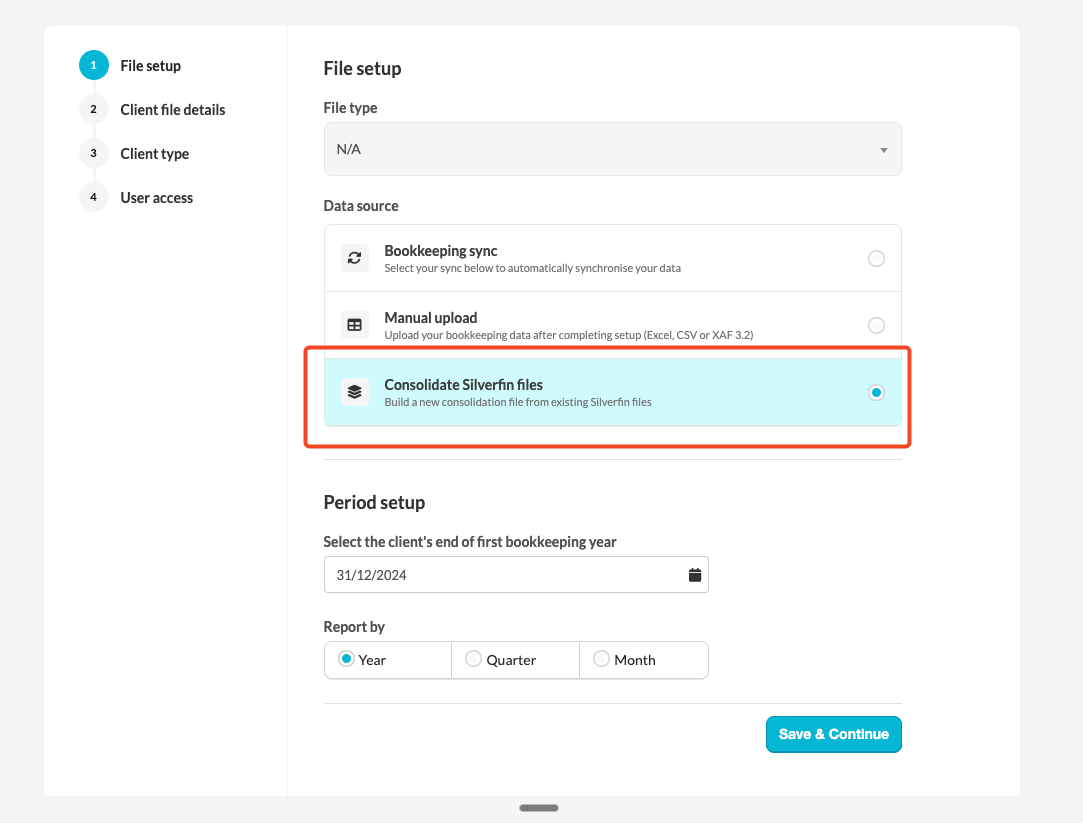
- Select the client's end of first bookkeeping year.
- Set the reporting frequency (e.g., monthly, quarterly). Note: it's recommended to set up monthly reporting frequency, both for consolation file and subsidiaries (consolidation client files).
- Click 'Save & Continue'.
Step 2: Client file details
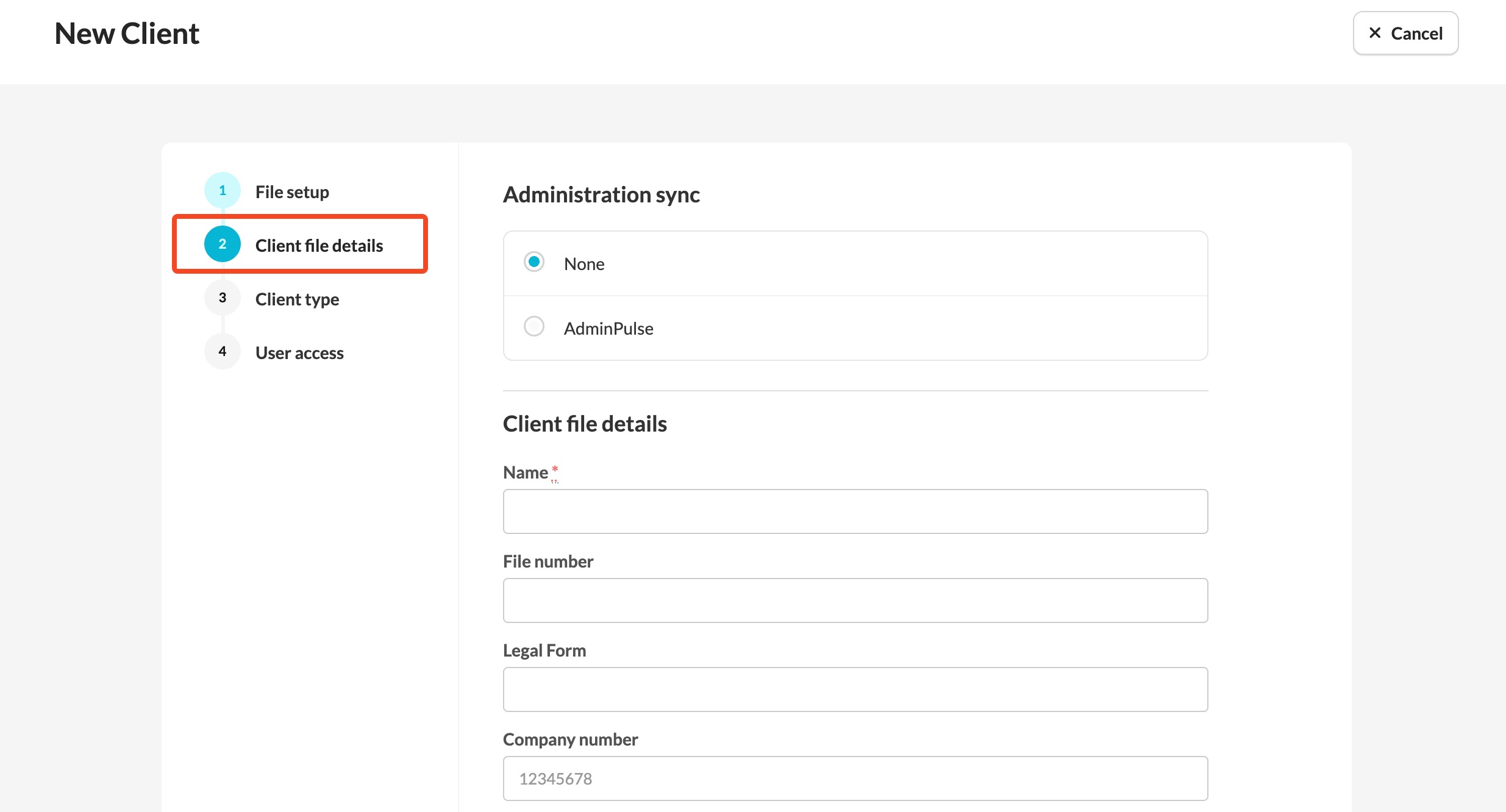
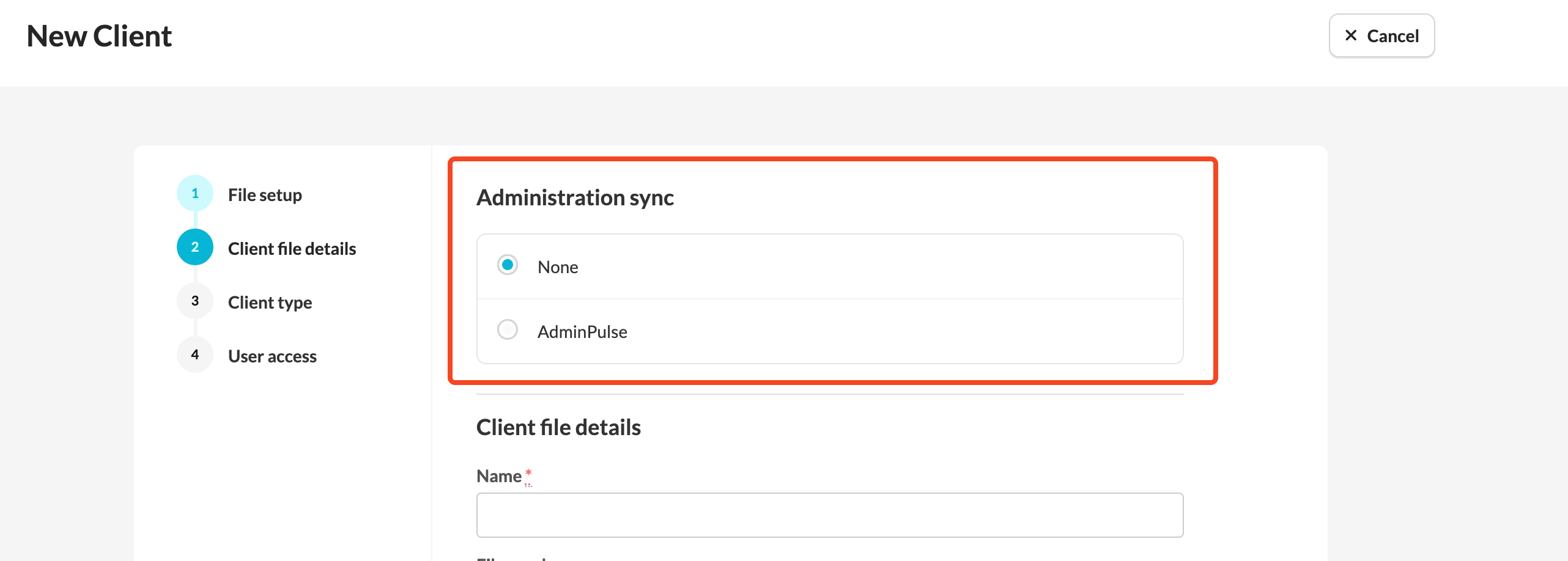
Administration sync: decide whether to fetch data from the administrative sync. This feature allows you to sync data such as:
- Company name
- Company address
- Legal form
- Directors' names, start dates, and resignation dates
Client file details: Provide basic details about your company, such as its name, address, company form, currency, logo of your firm. Only the company name is mandatory at this stage. You can add missing information later if needed.
- Silverfin does not do currency conversion
- company information are automatically populated if administration sync is active
Step 3: Client type
Select the client template for the file. This template, set at the office level, will automatically add a set of workflows and reports to the file, streamlining the setup process.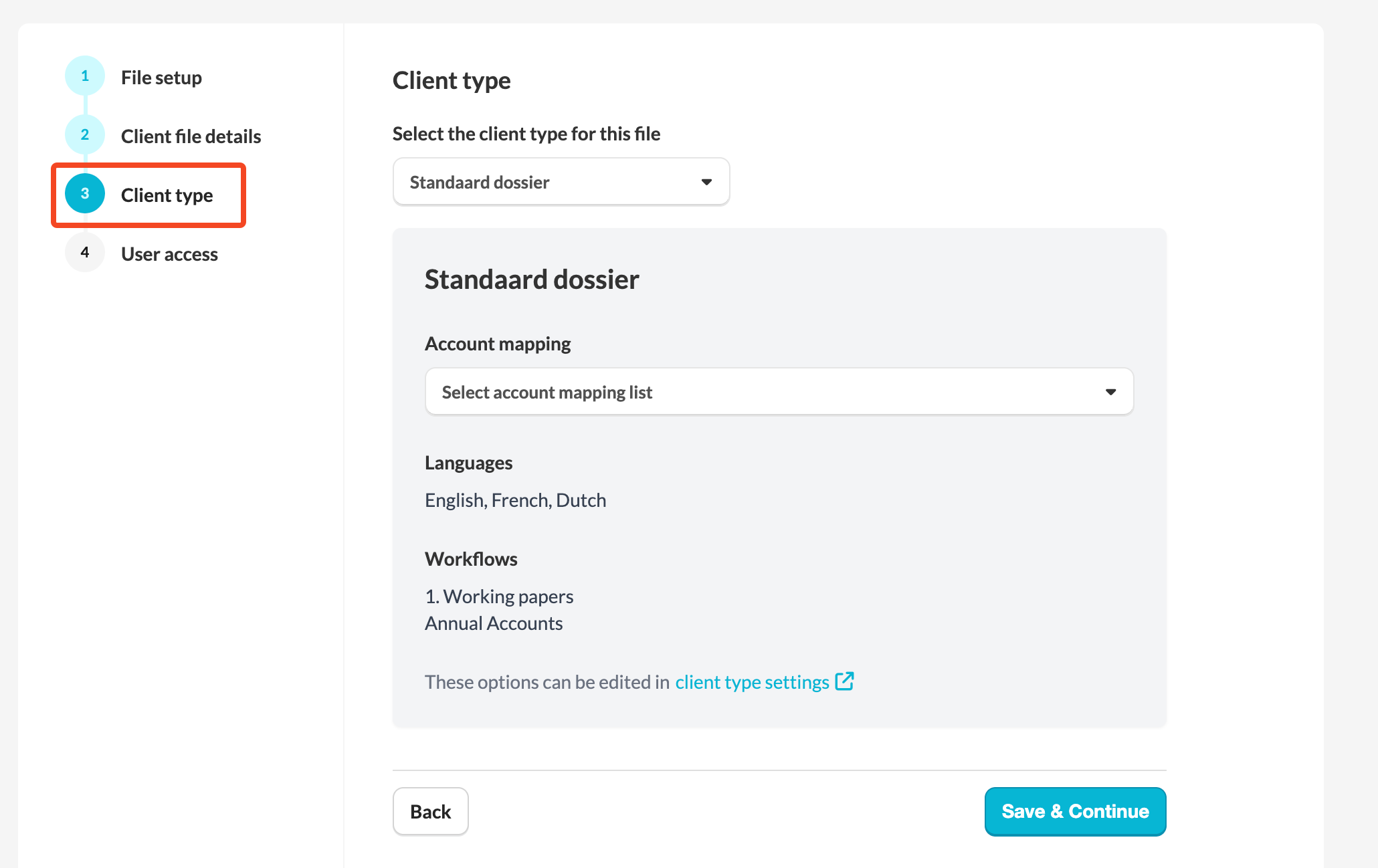
Step 4: User access
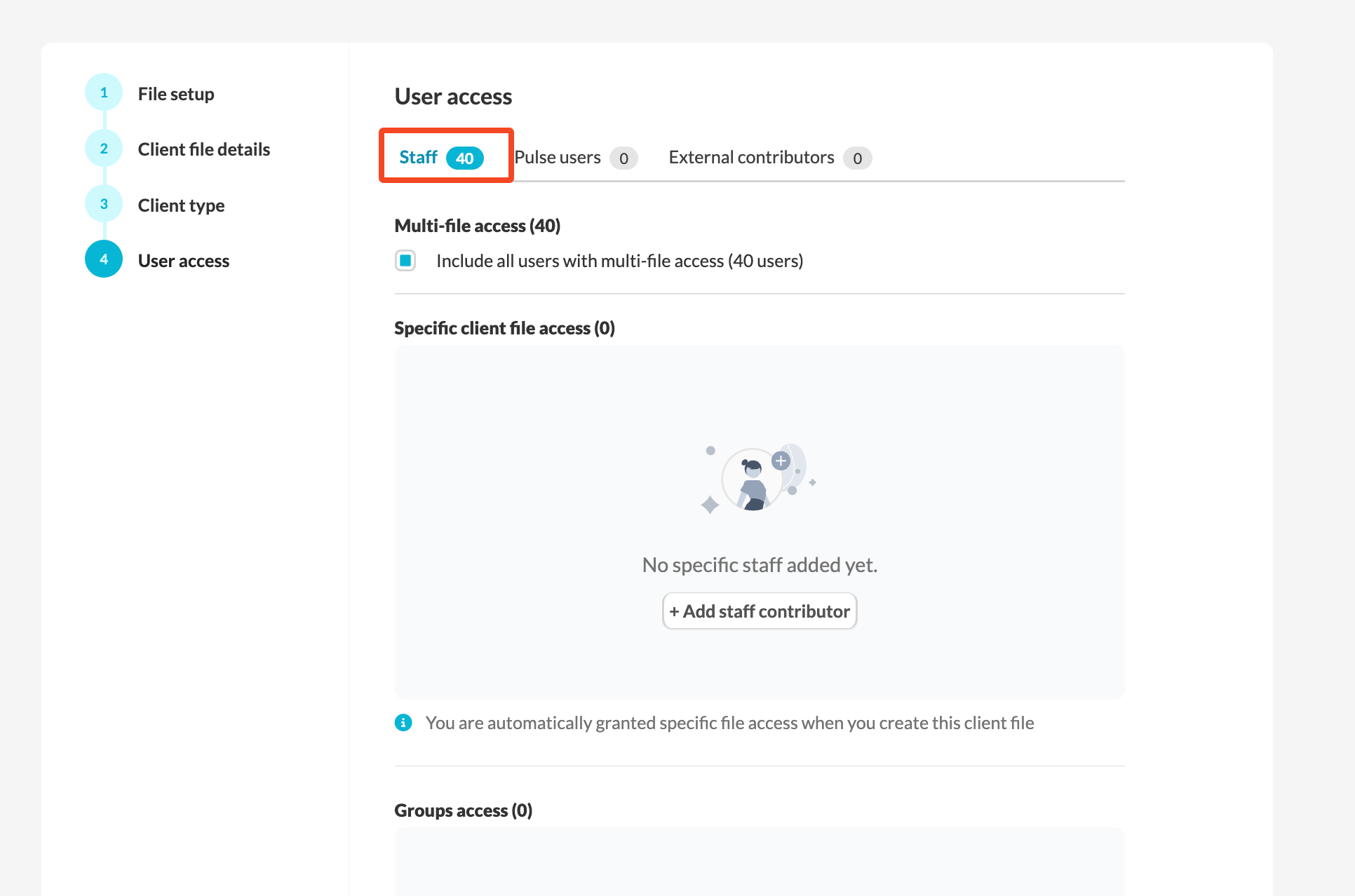
Decide who will have access to the file and to what extent. There are three access levels to choose from:
- internal staff users: Decide whether specific users or users with multi-file access should have access to the file. You can also add groups to the file.
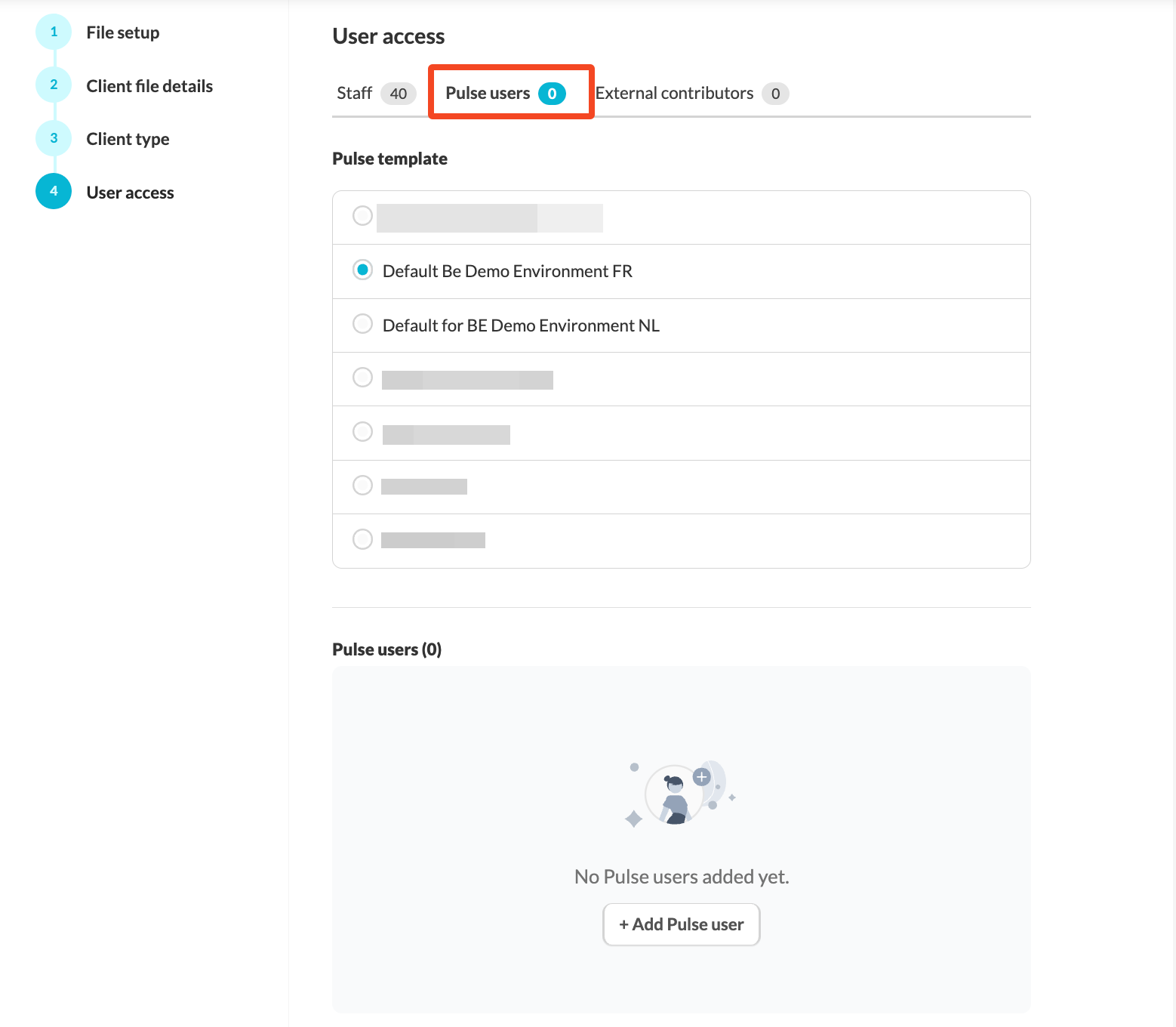
- Pulse users: Select the Pulse template for the file. The Pulse template defines what external clients see upon logging in. The Pulse template is created by users with admin rights at the firm level. Add specific Pulse users to the file.
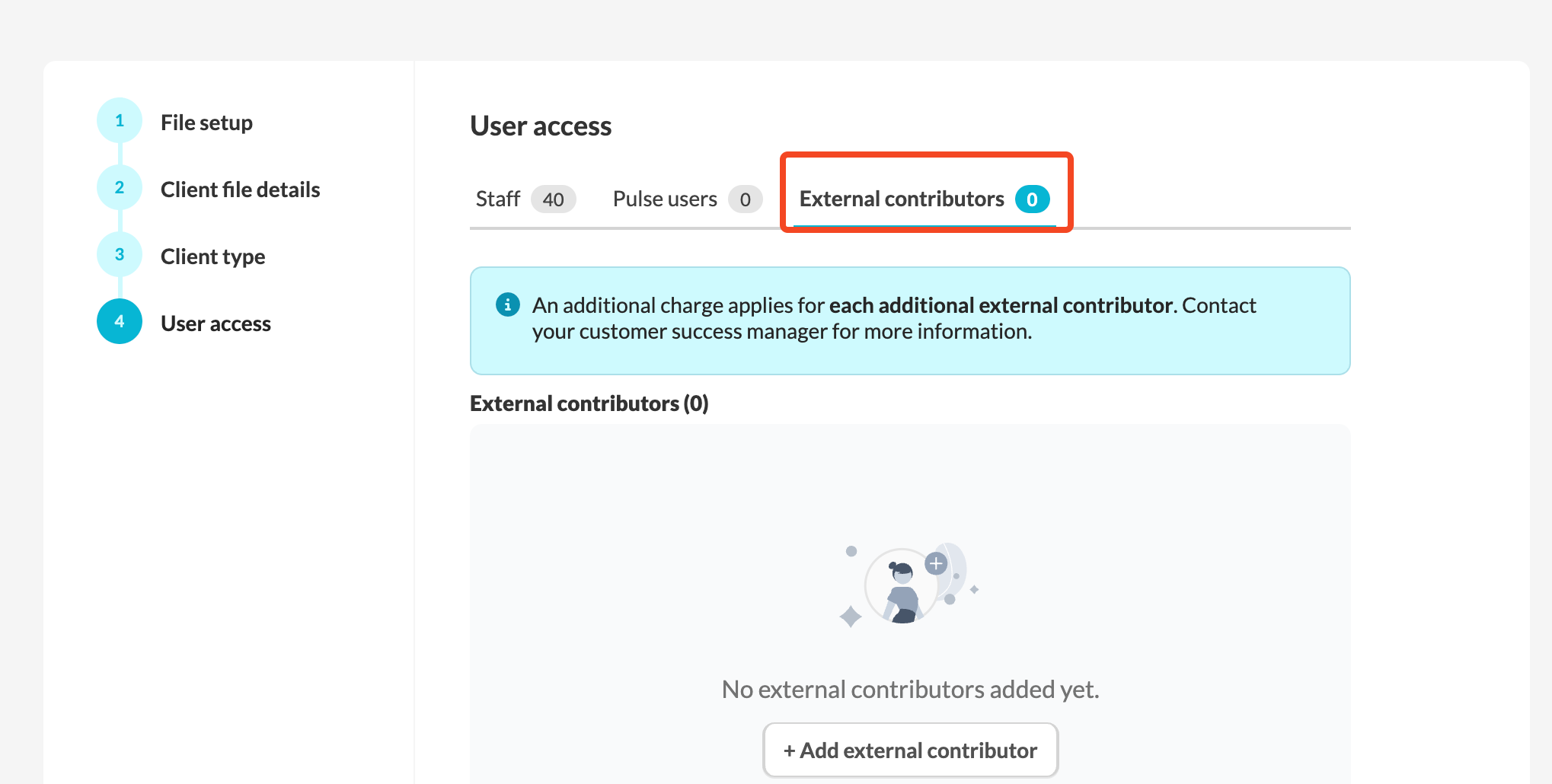
- External contributors: Add external contributors to the file. An additional charge applies for each additional external contributor. Contact your customer success manager for more information.
Once all these steps are completed, click the Create new client button to finalise the process.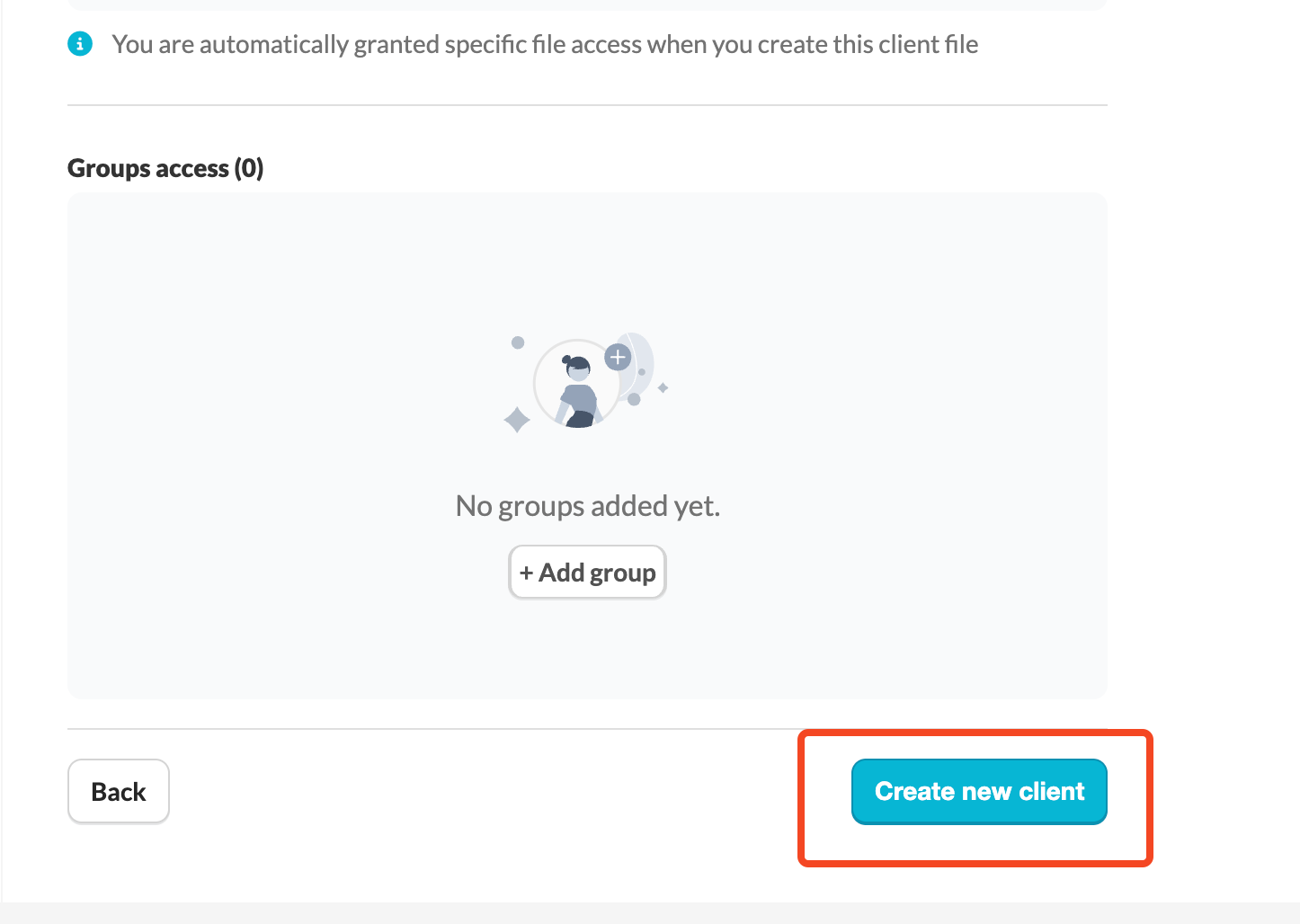
Who can create consolidation client files?
Client files can be created by:
- users with admin rights
- Internal users who have been granted permission to create files in their user settings at the firm level
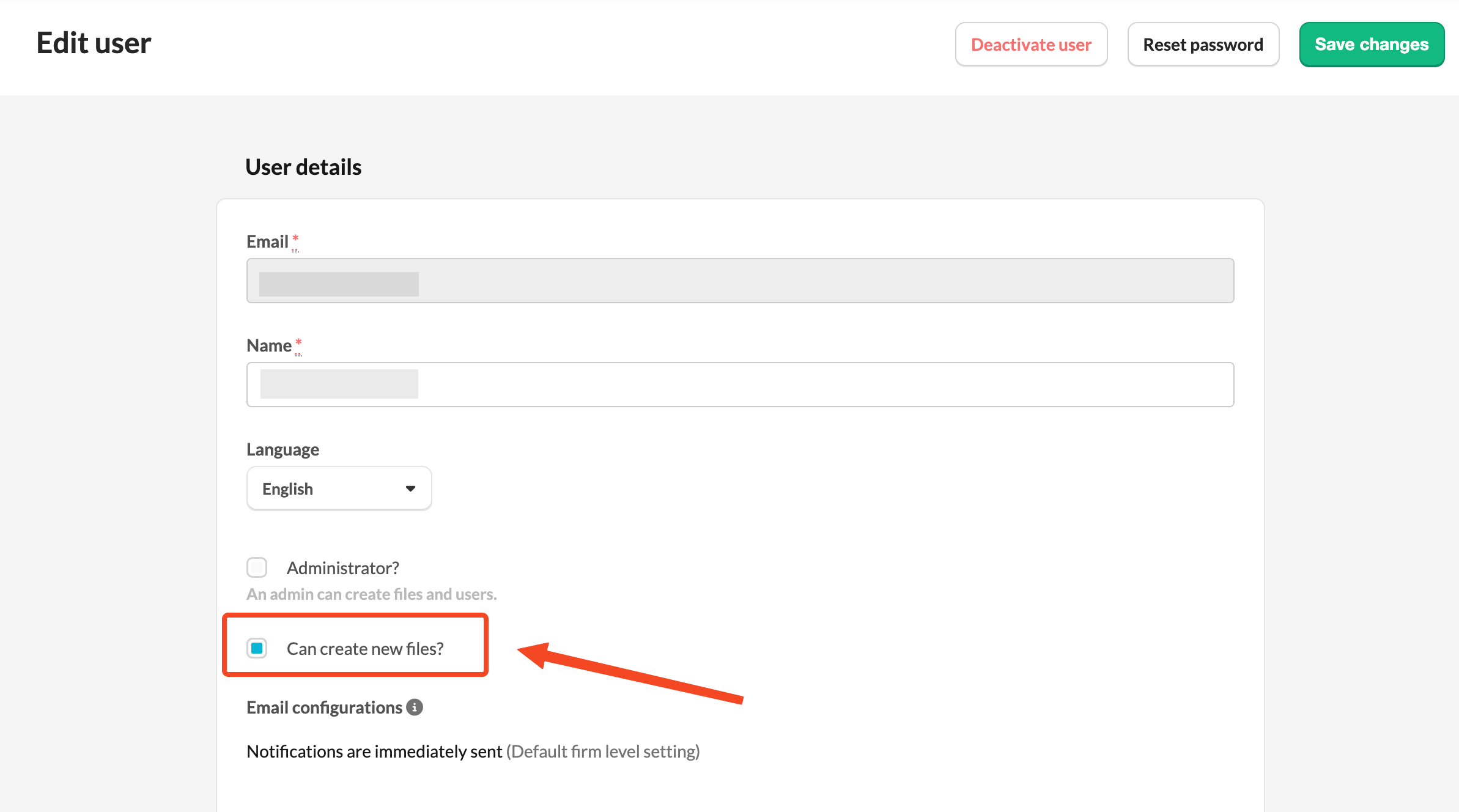
If you do not see the option “Can create a new file?”, please contact your Customer Success Manager.
How to add client files to your consolidation file?
After you set up your consolidation file you will see the Consolidation screen. You can add all client ffiles that belong to the consolidation file here.

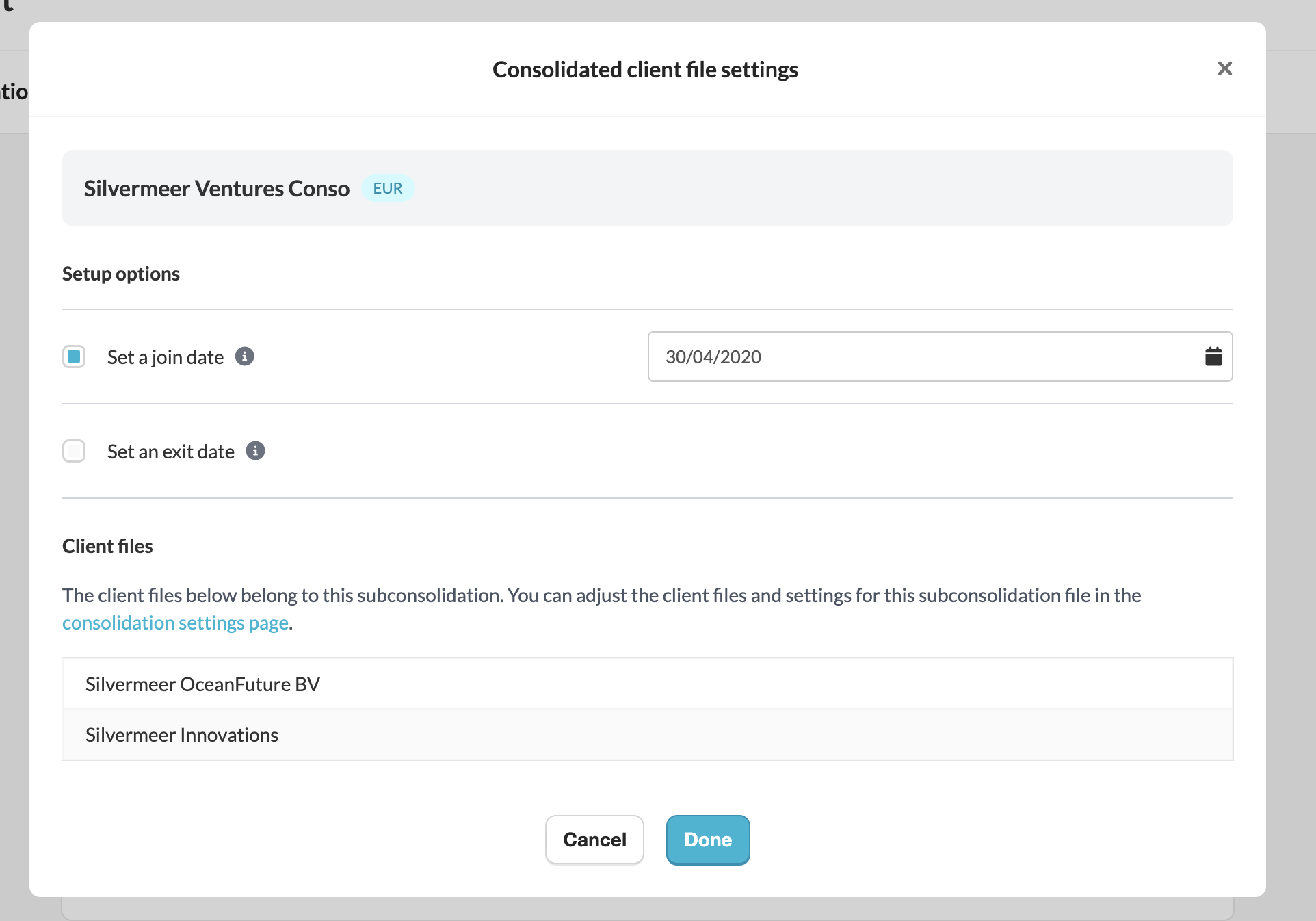
Set a join or exit date: You can define the date on which a client file joins or exits the consolidation. If you do not set a date, Silverfin will include all available data from that file.
Currency mismatch warnings: Silverfin will warn you if you add a client file that uses a different currency from the consolidation file.
Add sub-consolidations: Save time by adding entire sub-consolidation files to your main file. No need to add each individual client file again.
Create new files from the consolidation page: If you need to add a client file that does not exist yet, you can create it directly from the consolidation settings. Silverfin will add it to your consolidation automatically.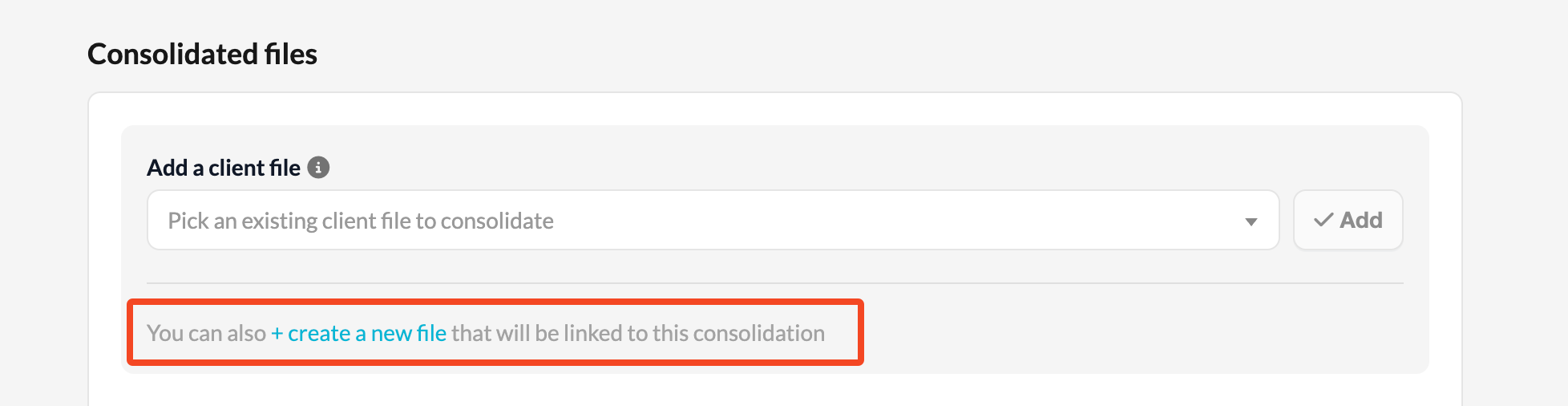
Mark your parent company: You can designate the parent company in the consolidation settings. Future templates will use this setting to improve your workflow. You can set it now to prepare for upcoming updates.
Figures in consolidation file are updated automatically every night with the latest data in Silverfin. To retrieve updated figures during the day, use the synchronisation arrows next to the client file name.
Good to know:
- In order to use the consolidation module you can contact your Customer Success Manager and request activation for your environment.
- A consolidation file is a premium file and carries a different cost.
- Consolidation is based on the mapped account number.
- The mapped account number is used to ensure consistent mapping across all connected subsidiary files and to follow the mapping defined in each subsidiary.