
| User Roles |  Admin |  Staff user | ✗External contributor | ✗Pulse user |
In Silverfin, you can tailor an export to your client's specific needs before you generate it. This article explains how to adjust an export using drag-and-drop blocks.
Table of contents
How do I customise an export?
- Select a pre-set bundle: In the Export section, choose a pre-set export bundle from the drop-down menu. The export automatically takes the name of the bundle you choose, shown in the top bar. To rename the export, edit the name in the top bar while you customise it.
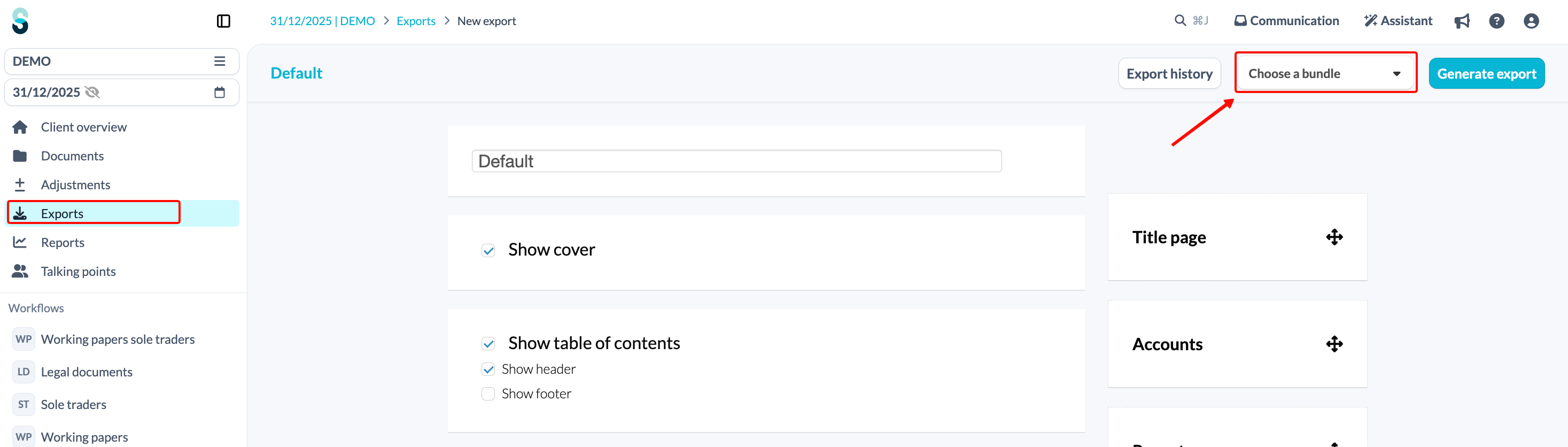
- Drag and drop blocks: The blocks on the right of the screen represent the different elements you can include, such as accounts, reports, documents, text, adjustments and communication. Drag them into the export to build it the way you need.
How do I add accounts and reconciliations?
- Drag the Accounts block to the centre.
- Open the block and select the accounts and/or reconciliations you want to include in your export.
- Make sure the accounts or reconciliations are starred in the workflow. If they aren't, they won't appear in the export.
- Deselect the paperclip if you don't want to export the attachment.
How do I add reports?
- Drag the Reports block to the centre. To add several reports, drag the block over once for each report.
- You can export reports with original or mapped account numbers.
- Some reports let you include certain charts - select or clear them as needed.
- You can fully expand the rows within a report while you create the export.
How do I add documents?
- Drag the Documents block to the centre.
- In the pop-up, choose whether to add existing documents from Silverfin or upload new files to include in the export.
How do I add text?
- Drag the Text block to the centre and select the text you want to add.
- If you need more than one text, drag over additional blocks.
How do I add adjustments?
- Drag the Adjustments block to the centre.
- Choose whether to export only internal adjustments, only external adjustments, or both.
- You can also choose whether to show the original account names and numbers (as per the bookkeeping system) in the export.
How do I add communication?
- Drag the Communication block to the centre.
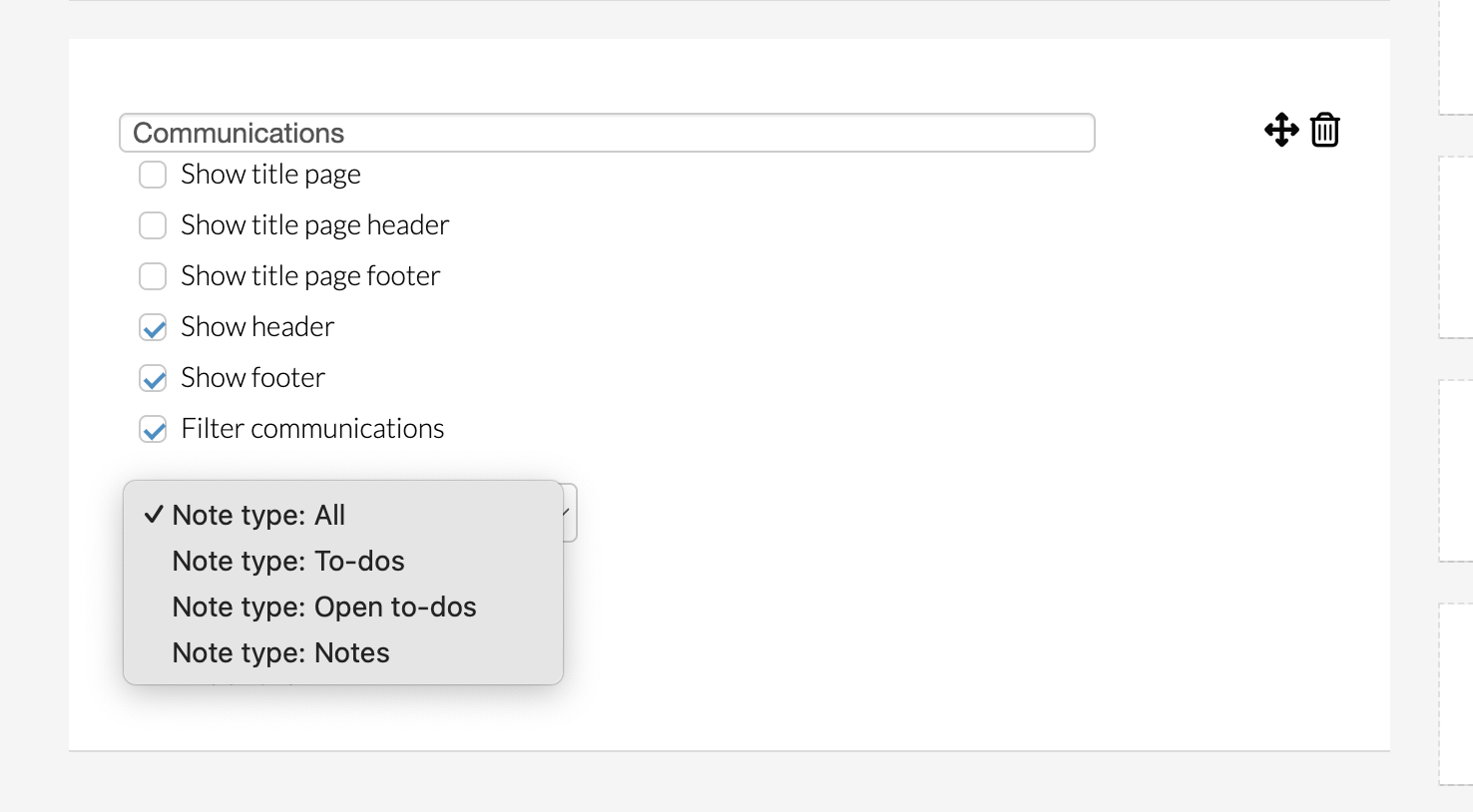
- Filter the communication you want to export: Notes, To-Dos, Open To-Dos or All.
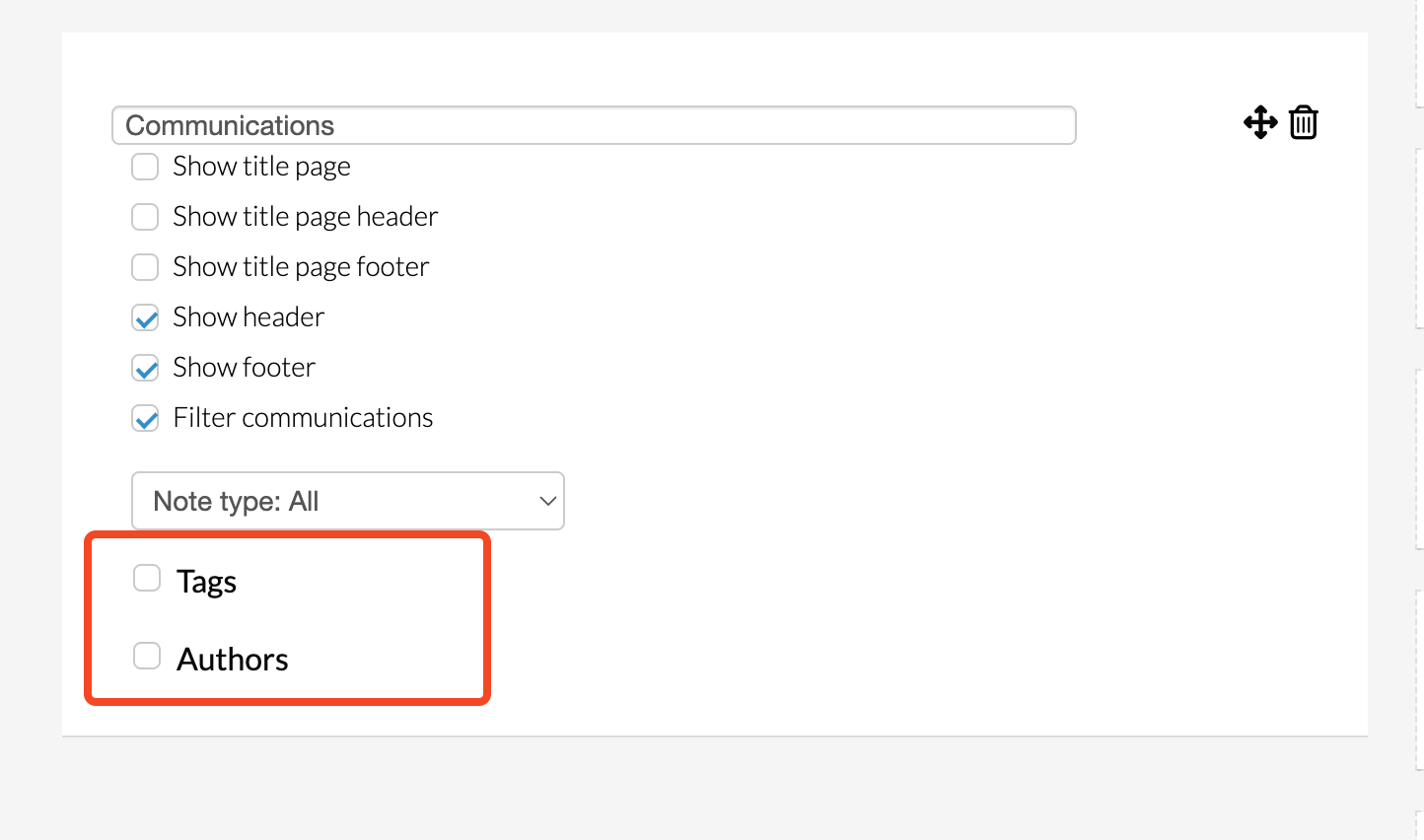
- You can also filter by communication tag and author.
Can I include a cover page and table of contents?
- Yes. While you customise the export, select or clear the relevant options to include or leave out a cover page and a table of contents.
- Admin users in your firm are responsible for customising the cover page.
Can I add a title page, header or footer?
- Yes. You can add a title page, header or footer to each block.
- Admin users set up these elements when they create bundles at firm level.
How do I generate the customised export?
When you have added and arranged all the elements you need, click the green Generate export button to create your customised export.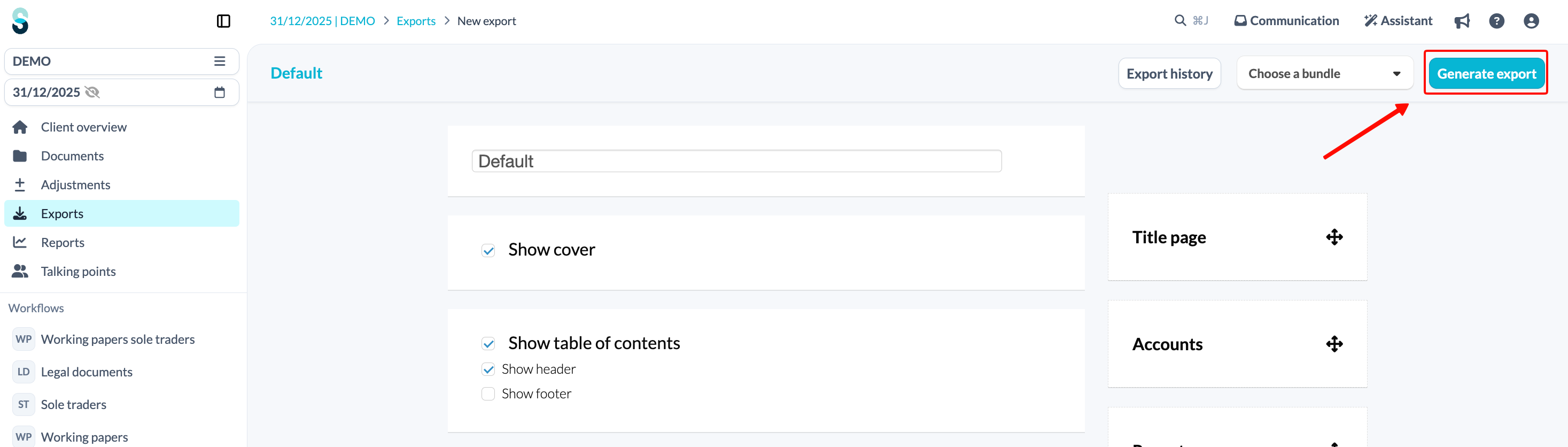
If you need help with fonts and margins in your export, contact an Admin user. They can adjust the bundle settings at firm level.