
| User Roles |  Admin |  Staff contributor | ✗External contributor | ✗Pulse user |
This article explains common synchronisation issues between Silverfin and Xero and shows you how to resolve them. If your sync has been rate limited or is returning credential-related errors, follow the steps below.
Table of contents
- Why has my Xero sync been rate limited?
- Why does my sync report a credentials error?
- What does it mean when the file in Xero is already connected?
- What do I do about other Xero sync errors?
- What user permissions are required in Xero to set up a sync?
- Why are the periods in Silverfin different from the periods set in Xero?
Why has my Xero sync been rate limited?
Error
sync has been rate limited and will be resumed after about xx hours
Explanation
This message means that one of the API sync limits Xero applies to this file has been reached.
What you can do
- Wait: the sync resumes automatically as soon as the rate limit resets.
- Upload the data manually: if you are facing a tight deadline, you can cancel the sync and upload the necessary data manually. See How to switch from automatic synchronisation to manual upload?
The rate limit is set by Xero, not by Silverfin. For further assistance, contact Xero directly. You can read more about the limits in the Xero API limits documentation.
Why does my sync report a credentials error?
Error
The credentials used by this sync no longer allow us access to the data in Xero. Please create a new Xero sync with valid credentials and then transfer this file there
or
We were unable to access your data in Xero with credentials used by this sync. Please ensure that the user who set up this sync has full access to the file in Xero
Explanation
These messages mean that Silverfin cannot access your Xero data because of a credentials issue. This can happen if:
- the credentials are no longer valid, or
- the user who set up the sync does not have full access to the file.
What you can do
Re-authenticate the sync by logging in to Xero with valid credentials. Use the login details of a user who has access to the file being synchronised.
How do I re-authenticate the Xero sync?
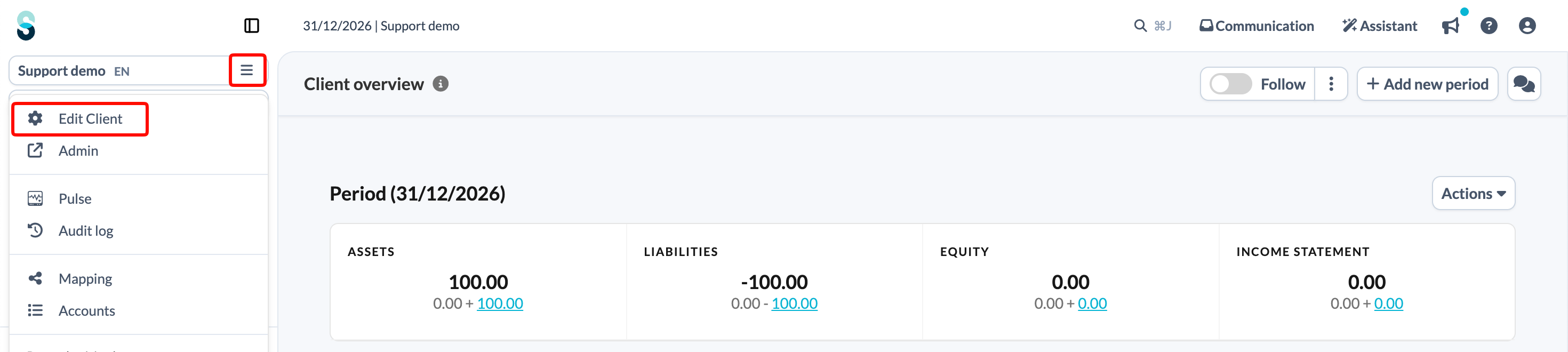
- On the client file overview page, click the client file name at the top of the left panel and choose Edit Client.
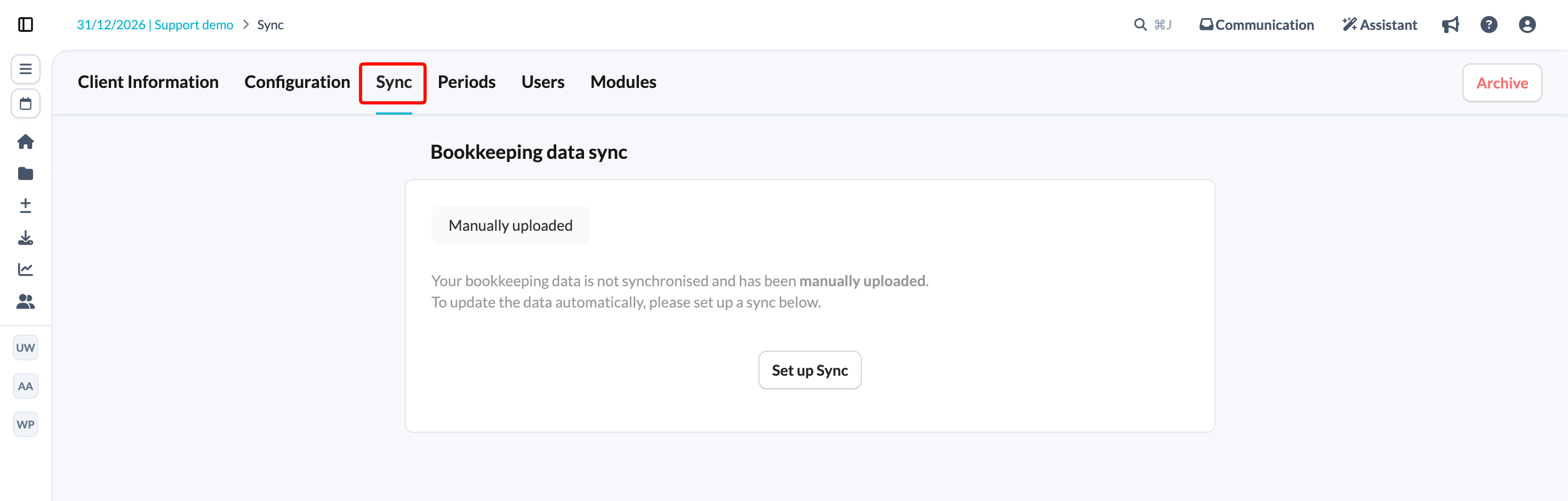
- Go to the Sync tab.
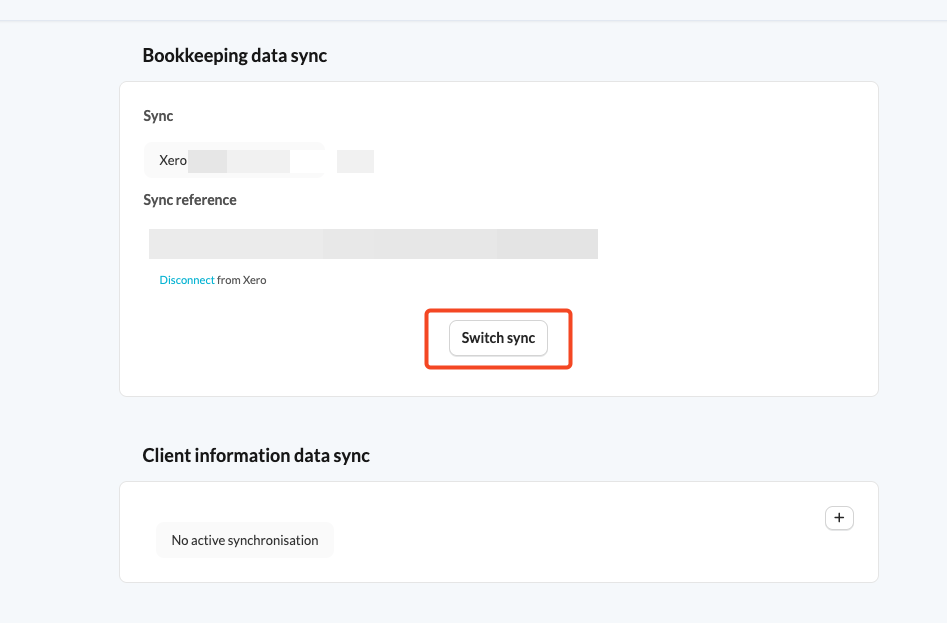
- Click Switch sync.
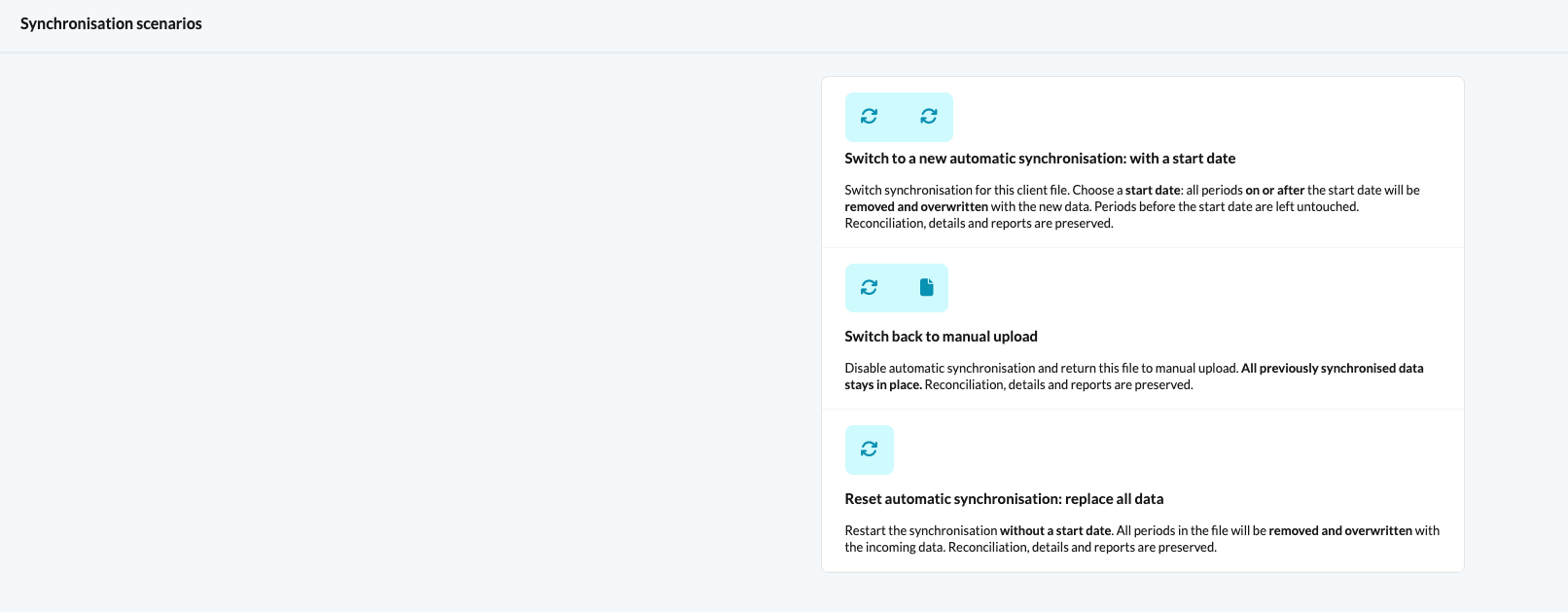
- Choose one of the provided synchronisation scenarios. If you choose the first scenario, you will be prompted to set up sync start date.
- In the drop-down menu, select Connect to Xero.
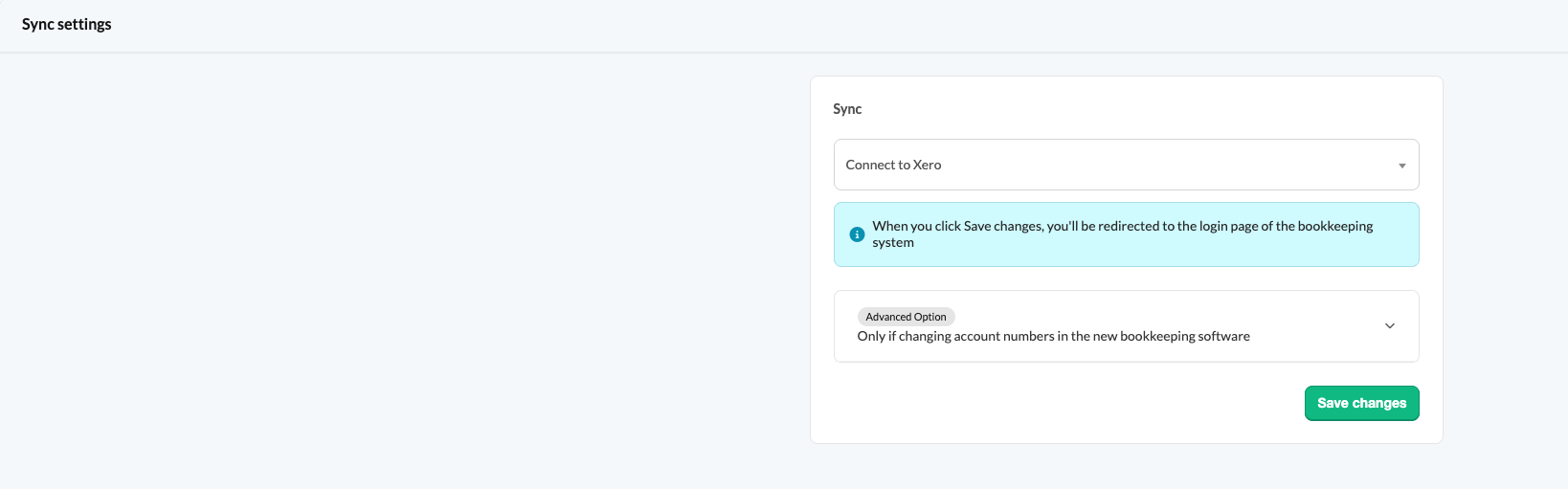
- Click Save changes.
- You are redirected to the Xero login page. Log in with the credentials of a user who has access to the file.
- Once logged in, click Continue with X organisations.
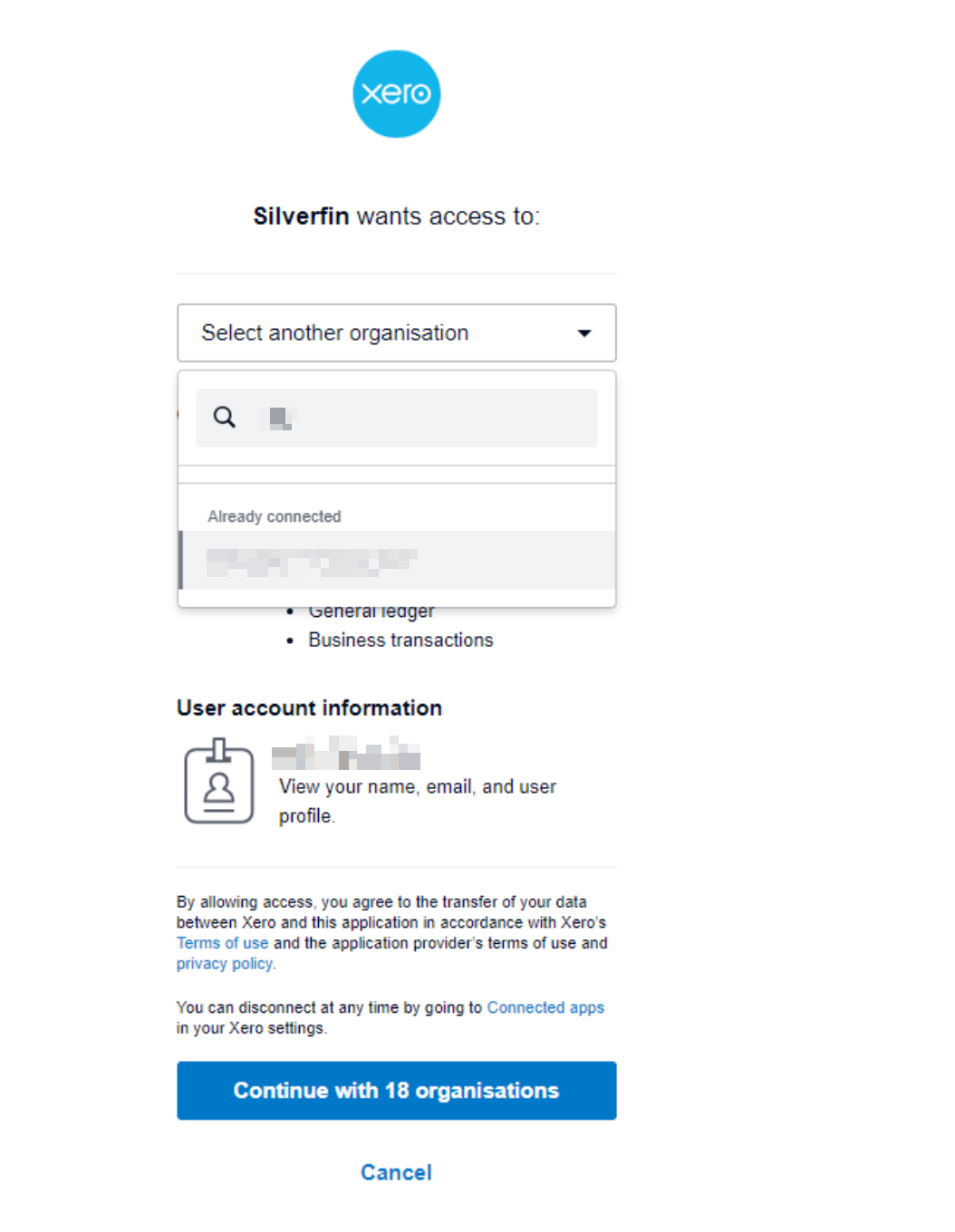
What does it mean when the file in Xero is already connected?
- The message Already connected means that another sync entity has already been authorised to sync with this file. In other words, if another user with access to this file has also set up a connection between Silverfin and Xero, you will see this message.
- Click Continue with X organisations to sync your file with Xero.
What do I do about other Xero sync errors?
Error
Please try syncing again. If the error persists, please contact Silverfin support.
Explanation
These messages mean that Silverfin briefly lost its connection to the server. This can happen if Xero temporarily refused access, or because of a short internet interruption.
What you can do
- Resync the file.
- If the error keeps appearing, contact Silverfin Support.
What user permissions are required in Xero to set up a sync?
- To set up a Xero sync, the user needs Standard access with write permissions. A user with read-only access cannot set up the sync.
- If you have questions about user permissions in Xero, contact Xero support.
Why are the periods in Silverfin different from the periods set in Xero?
When accounting periods are updated in Xero and an automatic sync runs to Silverfin, note that Xero's API only provides the most recent period end-date format.
For example, if your period ends in Xero are:
- 30 June 2025
- 31 March 2024
- 31 March 2023
- The API only sends the most recent format, in this case 30 June.
- As a result, Silverfin updates all prior periods to match that format (June). This can overwrite earlier March-based periods if your file is set to Use financial years from the bookkeeping system.
If the periods in Silverfin are incorrect and you cannot adjust them as described in How to adjust financial years in a client file?, contact Support so we can make the necessary corrections.